Chart Builder
The Chart Builder turns a virtual view into a visual chart. Select a datasource, choose a chart type, configure how data is grouped and displayed, then save the chart for use in the Interface Builder.
Who configures this
Users with access to the New module. The Chart Builder is accessible from New > Custom Fields & Configuration > Chart Builder.
Before you start
A virtual view (datasource) must exist before a chart can be created. See Query Builder.
Chart Editor
When users navigate to the Chart Builder, they see the Chart Editor panel, which lists existing charts and provides access to create a new one.
| Field | Description |
|---|---|
| Create New Chart | Opens the Chart Builder dialog to create a new chart. |
| (Various names) | List of existing charts. |
Chart Builder dialog
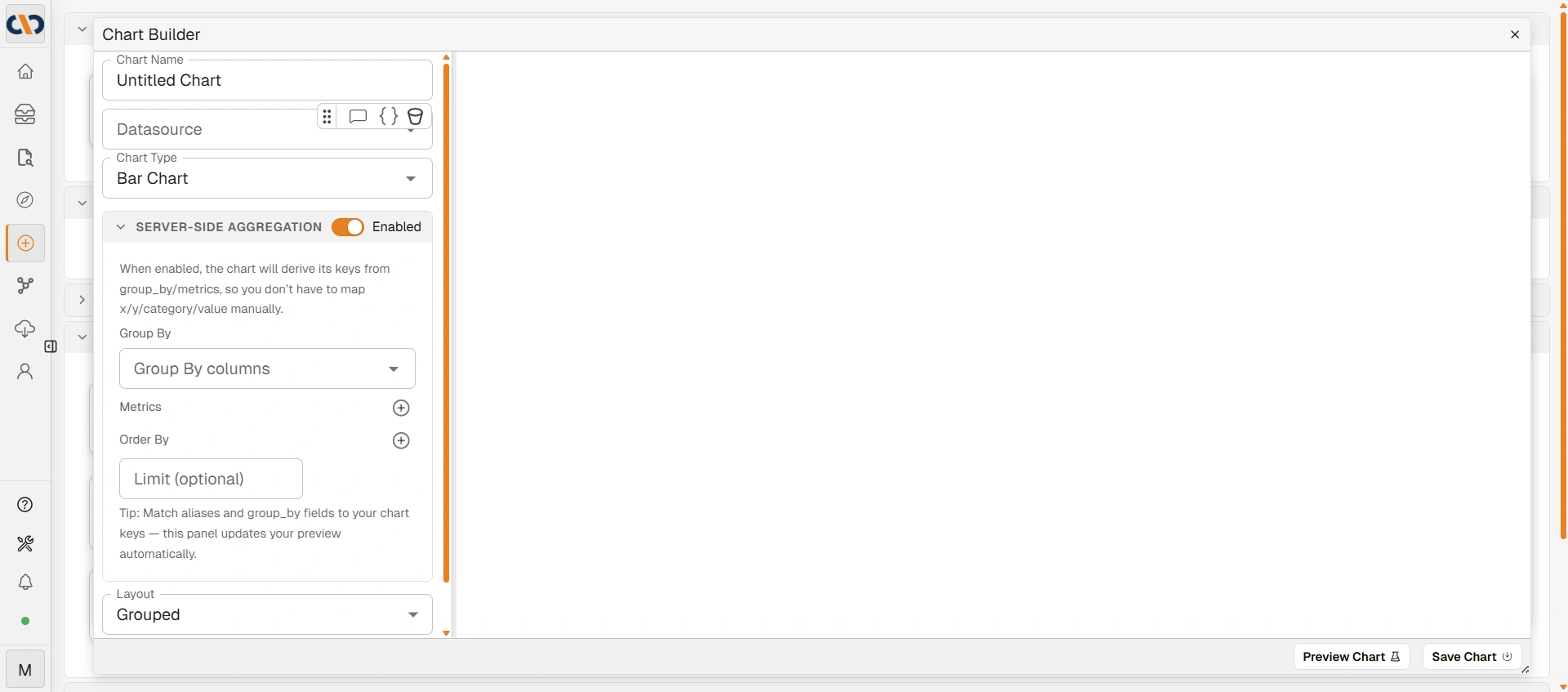
Chart Builder dialog
| Field | Description |
|---|---|
| Chart Name | The name for the chart. |
| Datasource | Dropdown of all virtual views created in the Query Builder. |
| Chart Type | Select the chart type from the Show Me panel. Additional fields appear depending on the type selected — see Chart types below. |
| Server-Side Aggregation | Toggle (enabled by default). When enabled, the chart derives its grouping keys from the settings below. |
| Layout | Displayed when a Bar Chart is selected. Choose Grouped or Stacked. |
| Preview Chart | Renders a preview of the chart. |
| Save Chart | Saves the chart. |
Chart types
The Show Me panel offers 23 chart types:
Bar, Donut, Line, XY, Heatmap, Radar, Timeline, Data Grid, Gantt, Relation, Markdown, Tabs, Gauge, Bullet, Stat, Scatter, Area, Histogram, Box & Whisker, Treemap, Packed Bubbles, Circle View, Text Table.
Most are standard chart visualizations configured via the shared Role/Color/Detail/Label/Tooltip shelves and Server-Side Aggregation settings above. Two types work differently:
Timeline
Plots records along a date range rather than a category axis. Configured via:
| Field | Description |
|---|---|
| Category Keys | Optional field(s) used to group or colour entries. |
| Start Date Key | The field marking the start of each entry's date range. |
| End Date Key | The field marking the end of each entry's date range. |
| Event Key | Optional field for point-in-time events (as opposed to a range). |
| Preview Key | Optional field shown when previewing an entry. |
Markdown
Renders a Markdown template instead of a plotted chart — useful for freeform text, summaries, or formatted notes driven by data.
| Field | Description |
|---|---|
| Template Editor | Click Open Template Editor to write the Markdown template in a code editor. |
| Horizontal Alignment / Vertical Alignment | Aligns the rendered content within its panel. |
| Font Size (px) / Padding (px) | Controls text size and spacing. |
| Edit Custom CSS | Applies custom CSS, scoped with the .markdown-body prefix. |
Interactions and Action Rules
Charts can define click actions that take the user somewhere else in Docwize — a record, a virtual interface, or another chart. Most chart types expose this as Interactions (click Add interaction); the Timeline type calls the same feature Action Rules (click Add Action Rule).
Each rule is a conditional expression:
| Section | Description |
|---|---|
| Action Column Name | Optional name for this set of click actions. |
| WHEN | The condition that must be true for the rule to fire. Click Add Condition to add a filter condition, or Add Inner Group to nest a group of conditions. Conditions combine with AND logic. |
| THEN GO TO | The destination when the condition matches: Record, Virtual Interface, or Chart. |
| Add Expression / Remove Expression | A rule can chain multiple WHEN/THEN expressions, evaluated in order. |
Server-Side Aggregation
When Server-Side Aggregation is enabled (the default), the following fields are available:
| Field | Description |
|---|---|
| Group By | Select one or more columns to group results by. |
| Metrics | Add one or more aggregate metrics (COUNT, SUM, etc.). Click Add metric to add a row. |
| Order By | Optionally sort the results. Click Add order by to add a sort rule. |
| Limit (optional) | Limit the number of rows returned. Leave blank for no limit. |
When Server-Side Aggregation is disabled, a Legacy field mapping section appears instead, allowing manual mapping of X-Axis Key, Y-Axis Key, and Category Keys.
How to build a chart
| Step | Description |
|---|---|
| 1 | Navigate to New > Custom Fields & Configuration > Chart Builder. |
| 2 | Click Create New Chart. |
| 3 | Enter a chart name, select a datasource, and choose a chart type. |
| 4 | Configure Server-Side Aggregation: set Group By columns and add metrics as needed. |
| 5 | Click Preview Chart to verify the output. |
| 6 | Click Save Chart. |
Troubleshooting
| Issue | Detail |
|---|---|
| No datasources available | A virtual view must exist before a chart can be created. Create one in the Query Builder first. |
| Preview shows no data | Check that the datasource contains data and that Group By columns and Metrics are correctly configured. |
| Chart type changed but still no data | Some chart types require specific data shapes. Verify that Group By and Metrics settings match the selected chart type. |
| Legacy field mapping not working | Legacy field mapping is disabled while Server-Side Aggregation is enabled. Disable SSA to access it, or reconfigure using the SSA fields instead. |
Related configuration
- Query Builder — creates the virtual views (datasources) that charts are built from
- Interface Builder — assembles charts into user-facing dashboards
- Building Virtual Interfaces — how the Query Builder, Chart Builder, and Interface Builder connect