Email Influx
The Email Influx module — accessed in the New module as Influx Builder — allows users to create email influx rules and configure LINE input channels. Influx Builder opens as a single dialog with two tabs: Input channels (LINE connections) and Email rules. When emails are sent to a Docwize influx address, or messages are sent to a connected LINE channel, rules and connections determine how the content is sorted — assigning it to folders, triggering workflows, associating projects, and allocating users, based on conditions set by the user.
Who configures this
Users with access to the New module. The Influx Builder is accessible from New > Custom Fields & Configuration > Influx Builder.
Influx Builder button
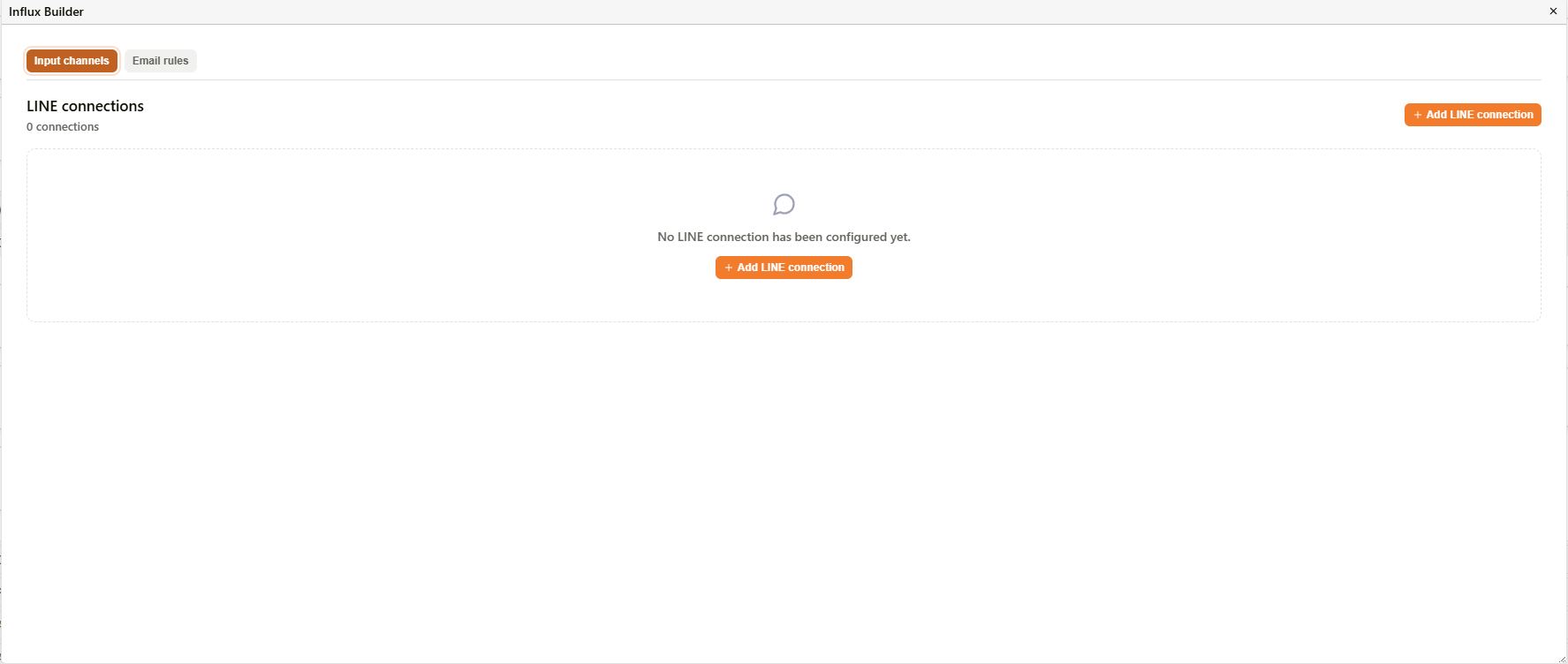
Influx Builder — Input channels and Email rules tabs
Input channels — LINE connections
The Input channels tab lists LINE connections — configured LINE messaging channels that route incoming LINE messages into Docwize, similar to how email influx rules route incoming email.
| Control | Description |
|---|---|
| + Add LINE connection | Opens the LINE connection dialog to configure a new connection. |
| Connection count | The number of configured LINE connections; the panel shows "No LINE connection has been configured yet" when empty. |
Clicking + Add LINE connection opens the Add LINE connection dialog:
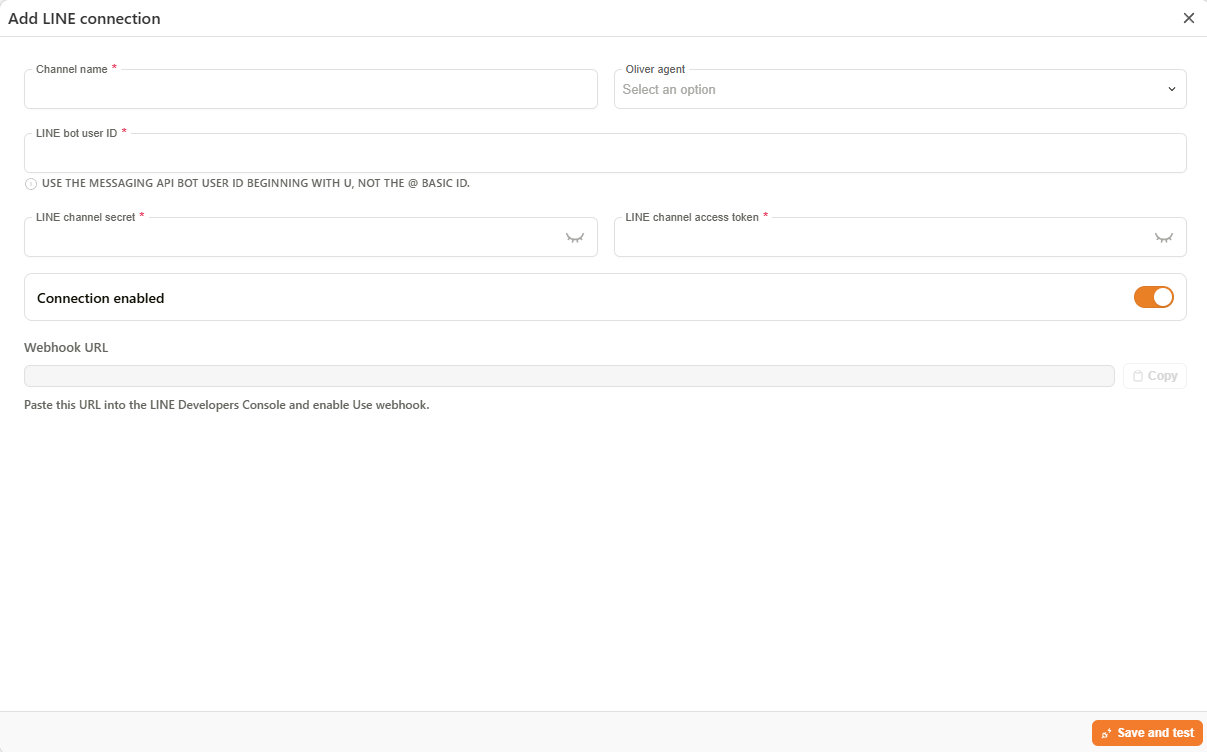
Add LINE connection dialog
| Field | Description |
|---|---|
| Channel name | The name of the LINE connection. Required. |
| Oliver agent | The Oliver agent that handles messages received on this channel. |
| LINE bot user ID | The Messaging API bot user ID, beginning with U — not the @ Basic ID. Required. |
| LINE channel secret | The channel secret from the LINE Developers Console. Required, hidden by default. |
| LINE channel access token | The channel access token from the LINE Developers Console. Required, hidden by default. |
| Connection enabled | Toggles whether the connection is active. Enabled by default. |
| Webhook URL | Generated once the connection is saved. Paste this URL into the LINE Developers Console and enable Use webhook. |
| Save and test | Saves the connection and verifies it can communicate with LINE. |
How to add a LINE connection
| Step | Description |
|---|---|
| 1 | Navigate to New > Custom Fields & Configuration > Influx Builder and select the Input channels tab. |
| 2 | Click + Add LINE connection. |
| 3 | Enter a Channel name and select the Oliver agent that should handle messages received on this channel. |
| 4 | Enter the LINE bot user ID, LINE channel secret, and LINE channel access token from the LINE Developers Console. |
| 5 | Confirm Connection enabled is on (enabled by default). |
| 6 | Click Save and test. |
| 7 | Copy the generated Webhook URL and paste it into the LINE Developers Console, then enable Use webhook. |
Email rules — Email Rule List
The Email rules tab shows the Email Rule List — a list of all existing email rules.
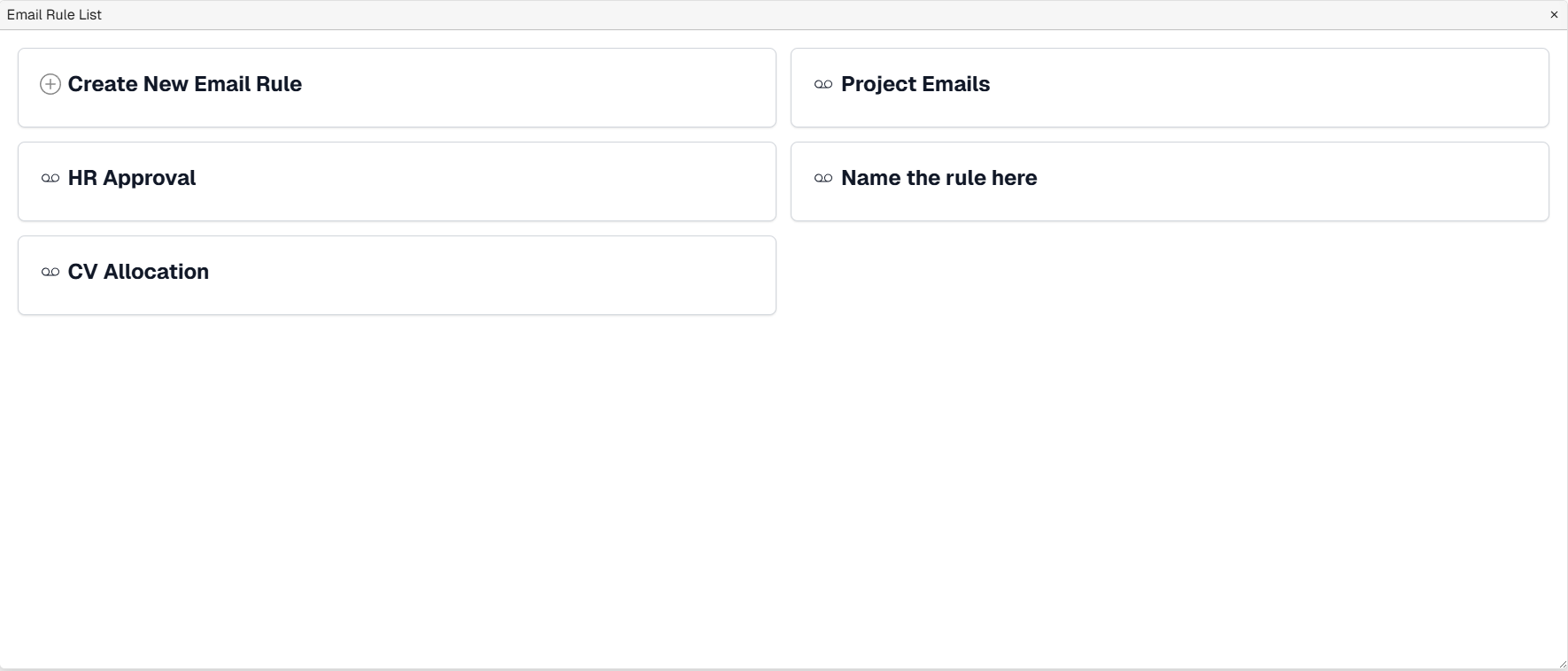
Email Rule List
| Control | Description |
|---|---|
| + Create Email Rule | Opens the Influx Lab to create a new rule. |
| ORDER | Drag handle and sequence number. Rules are evaluated in ascending order. Drag to reorder. |
| RULE | Rule name and a summary of its conditions and actions. Click to open the rule in the Influx Lab for editing. |
| ACTION | Shows whether the rule Stops or allows passthrough once it matches. When set to Stops, no lower-priority rules are evaluated for that email. Click the badge to toggle between Stops and passthrough. |
| EVENTS (7D) | A trend chart and count of emails processed by this rule in the last 7 days. Click the count to open a drilldown panel listing every document the rule has ever created. |
| STATUS | Toggle to enable or disable the rule without deleting it. |
| Delete (trash icon) | Permanently removes the rule. |
EVENTS (7D) drilldown
Clicking the EVENTS (7D) count opens a panel titled Documents created by '<rule name>', listing every document the rule has created since it was set up.
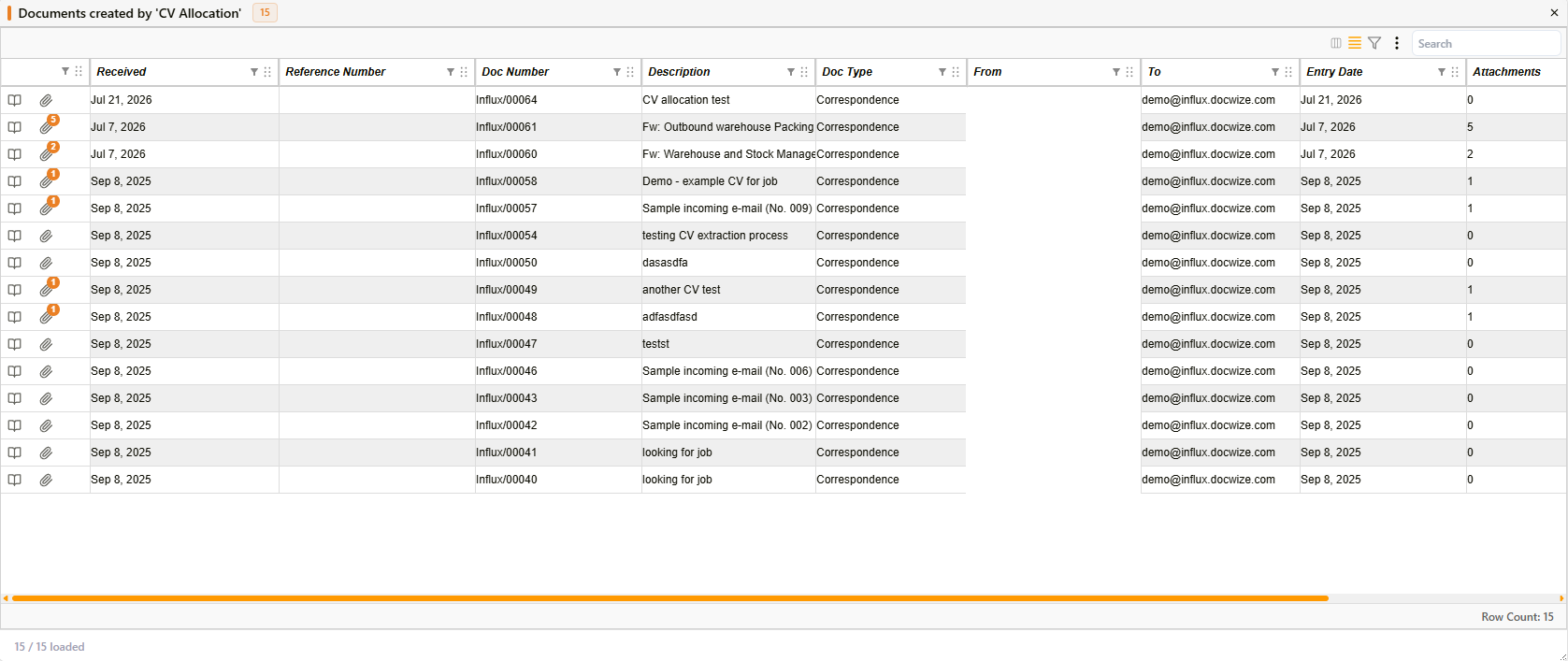
EVENTS (7D) drilldown panel
| Column | Description |
|---|---|
| Received | Date the email was received. |
| Reference Number | Reference number assigned to the resulting document, if any. |
| Doc Number | The Docwize document number assigned to the created document. |
| Description | The email subject or document description. |
| Doc Type | The document type the email was filed as. |
| From | The sender's email address. |
| To | The influx address the email was sent to. |
| Entry Date | Date the document was entered into Docwize. |
| Attachments | Number of attachments processed with the email. |
| Workflows | A link to the triggered workflow item, or No workflows if the rule did not start one. |
The panel includes a search box and a row count, and can be closed without affecting the rule.
Influx Lab
Clicking + Create Email Rule (or an existing rule) opens the Influx Lab, where rules are configured.
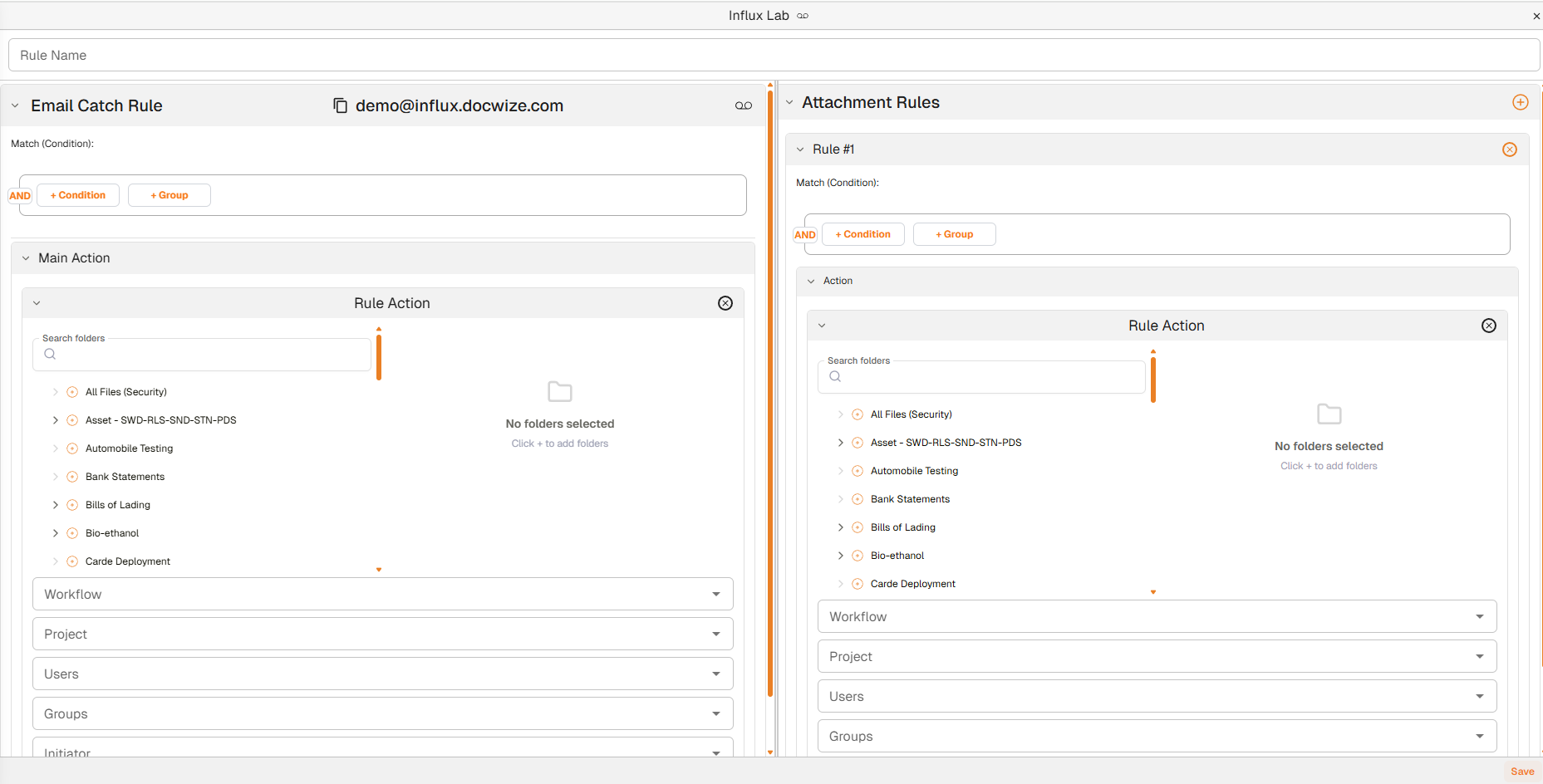
Influx Lab
The Influx Lab has two main sections side by side: Email Catch Rule on the left and Attachment Rules on the right.
Top bar
| Field | Description |
|---|---|
| Rule Name | The name of the email rule. |
| Save | Saves the rule. Located at the bottom right of the dialog. |
Email Catch Rule (left panel)
The Email Catch Rule defines the conditions that an incoming email must meet for the rule to trigger. The influx email address that emails must be directed to is displayed at the top of this section.
| Control | Description |
|---|---|
| Influx email address | The email address that incoming emails must be sent to for this rule to apply. |
| AND / OR toggle | Switches the match logic between AND (all conditions must match) and OR (any condition must match). |
| + Condition | Adds a condition to the catch rule (e.g. sender, subject, body content). |
| + Group | Adds a condition group, allowing complex nested logic. |
Main Action
The Main Action section defines what happens to emails that match the catch rule.
| Field | Description |
|---|---|
| Rule Action | Selects the folder(s) in Docwize where matching emails are placed. Use Search folders to filter the folder tree, then click + to add a folder. Click ⊗ on the card to remove the action. |
| Workflow | Optionally triggers a workflow when the rule fires. |
| Project | Associates matching emails with a project. |
| Users | Assigns matching emails to specific users. |
| Groups | Assigns matching emails to specific groups. |
| Initiator | Sets the initiator for any triggered workflow. |
Attachment Rules (right panel)
The Attachment Rules section defines conditions and actions that apply specifically to email attachments. Multiple attachment rules can be added — each is processed independently.
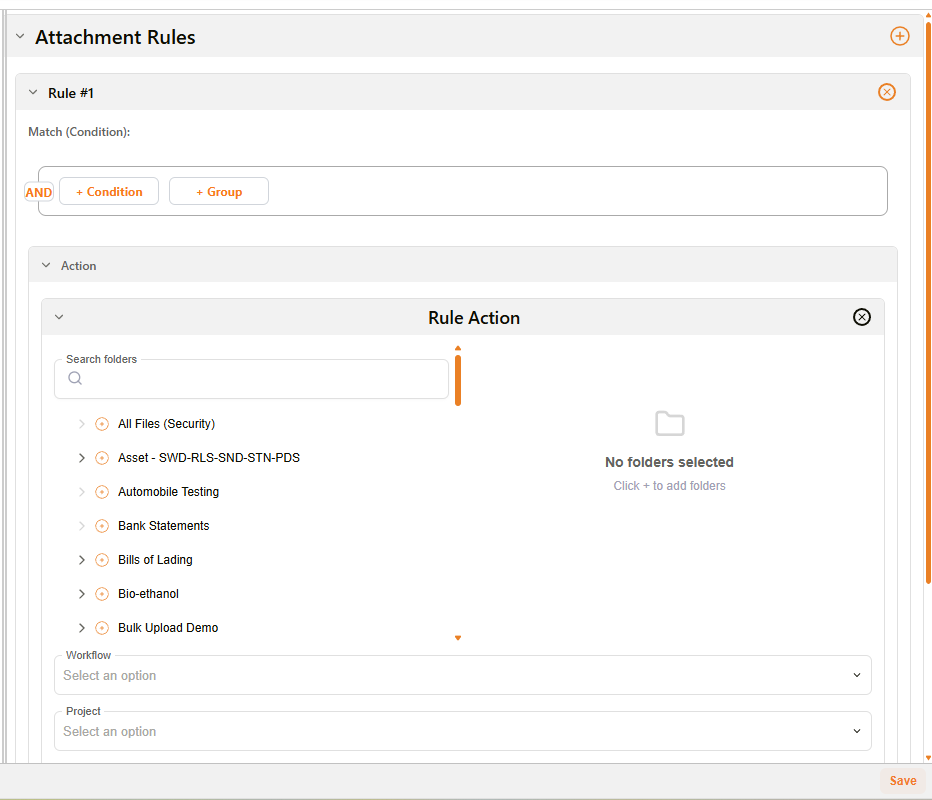
Attachment Rules panel
| Control | Description |
|---|---|
| + | Adds a new attachment rule. |
| Rule #N | Each attachment rule is numbered. |
| ⊗ | Removes the attachment rule. |
| AND / OR toggle | Switches the match logic for this attachment rule. |
| + Condition | Adds a condition for matching attachments (e.g. name, size, type). |
| + Group | Adds a condition group for complex matching logic. |
| Action | Defines what happens to matching attachments: folder assignment, workflow, project, users, groups, and initiator — the same fields as the Main Action above. |
How to create an email rule
| Step | Description |
|---|---|
| 1 | Navigate to New > Custom Fields & Configuration > Influx Builder and select the Email rules tab. |
| 2 | Click + Create Email Rule and enter a Rule Name. |
| 3 | In the Email Catch Rule, click + Condition to define the conditions an incoming email must meet (e.g. sender address, subject line). Use + Group for nested logic. |
| 4 | In Main Action, select the destination folder(s) using Rule Action. Optionally configure Workflow, Project, Users, Groups, and Initiator. |
| 5 | To add attachment-specific handling, click + in the Attachment Rules panel. Set match conditions and configure the Action for matching attachments. |
| 6 | Click Save. |
Troubleshooting
| Issue | Detail |
|---|---|
| Rule not firing | Confirm that incoming emails are being sent to the influx address shown in the Email Catch Rule. The rule only applies to emails directed to that specific address. |
| Conditions not matching as expected | Check whether the AND / OR toggle is set correctly. AND requires all conditions to match; OR requires only one. |
| Attachments not being sorted | Confirm that attachment rules are configured in the Attachment Rules panel. The main Email Catch Rule applies to the email itself, not its attachments. |
| Rule applies but folder is wrong | Check the Rule Action folder selection in the relevant Main Action or Attachment Rule Action. |
| A matching email is also being processed by other rules | The rule's ACTION may be set to passthrough. Click the Stops / passthrough badge in the Email Rule List to toggle the behaviour. When set to Stops, no lower-priority rules are evaluated once this rule matches. |