Testing and Launching Workflows
Workflow authors have two different ways to exercise a template:
- the dedicated Test action in the Workflow Templates register; and
- a normal workflow start through an end-user launch route.
Use the dedicated Test runner while authoring. Use a normal launch only when verifying the same path an end user will use.
Dedicated Workflow Test Runner
Open New → Workflow Setup → Templates and select Test on the template card. The Test workflow dialog opens in Test mode for that template.
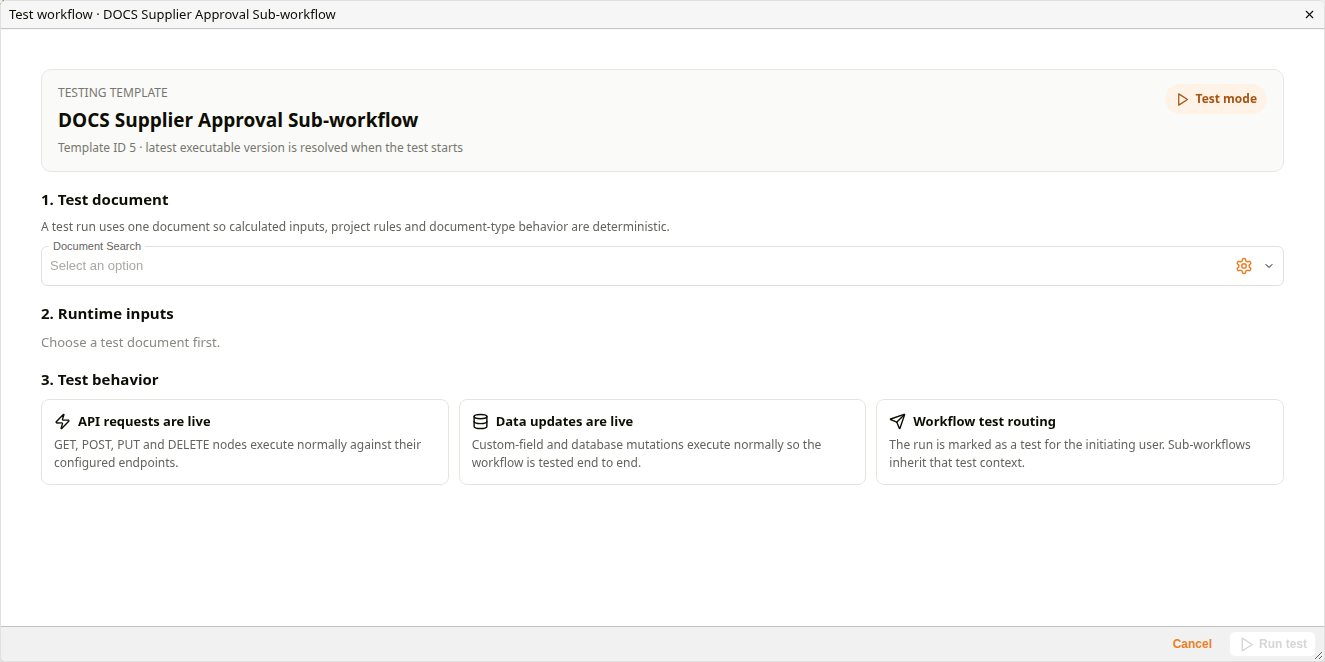
Workflow Test Runner
The header shows the template name and its Template ID. The latest executable version of the template is resolved when the test starts, so save the template before testing a change.
| Section | Behaviour |
|---|---|
| 1. Test document | Document Search selects the one document the test runs on. A single document keeps calculated inputs, project rules and document-type behaviour deterministic. |
| 2. Runtime inputs | Lists the runtime inputs the template needs once a test document is selected. |
| 3. Test behavior | Three notices describe what a test run does. See What a test run does below. |
Run test is disabled until a test document is selected. Cancel closes the dialog.
What a test run does

Test behavior notices
| Notice | What happens |
|---|---|
| API requests are live | GET, POST, PUT and DELETE nodes call their configured endpoints. |
| Data updates are live | Custom field and database updates are written, so the workflow is tested end to end. |
| Workflow test routing | The run is marked as a test for the user who starts it. Sub-workflows it starts are tests too. |
Test routing redirects the people the workflow would reach. Each action request is assigned to the user running the test, and the recipient the template names is recorded as the delegated user. Workflow emails, including Distribute node emails, go to that user as well.
A test run is not a transactional rollback sandbox. API requests and data updates configured in workflow nodes run normally. Use test-safe documents, external endpoints and data.
What to verify in a test run
For each branch that matters:
- select a deterministic test document;
- start the workflow with Run test;
- confirm the expected first node is reached;
- exercise required inputs/actions;
- confirm the expected branch is selected;
- verify any resulting document/custom-field/API state;
- repeat for alternate outputs and failure routes.
A documentation screenshot should only be captured after the resulting state has been asserted.
Normal workflow launch routes
Normal users can start enabled workflow templates from supported document/record surfaces.
Common routes include:
| Route | Behaviour |
|---|---|
| Document context menu | Opens workflow assignment for the selected document. |
| Document Details → Workflow | Starts a new template workflow from the document. |
| Record flow | A configured record may start or collect information for a workflow as part of submission. |
These routes use the normal workflow-assignment flow and therefore create a real workflow instance.
Template availability
A workflow normally appears to a user only when all relevant conditions are satisfied, including:
- the root template family is Enabled;
- the user can see the template's group under workflow-group security;
- the document/project/type context matches the template's configured scope;
- the user has the required workflow permissions.
If a template is absent from a normal launch list, check these conditions before treating it as a rendering problem.
Version used by a normal start
A new workflow start resolves to the current published version in the template lineage.
Once the workflow instance starts, it remains pinned to that TemplateID. Publishing a newer version does not migrate the already-running instance.
Runtime input
Some templates deliberately defer values until initiation — for example recipient selection or another workflow input.
When the selected template contains runtime inputs, the assignment/start surface renders the required fields before the workflow can begin.
The fields are generated from the template's persisted input configuration rather than from a fixed dialog schema.
Launch verification procedure
When validating a template for release:
- save the latest version;
- test the graph with the dedicated Test action;
- correct any routing/configuration issues and save again;
- enable the workflow family;
- use a normal launch route on a representative document;
- confirm the correct current version is selected;
- confirm runtime inputs appear as expected;
- start the workflow;
- verify the expected Inbox/action state;
- complete enough of the workflow to prove the normal launch behaves the same as the tested graph.
Troubleshooting
| Issue | Check |
|---|---|
| Template missing from normal launch | Enabled state, template-group security, project/document scope and user permissions. |
| Test works but normal launch does not show template | The normal launch filters more strictly by availability/scope; inspect the root family and context. |
| Running workflow does not reflect a recent builder edit | The instance is pinned to the version it started with. Start a new workflow to exercise the newly saved version, or use the explicitly-authorised live-edit path where appropriate. |
| Test caused an external side effect | This is possible for nodes such as API/data update tasks. Tests must use safe endpoints/data. |