Action Requests
Action requests define the human decision points used inside workflow templates. Each action request has a name and one or more reply options such as Approved, Rejected, Reviewed, or Correction Required.
The definition is reusable across templates. Per-placement behaviour — recipients, due dates, email template, MFA override, notification suppression, and additional input/configuration nodes — is configured on the Action Request node inside the workflow builder.
Access
Open New → Workflow Setup → Actions.
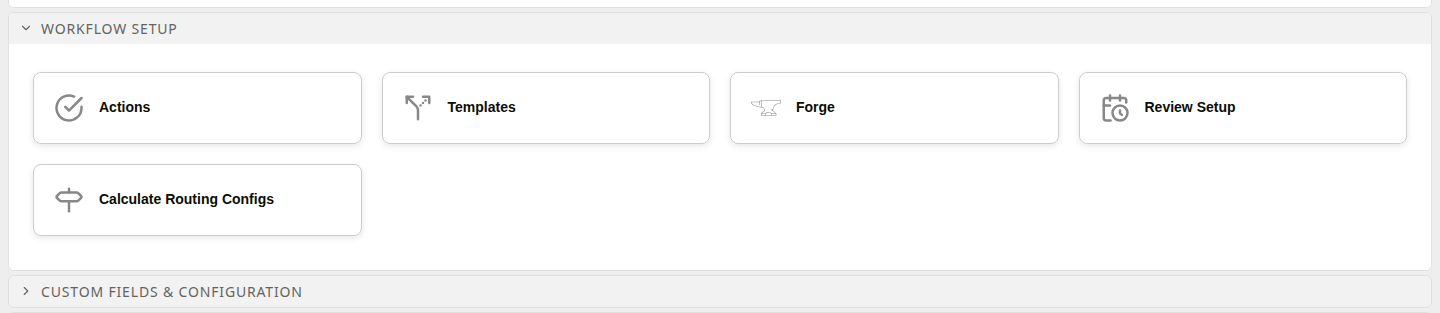
Workflow Setup entries
Action Request Manager
The manager lists the configured action requests. Use Add Row to create one, the pencil icon to edit one, and the delete action to remove an unused definition.
Each row exposes the action request's name, sort order, cancellation/reporting flags, MFA requirement, and configured reply labels.
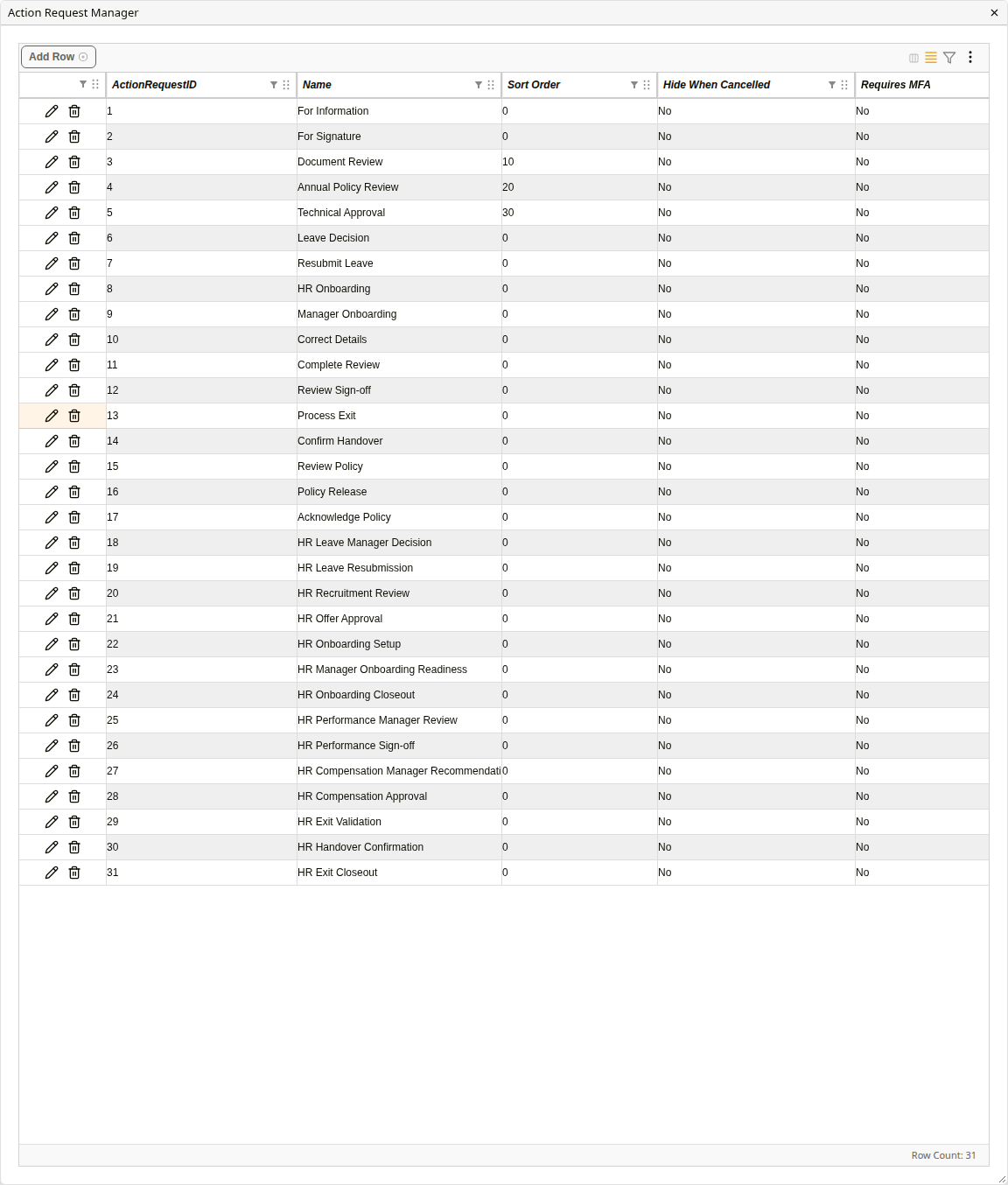
Action Request Manager
Creating or editing an action request
The editor contains the action request-level settings and its Allowed Reply Actions.
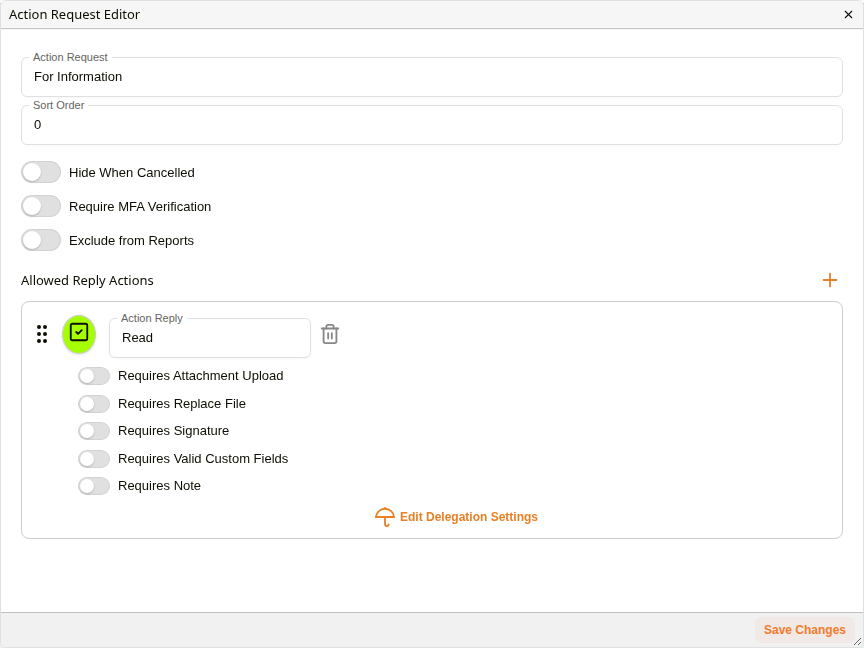
Action Request Editor
Action request settings
| Setting | Behaviour |
|---|---|
| Action Request | Display name used in the builder and Inbox. Required. |
| Sort Order | Controls ordering in selection lists. |
| Hide When Cancelled | Hides the request from workflow views after cancellation. |
| Require MFA Verification | Requires MFA before a participant can submit a reply. |
| Exclude from Reports | Omits the action request from workflow reporting. |
An action request cannot be saved without a name and at least one reply.
Allowed Reply Actions
Each reply is an output of the Action Request node and may have its own enforcement behaviour.
| Setting | Behaviour |
|---|---|
| Action Reply | Label shown to the participant and used as the workflow branch label. |
| Select Icon | Visual icon shown with the reply. |
| Requires Attachment Upload | A document attachment must be uploaded before this reply can be submitted. |
| Requires Replace File | The main workflow document must be replaced before submission. |
| Requires Signature | A signature must be completed before submission. |
| Requires Valid Custom Fields | Required custom fields must be valid before submission. |
| Requires Note | The participant must enter a note before submitting this reply. |
| Edit Delegation Settings | Opens reply-level delegation behaviour for this reply. |
Replies can be reordered; their order controls how they are presented to participants.
Reply-level delegation settings
Edit Delegation Settings on a reply is not the same feature as configuring a user's absence/delegation period in the Admin Console.
The reply-level settings stored on the workflow action are:
| Setting | Behaviour |
|---|---|
| Hide when delegated | Hides this reply when the action is being completed through delegation. |
| Return when delegated | Returns the action according to the configured delegation path after the delegated response. |
| Delegated input | Marks this reply as the delegated-input path used by the workflow. |
User-level delegation schedules and late escalation policies are configured separately in the Admin Console.
Action Request nodes in a template
After an action request definition exists, it appears in the Action Requests category of the workflow node palette.
A placed Action Request node has Start Point, Users, Due Date and Additional Inputs inputs, one output per configured reply, and a Configure button that opens settings for that particular placement. See Action Request Nodes for the node and every setting that attaches to it.
Per-node settings
| Setting | Behaviour |
|---|---|
| Email Template | Notification template used for this placement. |
| Override: Require MFA | Overrides the reusable action request's MFA requirement for this node instance. |
| Suppress Email Notifications | Prevents the normal assignment notification email for this node instance. |
| Add Configuration | Adds supported assignment/input/configuration objects to this node. |
Add Configuration offers assignees, the initiator, custom field email and user values, a due date, workflow initiation inputs, attachment slots, the three capture settings, response parsers and the legacy review settings. See Configure dialog.
Connecting Action Request nodes
When one Action Request is connected directly to another, the builder inserts a flow-control node between them. Default Action Node on the canvas toolbar, chosen before connecting, sets which:
| Option | Behaviour |
|---|---|
| All required (And Node) | Continues once every recipient has answered with a reply connected to it. |
| Only 1 (Cancel Node) | Continues on the first connected reply and cancels the remaining requests. |
| Passthrough (Placeholder Node) | Continues on every arrival, with no barrier. |
The inserted node is saved with the template. The toolbar choice is not. See Flow Control Nodes.
Configuration procedure
- Open New → Workflow Setup → Actions.
- Select Add Row.
- Enter an Action Request name.
- Configure sort order, cancellation visibility, MFA and reporting behaviour.
- Add at least one reply.
- Configure any per-reply requirements, including Requires Note and reply-level delegation behaviour where needed.
- Save the action request.
- Open the workflow template and place the new action request from the Action Requests node category.
- Configure recipients, due date, email/MFA behaviour and any additional inputs for that placement.