Docwize Forge
Docwize Forge lets users upload custom code that runs as a workflow node — a Forge Function. A function receives the workflow document and its files, runs users' own logic, and returns a result that decides which branch the workflow takes next.
Access via New > Workflow Setup > Forge.
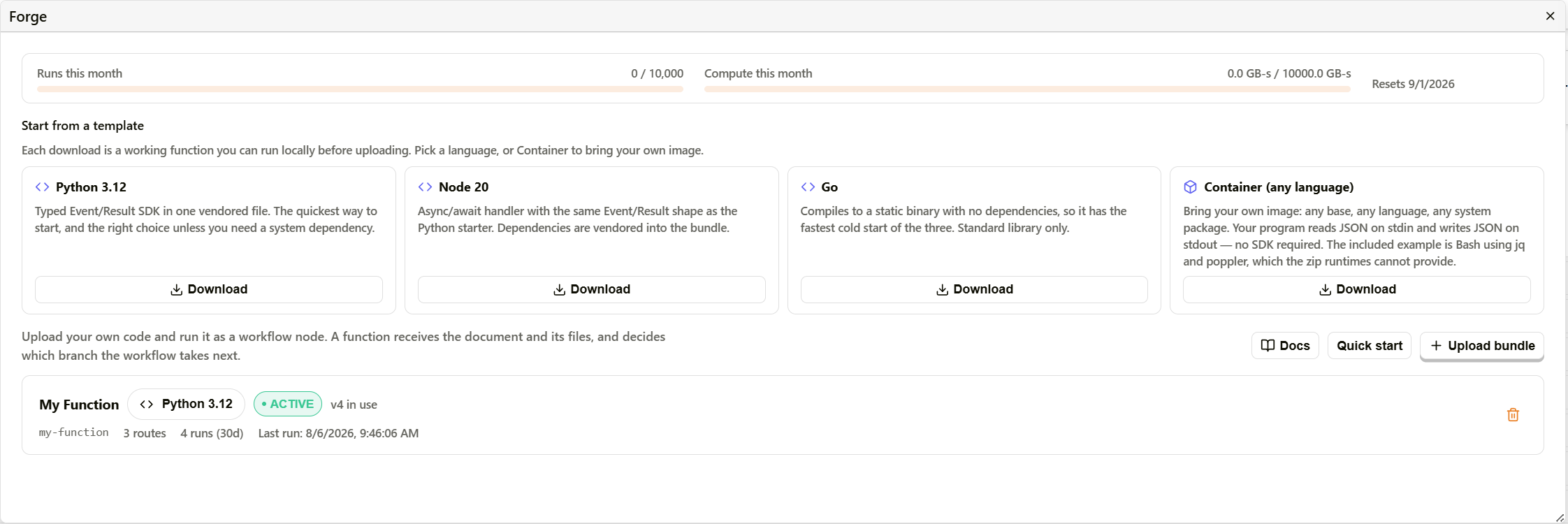
Docwize Forge overview
Usage quotas
The top of the page shows two monthly quota meters:
| Meter | What it tracks |
|---|---|
| Runs this month | Number of function invocations used this month against the plan's allowance (e.g. 0 / 10,000). |
| Compute this month | GB-seconds of compute used this month against the plan's allowance (e.g. 0.0 GB-s / 10,000.0 GB-s). |
Both meters reset on the date shown next to Resets.
Starting from a template
The Start from a template section offers four downloadable starters. Each download is a working function that can be run locally before uploading:
| Template | Description |
|---|---|
| Python 3.12 | Typed Event/Result SDK in one vendored file. The quickest way to start, and the right choice unless a system dependency is needed. |
| Node 20 | Async/await handler with the same Event/Result shape as the Python starter. Dependencies are vendored into the bundle. |
| Go | Compiles to a static binary with no dependencies, giving the fastest cold start of the three. Standard library only. |
| Container (any language) | Bring your own image: any base, any language, any system package. The program reads JSON on stdin and writes JSON on stdout — no SDK required. The included example is Bash using jq and poppler, which the zip-based runtimes cannot provide. |
Uploading a function
Once a function is written, click Upload bundle to open the upload dialog:
Select a zip containing
docwize.forge.jsonat its root. Everything about the function — runtime, entry point, output routes and configuration keys — is read from that manifest.
The dialog accepts a .zip dropped onto it or chosen via a file picker.
Docs and Quick start buttons next to the upload control open in-app reference panels — they are not external links:
- Docs opens a full reference covering the function lifecycle: Overview, How a run works, What you can access, Anatomy of a function, The manifest, What your function receives, What your function returns, Routes and branching, Config and secrets, Writing files back, Closure actions, Sync and async, Zip or container, Using the output downstream, Modifying a document file, and Limits and fair use.
- Quick start is a 5-step guided wizard: Pick a language, Write your function, Run it locally, Upload it, and Use it in a workflow.
The manifest (docwize.forge.json)
docwize.forge.json sits at the root of the bundle and declares everything about the function: its runtime, entry point, the output routes that become node handles, and the config fields the node shows. Docwize reads it on upload — there is nothing to fill in twice, and it is the single source of truth: routes, runtime, and entry point can only change by uploading a new version, which is what stops a workflow silently diverging from the code it runs.
{
  "manifest_version": 1,

  "name": "invoice-validator",          // slug, unique per organisation, 2-63 chars
  "display_name": "Invoice Validator",  // the label shown in the workflow builder
  "description": "Checks invoice totals against PO lines",

  "runtime": "python3.12",              // python3.12 | nodejs20 | go
  "handler": "main.main",               // python/node only ("module.function")
  "mode": "sync",                       // sync | async

  "timeout_seconds": 60,                // clamped to 900
  "memory_mb": 512,                     // clamped to 3008

  // Each route becomes an output handle on the node. 'start' and 'end' are reserved;
  // an 'error' route is added automatically if you do not declare one.
  "routes": [
    { "handle": "valid",   "label": "Valid",   "description": "Totals match" },
    { "handle": "invalid", "label": "Invalid" }
  ],

  // Rendered as fields on each node placement. A workflow author can pass a literal or
  // a Jinja expression such as {{ document.reference_number }}.
  "config": [
    { "key": "TOLERANCE_PCT", "required": true, "default": "2" },
    { "key": "ERP_API_KEY",   "required": true, "secret": true }
  ],

  // JSON Schema of your "output" object. Optional today; it will drive field pickers
  // in downstream nodes, so declaring it now costs nothing and avoids a re-upload.
  "output_schema": {
    "type": "object",
    "properties": { "total_diff": { "type": "number" } }
  },

  "artifacts": { "enabled": true, "max_files": 10 }
}
Top-level fields:
| Field | Description |
|---|---|
| manifest_version | Schema version of the manifest itself. Currently 1. |
| name | A slug identifying the function, unique per organisation. 2–63 characters. |
| display_name | The label shown for the function in the workflow builder. |
| description | A short description of what the function does. |
| runtime | python3.12, nodejs20, or go. |
| handler | The entry point, as module.function. Python and Node only. |
| mode | sync or async. |
| timeout_seconds | Maximum run time. Clamped to 900 seconds. |
| memory_mb | Memory allocated to the function. Clamped to 3008 MB. |
| routes | Array of output routes — see below. |
| config | Array of config fields rendered on the node — see below. |
| output_schema | Optional JSON Schema describing the function's output object. Drives field pickers in downstream nodes once declared. |
| artifacts | { enabled, max_files } — whether the function can write file artifacts, and how many. |
Route fields (routes[]): each entry becomes an output handle on the node. start and end are reserved handles; an error route is added automatically if none is declared.
| Field | Description |
|---|---|
| handle | The route's identifier, used internally to match the node's output port. |
| label | The label shown on the node's output port. |
| description | Optional. Shown as help text for the route. |
Config fields (config[]): each entry is rendered as a field on the node when it is placed in a workflow. A workflow author can pass a literal value or a Jinja expression such as {{ document.reference_number }}.
| Field | Description |
|---|---|
| key | The config field's name, as read by the function at runtime. |
| required | Whether the field must be filled in before the node can be saved. |
| default | Optional default value. |
| secret | When true, the field is masked in the UI and handled as a secret. |
Managing an uploaded function
Each uploaded function appears as a card below the templates, showing its runtime, status (e.g. ACTIVE), current version (e.g. v4 in use), slug, route count, run count for the last 30 days, and the timestamp of its last run. A trash icon on the card archives the function.
Clicking a function card opens its detail dialog, with two tabs:
| Tab | Contents |
|---|---|
| Versions | Every uploaded version of the function, each showing its status, upload timestamp, bundle size, and a short commit-style hash. The active version is marked in use; older versions show an Activate button to roll back to that version. |
| Runs | Recent invocations of the function, each showing a status badge (e.g. COMPLETED), the output route it matched, duration in milliseconds, timestamp, the workflow instance it ran in (e.g. Workflow #931), and a line count for its output log. |
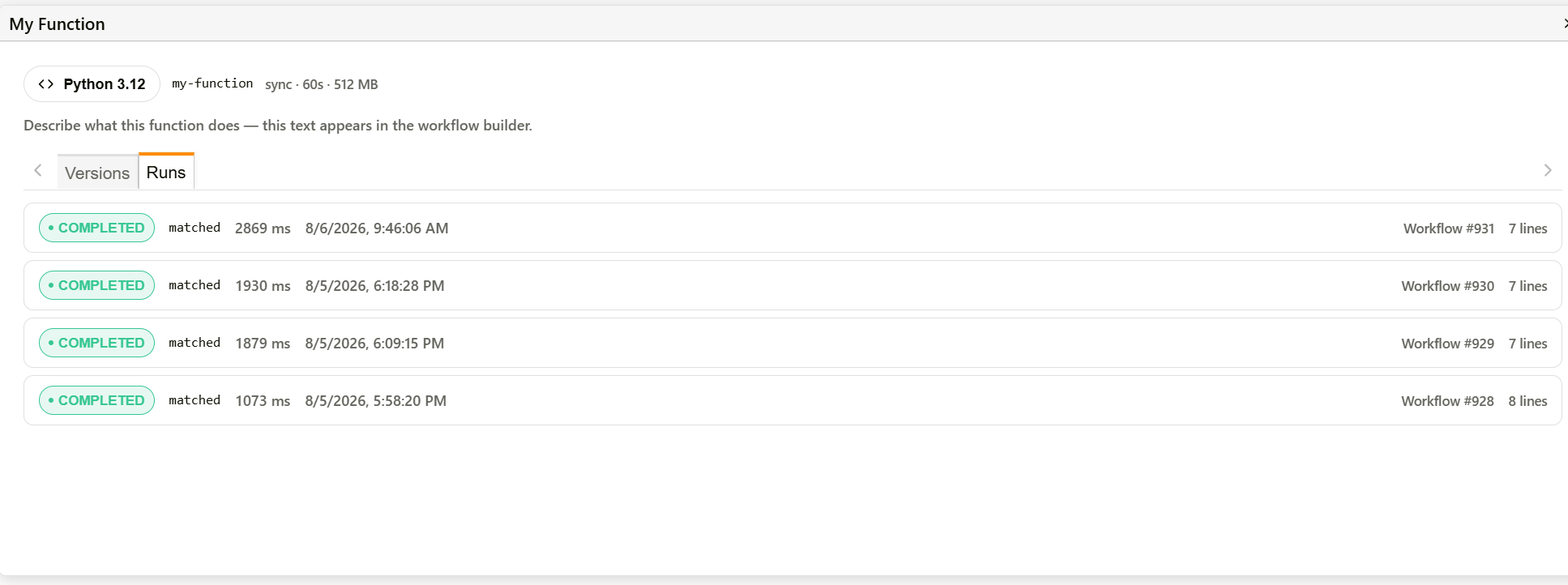
Forge function detail — Runs tab
How to create and use a Forge Function
| Step | Description |
|---|---|
| 1 | Download a starter template that matches the runtime needed — Python 3.12, Node 20, Go, or Container — from Start from a template. |
| 2 | Write and test the function locally. The starter's Event/Result shape (or, for Container, JSON on stdin/stdout) defines what data comes in and what result routes the workflow down. |
| 3 | Package the function as a .zip with a docwize.forge.json manifest at its root. See The manifest below for the schema. |
| 4 | Click Upload bundle and drop or select the .zip. Runtime, entry point, output routes, and configuration keys are all read from the manifest. |
| 5 | Once uploaded, the function appears as a card and becomes available as a node in the Forge Functions category of the workflow node palette. |
| 6 | Add the function's node to a workflow template. Its outputs match the routes declared in the manifest (e.g. Appended, No PDF), plus a success output and Error — see Integration Nodes. |
| 7 | To update the function later, click Upload bundle again with a new .zip. Earlier versions remain available to roll back to from the Versions tab on the function's card. |
Related configuration
- Workflow Nodes — where an uploaded Forge Function is used as a workflow step
- Building Workflow Templates — the canvas where nodes are assembled into templates