Docwize Forge
Docwize Forge を使うと、ユーザーはワークフローステップ — Forge ファンクション — として実行されるカスタムコードをアップロードできます。ファンクションはワークフローの文書とそのファイルを受け取り、ユーザー自身のロジックを実行して、ワークフローが次にどのブランチへ進むかを決める結果を返します。
New > Workflow Setup > Forge からアクセスします。
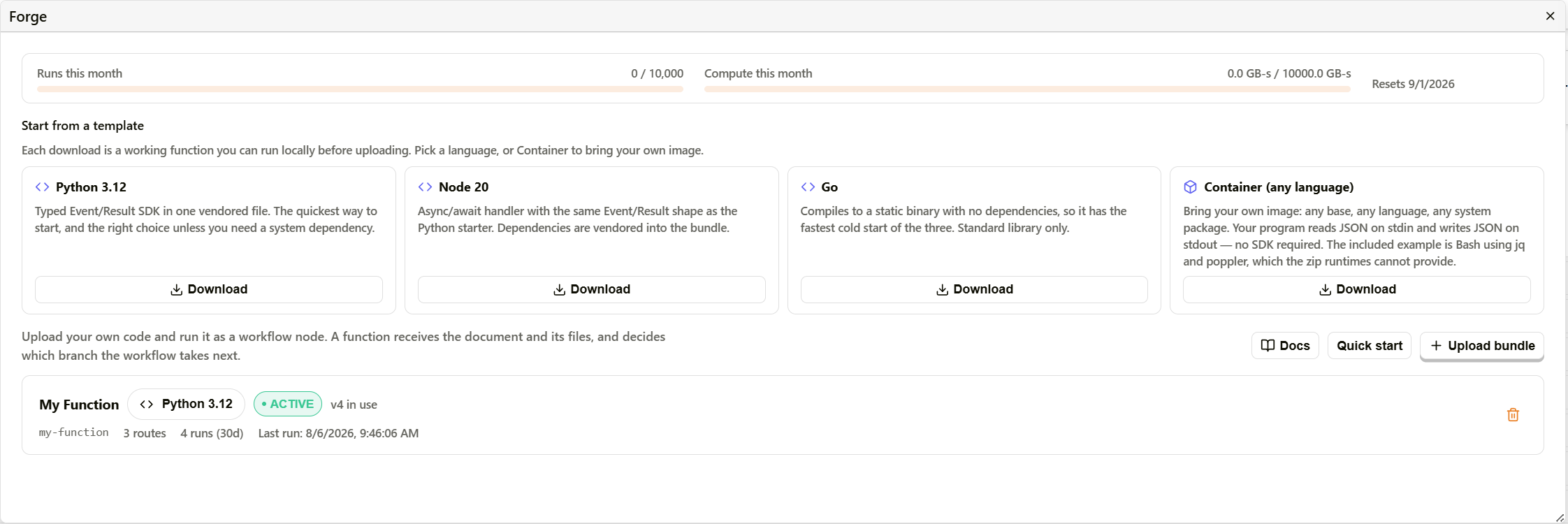
Docwize Forge の概要
利用状況の上限
ページの上部には、月次の上限を示す2つのメーターが表示されます。
| メーター | 内容 |
|---|---|
| Runs this month | 今月使用したファンクション呼び出し回数を、プランの上限(例: 0 / 10,000)と対比して示します。 |
| Compute this month | 今月使用したコンピュートの GB秒数を、プランの上限(例: 0.0 GB-s / 10,000.0 GB-s)と対比して示します。 |
両方のメーターは、Resets の隣に表示されている日付にリセットされます。
テンプレートから始める
Start from a template セクションでは、ダウンロード可能な4種類のスターターが提供されます。いずれもダウンロード後、アップロード前にローカルで実行できる、動作するファンクションです。
| テンプレート | 説明 |
|---|---|
| Python 3.12 | 型付きの Event/Result SDK を1つのベンダー同梱ファイルにまとめたものです。最も手早く始められる方法で、システム依存が必要な場合を除きこちらを選ぶのが適切です。 |
| Node 20 | Python 版のスターターと同じ Event/Result の形を持つ、async/await ハンドラーです。依存関係はバンドルにベンダー同梱されています。 |
| Go | 依存関係のないスタティックバイナリにコンパイルされ、3つの中で最も速いコールドスタートを実現します。標準ライブラリのみを使用します。 |
| Container (any language) | 任意のベースイメージ、任意の言語、任意のシステムパッケージを持ち込めます。プログラムは標準入力で JSON を読み取り、標準出力に JSON を書き出します — SDK は不要です。付属のサンプルは、zip ベースのランタイムでは提供できない jq と poppler を使用する Bash です。 |
ファンクションのアップロード
ファンクションを作成したら、Upload bundle をクリックしてアップロードダイアログを開きます。
ルートに
docwize.forge.jsonを含む zip を選択してください。ランタイム、エントリーポイント、アウトプットルート、設定キーなど、ファンクションに関するすべての情報はそのマニフェストから読み取られます。
このダイアログは、ドロップされた .zip、またはファイルピッカーで選択された .zip を受け付けます。
アップロードコントロールの横にある Docs と Quick start ボタンは、アプリ内のリファレンスパネルを開きます — 外部リンクではありません。
- Docs は、ファンクションのライフサイクル全体を扱う完全なリファレンスを開きます: Overview、How a run works、What you can access、Anatomy of a function、The manifest、What your function receives、What your function returns、Routes and branching、Config and secrets、Writing files back、Closure actions、Sync and async、Zip or container、Using the output downstream、Modifying a document file、Limits and fair use。
- Quick start は、5ステップのガイド付きウィザードです: Pick a language、Write your function、Run it locally、Upload it、Use it in a workflow。
マニフェスト (docwize.forge.json)
docwize.forge.json はバンドルのルートに配置し、ファンクションに関するすべての情報 — ランタイム、エントリーポイント、ステップのハンドルになるアウトプットルート、ステップに表示される設定フィールド — を宣言します。Docwize はアップロード時にこれを読み取ります。二重に入力する必要はなく、これが唯一の正式な情報源です。ルート、ランタイム、エントリーポイントは新しいバージョンをアップロードすることでしか変更できません。これにより、ワークフローが実行するコードと気づかないうちに乖離することを防いでいます。
{
  "manifest_version": 1,

  "name": "invoice-validator",          // slug, unique per organisation, 2-63 chars
  "display_name": "Invoice Validator",  // the label shown in the workflow builder
  "description": "Checks invoice totals against PO lines",

  "runtime": "python3.12",              // python3.12 | nodejs20 | go
  "handler": "main.main",               // python/node only ("module.function")
  "mode": "sync",                       // sync | async

  "timeout_seconds": 60,                // clamped to 900
  "memory_mb": 512,                     // clamped to 3008

  // Each route becomes an output handle on the node. 'start' and 'end' are reserved;
  // an 'error' route is added automatically if you do not declare one.
  "routes": [
    { "handle": "valid",   "label": "Valid",   "description": "Totals match" },
    { "handle": "invalid", "label": "Invalid" }
  ],

  // Rendered as fields on each node placement. A workflow author can pass a literal or
  // a Jinja expression such as {{ document.reference_number }}.
  "config": [
    { "key": "TOLERANCE_PCT", "required": true, "default": "2" },
    { "key": "ERP_API_KEY",   "required": true, "secret": true }
  ],

  // JSON Schema of your "output" object. Optional today; it will drive field pickers
  // in downstream nodes, so declaring it now costs nothing and avoids a re-upload.
  "output_schema": {
    "type": "object",
    "properties": { "total_diff": { "type": "number" } }
  },

  "artifacts": { "enabled": true, "max_files": 10 }
}
トップレベルのフィールド:
| フィールド | 説明 |
|---|---|
| manifest_version | マニフェスト自体のスキーマバージョンです。現在は 1 です。 |
| name | ファンクションを識別する slug で、組織内で一意である必要があります。2〜63文字。 |
| display_name | ワークフロービルダーでファンクションに表示されるラベルです。 |
| description | ファンクションの内容を示す短い説明です。 |
| runtime | python3.12、nodejs20、go のいずれかです。 |
| handler | module.function の形式のエントリーポイントです。Python と Node のみに適用されます。 |
| mode | sync または async です。 |
| timeout_seconds | 最大実行時間です。900秒に制限されます。 |
| memory_mb | ファンクションに割り当てられるメモリです。3008 MB に制限されます。 |
| routes | アウトプットルートの配列です — 詳細は以下を参照してください。 |
| config | ステップに表示される設定フィールドの配列です — 詳細は以下を参照してください。 |
| output_schema | ファンクションのアウトプットオブジェクトを記述する任意の JSON Schema です。宣言すると、以降のステップのフィールドピッカーに反映されます。 |
| artifacts | { enabled, max_files } — ファンクションがファイルアーティファクトを書き出せるかどうかと、その最大数です。 |
ルートのフィールド(routes[]): 各エントリーはステップ上のアウトプットハンドルになります。start と end は予約済みのハンドルです。宣言がない場合は error ルートが自動的に追加されます。
| フィールド | 説明 |
|---|---|
| handle | ルートの識別子で、ステップのアウトプットポートと対応させるために内部的に使用されます。 |
| label | ステップのアウトプットポートに表示されるラベルです。 |
| description | 任意項目です。ルートのヘルプテキストとして表示されます。 |
設定フィールド(config[]): 各エントリーは、ワークフローに配置した際にステップ上のフィールドとして表示されます。ワークフロー作成者は、リテラル値、または {{ document.reference_number }} のような Jinja 式を渡せます。
| フィールド | 説明 |
|---|---|
| key | 実行時にファンクションが読み取る設定フィールドの名前です。 |
| required | ステップを保存する前にこのフィールドへの入力が必須かどうかです。 |
| default | 任意の既定値です。 |
| secret | true の場合、このフィールドは UI 上でマスクされ、シークレットとして扱われます。 |
アップロード済みファンクションの管理
アップロードされた各ファンクションは、テンプレートの下にカードとして表示され、ランタイム、ステータス(例: ACTIVE)、現在のバージョン(例: v4 in use)、slug、ルート数、過去30日間の実行回数、最終実行時刻が示されます。カード上のゴミ箱アイコンでファンクションをアーカイブできます。
ファンクションのカードをクリックすると詳細ダイアログが開き、2つのタブがあります。
| タブ | 内容 |
|---|---|
| Versions | アップロードされたファンクションのすべてのバージョンで、それぞれのステータス、アップロード時刻、バンドルサイズ、短いコミット風のハッシュが表示されます。有効なバージョンには in use の表示があり、それより古いバージョンには、そのバージョンにロールバックするための Activate ボタンが表示されます。 |
| Runs | ファンクションの直近の呼び出し履歴で、それぞれステータスバッジ(例: COMPLETED)、一致したアウトプットルート、実行時間(ミリ秒)、タイムスタンプ、実行されたワークフローインスタンス(例: Workflow #931)、アウトプットログの行数が表示されます。 |
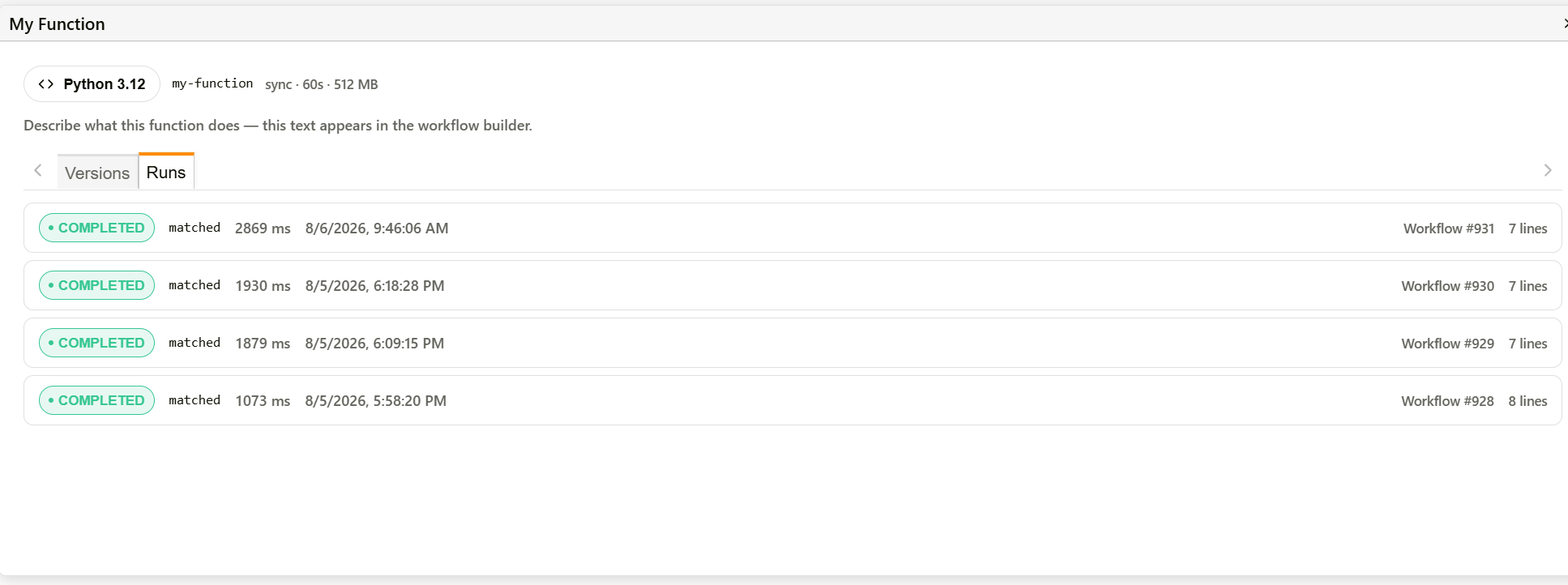
Forge ファンクション詳細 — Runs タブ
Forge ファンクションの作成と使用方法
| ステップ | 説明 |
|---|---|
| 1 | Start from a template から、必要なランタイムに合ったスタータテンプレート — Python 3.12、Node 20、Go、または Container — をダウンロードします。 |
| 2 | ローカルでファンクションを作成し、テストします。スターターの Event/Result の形(Container の場合は標準入出力の JSON)が、入ってくるデータと、ワークフローをどの結果ルートへ進めるかを定義します。 |
| 3 | ファンクションを、ルートに docwize.forge.json マニフェストを含む .zip としてパッケージ化します。スキーマについては、以下のマニフェストを参照してください。 |
| 4 | Upload bundle をクリックし、.zip をドロップまたは選択します。ランタイム、エントリーポイント、アウトプットルート、設定キーはすべてマニフェストから読み取られます。 |
| 5 | アップロードされると、そのファンクションはカードとして表示され、ワークフローのステップパレットの Forge Functions カテゴリーでステップとして利用できるようになります。 |
| 6 | そのファンクションのステップをワークフローテンプレートに追加します。アウトプットポートは、マニフェストで宣言されたルート(例: Appended、No PDF、Error)に対応します — 連携のステップを参照してください。 |
| 7 | 後でファンクションを更新するには、新しい .zip で再度 Upload bundle をクリックします。以前のバージョンは、そのファンクションのカードの Versions タブからロールバックできる状態で残ります。 |
関連する設定
- ワークフローのステップ — アップロードされた Forge ファンクションがワークフローのステップとして使用される場所
- ワークフローテンプレートの構築 — ステップをテンプレートに組み立てるキャンバス