Integration Nodes
Integration nodes call systems outside the workflow: external APIs, GitHub, Forge functions and Oliver agents. The API Node, GitHub nodes and Run Oliver are in the Tools & Tasks palette category. Forge functions have their own Forge Functions category. None of these nodes is in the canvas right-click menu except the API Node.
| Node | Purpose |
|---|---|
| API Node | Sends an HTTP request, with authentication, retries and failure routing. |
| GitHub Action | Starts a GitHub Actions workflow run and, optionally, waits for it. |
| GitHub Commit | Commits documents to a GitHub repository. |
| Forge functions | Run an uploaded Forge function. |
| Run Oliver | Runs an Oliver agent as a workflow step. |
API Node
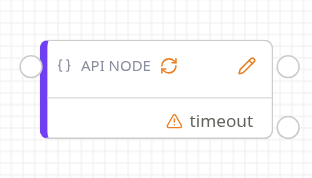
API Node
The card is titled API Request. Its unlabelled right-hand output is the success path. Each failure route adds its own labelled output. A refresh icon shows when auto retry is on. The node shows Configuration Error until it has a URL. The pencil icon opens Edit API Node.
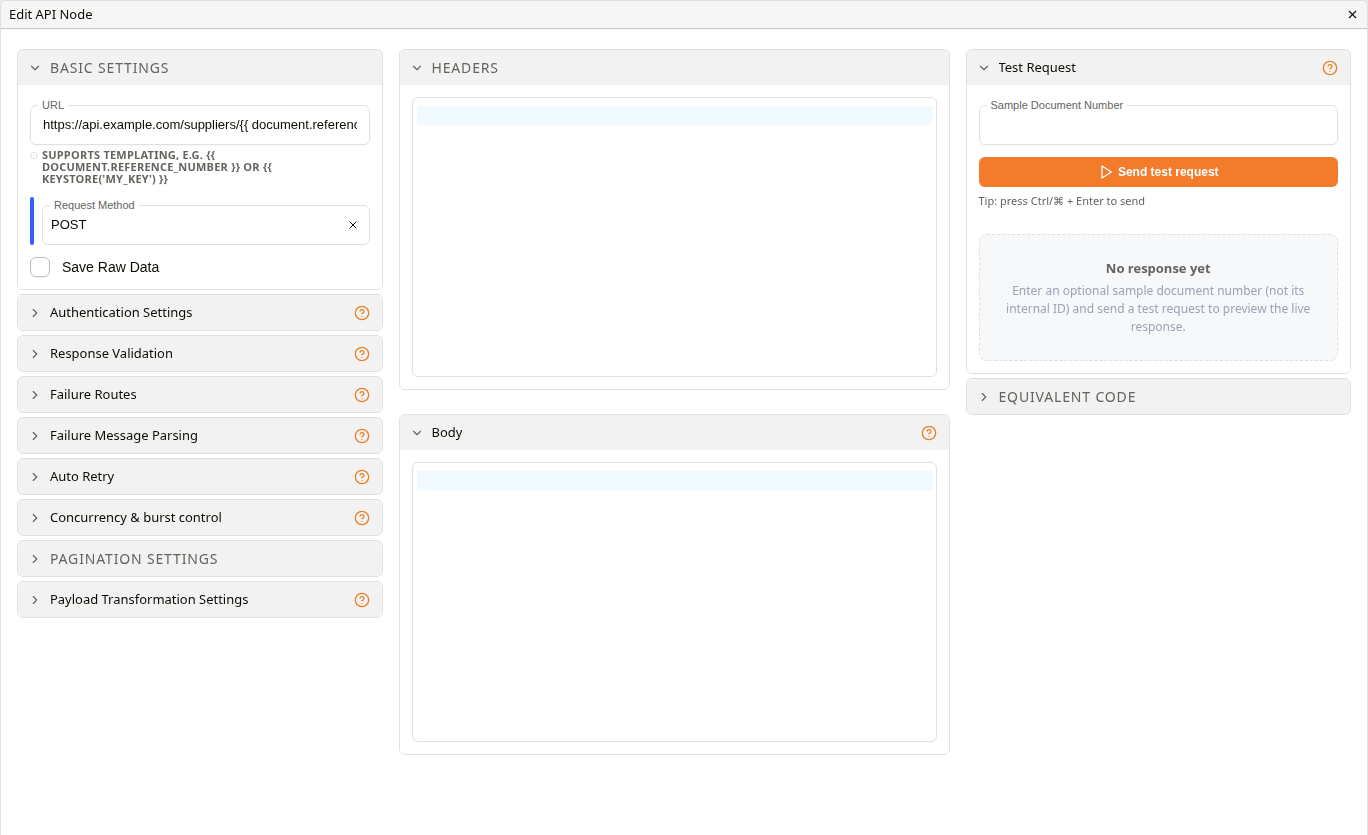
Edit API Node
The dialog has three columns: the request settings on the left, Headers and Body in the middle, and Test Request and Equivalent code on the right. Changes apply as they are made and are kept when the template is saved.
Basic Settings
| Setting | Description |
|---|---|
| URL | The endpoint. It can include document values and keystore secrets, for example {{ document.reference_number }} or {{ keystore('my_key') }}. |
| Request Method | GET (the default), POST, PUT or DELETE. |
| Save Raw Data | Also stores the request body sent and the raw response, downloadable from the workflow's visualisation. |
| Headers | JSON headers. Values are filled from the workflow document the same way the URL and body are. |
| Body | The request body. Placeholders are filled from the workflow document. |
Any 2xx status counts as success.
Authentication Settings
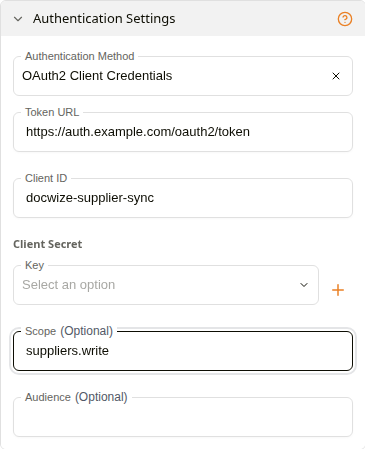
Authentication Settings: OAuth2 Client Credentials
| Authentication Method | Fields |
|---|---|
| None | None. |
| Basic | Username and a Key. |
| API Token | API Token, sent as a Bearer token. |
| Token Fetch | Fetches a token from Auth Request URL (GET, POST or PUT) and injects it as a Bearer Token or a Named Header. The token is found with Token Path, a dotted path such as data.token. Expiry Path, a dotted path to the token's expiry in the same response, reuses the fetched token until shortly before it expires instead of fetching one on every run. |
| OAuth2 Client Credentials | Token URL, Client ID, Client Secret, and optional Scope and Audience. |
| Custom Header | Header Name and Value Template. A selected Secret is appended to the rendered value. |
A Key is a keystore entry. Add New Entry creates one without leaving the dialog. Response Validation can also check an HMAC signature on the response: Algorithm (SHA512), Signature Key, Timestamp Header (default X-Timestamp), Signature Header (default X-Signature) and Freshness (seconds) (default 300).
Failure Routes
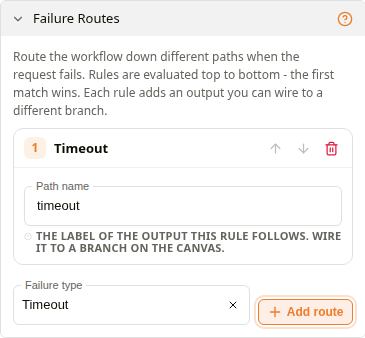
Failure Routes
With no failure routes, a failed request stops the workflow at this node. Each route sends a particular kind of failure down its own output. Choose a Failure type and click Add route. Routes are checked top to bottom and the first match wins.
| Failure type | Matches | Default path name |
|---|---|---|
| Timeout | The request timed out. | timeout |
| HTTP error status | The listed Status codes, such as 429,503 or 5xx. Blank matches any failed status. | http_error |
| Null / empty response | The response was empty after transformation. | empty |
| Regex match on response | The failed response body matches Regex pattern. | matched |
| Queue limit reached | The request could not get a slot under the concurrency limits. | queue_full |
| Catch all failures | Any failure. | failed |
Path name labels the route's output. Each must be unique, and end and start are reserved. A failure that matches no route stops the workflow.
Failure Message Parsing pulls a readable reason out of a failure response, for the Inbox and the failure email. Its extractor steps (regex, XML or HTML elements, JSON keys) run in order. Email the initiator on terminal failure emails the person who started the workflow when the request fails for good and no failure route handled it.
Auto Retry
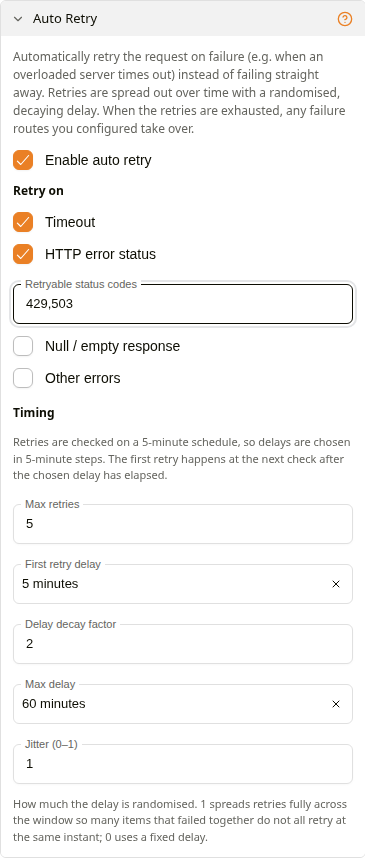
Auto Retry
Enable auto retry retries failed requests before any failure route applies.
| Setting | Description |
|---|---|
| Retry on | Timeout (on by default), HTTP error status with Retryable status codes, Null / empty response, Other errors. |
| Max retries | 1 to 500. Default 5. |
| First retry delay | Default 5 minutes. Retries are checked every 5 minutes. |
| Delay decay factor | How much the delay grows after each retry. Default 2. 1 keeps a flat delay. |
| Max delay | The longest delay. Default 60 minutes. |
| Jitter (0–1) | Randomises each delay so that items that failed together don't retry together. With the default of 1, a retry can come sooner than the chosen delay. |
Concurrency & burst control
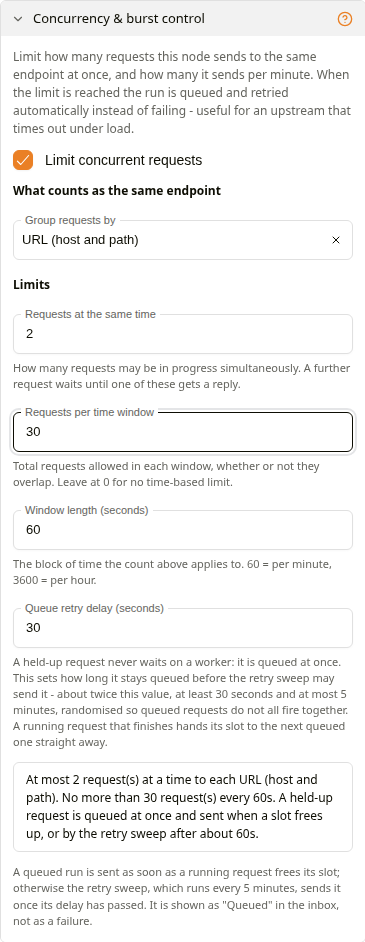
Concurrency & burst control
Limit concurrent requests caps what this node sends to a slow or rate-limited endpoint. A request over the limit is queued and retried automatically, and shows as Queued in the Inbox. Queuing doesn't use up auto retries.
| Setting | Description |
|---|---|
| Group requests by | What counts as the same endpoint: URL (host and path) (the default), Server (host only), URL and request body, This node only, or Custom template. |
| Requests at the same time | 1 to 64. Default 2. |
| Requests per time window | 0 turns the time limit off. Above 0, Window length (seconds) appears. |
| Wait for a free slot (seconds) | Sets how soon a queued request is tried again. Requests are queued straight away rather than waiting. |
A summary above the limits describes them in words.
Pagination and Payload Transformation
Pagination Variable and Pagination Multiplier page through results. Each page sets the variable to the page number, starting at 0, times the multiplier, and fills it into the URL and body again. Paging stops at an empty response. End the transformations with JSON to Dataframe so that pages add up rather than overwrite each other.
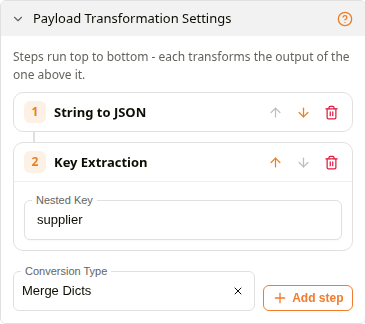
Payload Transformation Settings
Payload Transformation Settings reshape the response before it is saved. Steps run top to bottom, each taking the previous step's output. Choose a Conversion Type and click Add step.
| Conversion Type | Does |
|---|---|
| XML To Dict | Parses XML. |
| Key Extraction | Takes the value at Nested Key. |
| String to JSON | Parses text as JSON. |
| JSON to Dataframe | Makes a table: an object becomes one row, a list one row per item. |
| Virtual Key Generation | Adds a column joining the listed columns. Errors in this step are ignored. |
| Merge Dicts | Flattens nested objects into one level, joining nested keys with an underscore (address.city becomes address_city). Takes no settings. |
| Reggex Extraction | Keeps the first match of Reggex Pattern. |
| Column Generation | Makes a one-row table with the value in Result Column Name. |
A CF Insert Node or JSON To Dataframe connected straight after the API Node reads the saved result. See Data Nodes.
Test Request and Equivalent code
Send test request sends the request once and shows the status, response, response headers, the request as sent, and the result of each transformation. Sample Document Number is a document number to fill document placeholders from. Ctrl or ⌘ + Enter also sends it.
Send test request is a real request. POST, PUT and DELETE calls change data at the endpoint. Test against a safe endpoint.
Equivalent code shows the request as cURL, TypeScript or Python. An API Token value is masked as $API_TOKEN, with a note that it comes from the node's settings.
GitHub Action
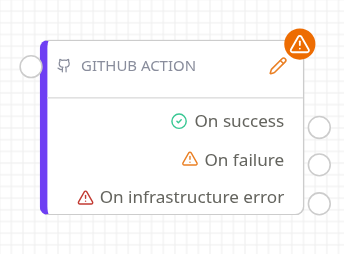
GitHub Action node
Starts a GitHub Actions workflow in a connected repository. The connector needs its GitHub Actions feature on. The node shows Configuration Error until it has a repository and a workflow file.
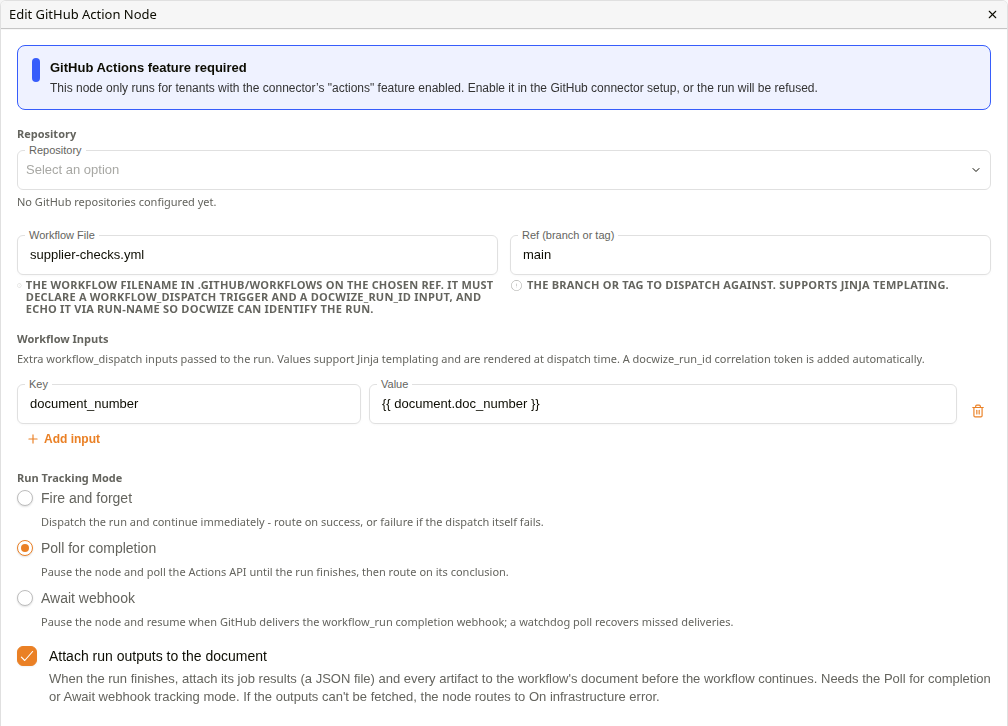
Edit GitHub Action Node
| Setting | Description |
|---|---|
| Repository | A connected repository. With none connected, the dialog shows No GitHub repositories configured yet. |
| Workflow File | The workflow file, for example ci.yml. It must have a workflow_dispatch trigger. |
| Ref (branch or tag) | Required, although the card does not warn when it is empty. It can include document values. |
| Workflow Inputs | Extra inputs for the run, added with Add input. Values can include document values. |
| Run Tracking Mode | Fire and forget continues once the run starts. Poll for completion waits, checking up to about 6 hours. Await webhook waits for GitHub's notification, giving up after about 57 minutes. |
| Attach run outputs to the document | Needs Poll for completion or Await webhook. When the run finishes, attaches its job results (a JSON file) and every artifact to the workflow's document before the workflow continues. If the outputs can't be fetched, the node routes to On infrastructure error. |
| Output | When |
|---|---|
| On success | The run succeeded. In Fire and forget, the run was started. |
| On failure | The run failed or was cancelled, or GitHub refused to start it, for example a wrong file or ref. |
| On infrastructure error | Docwize stopped waiting before the run finished. |
A missing or disconnected repository, or a connector feature that is off, stops the workflow without using any output. Wire On failure as well as On infrastructure error. For runs longer than an hour, use Poll for completion.
For tracking, the workflow file should declare a docwize_run_id input and include it in its run-name. When the file can't be tracked, the dialog warns Run tracking may not work for this workflow.
GitHub Commit
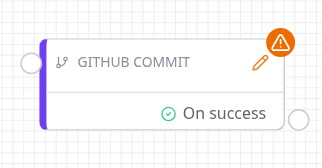
GitHub Commit node
Commits documents to a connected repository in one commit. The connector needs Contents Write, and Workflow Files for paths under .github/workflows. The node has a single On success output: any problem stops the workflow at this node. It shows Configuration Error until it has a repository and a branch.
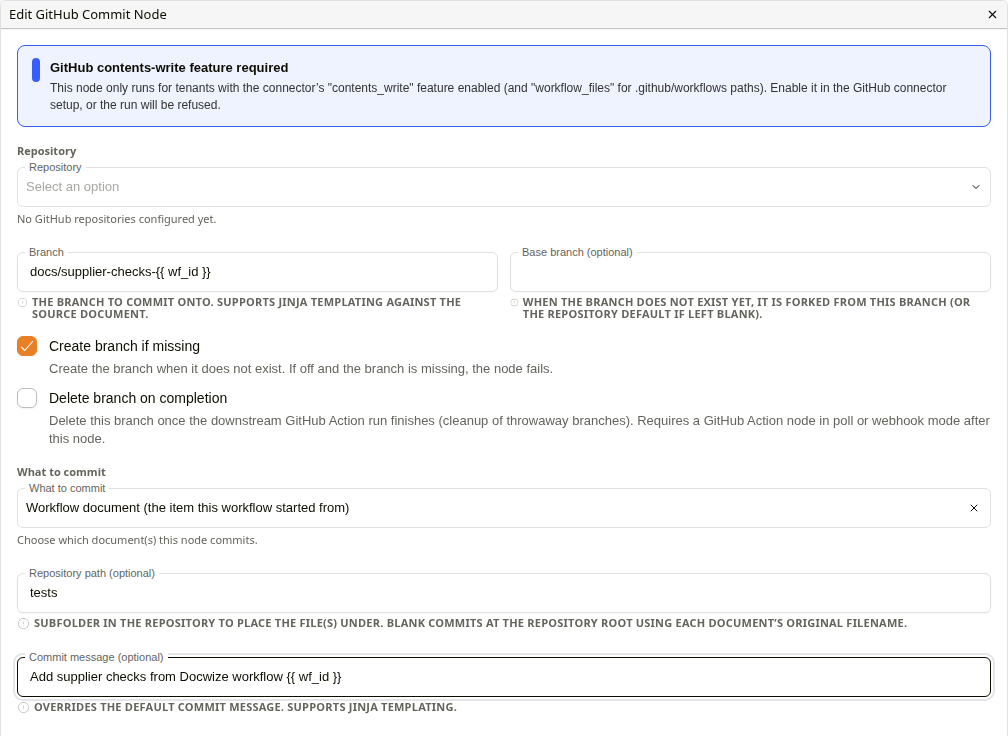
Edit GitHub Commit Node
| Setting | Description |
|---|---|
| Repository | A connected repository. |
| Branch | The branch to commit to, for example docwize/test-{{wf_id}}. |
| Base branch (optional) | Where a new branch starts from. Defaults to the repository's default branch. |
| Create branch if missing | On by default. Off, a missing branch fails the node. |
| Delete branch on completion | Deletes the branch when a later GitHub Action node receives GitHub's result. Not in Fire and forget mode. |
| What to commit | Workflow document, Node input (the workflow document's direct attachments), or Specific document IDs in Document IDs. |
| Repository path (optional) | The folder in the repository. Each file keeps its original name, and an existing file at that path is overwritten. |
| Commit message (optional) | Defaults to "Add N file(s) from Docwize workflow …". |
Branch, base branch, path and message can include document values.
Forge functions
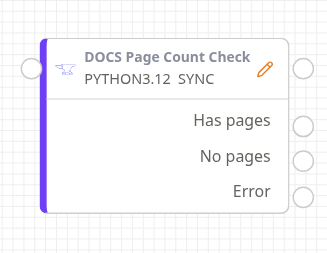
Forge function node
Forge Functions in the palette has one entry per uploaded function that has an active version. The card shows the function's name, runtime and mode. Its outputs are the unlabelled success output, one output per route in the function's manifest, and Error, added automatically. See Docwize Forge.
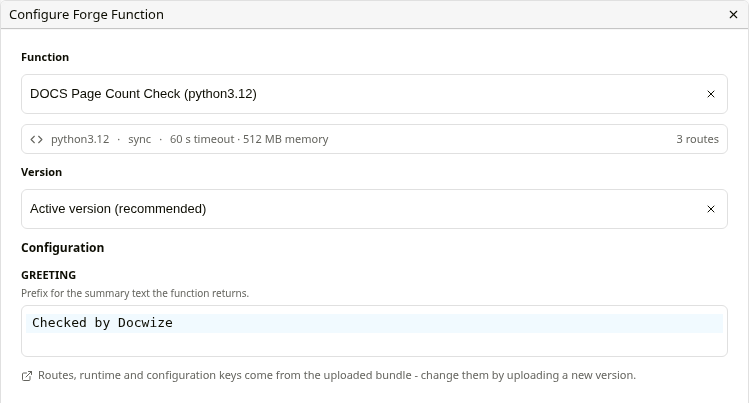
Configure Forge Function
| Setting | Description |
|---|---|
| Function | The function to run. Changing it clears the version and configuration. |
| Version | Active version (recommended) follows whichever version is active. A numbered version pins the code only: the outputs and configuration fields still follow the active version. |
| Callback days | For asynchronous functions, how many days to wait for the function to report back before routing Error. |
| Configuration | The function's configuration keys. Secret keys use a keystore entry. |
- Type every configuration value the function needs. Defaults shown in the dialog are not sent, and required keys are not enforced.
- The mode is fixed when the node is placed. If a new version switches between synchronous and asynchronous, place the node again.
- Error is used when the function fails, returns nothing, returns a route its manifest doesn't declare, runs out of quota, or misses its callback deadline.
Run Oliver
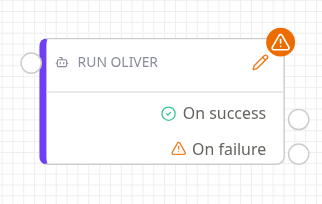
Run Oliver node
Runs an Oliver agent as a workflow step and writes its answer to a custom field. The node shows Configuration Error until it has an agent and an output field. The pencil icon opens the settings.
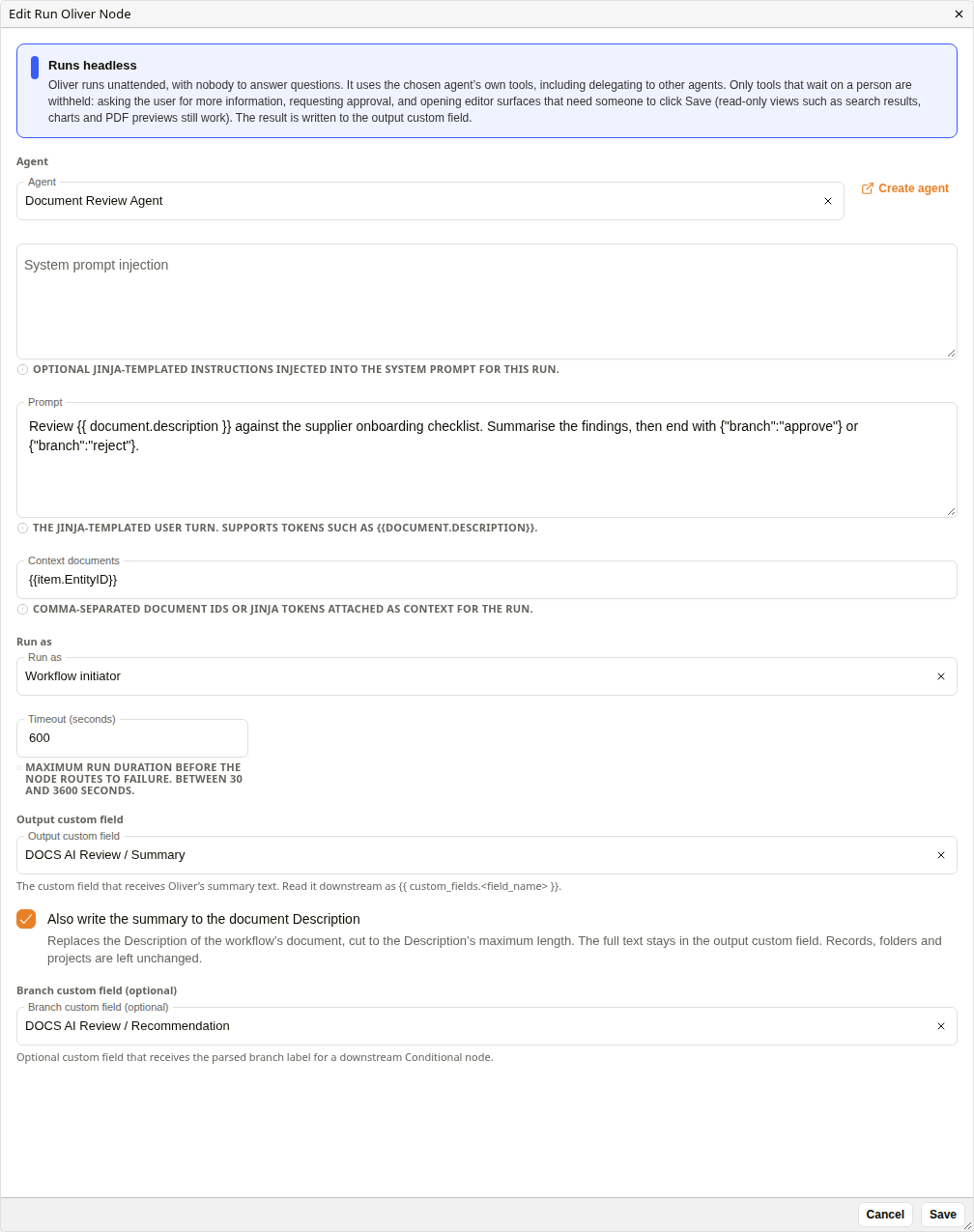
Edit Run Oliver Node
| Setting | Description |
|---|---|
| Agent | The agent to run. Create agent opens the configuration app in a new tab. |
| System prompt injection | Optional instructions added to the agent's system prompt for this run. |
| Prompt | The request. It can include document values, for example {{document.description}}. |
| Context documents | Document IDs or placeholders, comma-separated. Defaults to the workflow document. Its direct attachments are added automatically. |
| Run as | Workflow initiator (the default), Document owner or Specific user. The user must be able to open at least one context document. |
| Timeout (seconds) | 30 to 3600. Default 600. |
| Output custom field | Where the agent's final answer is written. |
| Branch custom field (optional) | Receives a branch label when the agent ends its answer with {"branch":"<label>"}, for a Condition node to route on. |
A node saved with Channel identity, from before workflows dropped it, shows a warning and needs a different Run as choice.
Save writes your changes to the node and closes the dialog; Cancel discards them. Save the template as usual to keep the node's changes.
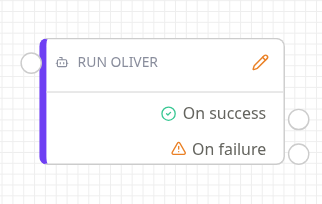
Configured Run Oliver node
The workflow continues down On success when the agent finishes with an answer. On failure covers a failed or cancelled run, a run that stops to ask for input, an empty answer, and the timeout. Configuration and permission problems stop the workflow without using either output.
The agent runs with its own tools, including delegation to other agents. Withheld are only the tools that wait on a person: asking the user for more information, requesting approval, and opening an editor surface that needs someone to click Save. Read-only views such as search results, charts and PDF previews still work. Choose an agent whose tools are safe to run unattended. In later placeholders, the output field is read as {{ <template_name>.<field_name> }}, lower case with underscores.
Related configuration
- Docwize Forge: uploading Forge functions
- Oliver agent configuration: agents and their tools
- Data Nodes: loading API results into custom fields
- Workflow Nodes: the canvas and palette