Data Nodes
Data nodes move tabular data into Docwize. The import nodes read the workflow document, or an API response, into a table, and CF Insert Node writes that table into a custom field template. SP Task runs a database procedure, and Scan Request Node captures a barcode or QR code scan. All are in the Tools & Tasks palette category.
| Node | Purpose |
|---|---|
| Excel Import Node | Reads an Excel workflow document into a table. |
| CSV Import Node | Reads a CSV workflow document into a table. |
| JSON To Dataframe | Turns an API Node's JSON response into a table. |
| CF Insert Node | Writes a table into a custom field template. |
| SP Task | Runs a registered stored procedure. |
| Scan Request Node | Pauses for a scan and saves the value in a custom field. |
How tables pass between nodes
Connections carry no data. A consuming node, CF Insert Node or JSON To Dataframe, loads the table saved by the node connected directly before it. So:
- connect the consumer straight to the node that produced the table, with nothing in between;
- give it exactly one incoming connection.
Typical chains:
- Excel Import Node → CF Insert Node
- CSV Import Node → CF Insert Node
- API Node → JSON To Dataframe → CF Insert Node
- API Node → CF Insert Node
- Webhook Node → CF Insert Node
Excel Import Node
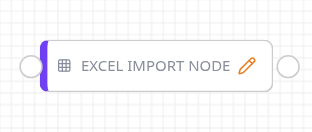
Excel Import node
The card reads Excel Importer. It reads the workflow document, which must be an Excel workbook, into a table for the next node. It imports no documents. The pencil icon opens the settings, and the node shows Configuration Error until Sheet Name is set.
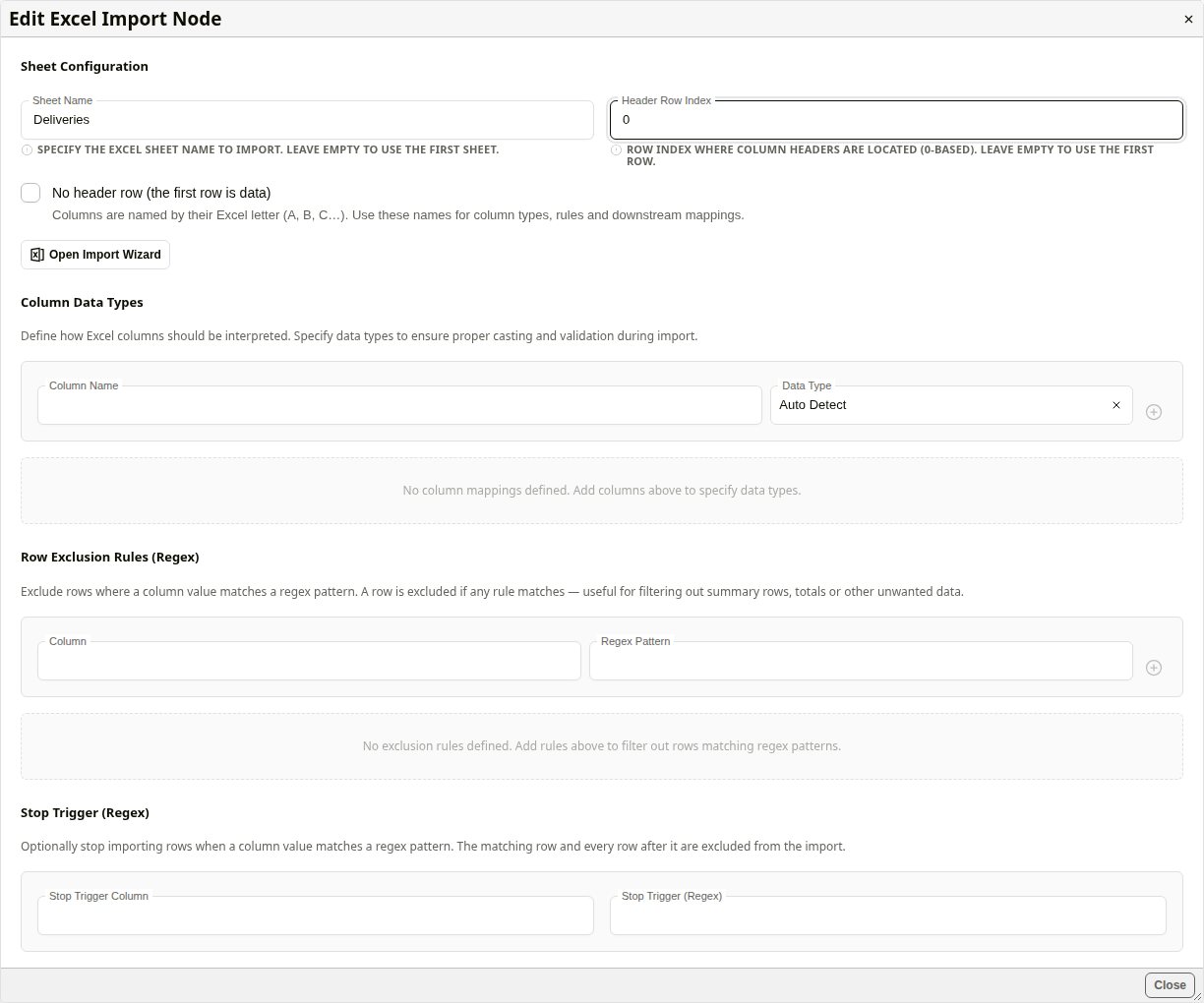
Edit Excel Import Node
| Section | Description |
|---|---|
| Sheet Configuration | Sheet Name, Header Row Index (0 is the first row), and No header row (the first row is data). Open Import Wizard reads a sample workbook in the browser and fills these in, together with the column list. |
| Column Data Types | Sets a column to Text, Number, Date or Boolean. Text keeps leading zeros. Dates can have a format. |
| Row Exclusion Rules (Regex) | Drops rows whose column matches a pattern, such as ^Total. |
| Stop Trigger (Regex) | Stops reading at the first row whose column matches a pattern. |
| Transformation Steps | Virtual Key Generation joins several columns into one new key column. |
- Left empty, Sheet Name reads the first sheet.
- The stop trigger is applied before the exclusion rules.
CSV Import Node
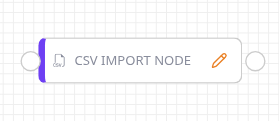
CSV Import node
The card reads CSV Importer. It reads a CSV workflow document into a table for the next node.
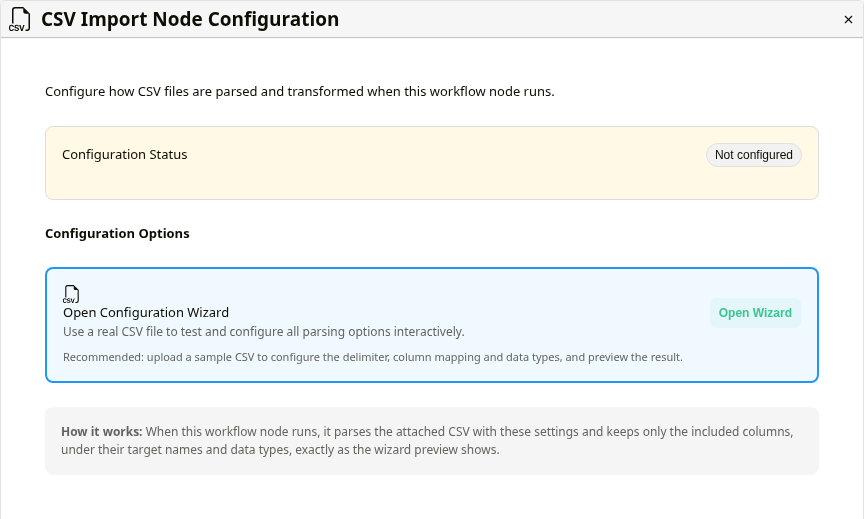
CSV Import Node Configuration
The dialog shows Configuration Status. Settings are made in the wizard, opened with Open Wizard.
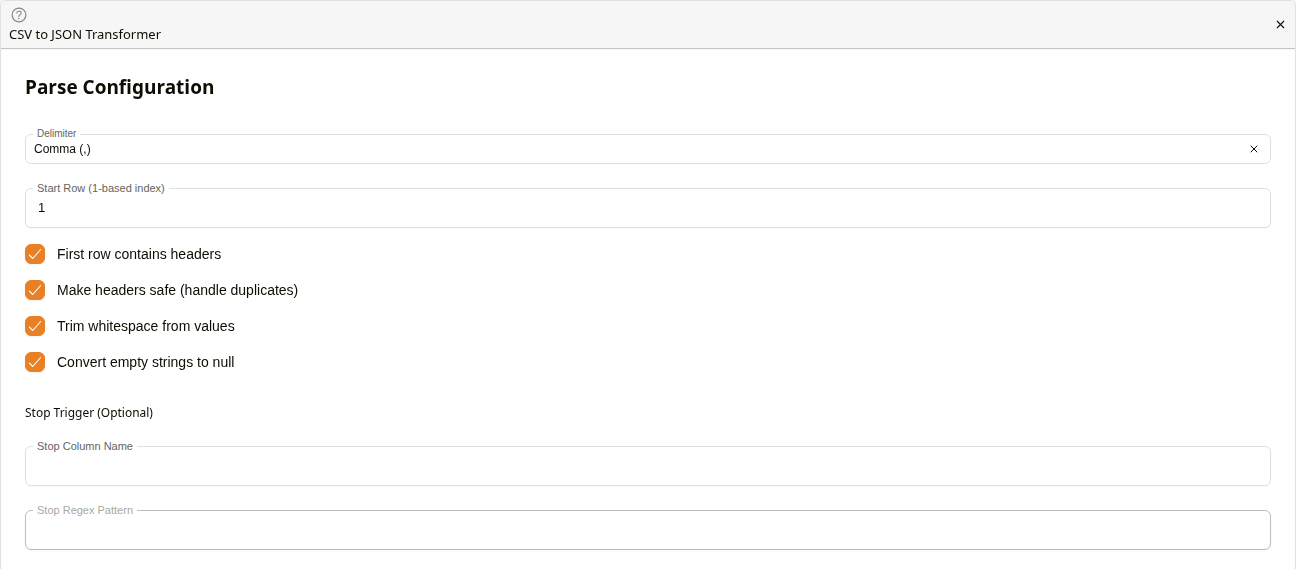
CSV import wizard
Parse Configuration sets the Delimiter, the start row, whether the first row holds headers, duplicate header handling, trimming, a stop column and pattern, and Convert empty strings to null (on by default). The wizard's schema step then chooses which columns to include, renames them, sets a data type, or combines several source columns into one.
- Without the wizard, the node still runs: comma-separated, UTF-8, with headers.
- In CF Insert, map included columns by the name given in the schema step, or by their CSV header name for a column the schema step doesn't rename. Duplicate headers become
name_1,name_2and so on.
JSON To Dataframe
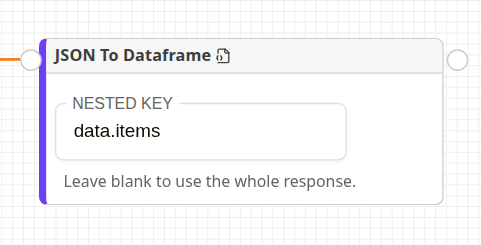
JSON To Dataframe node
Turns the JSON response of the node connected directly before it into a table. The node shows Configuration Error unless exactly one node is connected, and it is an API Node, Webhook Node, Forge node, Excel Import Node, CSV Import Node, another JSON To Dataframe node, or Batch Collect. Nested Key is the dotted path to the data, for example data.items. An object becomes one row and a list becomes one row per item.
- Left empty, Nested Key reads the whole response as-is.
- A path that isn't found gives an empty table, not an error, so check it against a real response.
CF Insert Node
CF Insert node
Writes the table from the node before it into a custom field template on the workflow document. The pencil icon opens the settings.
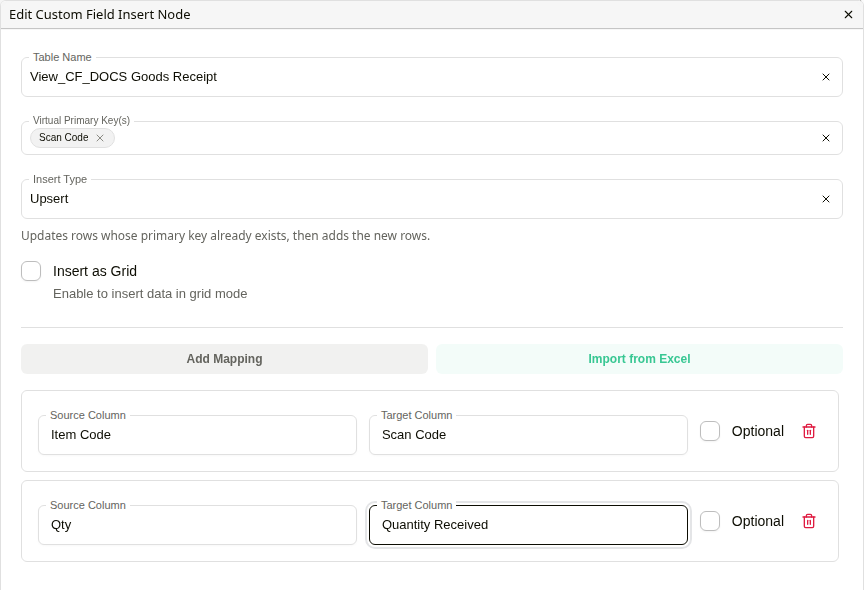
Edit Custom Field Insert Node
| Setting | Description |
|---|---|
| Table Name | The custom field template, listed as its view name, for example View_CF_DOCS Goods Receipt. |
| Virtual Primary Key(s) | The column or columns that identify a row, using the target column names. Type each and press Enter. |
| Insert Type | Insert only adds new rows; existing ones are left as they are. Upsert adds new rows and updates existing ones. Drop and Update does the same as Upsert, and also deletes rows the table doesn't contain. |
| Insert as Grid | Writes to the template's shared grid rather than the workflow document. |
| Mappings | Source Column to Target Column, added with Add Mapping or Import from Excel. A missing source column fails the node unless its mapping is Optional. |
- Map every key column, and list it in Virtual Primary Key(s). Rows with an empty key are skipped.
- Choose Drop and Update only when the table holds the complete set of rows.
- The card warns when two mappings share a target column. Only the last of them is used.
SP Task
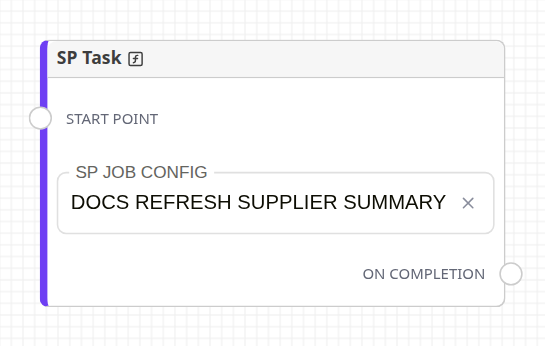
SP Task node
The card is titled SP Job. It runs the stored procedure or database function chosen in SP Job Config, then continues. The workflow waits while it runs.
Procedures are registered in the tenant database by Docwize; there is no screen for it, and the list is empty until one is registered. On SQL Server, a procedure that declares a @dw_id parameter receives the workflow document's ID. Leaving SP Job Config empty makes the step fail.
Scan Request Node
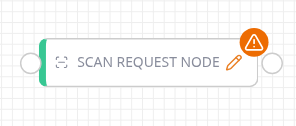
Scan Request node
Pauses the workflow until someone scans a barcode or QR code from the workflow's actions (Start Scan, then USB Scanner or Camera Scanner). The value is saved in a custom field, then the workflow continues. The node shows Configuration Error until a custom field template and field are chosen.
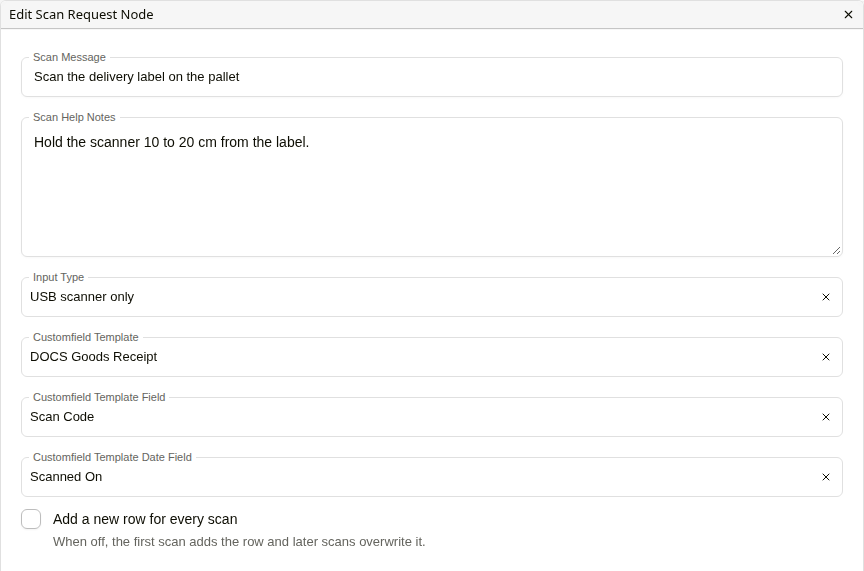
Edit Scan Request Node
| Setting | Description |
|---|---|
| Scan Message | The instruction the person scanning sees. |
| Scan Help Notes | Extra help shown alongside the scan message. |
| Input Type | USB scanner only or Camera only restricts scanning to that method. Let the person scanning choose (the default) offers both. |
| Customfield Template / Customfield Template Field | Where the scanned value is saved. |
| Customfield Template Date Field | Optional. Receives the time of the scan. |
| Add a new row for every scan | Unticked (the default), the first scan adds the row and later scans overwrite it. Ticked, every scan adds a new row. |
Related configuration
- Integration Nodes: the API Node
- Flow Control Nodes: the Webhook Node
- Workflow Nodes: the canvas and palette