タグ
タグは、ユーザーがドキュメントの分類ラベルを定義できるようにする分類システムです。作成されたタグは、プレビューウィンドウでドキュメントに適用できます。ユーザーは、どのタグを作成するか、それらをどのように構造化するか(個別のタグ、グループ、または相互に排他的なセット)、およびどのユーザーやグループに表示するかをコントロールできます。
ドキュメントへのタグの適用に関するエンドユーザー向けの手順については、ドキュメントレビュー(Document Review)のタグを参照してください。
タグの管理 (Manage Tags)
タグの作成と管理は、エクスプローラーモジュールのタグ領域からアクセスする**タグの管理 (Manage Tags)**セクションで行います。「タグの管理」へのアクセス権限は、管理コンソール (Admin Console)で制御されます。
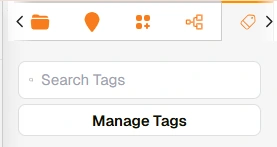
エクスプローラーにおける「タグの管理」ボタン – タグ
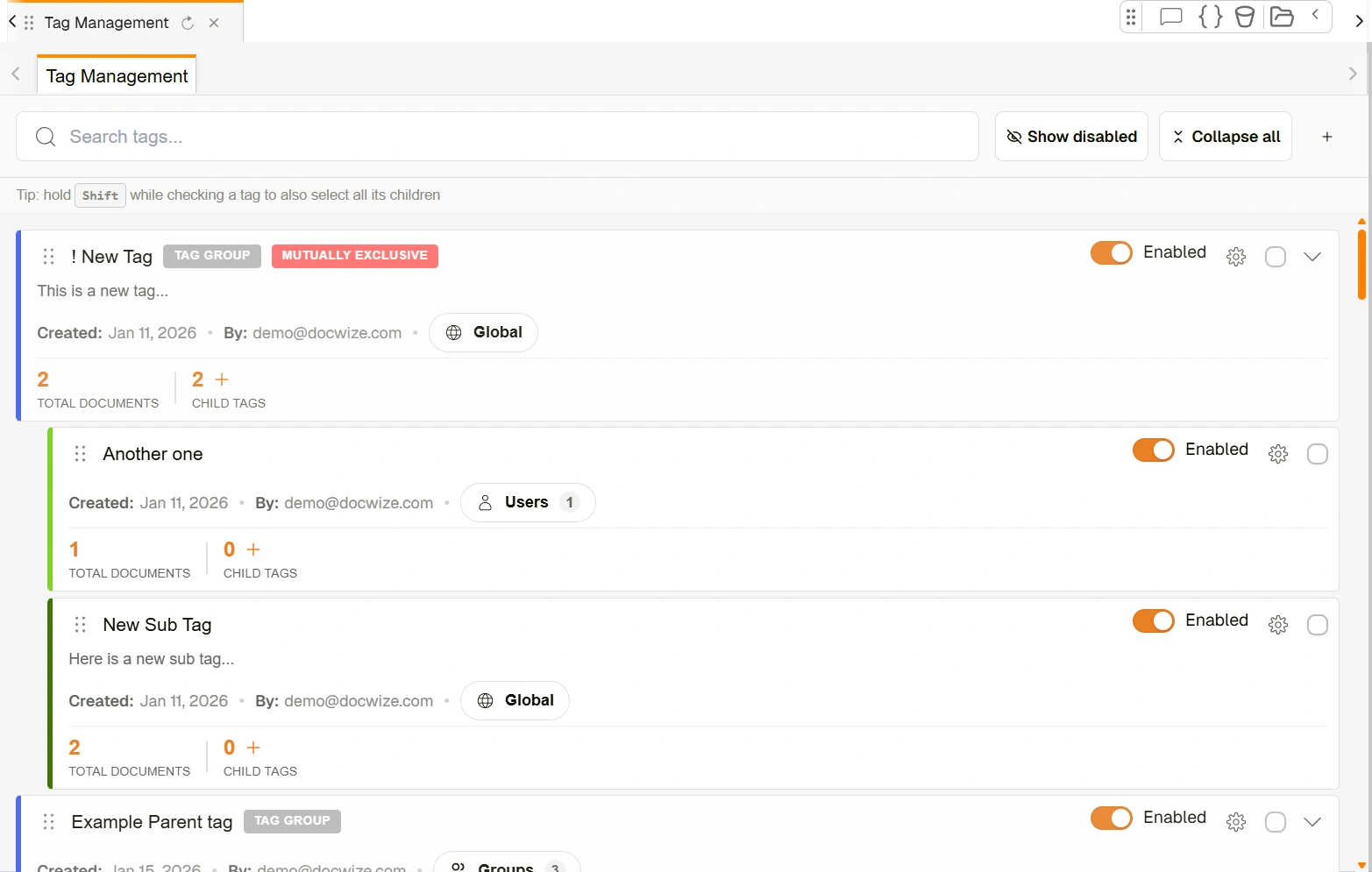
例:「タグの管理」セクションのレイアウト
「タグの管理」の詳細
| 項目 | 説明 |
|---|---|
| 検索 (Search) | タグ名を検索できます |
| プラス記号 (+) | 新しいタグを作成できます |
新しいタグを作成するためにプラス記号をクリックした場合でも、作成済みのタグの設定アイコンをクリックした場合でも、ユーザーは「新規タグの作成」ダイアログに移動します。
「新規タグの作成」ダイアログ
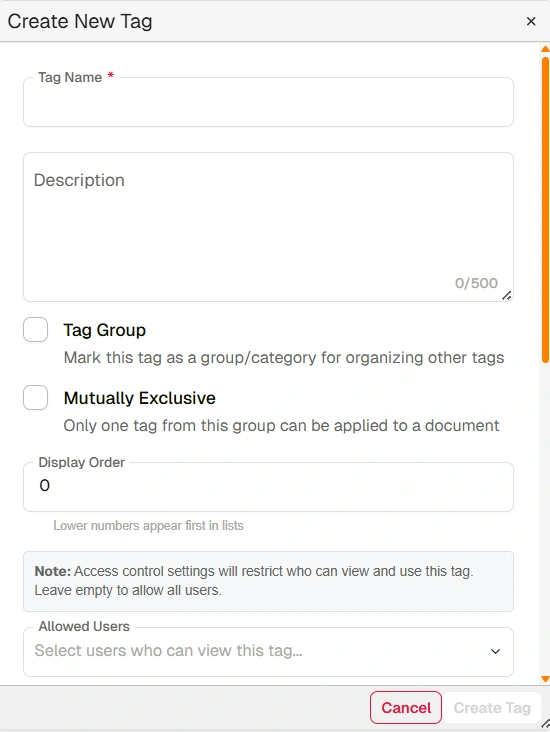
「新規タグの作成 (Create New Tag)」ダイアログ
| フィールド | 説明 |
|---|---|
| タグ名 (Tag Name) | 必須フィールドです。関連するタグ名を入力します。 |
| 説明 (Description) | 必要に応じて、タグに関する詳細な説明を入力できます。 |
| タググループ (Tag Group) | 他のタグを整理またはグループ化するためのメインカテゴリであることを示します。実際には、ユーザーはタググループ内の複数のタグを1つのドキュメントに適用できます。 |
| 相互に排他的 (Mutually Exclusive) | ドキュメントに適用する選択肢の中から1つのタグのみを選択できるようにします。(例:「関連あり」と「関連なし」というタグから選択する場合。ドキュメントが同時に「関連あり」かつ「関連なし」になることはありません。) |
| 表示順序 (Display Order) | グループ内のタグが表示される順序を設定できます。 |
| 許可されたユーザー (Allowed Users) | 注:デフォルト設定では、すべてのユーザーがすべてのタグを表示できます。このオプションを使用すると、Docwizeユーザーの一覧から選択し、選択したユーザーのみにタグの表示を制限できます。 |
| 許可されたグループ (Allowed Groups) | 注:デフォルト設定では、すべてのユーザーがすべてのタグを表示できます。このオプションを使用すると、データベースに作成されたグループを選択し、選択したグループに所属するユーザーのみにタグの表示を制限できます。 |
| タグの色 (Tag Color) | 「タグの色」セクションを使用して、タグの色をカスタマイズできます。 |
| キャンセル (Cancel) | 変更やタグの作成をキャンセルできます。 |
| タグの作成 / 変更の保存 (Create Tag / Save Changes) | タグの作成を完了するか、既存のタグへの変更を保存します。 |
タグが作成されると、「タグの管理」セクションに表示されます。タグおよびサブタグごとに、メタデータと追加の管理オプションが表示されます。
リストされたタグ
| エリア | 説明 |
|---|---|
| リストされたタグの左上セクション | タグ名、タグのタイプ、設定された説明(ある場合)、作成日、作成者、および表示設定を示します。タグが特定のユーザーやグループに制限されている場合、表示設定の上にカーソルを置くと、選択されたユーザー/グループがリスト表示されます。 |
| 右上セクション – 「有効」トグル (Enabled) | タグが有効か無効かを選択できます。無効にされたタグはユーザーから非表示になります。 |
| 設定アイコン | 変更用のタグ設定ダイアログに移動します。 |
| チェックボックス | チェックを入れると、選択したタグに対して一括アクションを適用できます。 |
| 合計ドキュメント (Total Documents) | このタグが適用されているドキュメントの数を示します。数値をクリックすると、そのタグが付いたドキュメントのグループに移動します。 |
| 子タグ (Child Tags) | 作成された子タグの数を示します。プラス記号をクリックすると、子タグを作成できます。 |
タグの階層とロールアップ
どのタグにも子タグを持たせることができ(上記の**子タグ (Child Tags)**を参照)、これにより、たとえば一般的な主題タグをより具体的なサブトピックに分解するといった形で、関連するタグの階層をタクソノミーとして表現できます。
タグを開くと、そのタグに直接割り当てられている項目のレジスターが表示されます。具体的には、直下の子タグと、そのタグそのものが付けられたドキュメントです。子タグとドキュメントは同じリストに一緒に表示され、Doc Type 列には、子タグの場合は Tag、それ以外の場合は実際のドキュメントタイプが表示されます。
子タグからのドキュメントのロールアップ
デフォルトでは、タグのレジスターにはそのタグに直接付けられたドキュメントのみが表示され、子タグに付けられたドキュメントは表示されません。そのタグとすべての子タグからのドキュメントを1つのフラットなリストで確認するには、Include Sub Folders をクリックします。ロールアップされたドキュメントは、Path 列にタグの完全なパス(例:「Example Parent tag->Child tag two」)を表示します。
タグの作成方法
| ステップ | 説明 |
|---|---|
| 1 | エクスプローラーの「タグ」から「タグの管理 (Manage Tags)」セクションに移動します。 |
| 2 | 検索バーの右隣にある「+」記号をクリックします。 |
| 3 | 関連するタグの情報(タグ名、権限、色など)を入力します。 |
| 4 | 「保存」をクリックします。 |
タグ作成の例を以下に示します。
例:タグの作成