レコード (Records)
レコードは、ユーザーがDocwizeにドキュメントを送信する際に入力するデータ入力フォームです。ユーザーはレコードテンプレートを作成し、キャプチャする情報(表示されるカスタムフィールド、アップロード可能なドキュメント、送信完了したデータの保存先フォルダ、送信時に自動的にトリガーされるワークフローなど)を定義します。
レコードを使用すると、構造化データとドキュメントをガイド付きの1ステップで同時に送信できます。また、ドキュメントをフォルダに直接アップロードし、メタデータを別途追加することも可能です。
レコードの用途
| 領域 | レコードの使われ方 |
|---|---|
| ドキュメントの送信 | アップロード(Upload)セクションにより、ユーザーはレコードの入力の一部としてプライマリドキュメントをアップロードできます。 |
| 添付ファイル | 添付ファイル(Attachment)セクションにより、ユーザーはプライマリドキュメントと共に関連ファイルをアップロードできます。 |
| カスタムフィールドのキャプチャ | カスタムフィールド(Custom Field)セクションは、ユーザーが構造化データを入力するためのカスタムフィールドテンプレートを提供します。 |
| ドキュメントのメタデータ | ドキュメントフィールド(Document Field)セクションは、ユーザーが入力する標準のドキュメントメタデータフィールド(種類、参照番号、ステータス、説明、日付)を表示します。 |
| フォルダの割り当て | フォルダ(Folder)セクションは、送信完了したデータを特定のフォルダに自動的に保存します。 |
| ワークフローのトリガー | ワークフロー(Workflow)セクションは、レコードが送信されたときに指定されたワークフローを自動的に開始します。 |
| ドキュメントテンプレート | ドキュメントテンプレート(Document Template)セクションは、レコードをドキュメントテンプレートにリンクし、キャプチャされたデータをテンプレートに入力できるようにします。 |
| ロケーションのキャプチャ | ロケーション(Location)セクションにより、ユーザーはWBSエントリなどの関連するロケーションを選択できます。 |
| 参照番号の生成 | 参照番号テンプレート(Reference Number Template)セクションにより、参照番号の自動的な連番生成を設定できます。 |
| 図面 | 図面(Drawing)セクションにより、ユーザーは送信の一部として図面をアップロードできます。 |
レコードの設定場所
レコードテンプレートは、**新規 → カスタムフィールドと設定 → レコードの管理 (Manage Records)**を介して作成および管理されます。
新規(New)のレコードセクションには、ユーザーが入力するための既存のレコードテンプレートがタイル形式で表示されます。ここはユーザーがテンプレートを管理する場所ではありません。テンプレートの管理は、レコードエディターを開くカスタムフィールドと設定 → レコードの管理からアクセスします。
レコードエディター
レコードエディターには、既存のすべてのレコードテンプレートが一覧表示されます。各行には以下が表示されます。
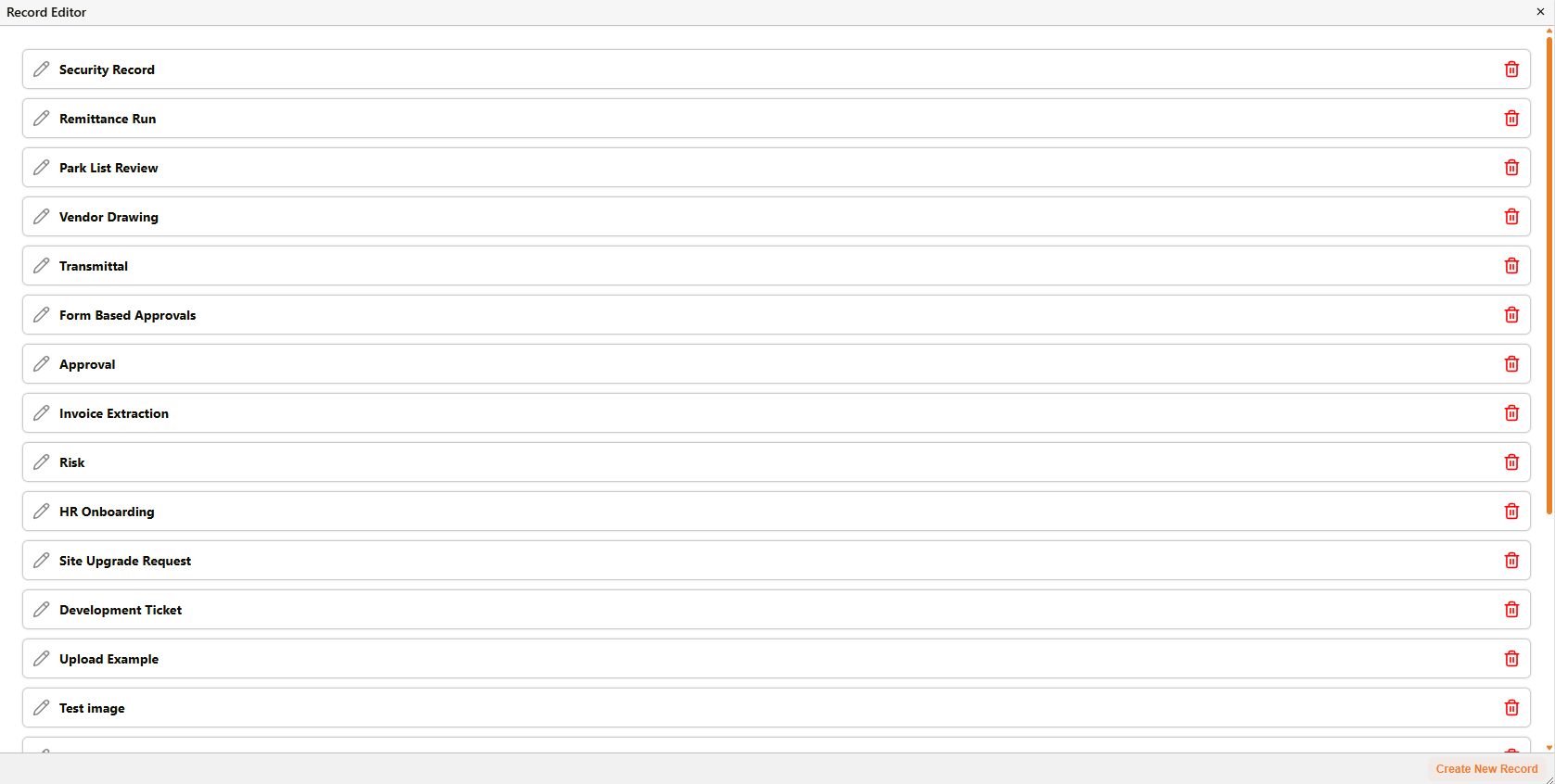
レコードエディター
| コントロール | 機能 |
|---|---|
| 鉛筆アイコン | 該当するレコードのテンプレートビルダーを開き、テンプレートを編集できるようにします。 |
| 削除アイコン | レコードテンプレートを削除します。 |
右下の**新規レコード作成 (Create New Record)**をクリックすると、新しいテンプレートを作成するための「レコード追加」テンプレートビルダーが開きます。
設定の手順
手戻りを避けるために、以下の順序でレコードテンプレートを構築してください。
- 最初にカスタムフィールドテンプレートを定義する。 レコード内のカスタムフィールドセクションは、既存のカスタムフィールドテンプレートを参照します。レコードがそれらを参照できるように、事前に作成しておく必要があります。
- フォルダ構造を定義する。 フォルダセクションは、システム内にすでに存在しているフォルダを参照する必要があります。
- ワークフローテンプレートを構築する。 レコード送信時にワークフローをトリガーする場合は、そのワークフローテンプレートを作成して有効にしておく必要があります。
- レコードテンプレートを作成する。 セクションを組み立て、グループやレコードグループを設定して保存します。
- 公開前にプレビューする。 ユーザーが入力する前に、テンプレートビルダーの**ライブプレビューを表示 (View Live Preview)**を使用して、レコードの外観や動作が想定通りであることを確認します。
権限
レコードの表示制限はテンプレートレベルで制御されます。各レコードテンプレートの**許可されたグループ (Allowed Groups)**フィールドによって、どのグループがそのレコードを表示および入力できるかが決定されます。選択されたグループに所属していないユーザーには、新規(New)モジュールにレコードが表示されません。
管理コンソールの設定パネルには、**レコード (Records)**タブもあります。ユーザーはこのタブを使用して、各テンプレートの「許可されたグループ」フィールドの代替または追加として、特定のレコードを個々のユーザーまたはグループに直接割り当てることができます。
権限の全リファレンスについては、権限 (Permissions)を参照してください。
関連設定
- レコードテンプレートの作成 (Creating a Record Template) — レコードテンプレートの構築と編集
- カスタムフィールド (Custom Fields) — レコードセクションで参照されるカスタムフィールドテンプレート
- ワークフロー (Workflows) — レコード送信を介してトリガーできるワークフローテンプレート
- アクセス制御 (Access Control) — レコードのフォルダセクションが参照するフォルダ構造
- 権限 (Permissions) — レコードアクセスに関する権限レベル