エージェントコンフィギュレーター
エージェントコンフィギュレーターは、ユーザーが Oliver の AI エージェント(文書検索、ワークフロー管理、メタデータ抽出、黒塗りなどのタスクを処理する専門のエージェント)を設定する場所です。ユーザーは、各エージェントが使用するモデル、アクセスできるツールやメモリトピック、他のどのエージェントにタスクを委任できるか、およびコンテキストの管理方法を調整できます。
アクセス: New > AI AGENTS CONFIGURATION > Agent Configurator
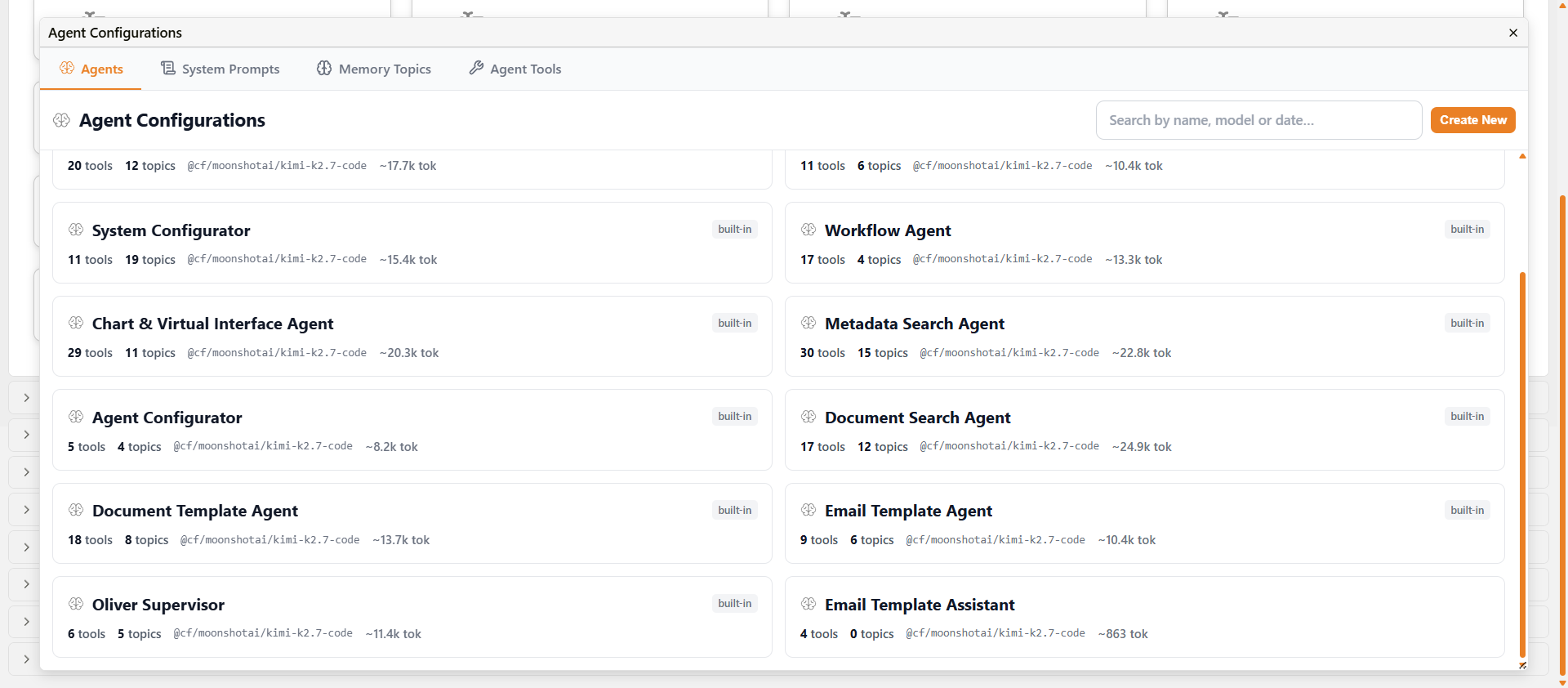
エージェントコンフィギュレーターのエージェント一覧
概要
エージェントコンフィギュレーターには4つのタブがあります。
| タブ | 内容 |
|---|---|
| エージェント (Agents) | 組み込みおよびカスタムのすべてのエージェント設定。エージェントを開いて設定の表示や変更を行います。 |
| システムプロンプト (System Prompts) | エージェントが使用するシステムプロンプトのライブラリ。組み込みプロンプトは読み取り専用です。カスタムプロンプトの作成や編集が行えます。 |
| メモリトピック (Memory Topics) | エージェントが読み書きできる長期的な知識トピック。システムトピックは読み取り専用です。ユーザートピックの作成や管理が行えます。 |
| エージェントツール (Agent Tools) | エージェントが利用できるツールのライブラリ(カテゴリ別)。組み込みツールは読み取り専用です。カスタムツールを追加できます。 |
各タブには検索バーと**新規作成 (Create New)**ボタンがあります。
エージェント
**エージェント (Agents)**タブには、すべてのエージェント設定が一覧表示されます。各カードには、エージェント名、ツールおよびメモリトピックの数、使用するモデル、およびプロンプトの概算トークン数が表示されます。
Docwize には16個の組み込みエージェントが含まれています。
| エージェント | 役割 |
|---|---|
| ドキュメント取り込みエージェント (Document Ingestion Agent) | 新しくアップロードされたドキュメントのファイリングをガイドします。特定の宛先がないアップロードに対するデフォルトのハンドラーです。 |
| ドキュメント検索エージェント (Document Search Agent) | キーワード検索とセマンティック検索を使用し、引用元の検証を伴うコーパス全体のドキュメント検索を行います。 |
| ドキュメント検出エージェント (Document Discovery Agent) | 識別子、フォルダーインベントリ、キーワード、またはコンセプトによって候補ドキュメントを特定し、コンパクトな結果セットを呼び出し元のエージェントに返す内部専門エージェントです。ユーザーに直接公開されるものではありません。 |
| ドキュメントレビューエージェント (Document Review Agent) | ドキュメントのバッチを読み込み、指定された分析指示に対するドキュメントごとの所見を報告します。フォルダー全体のレビュー時に内部的に使用されます。 |
| 検索検証エージェント (Search Verification Agent) | 検索結果セットの検証と要約を行い、バッチ関連性チェックと引用元の検証を実行します。 |
| メタデータ検索エージェント (Metadata Search Agent) | カスタムフィールド、グリッドリンク、レコード、連絡先、参照データなどの構造化されたメタデータを検索および管理します。 |
| レコードエージェント (Records Agent) | レコード(Docwize のテンプレートベースのドキュメント作成ウィザード)の作成、編集、閲覧を行います。 |
| ドキュメント黒塗りエージェント (Document Redaction Agent) | ドキュメントのページから機密コンテンツを黒塗り(非表示化)します。 |
| ドキュメントテンプレートエージェント (Document Template Agent) | Word および Excel のドキュメントテンプレートの作成と編集を支援します。 |
| ワークフローエージェント (Workflow Agent) | ワークフローのインボックスクエリ、アクションリクエスト、ワークフローの詳細、およびワークフローアクションを処理します。 |
| チャート&仮想インターフェースエージェント (Chart & Virtual Interface Agent) | チャートや仮想インターフェースのダッシュボードを構築します。 |
| システム設定エージェント (System Configurator) | カスタムフィールド、グリッドリンク、ワークフロー、プラグインなどのシステム設定を行います。 |
| メールテンプレートエージェント (Email Template Agent) | HTML メールテンプレートを作成および編集します。 |
| エージェント設定エージェント (Agent Configurator) | エージェント設定画面を介して、エージェント、ツール、システムプロンプトを設定します。 |
| Oliver スーパーバイザー (Oliver Supervisor) | ユーザーのリクエストを適切な専門エージェントにルーティングします。 |
| テスト自動化エージェント (Test Automation Agent) | 自動テスト実行パイプラインを管理します。 |
ユーザーが作成したカスタムエージェントもこの一覧に表示され、完全に編集可能です。
エージェントの設定
任意のエージェントカードをクリックして、設定を開きます。組み込みエージェントの上部には以下の通知が表示されます。
built-in(組み込み) — モデル、デフォルトエージェント設定、委任可能なエージェント、および開くことができる画面を変更できます。その他のフィールドは読み取り専用です。
カスタムエージェントでは、すべてのフィールドが編集可能です。
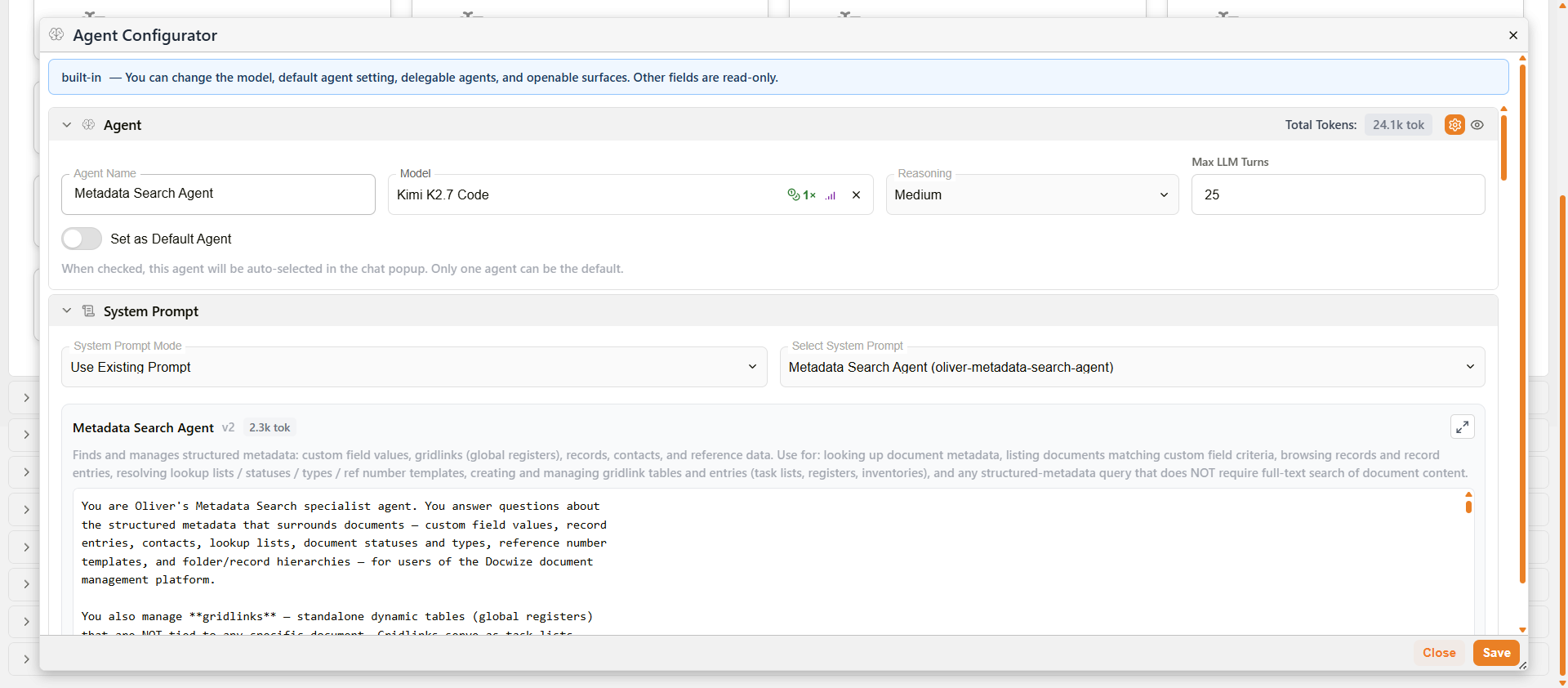
組み込みエージェントのエージェントおよびシステムプロンプトのセクション
エージェントセクション
| フィールド | 説明 |
|---|---|
| エージェント名 (Agent Name) | Oliver のエージェントセレクターに表示される名前。組み込みエージェントでは読み取り専用です。 |
| モデル (Model) | このエージェントが使用する AI モデル。組み込みエージェントでも変更可能です。利用可能なモデル:Anthropic — Claude Fable 5、Claude Sonnet 5、Claude Mythos 5;OpenAI — GPT-5.6(Sol、Terra、Luna の各バリアント)。 |
| 推論 (Reasoning) | 各モデルのターンに適用される推論レベルです。オプション:Off、Low、Medium、High、Extra high、Maximum、Auto。組み込みエージェントでも変更可能です。 |
| 最大LLMターン数 (Max LLM Turns) | エージェントが停止するまでに実行できるモデルの最大ターン数。組み込みエージェントでも変更可能です。 |
| デフォルトエージェントに設定 (Set as Default Agent) | 有効にすると、Oliver のチャットポップアップでこのエージェントが自動的に選択されます。デフォルトに設定できるエージェントは一度に1つだけです。 |
| 総トークン数 (Total Tokens) | エージェントのプロンプトの総トークン数を表示する読み取り専用フィールド。設定の変更に応じて更新されます。 |
システムプロンプトセクション
| フィールド | 説明 |
|---|---|
| システムプロンプトモード (System Prompt Mode) | エージェントのシステムプロンプトの提供方法(例:既存のプロンプトを使用)。組み込みエージェントでは読み取り専用です。 |
| システムプロンプトの選択 (Select System Prompt) | このエージェントに割り当てられたシステムプロンプト。組み込みエージェントでは参照用にプロンプトテキストが表示されます。カスタムエージェントではライブラリから任意のプロンプトを選択できます。 |
許可されたツール (Allowed Tools)
エージェントが利用できるツールを制御します(18のカテゴリに分類)。各カテゴリの横にある数値は、そのカテゴリの全ツールのうち何個が有効になっているかを示します(例:4/10)。
カテゴリ:チャート&インターフェース (Charts & Interfaces)、連絡先 (Contacts)、コア (Core)、カスタムフィールド (Custom Fields)、データビュー (Dataviews)、ドキュメント (Documents)、ドキュメントテンプレート (Document Templates)、メール (Email)、メールテンプレート (Email Templates)、フォルダ (Folders)、GitHub、インターフェース (Interfaces)、Oliverコア (Oliver Core)、プラグインシステム (Plugin System)、レコード (Records)、黒塗り (Redaction)、検索と取得 (Search & Retrieval)、ワークフロー (Workflows)。
メモリトピック (Memory Topics)
エージェントがアクセスできるメモリトピックを制御します。トピックはシステム (System)(共有されるプラットフォーム知識、読み取り専用)とユーザー (User)(セッション中にエージェントが記述する組織固有の観察事項)に分かれています。カウントは、現在このエージェントに対して各タイプのトピックがいくつ有効になっているかを示します。
委任可能なエージェント (Delegable Agents)
このエージェントがサブタスクを委任することを許可されている他のエージェントの一覧。**すべて選択 (Select All)**を使用してすべてのエージェントを有効にするか、個々のエージェントを切り替えます。
開くことができる画面 (Openable Surfaces)
エージェントがユーザーのために開くことができる埋め込みの Docwize 画面を制御します。画面リンクを機能させるには、許可されたツール(Allowed Tools)の下でopen native surfaceツールが有効になっている必要があります。
利用可能な画面:エージェント設定 (Agent Configuration)、カスタムフィールド (Custom Fields)、カスタムフィールドビューアー (Custom Field Viewer)、ドキュメントテンプレートビルダー (Document Template Builder)、メール送信 (Email Send)、メールテンプレートビルダー (Email Template Builder)、検索エクスプローラー (Exploration)、PDFプレビュー (PDF Preview)、プラグイン設定 (Plugin Configurator)、検索画面 (Search Surface)、仮想インターフェース (Virtual Interface)。
許可されたワークフロー (Allowed Workflows)
エージェントが開始できるワークフローテンプレートを制御します。ワークフローリンクを機能させるには、許可されたツール(Allowed Tools)の下でstart workflowツールが有効になっている必要があります。
**ユーザーがアクセスできるすべてのワークフローを許可する (Allow all workflows the user can access)**を有効にして、利用可能なすべてのワークフローへのアクセスを許可するか、個別のテンプレートを選択します。**非アクティブ (inactive)**とマークされたテンプレートは、参照用に表示されたままになっている無効化されたワークフローテンプレートです。
重要ドキュメント (Important Documents)
エージェントに永続的なコンテキストとして特定のドキュメントを提供するドキュメントピッカー。ここに追加されたドキュメントは、すべてのセッションでエージェントが利用できます。
コンテキスト管理 (Context Management)
セッション中のコンテキストウィンドウを Oliver がどのように管理するかを微調整します。サーバーのデフォルト値を使用する場合は、すべてのフィールドを空白のままにしてください。
| 設定 | デフォルト | 説明 |
|---|---|---|
| L1 オフロードしきい値 (L1 Offload Threshold) | 8192 バイト | これより大きいツールの結果は、コンテキストに保持されるのではなく、アーティファクトとして保存されます。 |
| L1 プレビューバイト数 (L1 Preview Bytes) | サーバーのデフォルト | 結果がアーティファクトにオフロードされるときにプレビューとして表示されるバイト数。 |
| L2 保持期間しきい値 (L2 Age Threshold) | 6 ターン | これより古いターンのツールの結果は、コンテキスト内で圧縮(スタブ化)されます。 |
| L2 最新保持数 (L2 Keep Recent) | サーバーのデフォルト | スタブ化が開始される前に、完全にそのまま保持する最新のターン数。 |
| L3 圧縮トリガー (L3 Compaction Trigger) | 70% | コンテキストがモデル制限のこの割合に達すると、古いメッセージが要約されます。 |
| L3 最新保持数 (L3 Keep Recent) | サーバーのデフォルト | ステップ中間の圧縮が実行されたときに保持する最新のメッセージ数。 |
| L4 緊急トリガー (L4 Emergency Trigger) | 85% | コンテキストがこの割合に達すると、コンテキストは強制的に切り詰められます。 |
| L4 保持数 (L4 Keep) | サーバーのデフォルト | 緊急圧縮中に保持するメッセージ数。 |
| 圧縮バッファ (Compaction Buffer) | 9% | プロンプトがモデルウィンドウの制限に達しないように確保される空き容量。 |
システムプロンプト
**システムプロンプト (System Prompts)**タブには、すべてのシステムプロンプトテンプレートが一覧表示されます。各カードには、プロンプト名、バージョン、内部識別子、およびプロンプトテキストのプレビューが表示されます。
組み込みプロンプトは読み取り専用です。**新規作成 (Create New)をクリックしてカスタムシステムプロンプトを追加します。作成したカスタムプロンプトは、エージェント設定のシステムプロンプトの選択 (Select System Prompt)**フィールドを介して任意のエージェントに割り当てることができます。
メモリトピック
**メモリトピック (Memory Topics)**タブには、エージェントがセッション中に参照および更新できるすべての知識トピックが一覧表示されます。
| タイプ | 説明 |
|---|---|
| システム (System - 読み取り専用) | カスタムフィールド、ドキュメント管理、ワークフローの挙動など、組み込みのプラットフォーム知識トピック。エージェントはこれらを読み取ることができますが、変更することはできません。 |
| ユーザー (User) | エージェントが観察事項から自動的に作成した組織固有のトピック、または手動で追加されたトピック。編集および削除が可能です。 |
**新規作成 (Create New)**をクリックしてカスタムメモリトピックを追加します。
エージェントツール
**エージェントツール (Agent Tools)**タブには、エージェントが利用できるすべてのツールがカテゴリ別に一覧表示されます。各カードには、ツール名、内部識別子、属するカテゴリ、およびその機能の説明が表示されます。
組み込みツールは次の領域をカバーしています:チャート&インターフェース (Charts & Interfaces)、連絡先 (Contacts)、コア (Core)、カスタムフィールド (Custom Fields)、データビュー (Dataviews)、ドキュメント (Documents)、ドキュメントテンプレート (Document Templates)、メール (Email)、メールテンプレート (Email Templates)、フォルダ (Folders)、GitHub、インターフェース (Interfaces)、Oliverコア (Oliver Core)、プラグインシステム (Plugin System)、レコード (Records)、黒塗り (Redaction)、検索と取得 (Search & Retrieval)、ワークフロー (Workflows)。
**新規作成 (Create New)をクリックしてカスタムツールを追加します。カスタムツールは、エージェント設定の許可されたツール (Allowed Tools)**セクションを介して任意のエージェントで有効にすることができます。
カスタムエージェントの作成
**エージェント (Agents)タブで新規作成 (Create New)**をクリックして、新しいカスタムエージェントを作成します。新しいエージェントは、ツール、メモリトピック、割り当てられたシステムプロンプトがない状態から開始します。エージェントを使用する前に、すべてのセクションを設定してください。
カスタムエージェントを Oliver チャットポップアップでユーザーが利用できるようにするには、**デフォルトエージェントに設定 (Set as Default Agent)**を有効にするか、エージェントセレクターに表示されるようにします。