メインコンテンツまでスキップ

Review Setup

Review Setup separates what a review is from when it runs:

  • A review programme defines who reviews, what they answer, and the rule that closes the round.
  • An automatic rule decides which documents get reviewed, and how often.

Open New → Workflow Setup → Review Setup. The area requires the Documents - Manage Review Schedules permission.

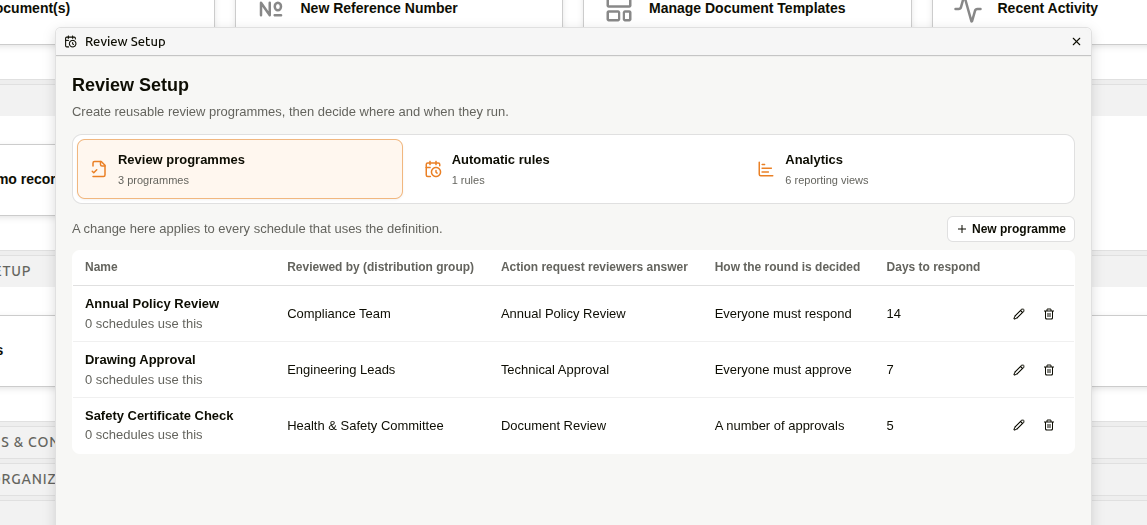
Review Setup listing review programmes, with tabs for Automatic rules and Analytics
Review Setup

Review programmes​

A review programme defines who receives the review task, what reviewers answer, and how their replies decide the round. One programme can serve many rules and schedules, so the reviewer setup is defined once rather than repeated per document. Document Details and the Assign dialog call a programme a Review type.

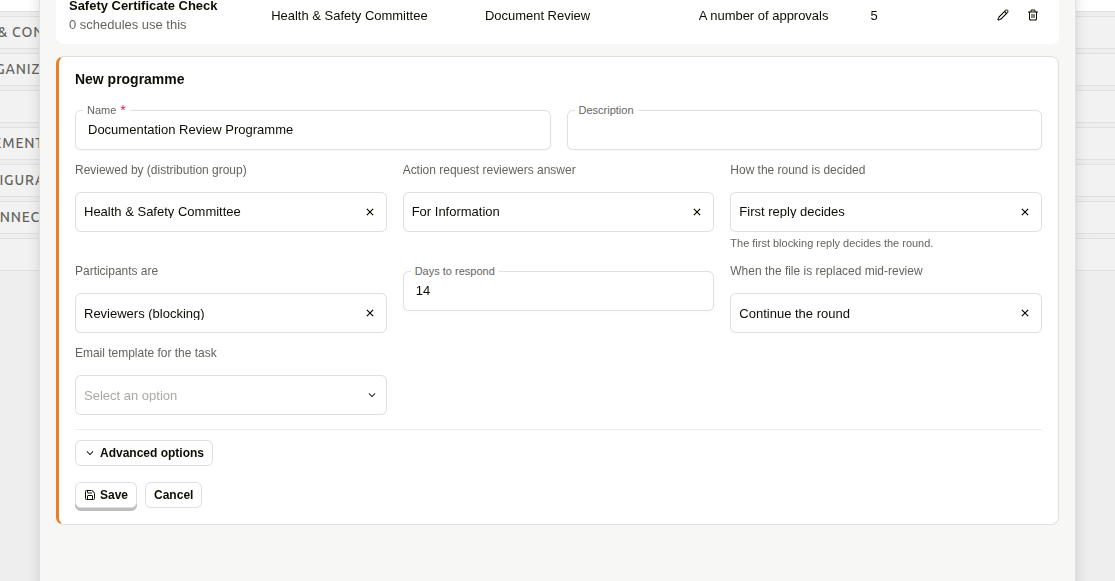
Review programme editor showing reviewer group, action request and decision settings
Review programme editor

Save stays disabled until all three required fields are set:

  • Name
  • Reviewed by (distribution group)
  • Action request reviewers answer
SettingChoices
How the round is decidedFirst reply decides · Everyone must respond · Everyone must approve · A number of approvals
Participants areReviewers (blocking) · Approvers (blocking) · Consulted (non-blocking) · Informed (non-blocking)
When the file is replaced mid-reviewContinue the round · Start the round again · Re-review changed clauses (falls back to whole document)

Blocking participants hold the round open until they reply. Non-blocking participants can contribute without delaying it.

Days to respond sets the deadline, and Email template for the task chooses the notification reviewers receive.

Advanced options​

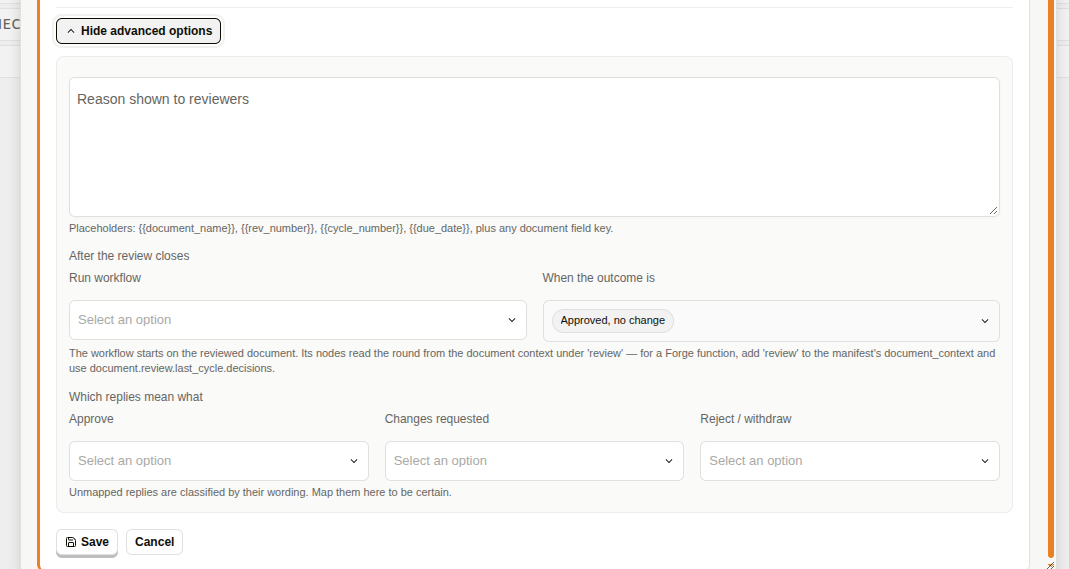
Advanced programme options for the reviewer message, follow-up workflow and reply mapping
Advanced options
  • Reason shown to reviewers — the message on the assignment. Placeholders: {{document_name}}, {{rev_number}}, {{cycle_number}}, {{due_date}}, plus any document field key.
  • After the review closes — run a workflow when the round reaches a chosen outcome.
  • Which replies mean what — map replies onto Approve, Changes requested and Reject / withdraw. Unmapped replies are classified by their wording. Map them here to be certain.

Automatic rules​

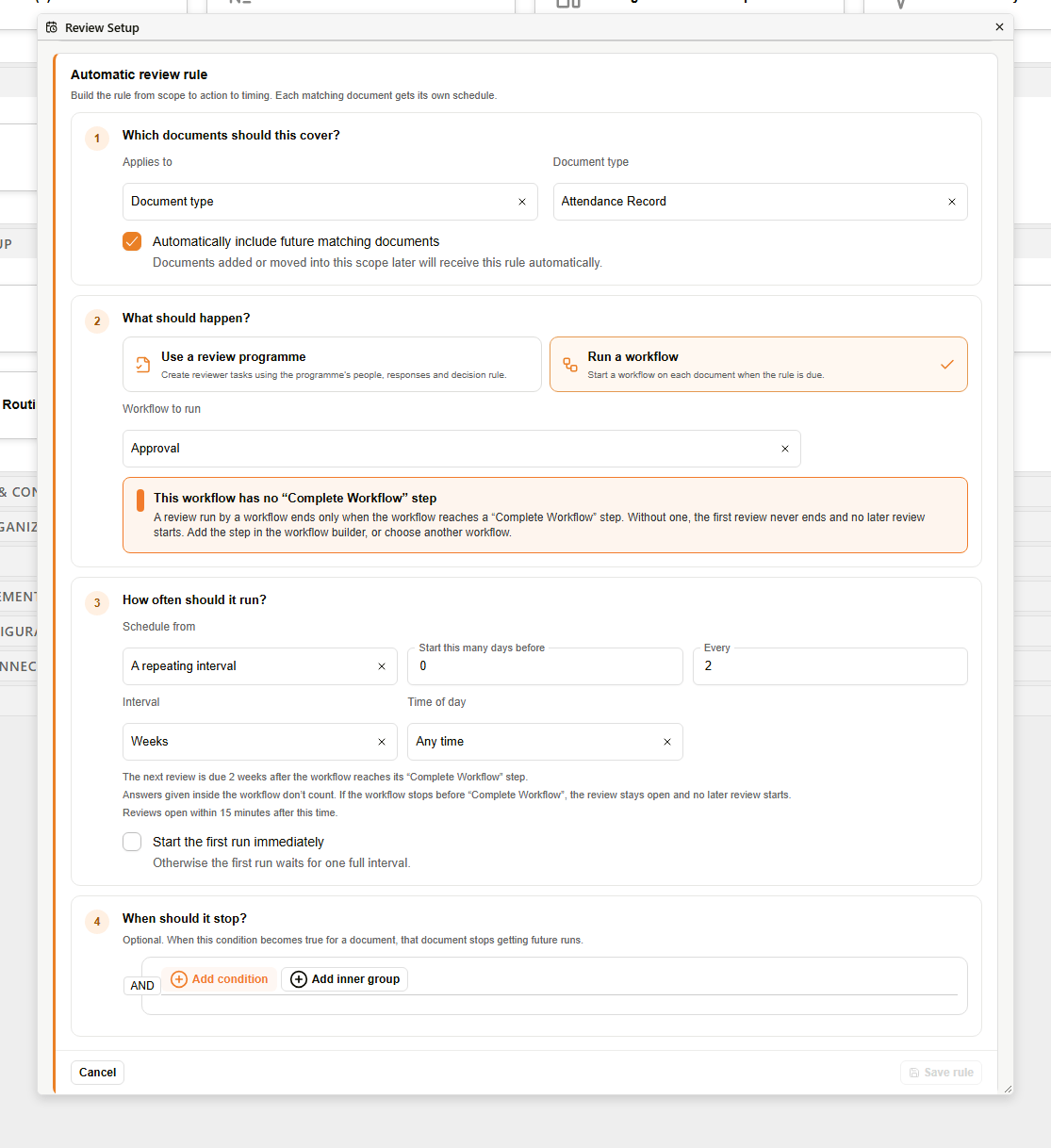
An automatic rule chooses the documents it covers, what happens when the rule is due, how often it repeats, and an optional stop condition.

Select Automatic rules → Create automatic rule. The editor follows the order the rule runs in.

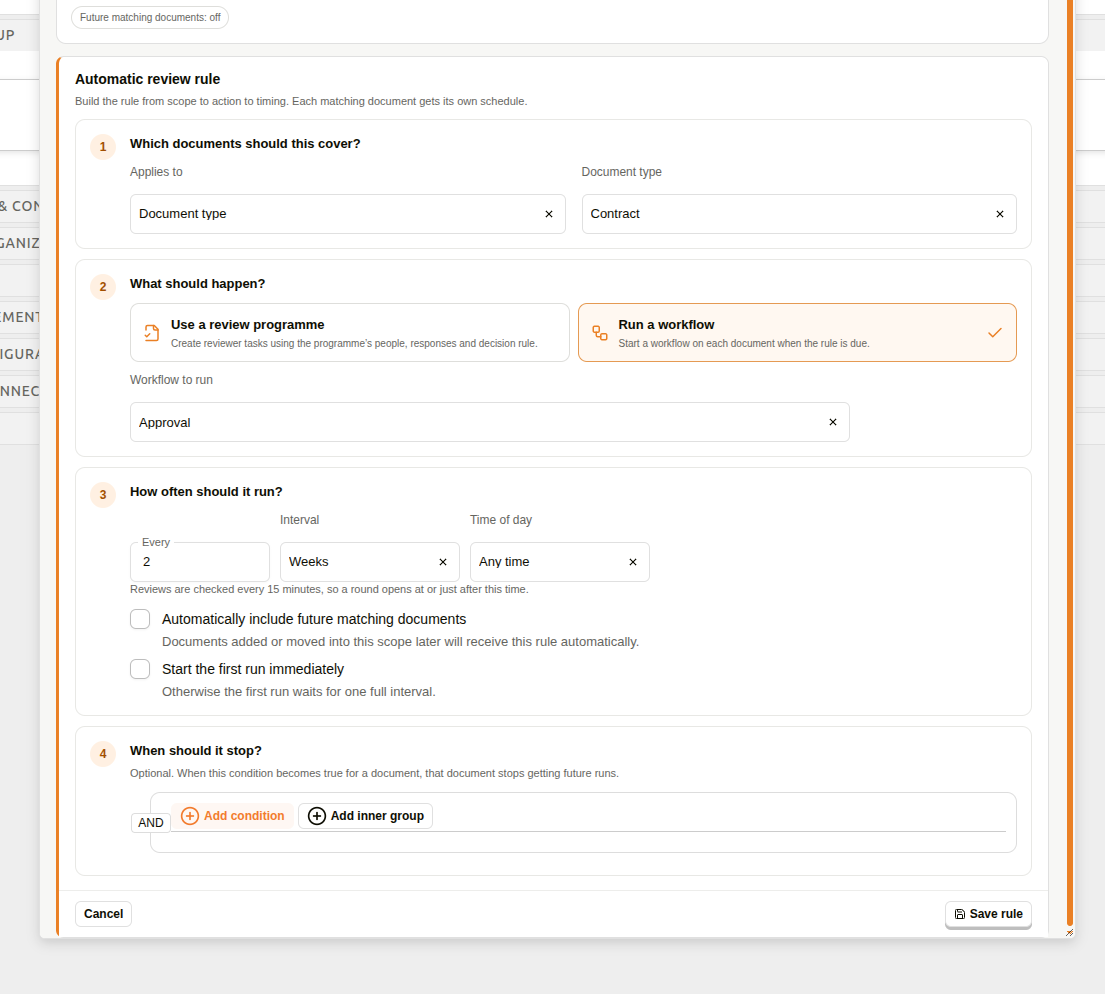
Automatic review rule builder showing document scope, action, timing and stop condition
Automatic review rule

1. Which documents should this cover? Scope the rule to a Document type or a Folder, then pick the specific one. Optionally select Automatically include future matching documents. Documents added or moved into this scope later will receive this rule automatically.

2. What should happen? Either Use a review programme or Run a workflow. A programme creates the reviewer tasks and decision round it defines; a workflow starts on each document when its rule falls due. A sentence under the schedule states what "approved" means for whichever is chosen — for a workflow, for example: Answers given inside the workflow don’t count. If the workflow stops before “Complete Workflow”, the review stays open and no later review starts.

Run a workflow also requires the chosen Workflow to run to have a Complete Workflow step, since that is the only thing that ends a round it runs. Without one:

Automatic rule editor warning that the chosen workflow has no Complete Workflow step, with Save rule disabled
A workflow with no Complete Workflow step

This workflow has no “Complete Workflow” step A review run by a workflow ends only when the workflow reaches a “Complete Workflow” step. Without one, the first review never ends and no later review starts. Add the step in the workflow builder, or choose another workflow.

Save stays disabled until a workflow with that step is chosen.

3. How often should it run? Schedule from chooses A repeating interval or A date on the document; see below for the second. For a repeating interval, set a number and a unit — Hours · Days · Weeks · Months — plus a Time of day. Start this many days before sets how many days before the due date the round actually opens, whichever mode is chosen. For a repeating interval, tick Start the first run immediately to start the first run now. Otherwise the first run waits for one full interval. A sentence under the interval states when the next review falls due, for example: The next review is due 2 weeks after the workflow reaches its “Complete Workflow” step.

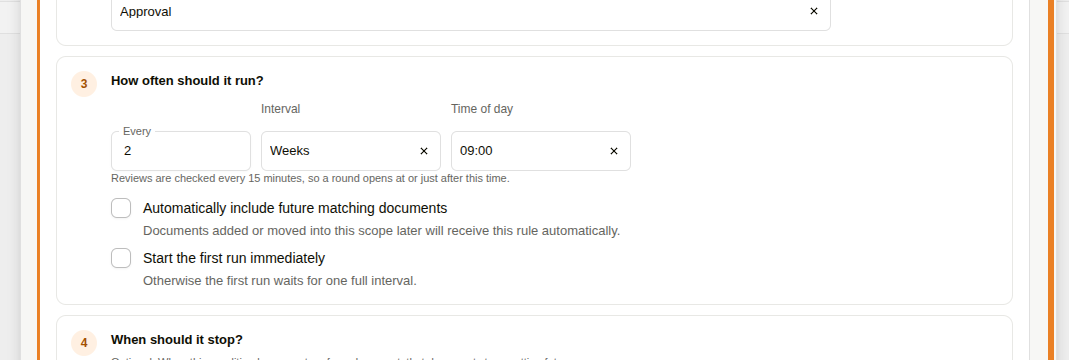
Time of day​

An interval on its own falls due at whatever minute the rule happened to be saved, so "every 12 months" drifts to an arbitrary time. Time of day pins it: every 2 weeks at 09:00.

Rule timing step showing an interval of every 2 weeks with a time of day of 09:00
Time of day

Every half hour from 00:00 to 23:30, in the server time zone. Leave it on Any time to keep the interval landing wherever it falls — which is what every rule created before this setting existed does.

Reviews open within 15 minutes after this time.

Two things it does not apply to:

  • Hourly intervals. The control disappears when the unit is Hours, because pinning a loop that repeats several times a day to one clock time would quietly turn it into a daily one. Sent directly to the API, the pair is refused: A time of day cannot be combined with an hourly review interval.
  • Start the first run immediately. That means now, so the first run is not held back to the chosen time. Every run after it lands on the time.

Scheduling from a document date​

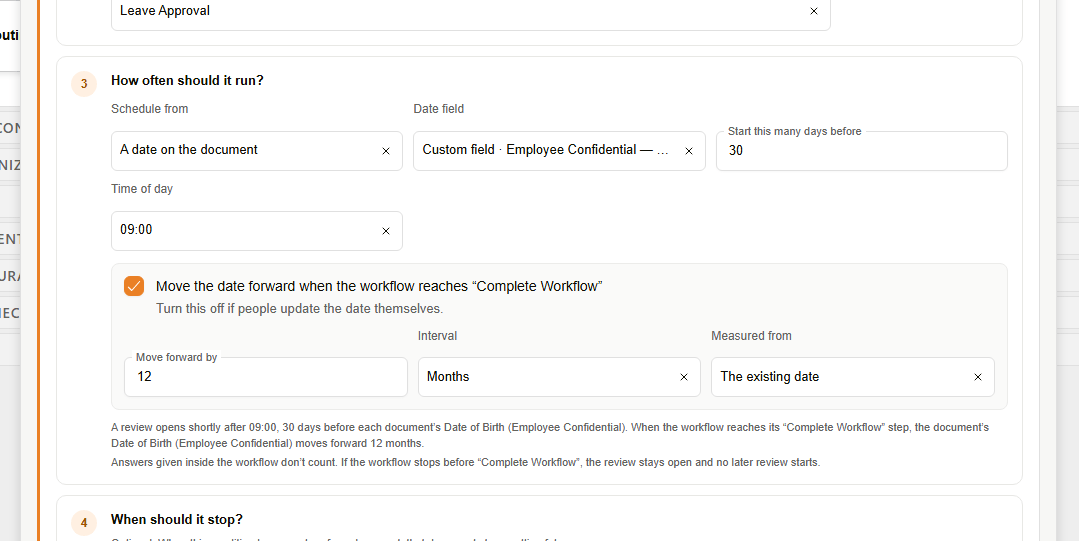
Choose A date on the document to drive the rule from a date already on the document instead of a fixed interval. Each matching document gets its own due date from its own field value, rather than every document in scope sharing one calendar.

Automatic rule timing set to schedule from a document date, with the date field, lead time, time of day, the move-forward block and a one-sentence summary
Scheduling from a document date
  • Date field — the date that drives the rule. The choices include the document's own dates, such as Custom field · Employee Confidential — Date of Birth, Custom field · Exit Details — Last Working Day, Custom field · Exit Details — Notice Date, plus any custom field date that holds a single value per document.
  • Start this many days before — how many days before that date the review opens.
  • Time of day — pins the time the review opens, as for a repeating interval. It is not offered while the date moves forward by hours.

Under the controls, one sentence says what the rule will do with the values chosen so far, for example: A review opens shortly after 09:00, 30 days before each document’s Date of Birth (Employee Confidential). When the workflow reaches its “Complete Workflow” step, the document’s Date of Birth (Employee Confidential) moves forward 12 months.

Move the date forward when the workflow reaches “Complete Workflow” is ticked by default. While it is ticked, Move forward by and Interval set how far the date moves once the review is approved, and Measured from chooses The existing date or The day the review opened as the point the move counts from. With The day the review opened, the summary reads: A review opens 30 days before each document’s Date of Birth (Employee Confidential). When the workflow reaches its “Complete Workflow” step, the document’s Date of Birth (Employee Confidential) is set to 12 months after the review opened.

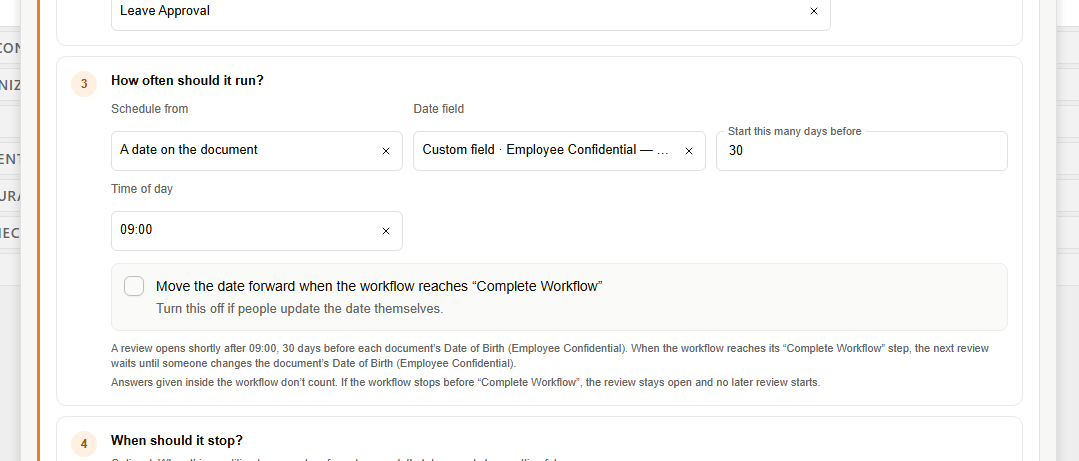
Untick it if people update the date themselves. The amount and basis are hidden, approval leaves the date alone, and the next review waits until someone changes it.

Automatic rule timing set to schedule from a document date with the move-forward block unticked, and a summary saying the next review waits until someone changes the date
A date that people update themselves

Save is refused until a date field is chosen: Choose the document or custom date field that should drive this rule. A document whose chosen date field is empty is never due — the schedule exists but waits until the field is filled in.

Start the first run immediately does not appear for a date-backed rule — it is refused outright if sent to the API.

A saved rule built this way reads the lead time and the field instead of a cadence, for example: 30 days before Custom field · Employee Confidential — Date of Birth.

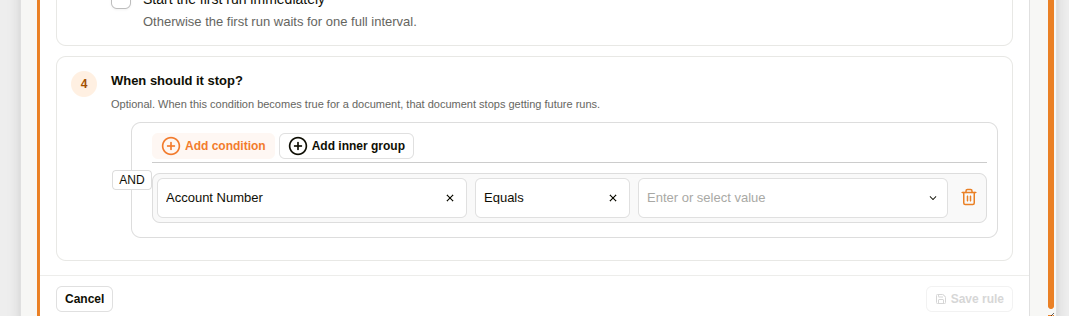
4. When should it stop? Optional. When this condition becomes true for a document, that document stops getting future runs.

Stop conditions​

Select Add condition to build the test from document fields, and Add inner group when more than one test is needed.

Stop-condition builder matching a document field against a value
Stop condition

The condition is checked for each scheduled document before a later run. When it matches, that document stops receiving future runs from the rule. This suits a recurring check that should stop once the document reaches a business state — a delivery confirmed, or a certificate superseded.

Reading a saved rule​

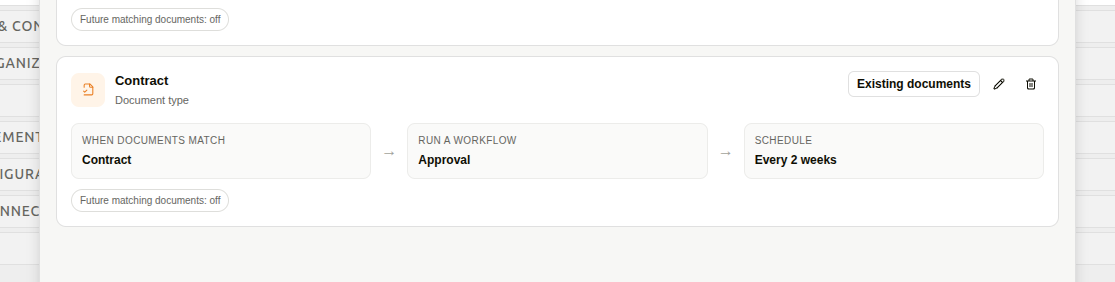
A saved rule reads left to right: WHEN DOCUMENTS MATCH → RUN A WORKFLOW → SCHEDULE. The middle caption names whichever action the rule uses. Chips underneath show whether future documents are included, whether the first run is immediate, and any stop condition. Use the Edit (pencil icon) to change it.

Saved automatic rule reading from document scope through action to schedule
Saved automatic rule

Applying a rule to existing documents​

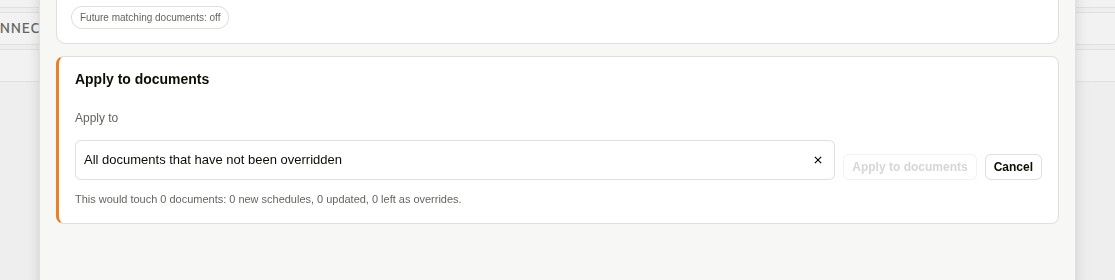
A new rule covers future documents only. To bring documents already in scope onto it, select Existing documents on the saved rule and choose a mode:

  • New documents only
  • All documents that have not been overridden
  • All documents, discarding overrides

The preview reports the effect before anything is applied:

This would touch 0 documents: 0 new schedules, 0 updated, 0 left as overrides.
Existing-document preview counting the schedules that would be created, updated or kept as overrides
Existing-document preview

An override is a scheduling choice made on an individual document. Use All documents, discarding overrides only when the rule is meant to replace those choices.

Removing a rule​

Select the trash icon on a saved rule and confirm:

Remove this rule and stop future runs for documents that inherited it? Existing review history is kept.
Confirmation shown before removing an automatic review rule
Remove automatic rule
The rule stops being listed and no further runs are scheduled for the documents that inherited it. Existing review history is kept.

Folder review automation​

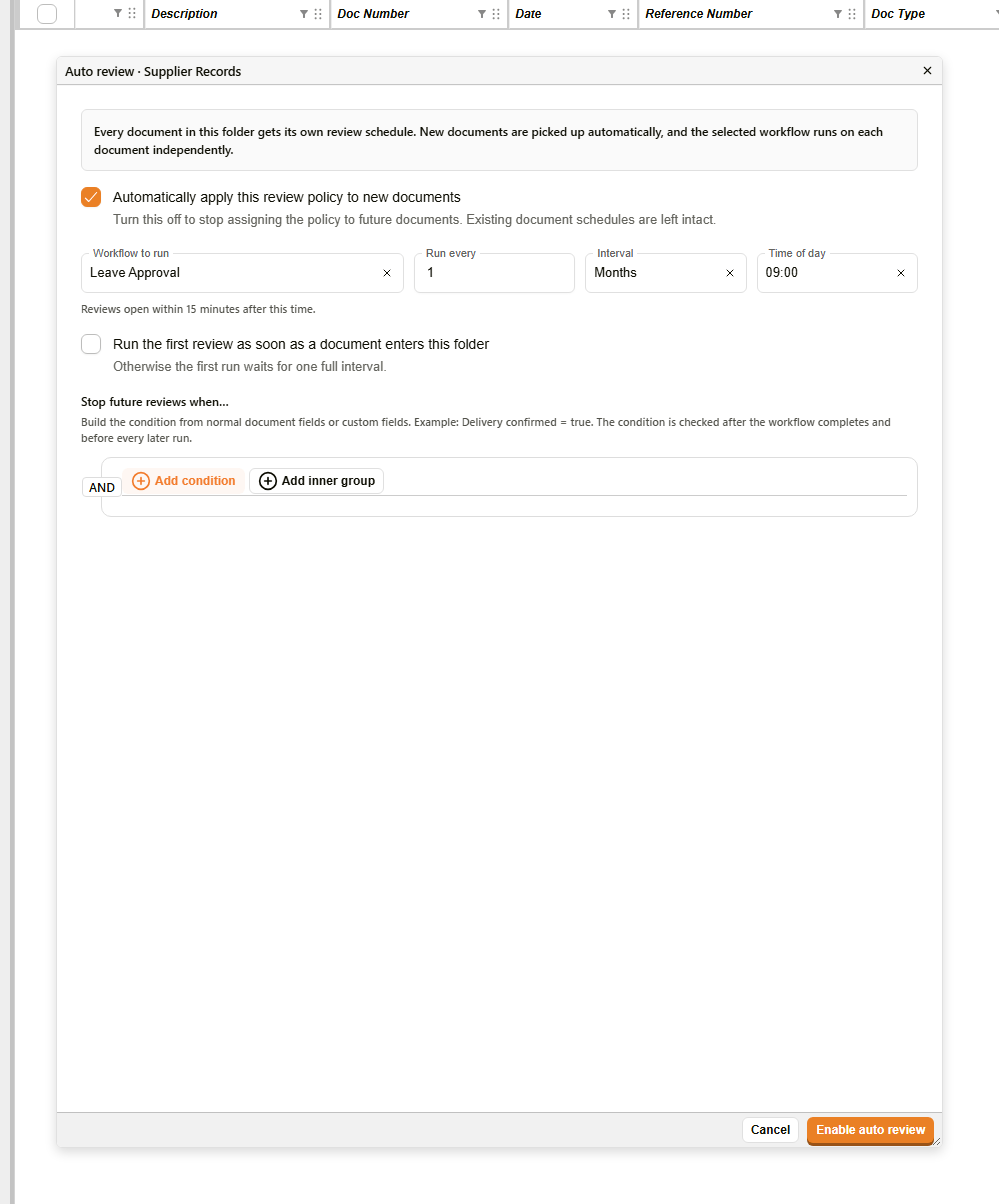
A folder can carry its own rule, set from the folder itself: right-click the folder in Explorer and choose Properties… → Review automation → Configure. The tab needs the Documents - Manage Review Schedules permission.

Auto review dialog for a folder with a workflow, a monthly interval and a time of day
Folder review automation
Every document in this folder gets its own review schedule. New documents are picked up automatically, and the selected workflow runs on each document independently.

It differs from a rule created in Review Setup in three ways:

  • It only runs a workflow. There is no review-programme option, and Enable auto review refuses to save without a Workflow to run — one with a Complete Workflow step, the same requirement and warning as an automatic rule's (above).
  • It applies to the folder's existing documents as soon as it is saved. Every document not already overridden gets the schedule — there is no separate Existing documents step.
  • The round opens on the due date, with no lead time.

Run every, Interval and Time of day work as in an automatic rule, as does Stop future reviews when…. Once saved, the button reads Save policy, and the rule is also listed under Automatic rules in Review Setup.

Documents in the folder show the schedule as inherited in their Review section, where it can be overridden per document (see Document review schedules).

Document review schedules​

Automatic rules and folder automation suit documents that are all reviewed on the same timetable. When one document needs its own timetable, for example a contract that is reviewed before its renewal date, a user can set its schedule from the Review section of its Document Details. The same section lets a user start a review early, pause a schedule, or take a document off review. Changing a schedule requires the Documents - Manage Review Schedules permission.

What every user sees in the Review section, such as the review status, an open round and the review history, is described in Review in the user docs.

Schedule settings​

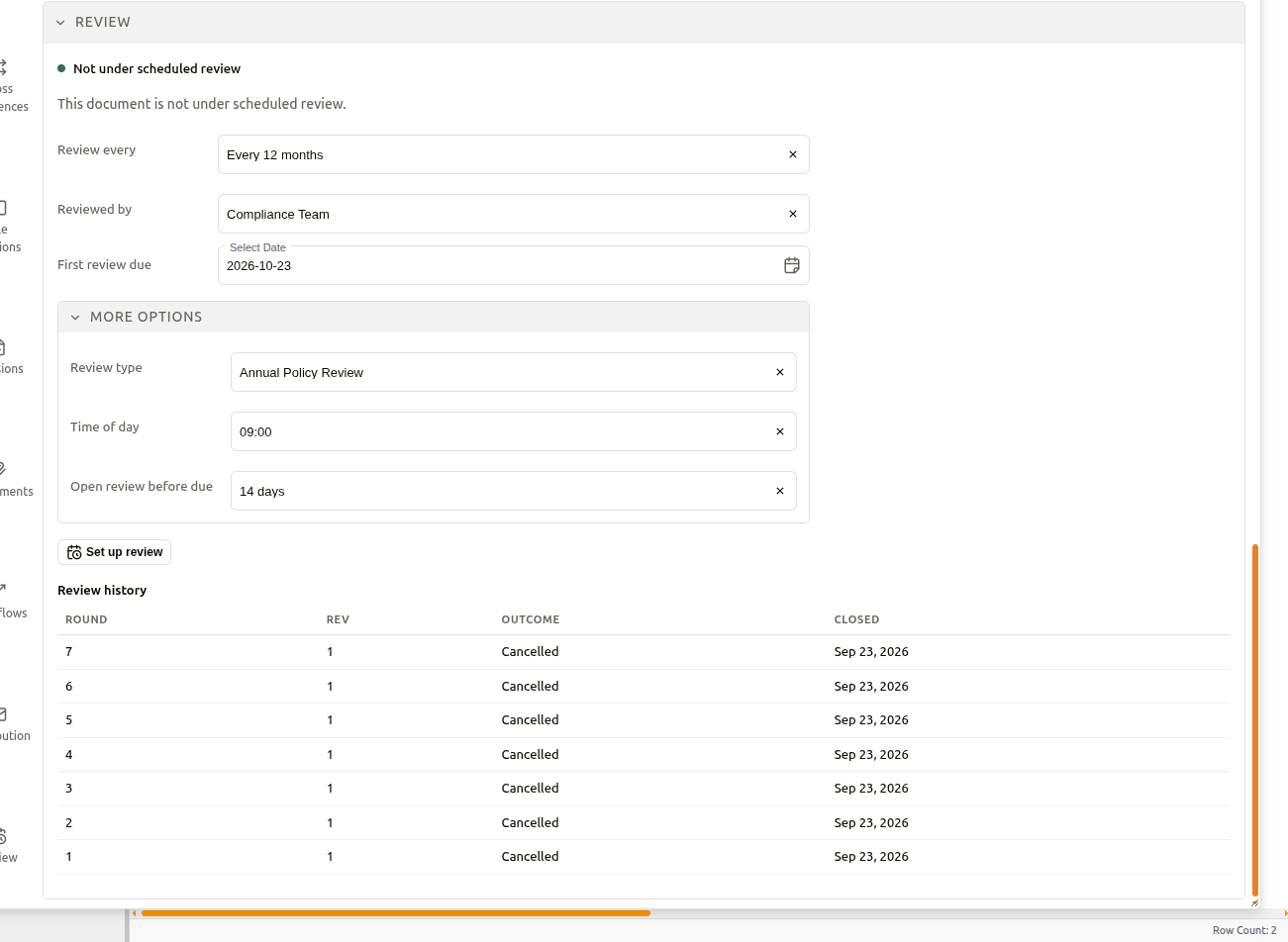
When a document has no schedule, the Review section shows This document is not under scheduled review., followed by the settings for a new schedule. The same settings reopen when a schedule is edited.

Review section of Document Details before a schedule is set up
Review section of a document with no schedule

The first three settings answer the main questions: how often the document is reviewed, who reviews it, and when the first review is due.

SettingDescription
Review everyHow often the document is reviewed: Every 6 months · Every 12 months · Every 24 months · One-off review. One-off review suits a document that only needs to be checked once, for example before a contract is renewed.
Reviewed byThe distribution group whose members receive each review round.
First review dueThe date the first review round falls due. When an existing schedule is edited, this setting is called Next review.

The remaining settings have sensible defaults, so they are kept under More options.

SettingDescription
Review typeThe review programme that decides how each round runs. Use the default leaves the choice to the programme that applies to this document.
Time of dayPins every due date to a clock time, for example so that review requests arrive at the start of the working day. Any time leaves the time open. Times are in the server's time zone.
Open review before dueHow far ahead of the due date a round opens, so that reviewers have time to respond before the document is due: 0 days · 7 days · 14 days · 30 days. The default is 14 days.

A schedule needs to know who reviews the document, so the user chooses a Reviewed by group, a Review type, or both.

Managing a schedule​

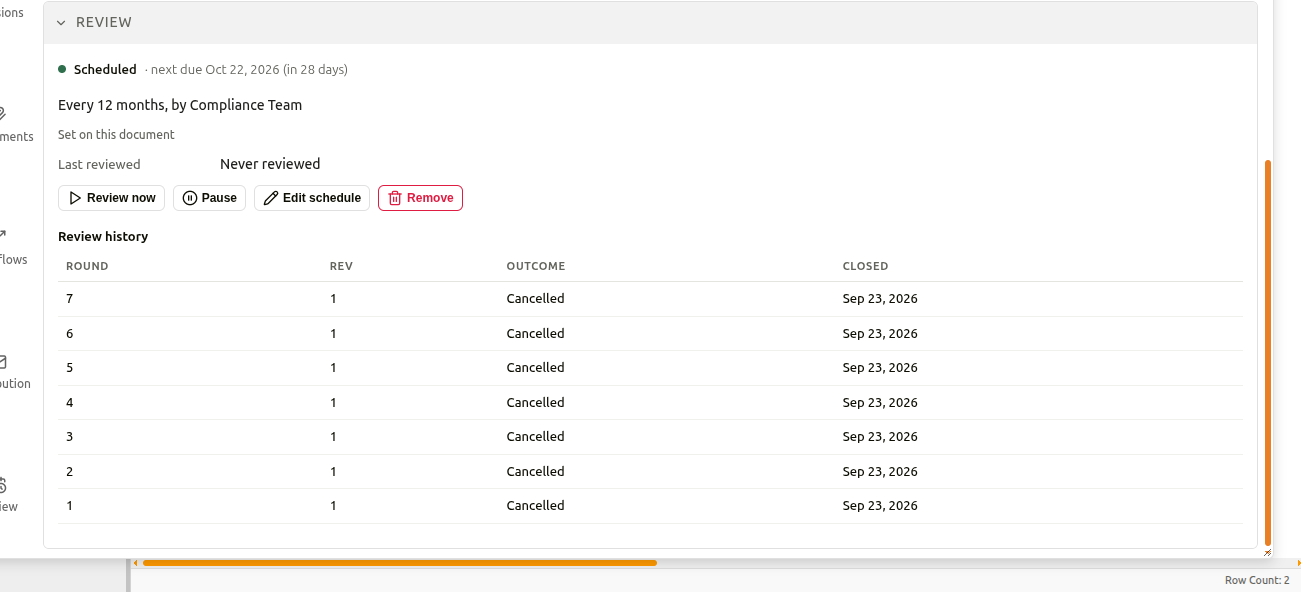
Once a document is on a schedule, these buttons appear under its schedule summary:

Review section showing a scheduled document with its actions
Scheduled document
ButtonDescription
Review nowOpens a review round straight away, for example after a change in regulations, without waiting for the due date. The next scheduled due date does not move. The button is unavailable while a round is already open.
Pause / ResumeStops new rounds from opening, for example while a document is being rewritten, and starts them again without losing the schedule.
Edit scheduleReopens the schedule settings. Changes are saved with Save schedule.
RemoveTakes the document off scheduled review, when it no longer needs to be reviewed. Past rounds stay in its review history.

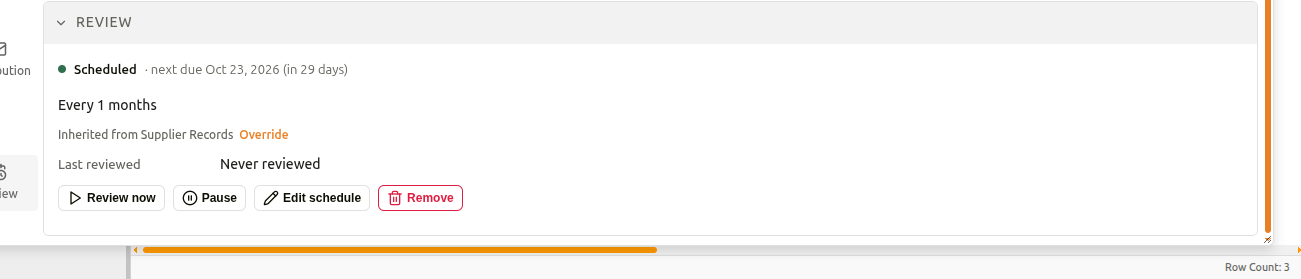
When the schedule comes from an automatic rule or folder automation, the summary reads Inherited from …, with an Override link beside it.

Review section showing a schedule inherited from a folder, with an Override link
Inherited schedule

Override opens the schedule settings so that the document can be given its own schedule. Once saved, the schedule reads Set on this document, and later changes to the rule no longer affect this document.

How to set up a review on a document​

StepDescription
1Open the document's Document Details dialog and select Review in the vertical toolbar.
2In Review every, choose how often the document should be reviewed.
3In Reviewed by, choose the group that reviews the document.
4In First review due, choose the date the first review falls due.
5Optional: open More options to choose a Review type, a Time of day, or how far ahead the round should Open review before due.
6Select Set up review. The status line changes to Scheduled, with the next due date.

Setting up review for many documents​

When a batch of existing documents needs the same review schedule, for example a set of certificates found in a search, a user can schedule them all at once instead of one by one. Unlike an automatic rule, this applies only to the documents selected, and not to documents added later.

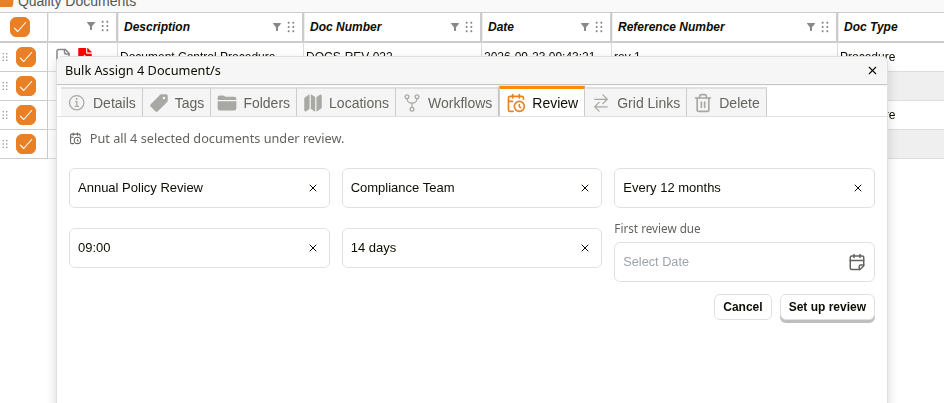
This is done on the Review tab of the Assign dialog. The tab is only shown to users with the Documents - Manage Review Schedules permission.

Review tab of the Assign dialog with a review type, group, frequency and time of day chosen
Bulk review set-up

The tab asks the same questions as the schedule settings of a single document, in this order: Review type, Reviewed by, Review every, Time of day, Open review before due and First review due. Choosing a Review type fills in its reviewing group. When only one review type exists, it is chosen already, together with its group.

Set up review stays unavailable until a review type or a group is chosen, and a One-off review also needs a First review due date. If First review due is left empty for a repeating review, the first review falls due one period from today, for example in 12 months for Every 12 months.

A document that already has its own schedule is updated rather than given a second one.

How to set up review for many documents​

StepDescription
1In the document grid, tick the documents that need reviewing.
2Right-click one of the ticked documents and choose Set Up Review. The Assign dialog opens on its Review tab.
3Choose a Review type, a Reviewed by group, or both. Choosing a Review type fills in its group.
4In Review every, choose how often the documents should be reviewed.
5Optional: choose a Time of day, how far ahead the round should Open review before due, and a First review due date. A One-off review needs the date.
6Select Set up review. The dialog closes, and a message reports how many documents were scheduled and how many were updated.

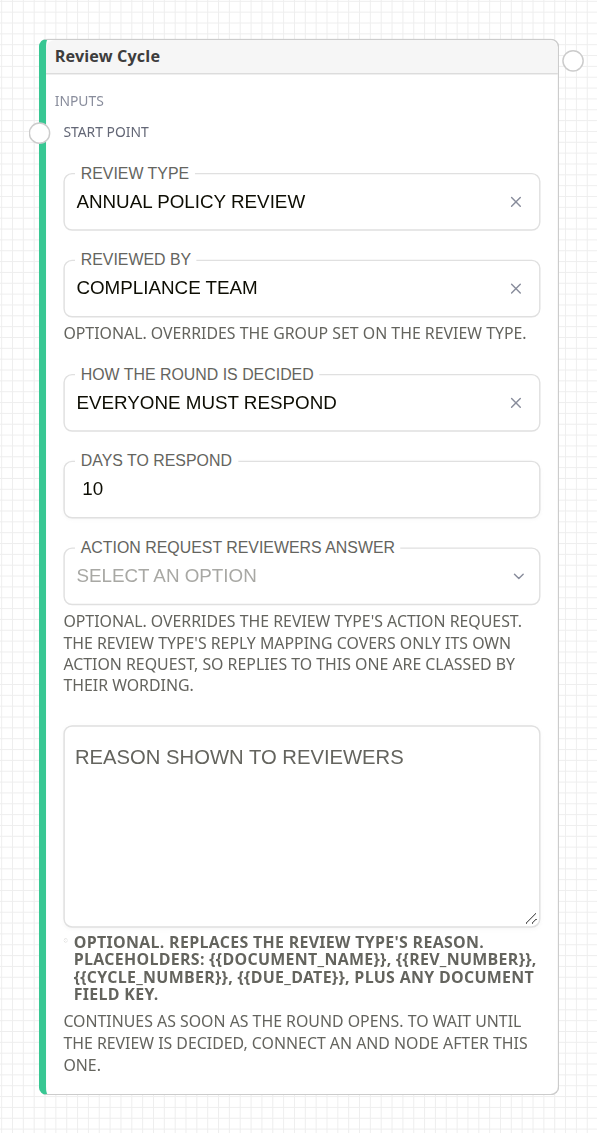
Review Cycle workflow node​

To open a review round as a step of a workflow, add the Review Cycle node from System & Flow Control in the node palette.

Review Cycle node configured with a review type and per-placement overrides
Review Cycle node
FieldWhat it does
Review typeThe programme to run. Required — the node shows a warning until one is chosen.
Reviewed byA different reviewing group for this placement only.
How the round is decidedOverrides the programme's decision rule for this placement.
Days to respondOverrides the programme's deadline for this placement.
Action request reviewers answerA different action request for this placement only. Optional. Overrides the review type's action request. The review type's reply mapping covers only its own action request, so replies to this one are classed by their wording.
Reason shown to reviewersOptional. Replaces the review type's reason. Placeholders: {{document_name}}, {{rev_number}}, {{cycle_number}}, {{due_date}}, plus any document field key.

Everything else about the round comes from the programme.

The node has one Start Point input and one output. The workflow continues as soon as the round opens. To hold a branch until the review is decided, connect an All required (And Node) after it. That node waits until the round closes, either when the replies meet the decision rule or when the document's file is replaced and the programme starts the round again.

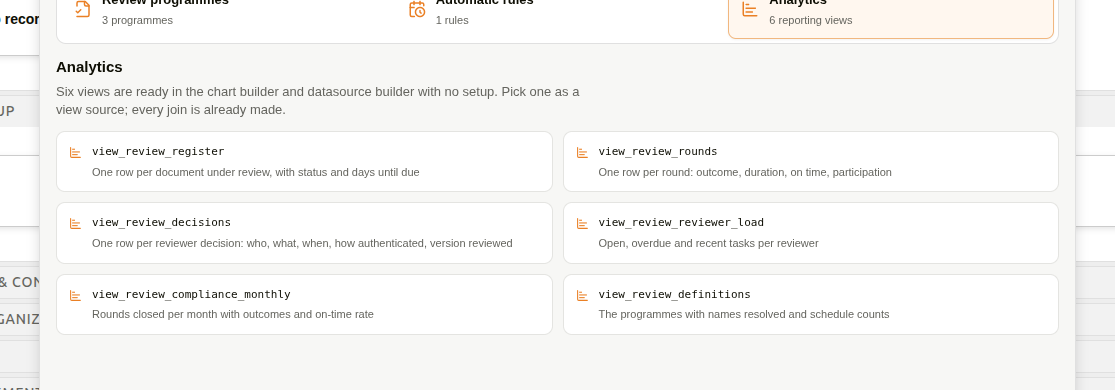
Analytics​

Six views are ready in the chart builder and datasource builder with no setup. Pick one as a view source; every join is already made.
Review analytics listing the six reporting views
Review analytics
TitleViewWhat it contains
Review registerview_review_registerOne row per document under review, with status and days until due
Review roundsview_review_roundsOne row per round: outcome, duration, on time, participation
Review decisionsview_review_decisionsOne row per reviewer decision: who, what, when, how authenticated, version reviewed
Reviewer loadview_review_reviewer_loadOpen, overdue and recent tasks per reviewer
Monthly review complianceview_review_compliance_monthlyRounds closed per month with outcomes and on-time rate
Review definitionsview_review_definitionsThe programmes with names resolved and schedule counts