Document Update Nodes
Document update nodes change the workflow document or its record: its status, its subject and description, the custom fields that can be edited, and the file itself. They also create new documents and attachments.
| Node | Palette category | Purpose |
|---|---|---|
| Status Update Node | System & Flow Control | Sets the document's Status to the reply name. |
| Lock Document | System & Flow Control | Locks the document against certain edits, then continues the workflow. |
| Custom Field Locks | Tools & Tasks | Locks or unlocks custom field templates on the document. |
| Subject Change Node | Tools & Tasks | Sets the workflow's subject from a template. |
| Description Update Node | Tools & Tasks | Sets the document's description from a template. |
| Generate PDF From Template | Tools & Tasks | Replaces the file with a PDF built from a document template. |
| Generate Document From Template | Tools & Tasks | Replaces the file with a Word or Excel document built from a template. |
| Generate Attachment Node | Tools & Tasks | Creates a new record, as an attachment or a separate document. |
Templates in these nodes
Subject Change, Description Update and Generate Attachment take text with placeholders in double braces, filled from the workflow document. For example:
{{ document.doc_number }},{{ document.description }},{{ document.reference_number }}and the other document details- custom fields, as the template name and field name in lower case with underscores, for example
{{ docs_supplier_contacts.contact_email }}
Status Update Node
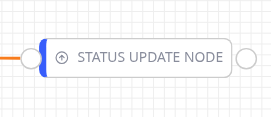
Status Update node
Writes the name of a reply, such as "Approved", into the document's Status field. A reply name that isn't yet a status is added to the status list.
Connect it straight from an Action Request reply, or after any mix of All required (And Node), Only 1 (Cancel Node), Passthrough (Placeholder Node) and Condition nodes — it looks back through those to find the Action Request reply that reached it. Several replies can be wired to one Status Update node: it writes whichever of them was actually taken on this document, not simply the first one wired in. Until it can trace back to an Action Request reply, the node shows Configuration Error.
Lock Document
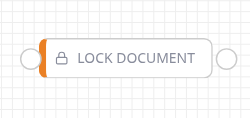
Lock Document node
Locks the workflow document, then continues. A locked document can't be edited through the document's metadata screen, through the public interface's file replace, or through Oliver's document-update tool.
Custom Field Locks
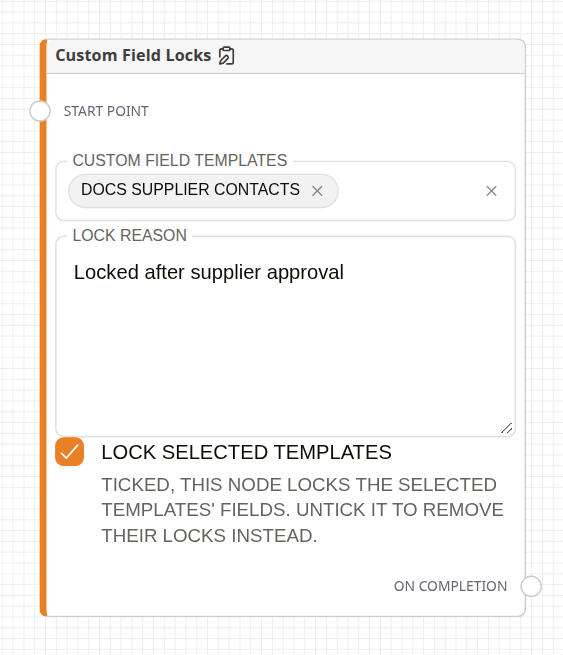
Custom Field Locks node
Locks or unlocks whole custom field templates on the workflow document.
| Setting | Description |
|---|---|
| Custom Field Templates | The custom field templates to lock or unlock. |
| Lock Reason | Shown to users in the lock icon's tooltip. |
| Lock selected templates | Ticked, the node locks the selected templates. Unticked, it removes their locks instead. |
The node shows Configuration Error until at least one template is selected. Locked templates can't be edited, and show a lock icon. Users with the Unlock Documents permission can unlock one from that icon. Place the node after the step that fills in the data, for example on the reply that approves it.
Subject Change Node
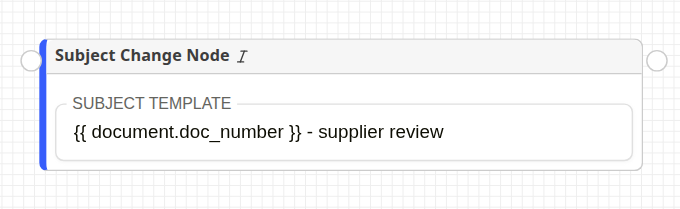
Subject Change node
Sets the workflow's subject, as shown in the Inbox, from the template in its single text box.
- A placeholder value the document doesn't have prints blank, rather than stopping the workflow.
- The node shows Configuration Error until the box has a template.
- In a workflow with several documents, each document that reaches the node overwrites the subject.
Description Update Node
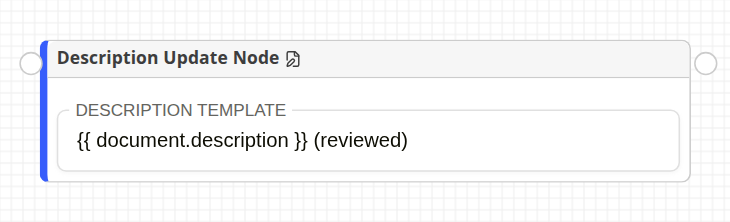
Description Update node
Replaces the document's Description with the template in its text box. To keep the old text, include {{ document.description }}. The rules for placeholders, and the Configuration Error badge, are the same as the Subject Change Node's.
Generate PDF From Template and Generate Document From Template
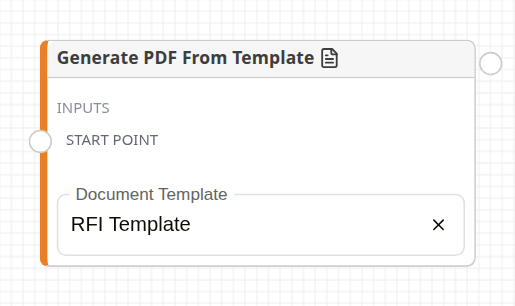
Generate PDF From Template node
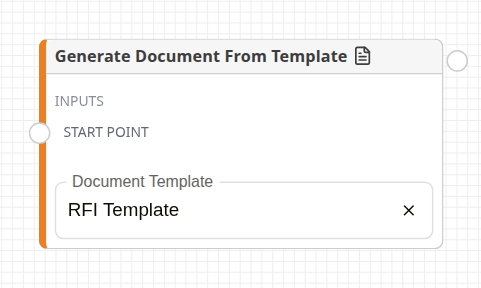
Generate Document From Template node
Both fill a Document Template with the workflow document's values and make the result the document's current file. The previous file is kept in the revision history. Generate PDF From Template converts the result to PDF. Generate Document From Template keeps it as Word or Excel, so it stays editable.
- The template's current revision must be a .docx or .xlsx file. Templates are created in Manage Document Templates.
- A missing value prints as blank.
- If the template has an output document type set in Manage Document Templates, the generated document is retyped to match.
- The workflow waits until generation finishes.
- The node shows Configuration Error until a template is chosen.
Generate Attachment Node
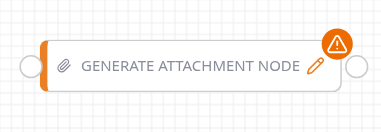
Generate Attachment node
It creates a new record with no file, linked to the workflow document, and can move or copy custom field data onto it. It uses no document template. The node shows Configuration Error until a document type is chosen. Open the settings with the pencil icon.
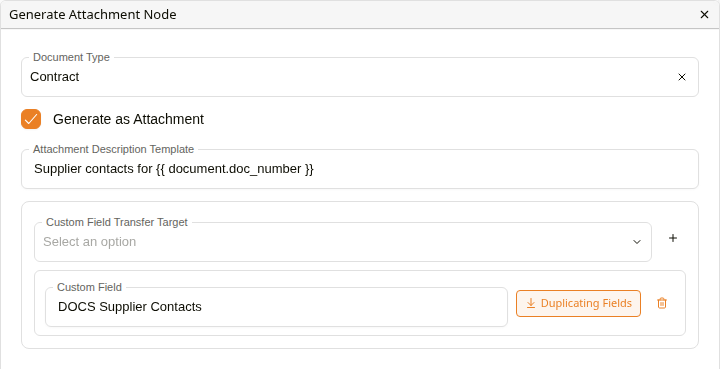
Settings
| Setting | Description |
|---|---|
| Document Type | The new record's type. |
| Generate as Attachment | Ticked (the default), the record is an attachment of the workflow document. Unticked, it is a separate document. |
| Attachment Description Template | The new record's description, with placeholders. |
| Custom Field Transfer Target | Grid templates whose rows go to the new record. Each transfer shows Transferring Fields, which moves the rows off the workflow document, or Duplicating Fields, which copies them. Click it to switch. |
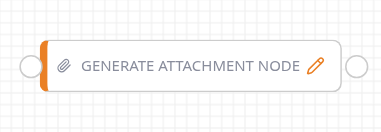
Configured Generate Attachment node
The default, Transferring Fields, removes the rows from the workflow document. Switch to Duplicating Fields to keep them there too.
Related configuration
- Action Request Nodes: the replies Status Update reads
- Generate from Word template: creating document templates
- Workflow Nodes: the canvas and palette