Admin Console
The Admin Console is the central administration area for managing users, groups, permissions, and system-level monitoring in Docwize. Users use it to control who can access the system, what they can do, and to monitor system activity and usage.
Access to the Admin Console can be assigned to a group (granting access to all members) or to individual users directly.
Admin Console dashboard
The dashboard provides a high-level view of current system state. It is most useful for tracking adoption during a new deployment and for monitoring ongoing usage.
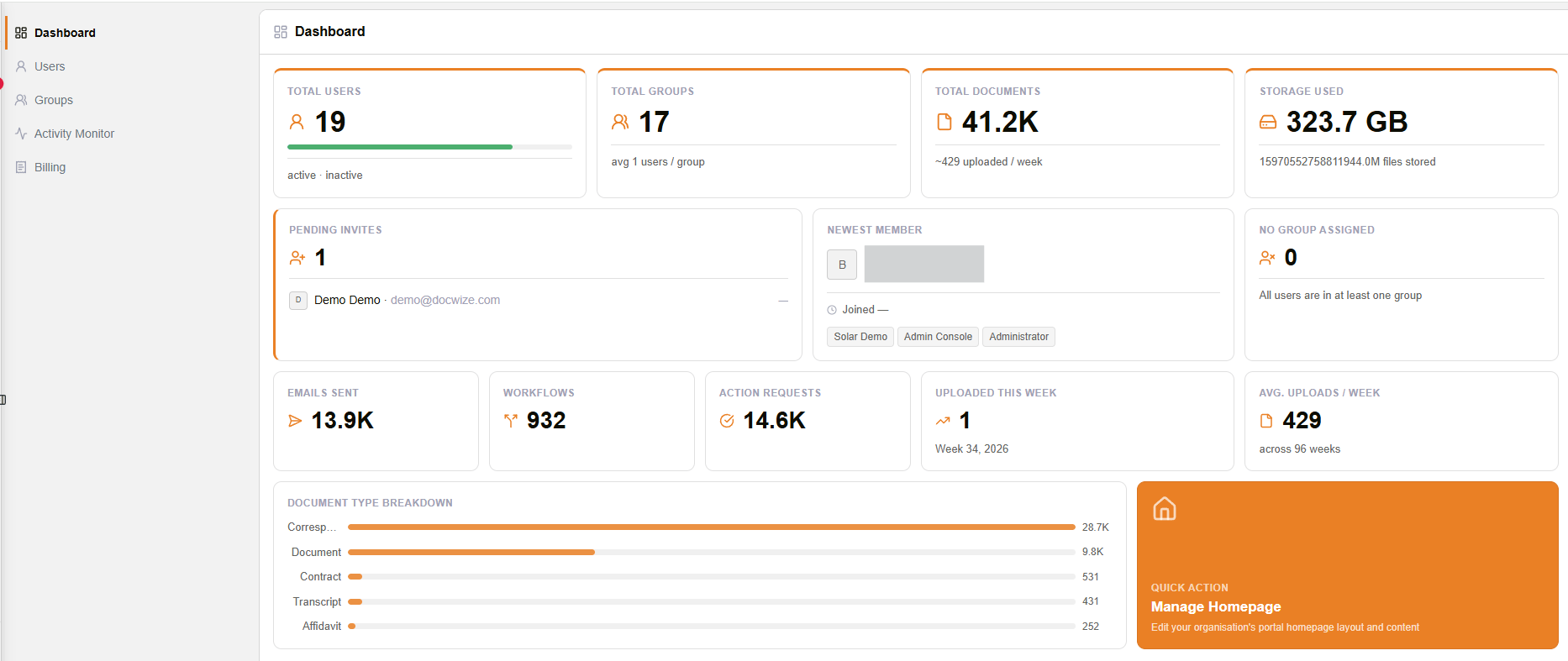
Admin Console dashboard
Dashboard cards
| Card | What it shows |
|---|---|
| Total Users | Total number of user accounts in the database |
| Total Groups | Total number of configured groups, with average users per group |
| Total Documents | Total documents stored; may also show an approximate weekly upload rate |
| Storage Used | Current database storage consumption |
| Pending Invites | Invitations sent but not yet accepted; may list the invited users |
| Newest Member | Most recently added user, including name, email, join status, and assigned groups where available |
| No Group Assigned | Number of users not assigned to any group — these users may have limited system access |
| Emails Sent | Total emails sent from the system |
| Workflows | Number of workflows initiated or processed |
| Action Requests | Total action requests sent |
| Uploaded This Week | Documents uploaded during the current week |
| Avg. Uploads / Week | Average weekly upload volume over time |
| Document Type Breakdown | Visual breakdown of document volumes by document type |
| Manage Homepage | Shortcut to Homepage Management |
What the Admin Console covers
The Admin Console is organised into the following areas, accessible from the left-hand navigation:
| Area | What it is for |
|---|---|
| Users | Create and manage individual user accounts, assign users to groups, and configure user-level settings and permissions |
| Groups | Create and manage groups of users with shared permissions and folder access |
| Permissions | Configure what each user or group can see and do — accessed via the Settings panel within Users or Groups |
| Activity Monitor | Review a log of system activity across the database |
| Billing | View the organisation's usage and estimated costs for the current billing period |
| System Config | Set the default columns and sort of the document grids for the whole organisation. Shown only to users with the Manage System Config permission |
The Manage Homepage shortcut on the dashboard opens Homepage Management, where users can configure the Docwize portal homepage layout.
How users, groups, and permissions relate
Understanding the relationship between these three areas is important before adding users to the system.
- Groups are used to manage shared access settings. Permissions and folder access are typically assigned at group level, and users in a group inherit those settings.
- Users are assigned to one or more groups. Individual permissions can also be configured at the user level to add capabilities beyond what the group provides. Group-level permissions cannot be removed or changed at the user level — to change them, edit the group directly.
- Permissions inherited from a group appear greyed out in a user's Permissions panel and cannot be toggled there.
- A user not assigned to any group may have limited access to the system. The dashboard surfaces users in this state via the No Group Assigned card.
For the full permissions reference, see Permissions.
Before you configure users and groups
Plan your group structure before adding users. A group's permissions and folder access define what every user in that group can see and do. Once documents and workflows are associated with groups, restructuring groups may become more disruptive. Define groups based on roles or access tiers before inviting users.
Plan folder access before users begin working with live documents. Folder security controls which document sets each group can see. Review the Access Control model — particularly folder security and project security — before users start uploading.
Decide which permissions to grant at group level versus user level. Permissions added at group level apply to all current and future members of that group. Use user-level permissions only for exceptions.
Send invitations only when the access model is confirmed. Pending invitations are tracked on the dashboard. Users who accept before their group and permissions are correctly configured may gain incorrect or insufficient access.
Related configuration
- Users — create accounts, assign groups, configure user-level settings
- Groups — define user groups with shared permissions and folder access
- Permissions — full reference for all available permission categories and options
- Access Control — folder security, project security, and explicit document access
- Activity Monitor — monitor system activity across the database
- Billing — usage and cost overview for the current billing period
- Tenant Settings — SSO sign-in policy, federation domains, and identity providers, for global/billing administrators across an entire tenant