Groups
The Groups page is where users create and manage user groups. Groups are the primary way to assign permissions, module licences, and folder access to multiple users at once. Every user in a group inherits that group's settings.
Who configures this
Users with the Group and User Admin permission (assigned via Admin Console Permissions). The Groups page is accessible from Admin Console > Groups.
Groups page
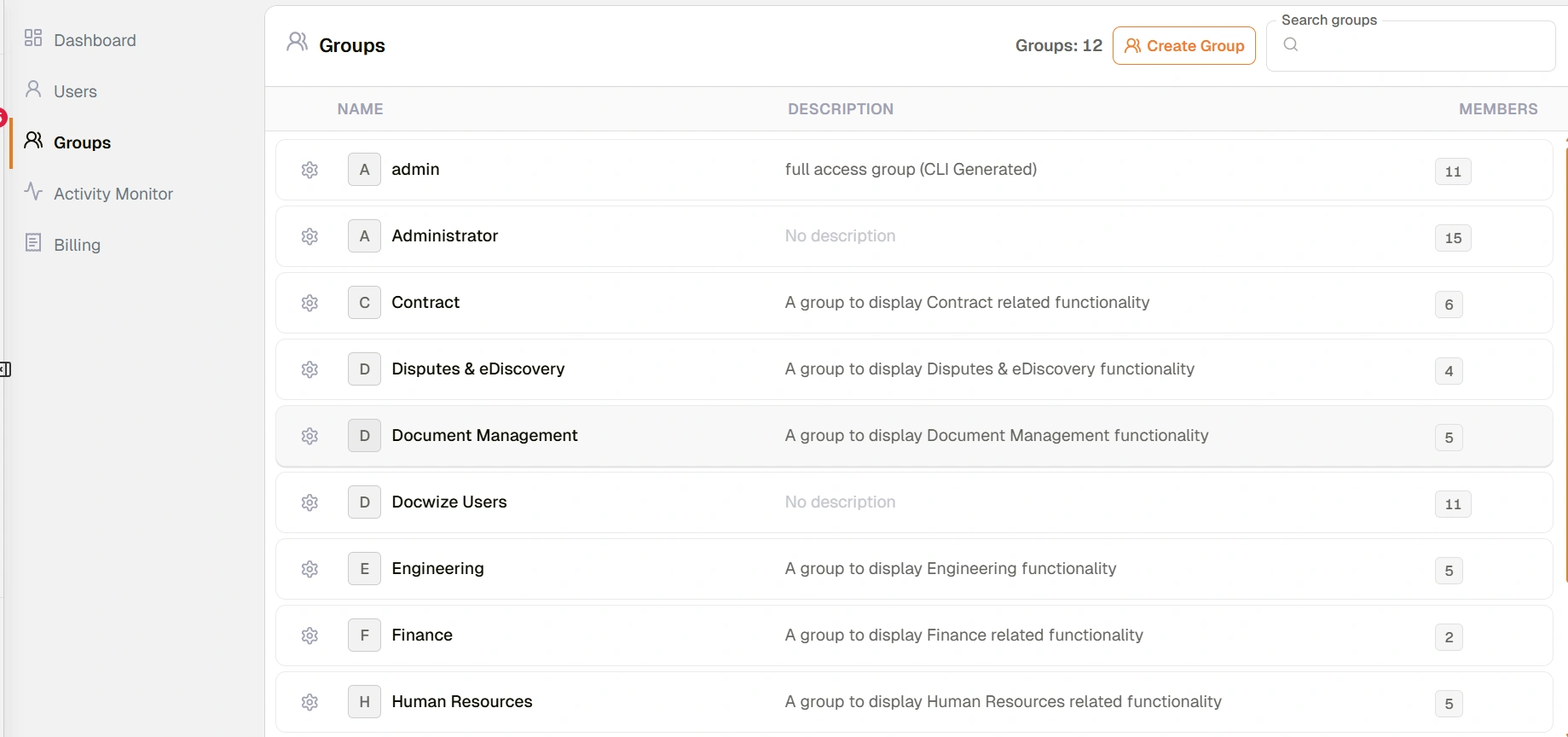
Groups page
| Control | Description |
|---|---|
| Groups count | Shows the total number of groups in the database. |
| Create Group | Opens the dialog to configure a new group. |
| Search groups | Filters the group list by name. |
Group list
Each row in the group list represents one configured group.
| Column | Description |
|---|---|
| Settings (gear icon) | Opens the Settings dialog for that group. |
| Initial badge | A letter badge identifying the group by its first initial. |
| Name | The group name. |
| Description | Optional description assigned to the group. |
| Members | Number of users currently in the group. |
Group Settings dialog
Clicking the gear icon next to a group opens the Settings dialog. It is arranged as a tabbed view with the following sections accessible from the left-hand navigation:
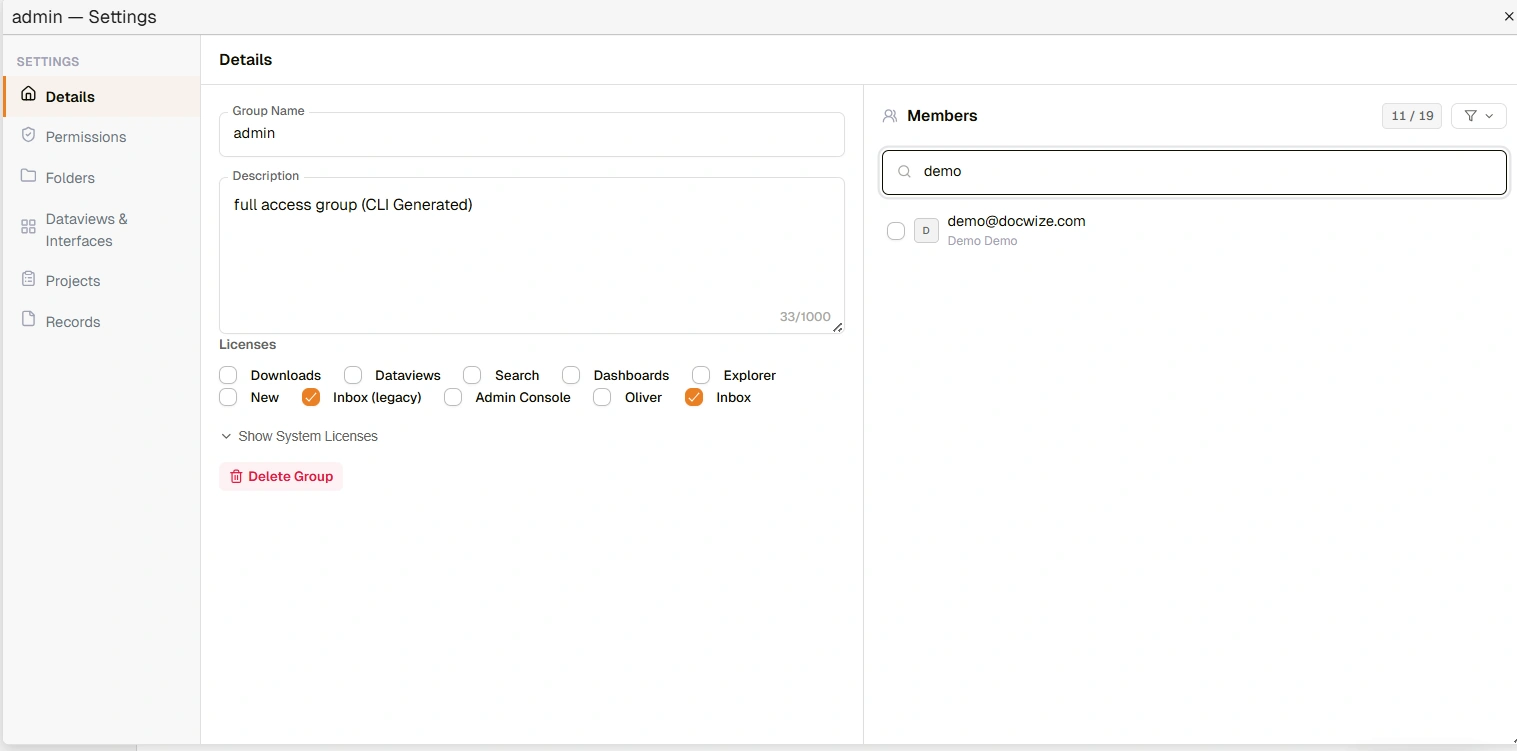
Group Settings dialog
| Section | Description |
|---|---|
| Details | Group profile, licence assignments, and member management. |
| Permissions | Permission settings for the group. See Permissions. |
| Folders | The folders granted to the group. A folder is visible only to the users and groups it has been granted to. See Access Control. |
| Dataviews & Interfaces | Dataview and interface access for the group. |
| Projects | Project access for the group. A project is visible only to the users and groups assigned to it, or to everyone when it is granted to Everyone. |
| Records | Records access for the group. |
| Register row access | The register rows granted to the group. Its members can see these rows and the documents linked to them. |
Details section
The Details section is divided into a main form on the left and a Members panel on the right.
Group profile
| Field | Description |
|---|---|
| Group Name | The name of the group. |
| Description | Optional description of the group's purpose. |
| External User Group | When checked, marks this as an external user group. External users are not billed to the organisation in the same way as standard users. |
| Delete Group | Removes the group permanently. Users in the group lose any permissions and folder access they inherited from it. Deactivate or reassign members before deleting. |
Licences
Controls which Docwize modules members of this group can access.
| Licence | Description |
|---|---|
| Downloads | Enables access to the Downloads module. |
| Dataviews | Enables access to Dataviews. |
| Search | Enables access to Search. |
| Explorer | Enables access to Explorer. |
| New | Enables access to the New module (configuration area). |
| Workflows | Enables access to the Workflows app, the earlier version of the Inbox. |
| Admin Console | Enables access to the Admin Console. |
| Oliver | Enables access to the Oliver AI assistant. |
| Inbox | Enables access to the Inbox. |
System licences, whose names start with an underscore, are not listed. The page adds them to every group automatically.
Members panel
The right-hand panel lists all users in the database. Checked users are current members of the group. Membership can be updated directly from this panel.
| Control | Description |
|---|---|
| Members count | Shows checked members against total users (e.g. "11 / 20"). |
| Filter | Filters the user list. |
| Search users | Searches users by name or email address. |
How to create a group
| Step | Description |
|---|---|
| 1 | Navigate to Admin Console > Groups. |
| 2 | Click Create Group. |
| 3 | Enter a Group Name and optional Description. |
| 4 | Under Licences, check the modules this group's members should be able to access. |
| 5 | In the Members panel, check the users to add to the group. |
| 6 | Save. |
How to assign permissions to a group
| Step | Description |
|---|---|
| 1 | Navigate to Admin Console > Groups and click the gear icon next to the group. |
| 2 | Select Permissions from the left-hand navigation. |
| 3 | Check the required permissions. See Permissions for the full reference. |
| 4 | Save. |
How to assign folder access to a group
A folder is visible to a group's members only once it has been granted to the group. The change takes effect at once.
| Step | Description |
|---|---|
| 1 | Navigate to Admin Console > Groups and click the gear icon next to the group. |
| 2 | Select Folders from the left-hand navigation. |
| 3 | Type part of the folder's name in Search folders. A folder the group has not been granted is on a red row. |
| 4 | Select the plus beside the folder. The dialog asks you to confirm. Include Subfolders is ticked, so the folder's subfolders are granted too. |
| 5 | Select Add. The row turns green. |
To take a folder away from the group, select the minus beside it and confirm with Remove.
Sharing a folder with a group
Troubleshooting
| Risk | Detail |
|---|---|
| Deleting a group removes access for all members | If a group is deleted, all users in that group immediately lose any permissions, licences, and folder access that came from it. Reassign affected users before deleting. |
| Group-level permissions cannot be removed at user level | Permissions inherited from a group appear greyed out in the user's Permissions panel. To remove them, the permission must be changed at the group level — affecting all members. |
| User in the group cannot access a module | Check that the relevant licence checkbox is enabled for the group under Licences. Module access requires both a licence and the appropriate permissions. |
| Group changes affect more users than expected | A group may have more members than anticipated. Review the Members panel before making permission or licence changes. |
Related configuration
- Admin Console — overview of all Admin Console areas
- Users — manage individual user accounts and assign users to groups
- Permissions — full reference for all permissions that can be assigned to a group
- Access Control — folder security, project security, and document-level access