Permissions
Permissions in Docwize determine which features, modules, and actions a user or group can use within the system. They are separate from document-level access, which is managed through Access Control.
Permissions can be assigned at group level or at individual user level. Configuring permissions is a task for users with access to the Admin Console.
How permissions work
Group-level permissions are the foundation. When a group is created, users assign permissions to it. Every user in that group inherits those permissions. Because groups can represent roles or access tiers, this is the most scalable way to manage permissions across many users.
User-level permissions can be added on top of group membership where an individual needs capabilities that their group does not have. These appear alongside inherited group permissions in the user's Permissions panel.
Permissions inherited from a group appear greyed out in the user's Permissions panel and cannot be changed from there. To change a permission that comes from a group, it must be changed at the group level — which will affect all members of that group.
A user may belong to multiple groups. Their effective permissions include those from all groups they belong to, plus any permissions granted directly at the user level.
Permissions control what features and actions a user can access. They are separate from folder security, project security, and document-level access, which are managed in Access Control. A user may have permission to create documents but still be unable to see a particular document if they lack folder or project access.
Accessing the Permissions panel
The Permissions panel is accessed through the Settings dialog, available from both the Users and Groups pages in the Admin Console.
Once the Settings dialog is open, the left-hand navigation provides access to the following panels:
| Panel | What it shows |
|---|---|
| Details | Main details for the selected user or group |
| Permissions | The permissions list for the selected user or group |
| Folders | Folder-access scope |
| Dataviews & Interfaces | Access to dataviews and interfaces |
| Projects | Project-related access |
| Records | Records-related access or record scope |
Permission reference
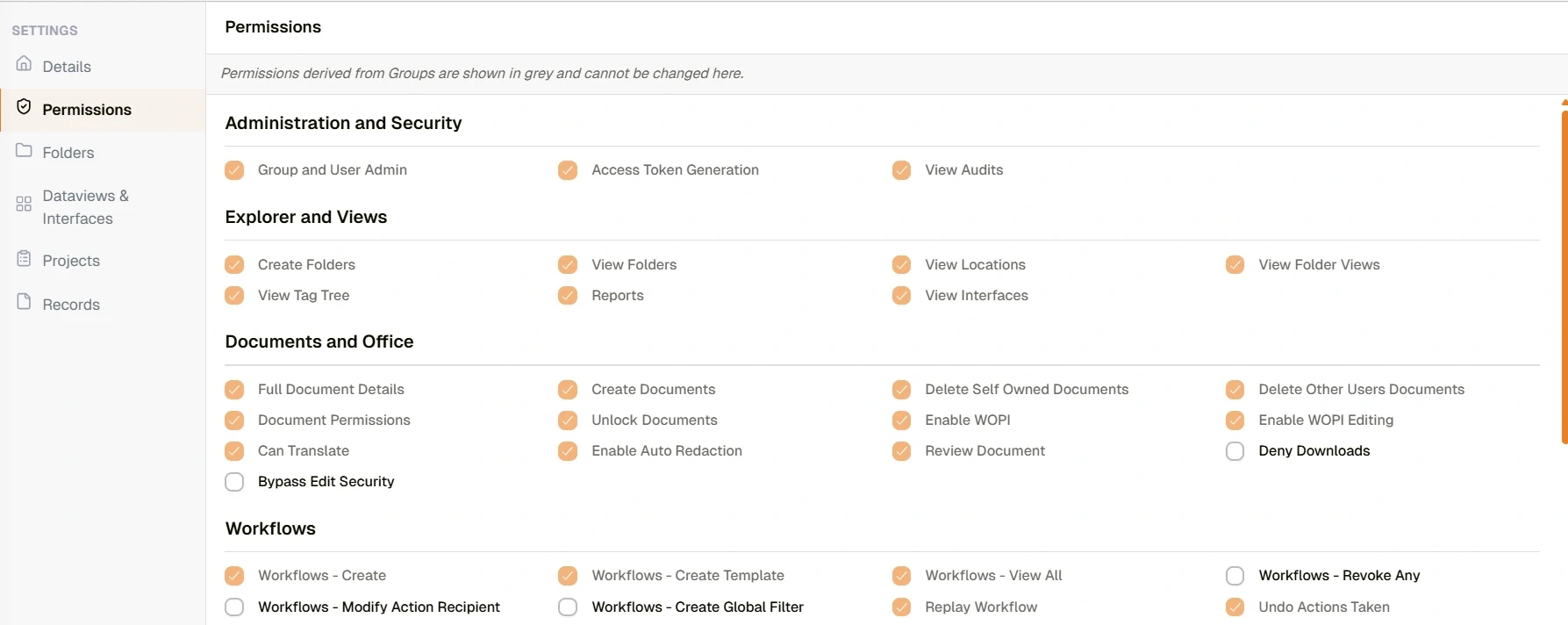
Admin Console Permissions panel
The table below lists all visible permission categories and options.
| Category | Permission | Description |
|---|---|---|
| Administration and Security | Group and User Admin | Allows administration of users and groups in the Admin Console. |
| Access Token Generation | Allows creation or management of access tokens for integrations or API-related use. | |
| View Audits | Allows viewing audit information or audit logs. | |
| Manage System Config | Allows System Config to be opened in the Admin Console and company-wide defaults to be set, such as the default columns and sort of the document grids. Held by the Administrators group. | |
| Explorer and Views | Create Folders | Allows creating folders in Explorer. |
| View Folders | Allows folders to be visible in Explorer. | |
| View Locations | Allows locations to be visible in Explorer. | |
| View Folder Views | Allows access to saved folder-view layouts or folder-based views in Explorer. | |
| View Tag Tree | Allows the tag tree to be visible in Explorer. | |
| Reports | Allows access to report-style or dataview-style outputs in Explorer. | |
| View Interfaces | Allows access to configured interfaces in Explorer. | |
| View Dashboards | Allows dashboard views to be visible in Explorer. | |
| Documents and Office | Full Document Details | Allows access to the full Document Details view. |
| Create Documents | Allows creation of new documents, including placeholders where applicable. | |
| Delete Self Owned Documents | Allows deletion of documents owned by the current user. | |
| Delete Other Users Documents | Allows deletion of documents owned by other users. | |
| Document Permissions | Allows viewing or managing document-level permissions. | |
| Unlock Documents | Allows locked documents to be unlocked. | |
| Enable WOPI | Allows documents to be opened through WOPI-compatible Office viewing functionality. | |
| Enable WOPI Editing | Allows editing through WOPI-compatible Office editing functionality. | |
| Can Translate | Allows use of document translation features. | |
| Enable Auto Redaction | Allows use of automated redaction features. | |
| Review Document | Allows access to document review actions such as annotations, notes, tags, or similar review tools. | |
| Deny Downloads | Prevents document downloads for the selected user or group. | |
| Bypass Edit Security | Allows document editing despite normal edit-security restrictions. | |
| Docwize OCR | Allows use of Docwize's OCR functionality to process and extract text from document images. | |
| Workflows | Workflows - Create | Allows workflows to be created or initiated. |
| Workflows - Create Template | Allows workflow templates to be created. | |
| Workflows - View All | Allows all workflows on a document to be viewed in Document Details. | |
| Workflows - Revoke Any | Allows workflows to be revoked regardless of ownership. | |
| Workflows - Modify Action Recipient | Allows workflow action recipients to be changed. | |
| Workflows - Create Global Filter | Allows global workflow filters to be added to the Inbox. | |
| Replay Workflow | Allows workflow steps or actions to be replayed. | |
| Undo Actions Taken | Allows previously taken workflow actions to be undone. | |
| Workflows - Assign External | Allows workflow actions to be assigned to external users or contacts. | |
| Workflows - Project Admin | Allows workflows to be viewed when their document is in a project the user has read access to, even if the user did not create the workflow. | |
| Adhoc Action Requests | Allows creation of ad hoc action requests outside of a structured workflow template. | |
| Workflows - Monkey Patch | Allows users to change node settings on a live workflow — for example fixing a wrong URL on an API node so a stuck workflow can continue. Changes apply immediately to every workflow using that template, including ones already running. | |
| Projects | View Project Details | Allows project details to be viewed. |
| Create Project | Allows projects to be created. | |
| Edit Project | Allows projects to be edited. | |
| Delete Project | Allows projects to be deleted. | |
| Project Permissions | Allows project-level permissions to be managed. | |
| Contacts | View Contacts | Allows contacts to be viewed. |
| Create Contacts | Allows contacts to be created. | |
| Edit Contacts | Allows contacts to be edited. | |
| Delete Contacts | Allows contacts to be deleted. | |
| Metadata and Interfaces | Lookup Lists | Allows access to or management of lookup lists. |
| Manage Document Custom Fields | Allows document custom fields to be created or managed. | |
| Default extraction config | Allows configuration of default extraction settings applied when documents are uploaded. | |
| Dataview Settings | Allows dataview settings to be configured or changed. | |
| Create Email Rules | Allows email rules to be created. | |
| Manage Interfaces | Allows interfaces to be created or managed. | |
| Tools | Can Chat | Allows access to the chat tool. |
| Can Edit System Agents | Allows editing and configuration of Docwize AI system agents. | |
| Can Buckets | Allows access to the Buckets feature, where users can create document collections, manage their contents, and share them with other users or groups. | |
| Manage Company Signatures | Allows company-level signatures to be created and managed. Required to enable and configure the digital signing feature for the instance. | |
| Manage Tours | Allows creating and editing of guided product tours. | |
| Tag Recommendations | Allows use of AI-powered tag recommendations. | |
| Integrations | Manage Connectors | Allows third-party connectors to be configured. |
Before changing permissions
Change permissions at group level where possible. Permissions assigned to a group apply immediately to all current and future members. User-level permissions are harder to audit and maintain at scale — use them only for genuine exceptions.
Understand what a permission grants before assigning it. Some permissions are broad. "Group and User Admin" grants administration of all users and groups in the Admin Console. "Delete Other Users Documents" applies to documents owned by anyone in the system. "Bypass Edit Security" overrides normal editing restrictions.
Remember that permissions and document access are separate. Granting a permission (such as "Create Documents" or "View Interfaces") does not automatically grant access to specific documents, folders, or projects. Document visibility is controlled by Access Control.
Check what a user inherits from their groups before granting user-level permissions. If the required permission already comes from a group, a user-level grant is redundant. If you need to restrict a permission a group grants, that change must be made at the group level.
Coordinate group-level changes with anyone who manages that group. Changing a group permission affects every member immediately.
Common risks
| Risk | How it typically happens | What to check |
|---|---|---|
| Permission granted to wrong group | Admin edits a group without checking all members | Review the full membership of a group before changing its permissions |
| User has more access than intended | User is in multiple groups; cumulative permissions exceed what was planned | Check all group memberships for the user, not just the primary group |
| Destructive permissions granted too broadly | "Delete Other Users Documents" or "Workflows - Revoke Any" assigned at group level | Reserve high-impact permissions for small, trusted groups or specific users |
| Bypassing normal restrictions unintentionally | "Bypass Edit Security" granted without understanding its scope | Review with your implementation team before granting this permission. |
| Permissions confused with document access | Admin grants permissions but user still cannot see documents | Check folder and project access separately via Access Control |
| Group-level permission cannot be removed from user panel | Admin tries to remove a greyed-out permission at the user level | Change the permission at the group level; note this affects all group members |
Testing permission changes
Before applying changes in a live environment:
- Identify a test user account with the same group memberships as the affected users.
- Apply the intended permission change (at group or user level).
- Log in as the test user — or ask a trusted colleague with that account —
and verify:
- Can they access the features or actions they should now have?
- Are they blocked from features or actions they should not have?
- Does the change behave as expected in both directions?
- If testing a group-level change, confirm the change has not inadvertently affected other members of that group.
Docwize does not have an impersonate user or view-as-user feature. A separate test account is required to verify permission changes from a user's perspective.
Related configuration
- Users — create accounts, assign groups, configure user-level permissions
- Groups — create and manage groups; assign group-level permissions and folder access
- Access Control — folder security, project security, and document-level access; separate from permissions
- Admin Console — overview of all Admin Console areas
- Digital Signing — user-facing guide to the signing workflow enabled by Manage Company Signatures