Explorer
The Explorer module lets you browse your documents in several ways: by folder, by location, by tag, or through dataviews and virtual folders that your administrator has set up. It also holds the workflow analytics dashboard. Use Explorer when you know roughly where a document belongs and want to look through what is there, rather than searching for something specific.
What you can do in Explorer
- Browse documents by folder, location or tag
- Open dataviews, interfaces and virtual folders
- Work with the documents you find: preview them, assign them, export them or add new ones
- Keep several folders or views open at once, each in its own tab
- See workflow analytics
The Explorer screen
Explorer has two parts. On the left, a row of tabs chooses how you browse, and the panel under it lists what you can open: folders, locations, tags and so on. On the right, whatever you open is shown in a tab.
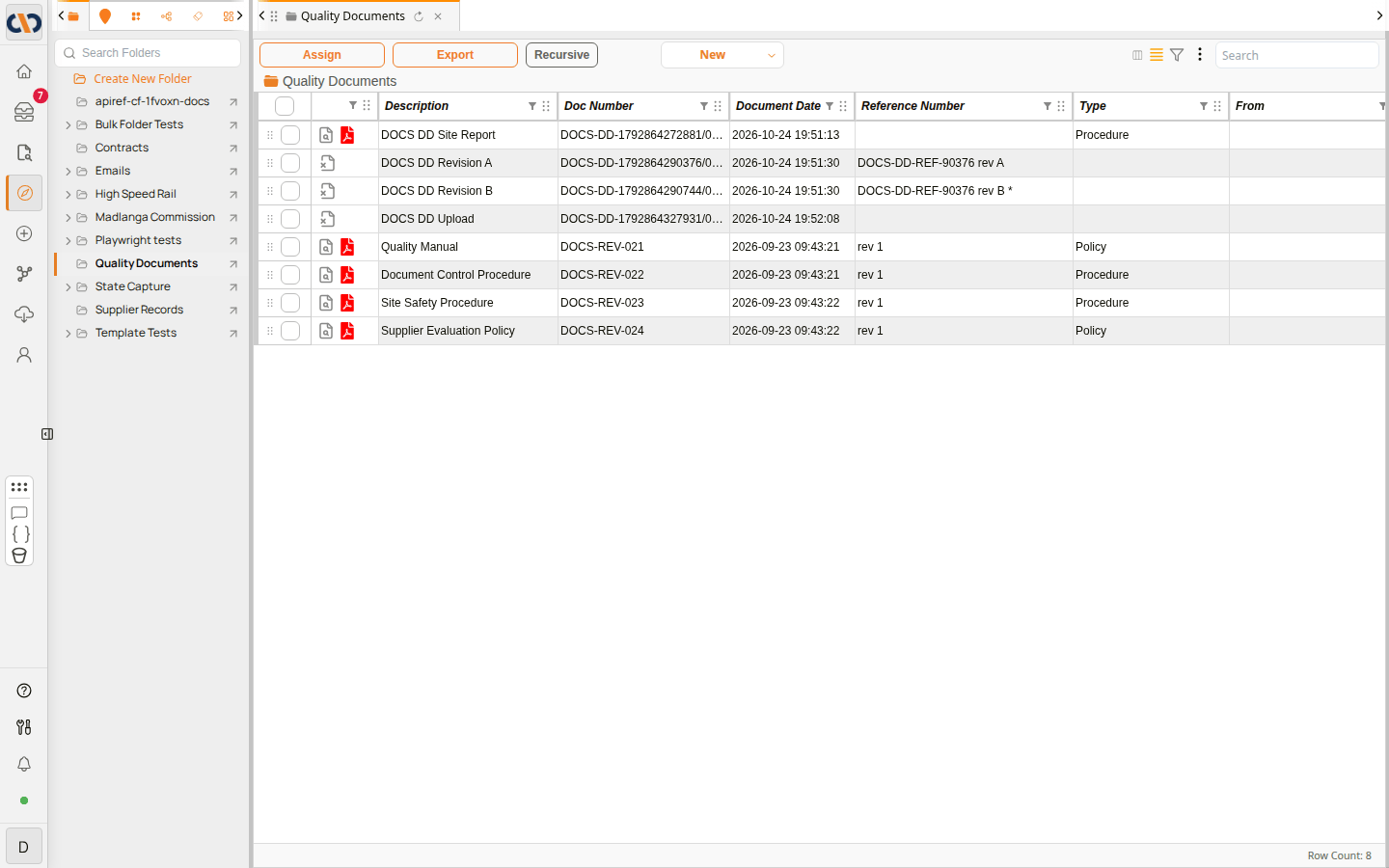 Explorer, with a folder open
| Item | Description |
|---|---|
| Tabs at the top left | Choose how to browse: Folders, Locations, Dataviews, Virtual Folders, Tags or Analytics (see below). Each tab is shown as an icon; hover over it to see its name. Use the arrows on either side to scroll to tabs that do not fit. |
| Panel on the left | Lists what you can open in the chosen tab. Select an item to open it on the right. |
| Tabs at the top right | One tab for each item you have open. Select a tab to switch to it, select its refresh icon to reload it, or select its × to close it. |
| Grid | The contents of the open item, such as the documents in a folder. |
Selecting an item on the left replaces what the current tab shows. To keep the current tab and open the item beside it, select the arrow on the item's right instead.
Explorer sections
Which sections you see depends on your permissions. To open Explorer straight at a section, hover over Explorer in the expanded sidebar and choose the section (see Getting Around Docwize).
| Section | Description |
|---|---|
| Folders | The folder tree. Folders hold documents and subfolders, and a document can be filed in more than one folder. |
| Locations | Documents linked to physical places or to a work breakdown structure, such as a building, a floor and a room. |
| Dataviews | Views of documents or other data, built by your administrator, with the columns, filters and colours that suit a particular task. Interfaces, which combine charts and grids, are opened here too. |
| Virtual Folders | Folders that group the rows of a dataview by the values in its columns, so you can reach the same documents by different routes without moving them. |
| Tags | Documents grouped by the tags they carry. A document can carry many tags. |
| Analytics | The workflow analytics dashboard: figures and charts about workflows and actions, rather than a list of documents. |