Folders
The Folders tab of Explorer shows the folders you have access to, as a tree. Folders are the most familiar way to organise documents in Docwize: each folder holds documents and can hold subfolders, and a document can be filed in more than one folder. Open a folder to work with its documents, or create, rename and delete folders as your work changes.
What you can do in Folders
- Find a folder by name
- Open a folder and work with its documents, including those in its subfolders, in the columns your administrator set
- Create folders and subfolders, and choose who can see them
- Rename a folder, or choose the projects it belongs to
- Delete a folder you no longer need
- Assign documents to a folder
The Folders tab
The folder tree lists the top-level folders you have access to. Folders that contain subfolders have an arrow on their left.
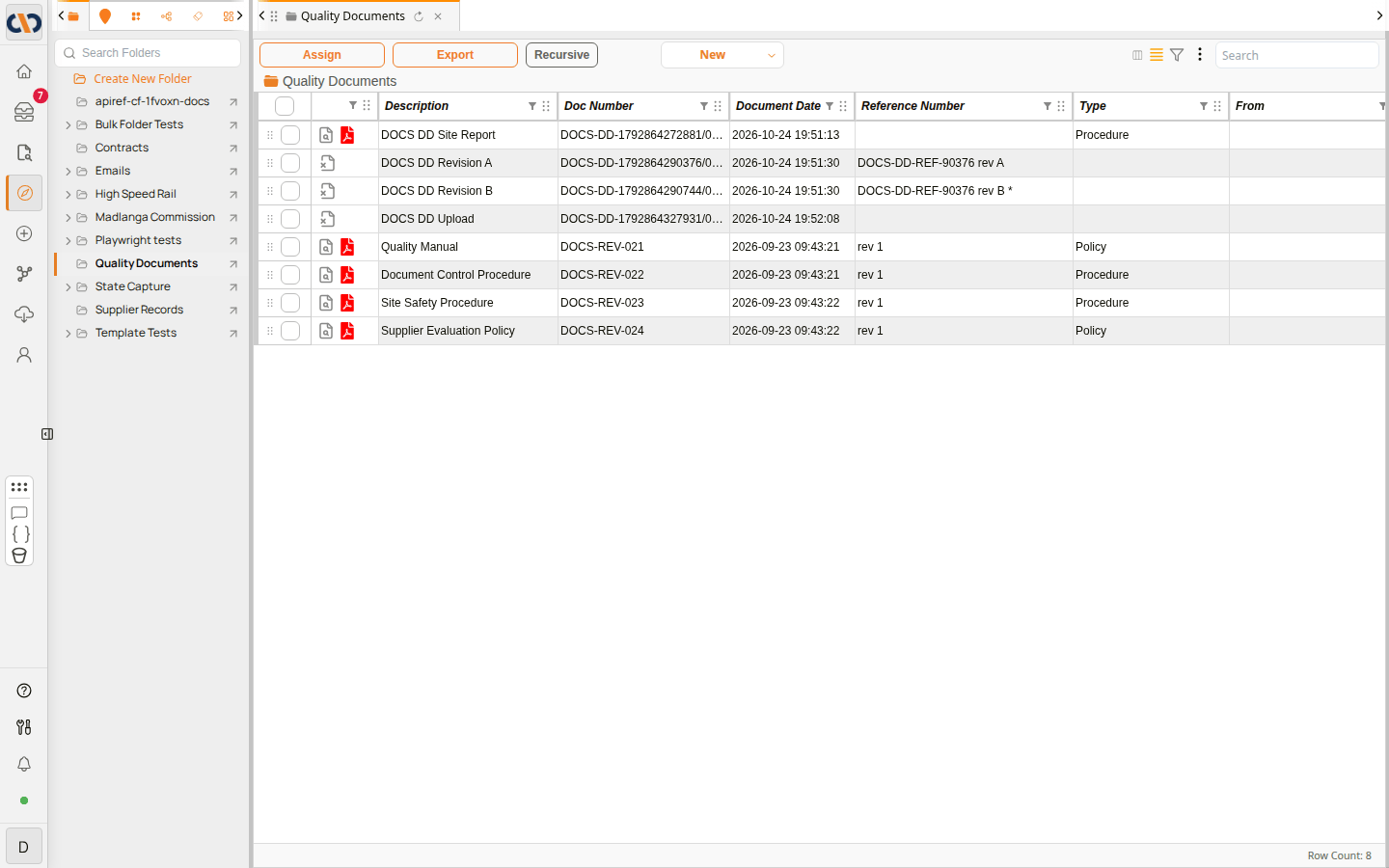 The Folders tab, with a folder open
| Item | Description |
|---|---|
| Search Folders | Finds a folder by name. |
| Create New Folder | Creates a top-level folder. See How to create a new folder. |
| Arrow on the left of a folder | Shows or hides its subfolders. |
| Folder name | Opens the folder in the grid on the right, replacing what the current tab shows. |
| Arrow on the right of a folder | Opens the folder in a new tab, so you can keep the current one open. |
Searching for a folder
Search is the quickest way to reach a folder deep in the tree. Type part of its name in Search Folders. Each match shows the folder's name with its full path underneath, so you can tell apart folders with the same name. Select a match to open it, or select the arrow on its right to open it in a new tab.
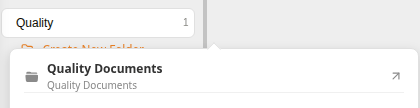 Searching for a folder
Working in an open folder
An open folder lists its subfolders first, then its documents, in the document grid. The Doc Grid features, such as filtering, sorting and previewing, work here as they do elsewhere. The path of the open folder is shown above the grid.
The columns the grid shows, their order and the order the rows start in are set for the whole company by an administrator in System Config. The built-in columns include Description, Doc Number, Document Date, Reference Number, Type, From, To, Status, Post-Review Status and Client/Project. A column the administrator has hidden stays in the column chooser, so you can show it for yourself, and Reset columns to default there returns the grid to the administrator's columns. See Doc Grid.
 The folder toolbar
| Button | Description |
|---|---|
| Assign | Assigns all the documents, or only the selected ones, to tags, folders, workflows and more. See How to assign documents to a folder and Assigning Docs. |
| Export | Exports all the documents, or only the selected ones. See Exports & Downloads. |
| Recursive | Also lists the documents in every subfolder, at all levels, so you can see everything under a folder in one list. Select it again to list only the folder's own documents. |
| New | Adds a document to the folder, or uploads files or a whole folder into it. See Uploads. |
Right-click options
Right-click a folder in the tree for the actions you can take on it. Which options you see depends on your permissions.
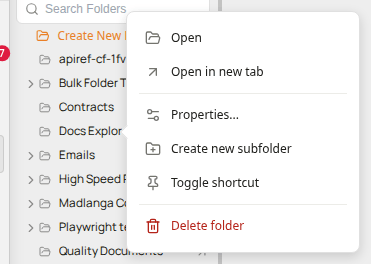 The folder right-click menu
| Option | Description |
|---|---|
| Open | Opens the folder in the current tab. |
| Open in new tab | Opens the folder in a new tab. |
| Properties... | Opens the folder's properties, where you can rename it. See Folder properties. |
| Create new subfolder | Creates a folder inside this one. See How to create a subfolder. |
| Toggle shortcut | Pins the folder to the floating toolbar, or removes it. See Pinning Feature. |
| Delete folder | Deletes the folder and everything in it. See How to delete a folder. |
Folder properties
Folder properties is where you change a folder's name and settings. Open it by right-clicking the folder and selecting Properties.... The folder's path is shown under the title.
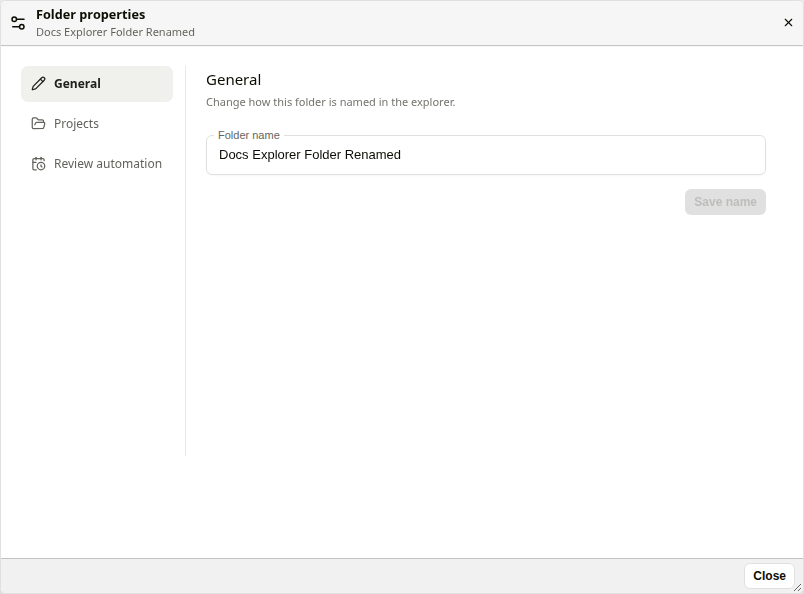 Folder properties
| Tab | Description |
|---|---|
| General | Changes the folder's name. Type the new name in Folder name and select Save name. |
| Projects | Chooses which projects the folder belongs to. |
| Review automation | Sets up automatic document reviews for documents that enter the folder. This tab is shown only to users who manage review schedules. See Review Setup. |
Folder permissions
You see only the folders you have been given access to. A folder is visible to you when you, or a group you belong to, have been granted it. A folder that nobody has been granted is visible to no one, administrators included.
Whoever creates a folder is granted it, so a new folder is always visible to the person who created it. The options in the Create New Folder dialog add the other people who can see it (see How to create a new folder). An administrator can share a folder later with a group or a user in the Admin Console. See Access Control for the full model, and Admin Console for managing users and groups.
How to create a new folder
Create a folder when you need a new place to file documents, for example for a new project or contract.
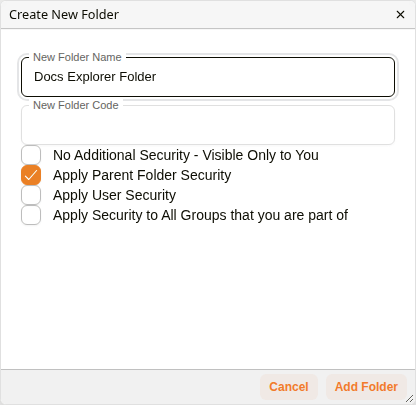 Creating a folder
| Step | Description |
|---|---|
| 1 | Select Create New Folder at the top of the folder tree. |
| 2 | Type the folder's name in New Folder Name. |
| 3 | Choose who else can see the folder by ticking the security options (see below). You can always see a folder you create. To keep it to yourself, tick No Additional Security - Visible Only to You and untick the other options. |
| 4 | Select Add Folder. The folder appears in the tree. |
| Security option | Description |
|---|---|
| No Additional Security - Visible Only to You | Adds nobody but you. Only you can see the folder until an administrator shares it. |
| Apply Parent Folder Security | The people and groups who can see the folder it is created in can see this folder too, as well as you. This option is ticked by default. A top-level folder has no parent, so it adds nobody. |
| Apply User Security | You are given access to the folder. |
| Apply Security to All Groups that you are part of | Every group you belong to is given access to the folder, as well as you. |
Example: Creating a New Folder
How to create a subfolder
Subfolders keep a large folder organised, for example one subfolder per supplier inside Supplier Records.
| Step | Description |
|---|---|
| 1 | Right-click the folder that the subfolder should go in, and select Create new subfolder. |
| 2 | In the Create New Folder dialog, type the subfolder's name in New Folder Name and choose the security options, as for a new folder. With Apply Parent Folder Security ticked, the subfolder can be seen by the same people and groups as the folder you right-clicked. |
| 3 | Select Add Folder. The subfolder is created inside the folder you right-clicked. |
How to rename a folder
| Step | Description |
|---|---|
| 1 | Right-click the folder and select Properties.... |
| 2 | On the General tab, type the new name in Folder name. |
| 3 | Select Save name. The folder tree shows the new name. |
| 4 | Select Close. |
How to delete a folder
Delete a folder only when neither it nor anything in it is needed: as its confirmation button says, deleting a folder deletes its documents and subfolders too.
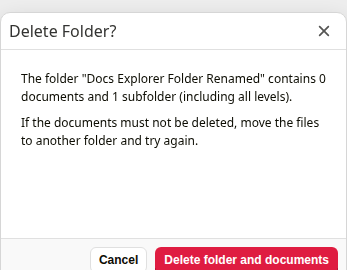 Confirming a folder deletion
| Step | Description |
|---|---|
| 1 | Right-click the folder and select Delete folder. |
| 2 | The Delete Folder? dialog shows how many documents and subfolders the folder contains, counting every level. If any of the documents must be kept, select Cancel and move them to another folder first. |
| 3 | Select Delete folder and documents. The folder and its subfolders are removed from the tree. |
How to assign documents to a folder
Assign documents to a folder to file them there. The documents stay in any folders they are already in.
| Step | Description |
|---|---|
| 1 | Open the folder or other view that holds the documents, and tick the documents you want. |
| 2 | Select Assign, then Selected to assign the ticked documents, or All to assign every document in the list. |
| 3 | Select the Folders tab in the dialog. |
| 4 | Select the plus sign next to the folder the documents should go in. The folder appears on the right of the dialog. |
| 5 | Select Save. |
Example: Assigning Documents to a Folder