Assign Dialog
When you navigate to the ‘Assign’ dialog, you can assign documents in various ways, such as to particular metadata fields, Folders, Workflows, Tags, Grid Links, etc. This is particularly useful for bulk-assigning documents: instead of opening each document one by one, you make the change once and it is applied to every document you selected. For example, you can tag a whole batch of delivery notes, or file them all in a project folder, in one step.
What you can do in the Assign dialog
- Update the same metadata fields on many documents at once
- Add or remove tags, folders and locations
- Start a workflow on many documents
- Put many documents on a review schedule
- Link documents to grid link entries
- Delete many documents at once
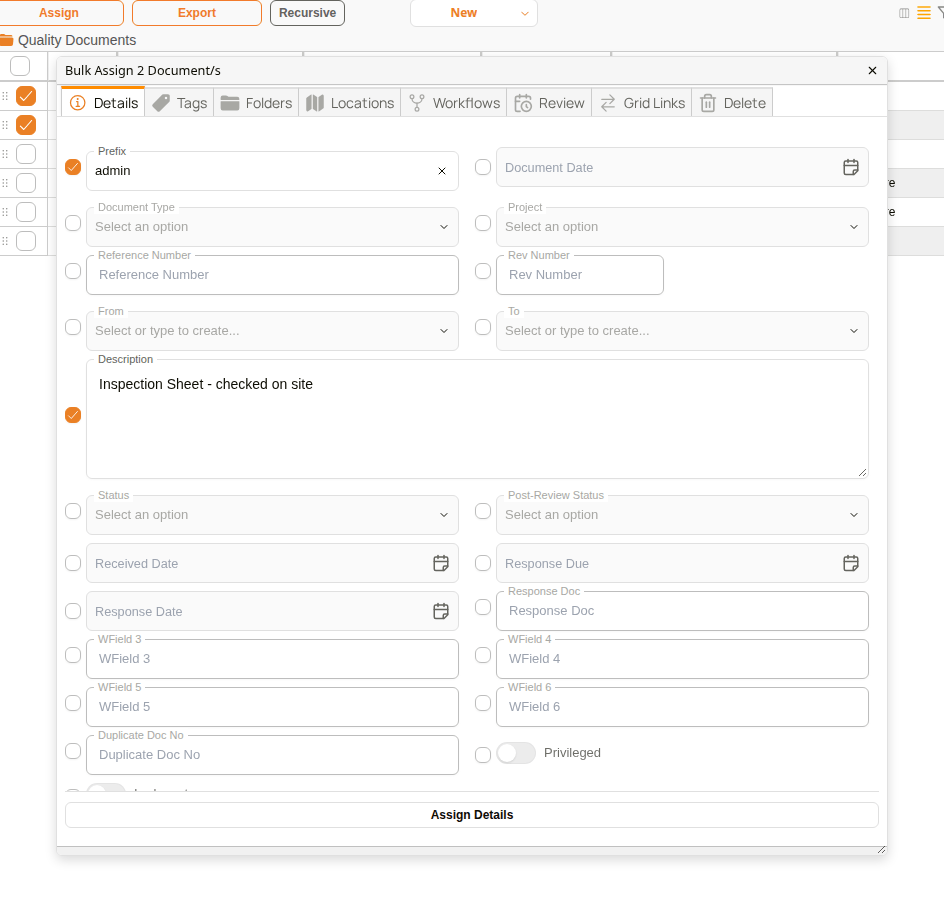
Assign dialog
The title of the dialog shows how many documents you are assigning, for example Bulk Assign 2 Document/s. The horizontal toolbar of the ‘Assign’ dialog lists the options you can select from for assigning.
| Tab | Description |
|---|---|
| Details | Select one or many metadata field(s) by clicking on the square beside each field, and enter the value to give every selected document. Only the ticked fields are changed. This tab requires the Review Document permission. See How to update details for many documents. |
| Tags | Bulk assign documents to tag(s), as well as un-tag document(s) in this section. See How to add or remove tags. |
| Folders | Bulk assign documents to folder(s), as well as remove documents from folder(s) in this section. Removing a document from a folder does not delete the document. See How to add or remove folders. |
| Locations | Link documents to location(s), or unlink them, in this section. See How to add or remove locations. |
| Workflows | Send documents to workflows in this section. See How to start a workflow on many documents. |
| Review | Puts every selected document on a review schedule. Requires the Documents - Manage Review Schedules permission. See How to set up review for many documents. |
| Grid Links | Select from custom field templates to allocate documents in a grid link in this section. See How to link documents to grid link entries. |
| Delete | Bulk-delete selected documents, when you have permission to delete them. See How to delete many documents. |
How to select documents for assigning
You can select one or multiple documents for assigning documents:
-
Individual Selection: Select the box by the relevant document, ticking it for selection
-
Section Selection: Click on the box of the first relevant document in the selection. Hold down the 'Shift' key. Click the last document in the relevant selection.
-
Select All: Click on the upper-most box in the Doc Grid to select all documents
How to open the Assign dialog
There are two ways to open the dialog. Use the Assign button when you want to start from the dialog's first tab, or right-click when you already know what you want to do, as the right-click menu opens the dialog straight on the matching tab.
From the Assign button. Click on Assign in the toolbar above the grid, and choose All to assign every document in the grid display, or Selected to assign only the documents you have ticked. Selected shows how many documents are ticked, for example Selected (2), and is unavailable until at least one document is ticked.
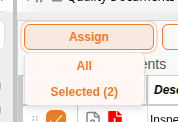
Assign button
From the right-click menu. Tick the documents, then right-click one of them. The menu lists Update Details, Assign Tags, Assign Folders, Assign Locations, Workflow, Set up review, Assign Gridlinks and Delete, and each one opens the dialog on its own tab. Update Details is listed only for users with the Review Document permission, and Set up review only for users with the Documents - Manage Review Schedules permission.
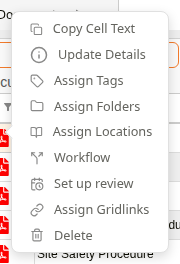
Right-click menu for selected documents
How to update details for many documents
Use the Details tab when a batch of documents needs the same metadata, for example the same description, status or project.
| Step | Description |
|---|---|
| 1 | Select the documents, right-click one of them and choose Update Details. |
| 2 | Click on the box beside each field you want to change. The field becomes available to edit. |
| 3 | Enter the value to give every selected document. |
| 4 | Click on Assign Details. |
Note that a ticked field that is left empty clears that field on every selected document. Fields that are not ticked are left as they are.
Note also that setting a Prefix renumbers the selected documents: each one is given a new document number that starts with the chosen prefix, for example admin/02780.
How to add or remove tags
Use the Tags tab to label a batch of documents at once, or to take a tag off them again.
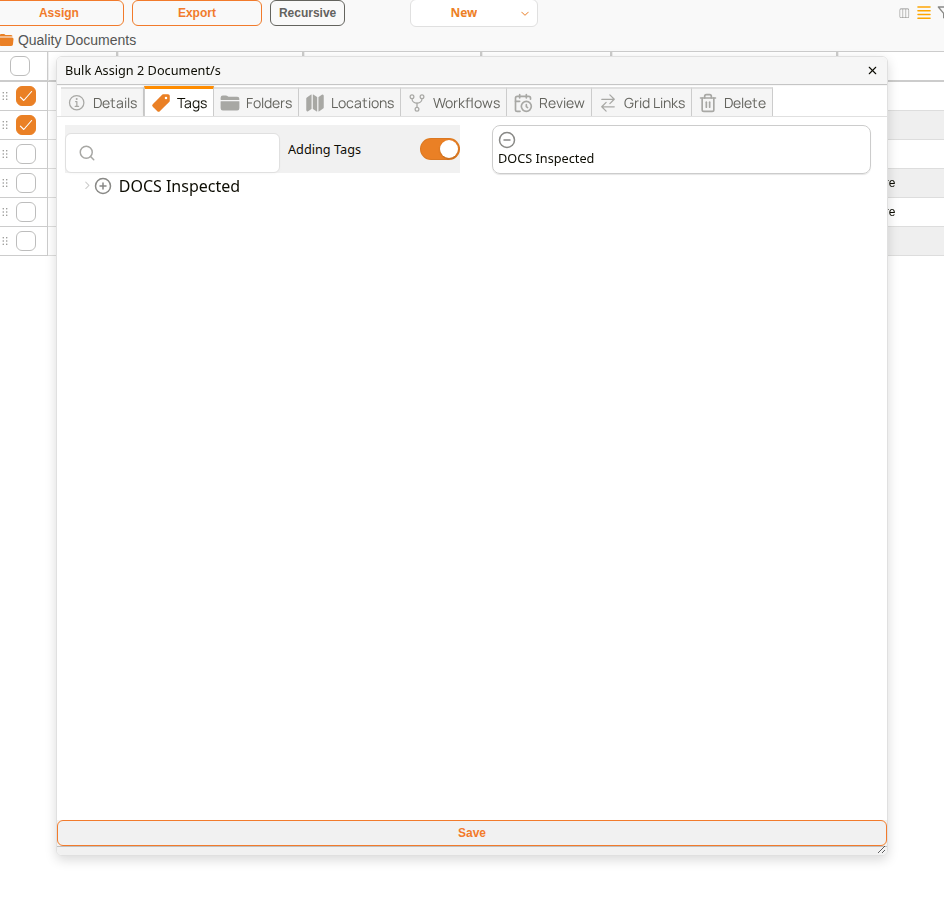
Tags tab
| Step | Description |
|---|---|
| 1 | Select the documents, right-click one of them and choose Assign Tags. |
| 2 | Use the switch at the top to choose Adding Tags or Unlinking Tags. |
| 3 | Find the tag in the tree, or type its name in the search box. Click on the + beside each tag you want. The chosen tags are listed on the right; click on − to take one off the list. |
| 4 | Click on Save. |
Removing a tag only takes it off the selected documents. The tag itself is not deleted.
Here is an example of adding a tag to two documents, starting from the right-click menu:
Example: Adding a tag to many documents
How to add or remove folders
Use the Folders tab to file a batch of documents in another folder, or to take them out of one. A document can be in many folders, so adding a folder does not move the documents out of the folders they are already in.
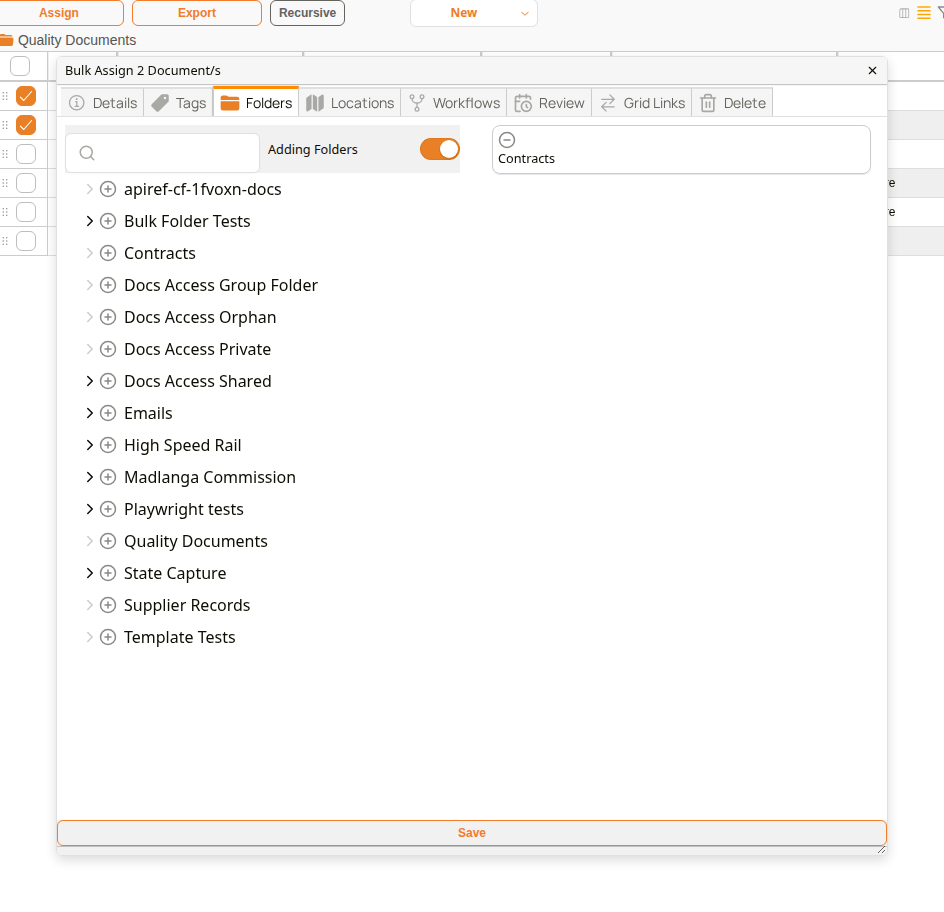
Folders tab
| Step | Description |
|---|---|
| 1 | Select the documents, right-click one of them and choose Assign Folders. |
| 2 | Use the switch at the top to choose Adding Folders or Unlinking Folders. |
| 3 | Click on the + beside each folder you want. The chosen folders are listed on the right. |
| 4 | Click on Save. |
Removing documents from a folder does not delete them. They stay in any other folders they belong to.
How to add or remove locations
Use the Locations tab to link a batch of documents to a location, or to unlink them from one. A document can be linked to many locations, so adding a location does not unlink the documents from the locations they already have.
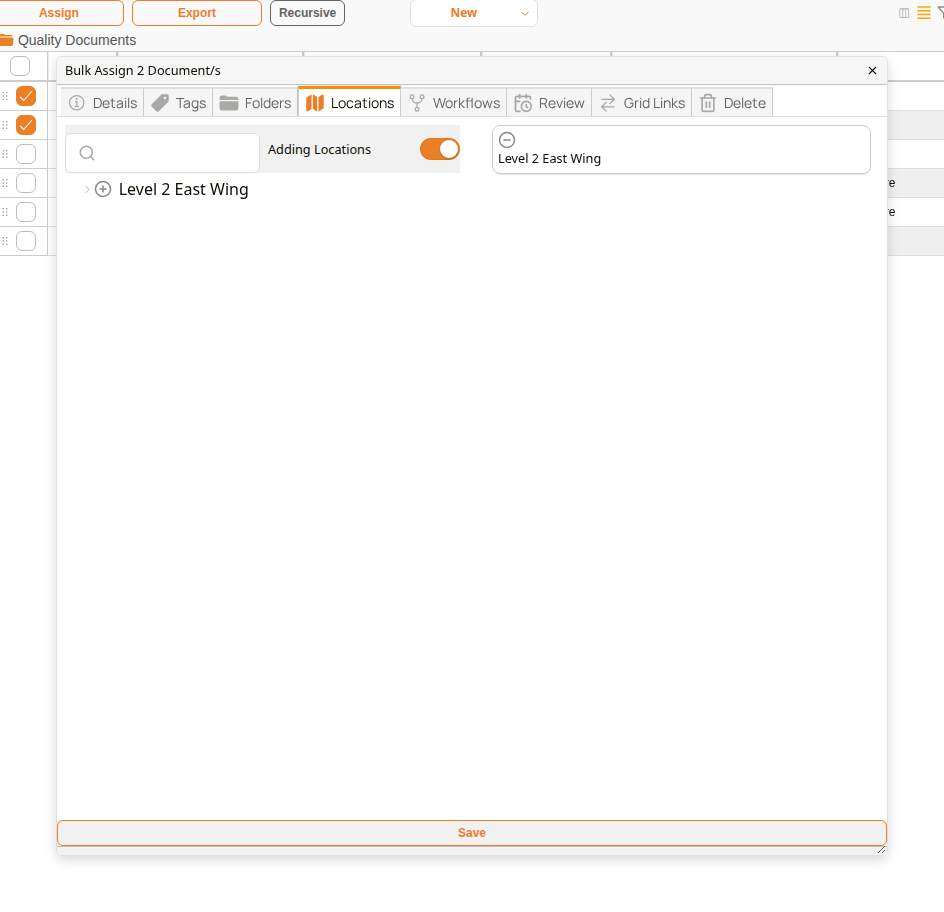
Locations tab
| Step | Description |
|---|---|
| 1 | Select the documents, right-click one of them and choose Assign Locations. |
| 2 | Use the switch at the top to choose Adding Locations or Unlinking Locations. |
| 3 | Find the location in the tree, or type its name in the search box. Click on the + beside each location you want. The chosen locations are listed on the right; click on − to take one off the list. |
| 4 | Click on Save. |
Unlinking documents from a location does not delete the documents. They stay linked to any other locations they have.
How to start a workflow on many documents
Use the Workflows tab when the same process needs to run on a batch of documents, for example sending a set of drawings for approval.
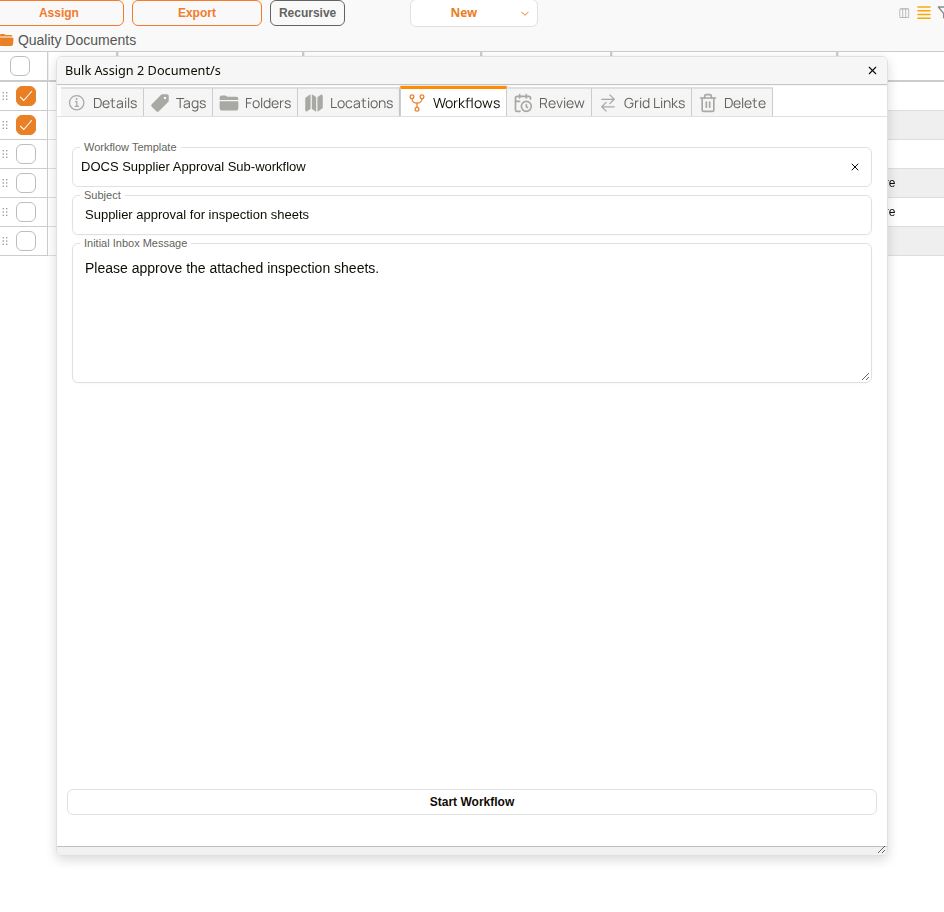
Workflows tab
| Step | Description |
|---|---|
| 1 | Select the documents, right-click one of them and choose Workflow. |
| 2 | In Workflow Template, choose the workflow to run. Templates are grouped, so click on a group's name to see the templates in it. |
| 3 | If the template asks for people or groups, choose them in the fields that appear. |
| 4 | Enter a Subject. Start Workflow stays unavailable until a template and a subject are chosen. |
| 5 | Optional: enter an Initial Inbox Message for the people who receive the workflow's tasks. |
| 6 | Click on Start Workflow. |
How to set up review for many documents
Use the Review tab when a batch of documents needs to be checked again on the same timetable, for example a set of certificates that must be reviewed every year. You need the Documents - Manage Review Schedules permission to see this tab. Select the documents, right-click one of them and choose Set up review. The settings and steps are described in Setting up review for many documents in the configuration docs.
How to link documents to grid link entries
Use the Grid Links tab to connect a batch of documents to the same entry in a grid link template, for example linking every inspection sheet to the area of the site it covers. Grid link templates are set up by an administrator.
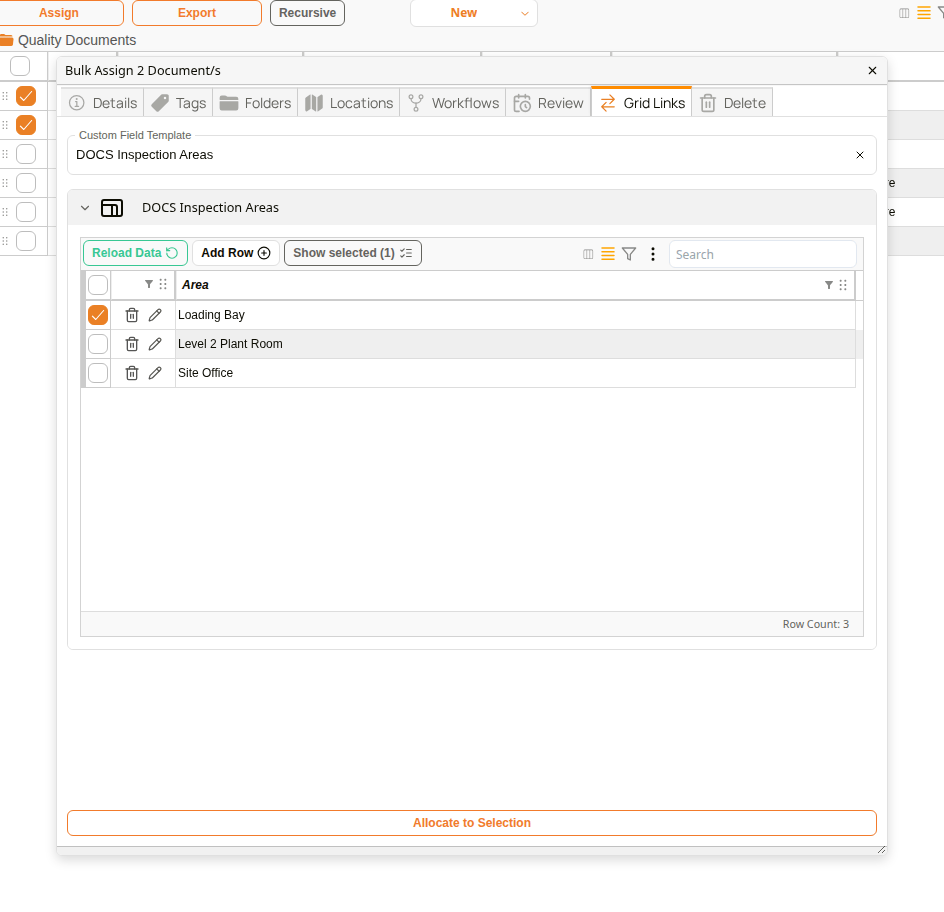
Grid Links tab
| Step | Description |
|---|---|
| 1 | Select the documents, right-click one of them and choose Assign Gridlinks. |
| 2 | In Custom Field Template, choose the grid link template. Its entries are listed below. |
| 3 | Tick the entry or entries to link the documents to. |
| 4 | Click on Allocate to Selection. Allocate to Selection stays unavailable until at least one entry is ticked. |
How to delete many documents
Use the Delete tab to remove a batch of documents you no longer need. Before anything is deleted, Docwize checks which of the selected documents you are allowed to delete, and tells you, for example You can delete 2 of 2 selected documents.
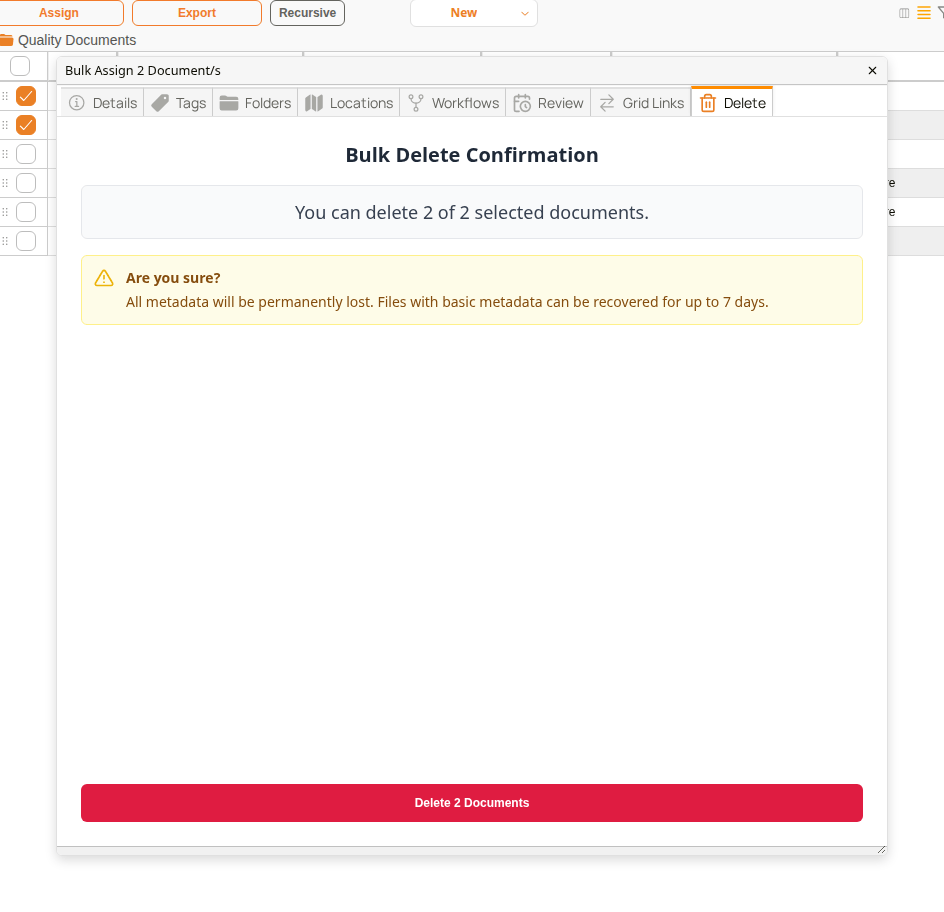
Delete tab
| Step | Description |
|---|---|
| 1 | Select the documents, right-click one of them and choose Delete. |
| 2 | Check the number of documents you can delete, and read the warning. |
| 3 | Click on Delete N Documents to confirm. |
Note that all metadata of a deleted document is permanently lost. Files with basic metadata can be recovered for up to 7 days. If you are not allowed to delete some of the selected documents, only the ones you are permitted to delete are affected.