PDF Fusion Studio
PDF Fusion Studio allows users to assemble one or more source documents into new PDF outputs. Pages from multiple documents can be combined into a single output, split into individual outputs, or grouped with a generated index. Completed outputs are saved to a chosen folder in the database. It is also commonly used to assemble disclosure bundles, where documents are compiled into a structured PDF package for sharing or submission.

What you can do in PDF Fusion Studio
- Select source documents and choose which pages to include
- Merge multiple documents into a single PDF output
- Split documents into individual page outputs
- Generate an index page alongside outputs
- Apply existing redactions to the assembled output
- Save generated PDFs directly to a folder in the database
How to open PDF Fusion Studio
PDF Fusion Studio is accessible from the bottom-left section of the sidebar. Click the tool icon to open the popup menu, then select 'PDF Fusion Studio'. The PDF Fusion Studio dialog will open.
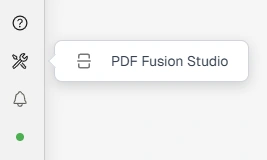
Opening PDF Fusion Studio from the sidebar
The PDF Fusion Studio dialog
The dialog is divided into two panels: Source Documents on the left and Final Outputs on the right. Users select documents and drag and drop them into the 'Source Documents' panel.
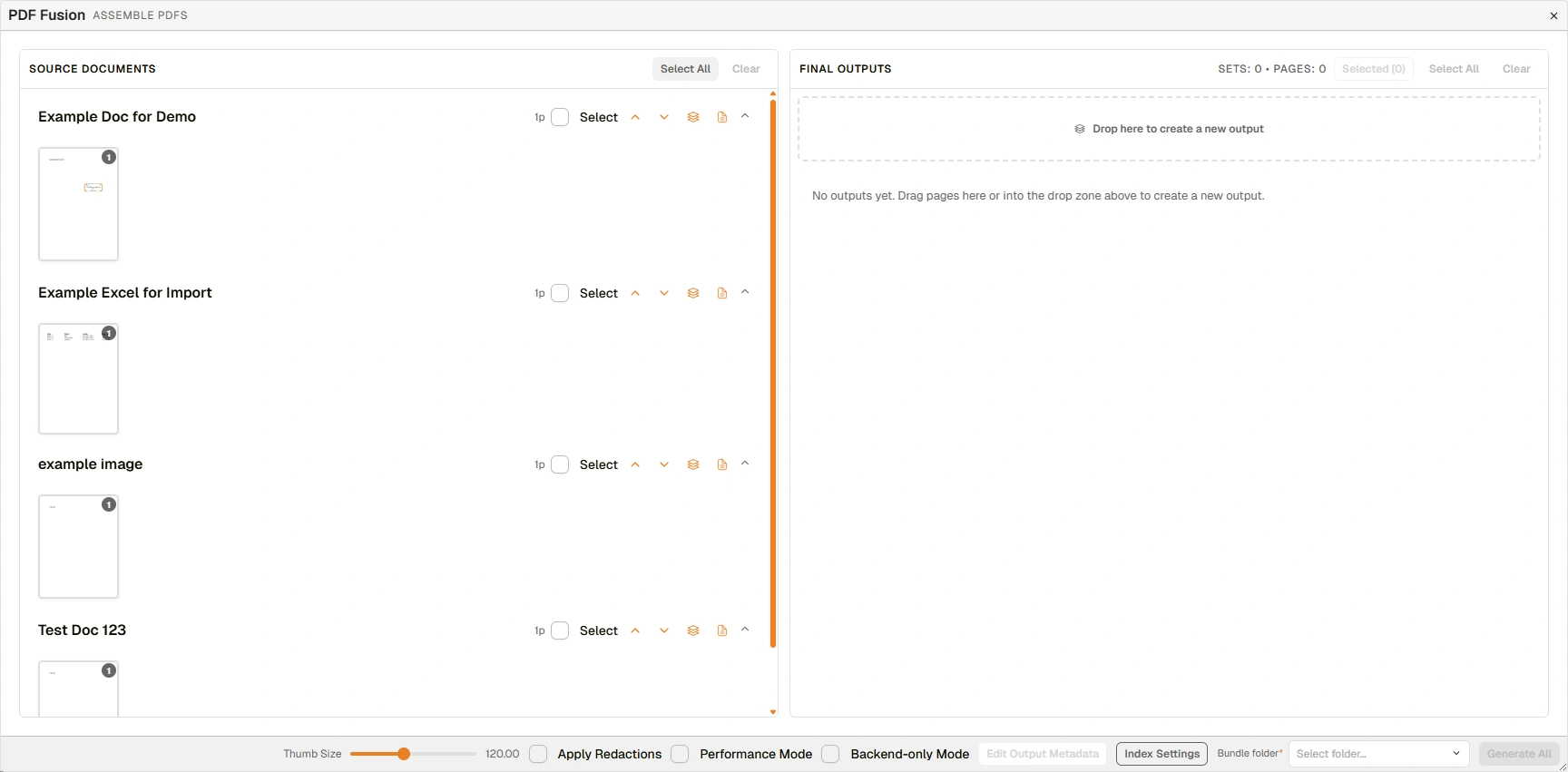
PDF Fusion Studio dialog with source documents loaded
Source Documents panel
Source documents are listed with a thumbnail preview and page count. Each document has the following controls:
| Field | Description |
|---|---|
| Checkbox | Selects the document for merging. |
| Select | Selects individual pages within the document for inclusion. |
| Up / Down arrows | Reorders documents within the source list. |
| Quick Split | Sends each page of the document to the Final Outputs panel as a separate output. |
| Add as Output | Sends the document to the Final Outputs panel as a single output. |
When two or more documents are selected, the 'Merge Selected' and 'Merge With Index' buttons appear at the top of the panel.
| Field | Description |
|---|---|
| Merge Selected | Combines all selected documents into a single output in the Final Outputs panel. |
| Merge With Index | Splits the selected documents into separate outputs and generates an index. |
Final Outputs panel
Each output set in the Final Outputs panel displays page thumbnails and includes the following controls:
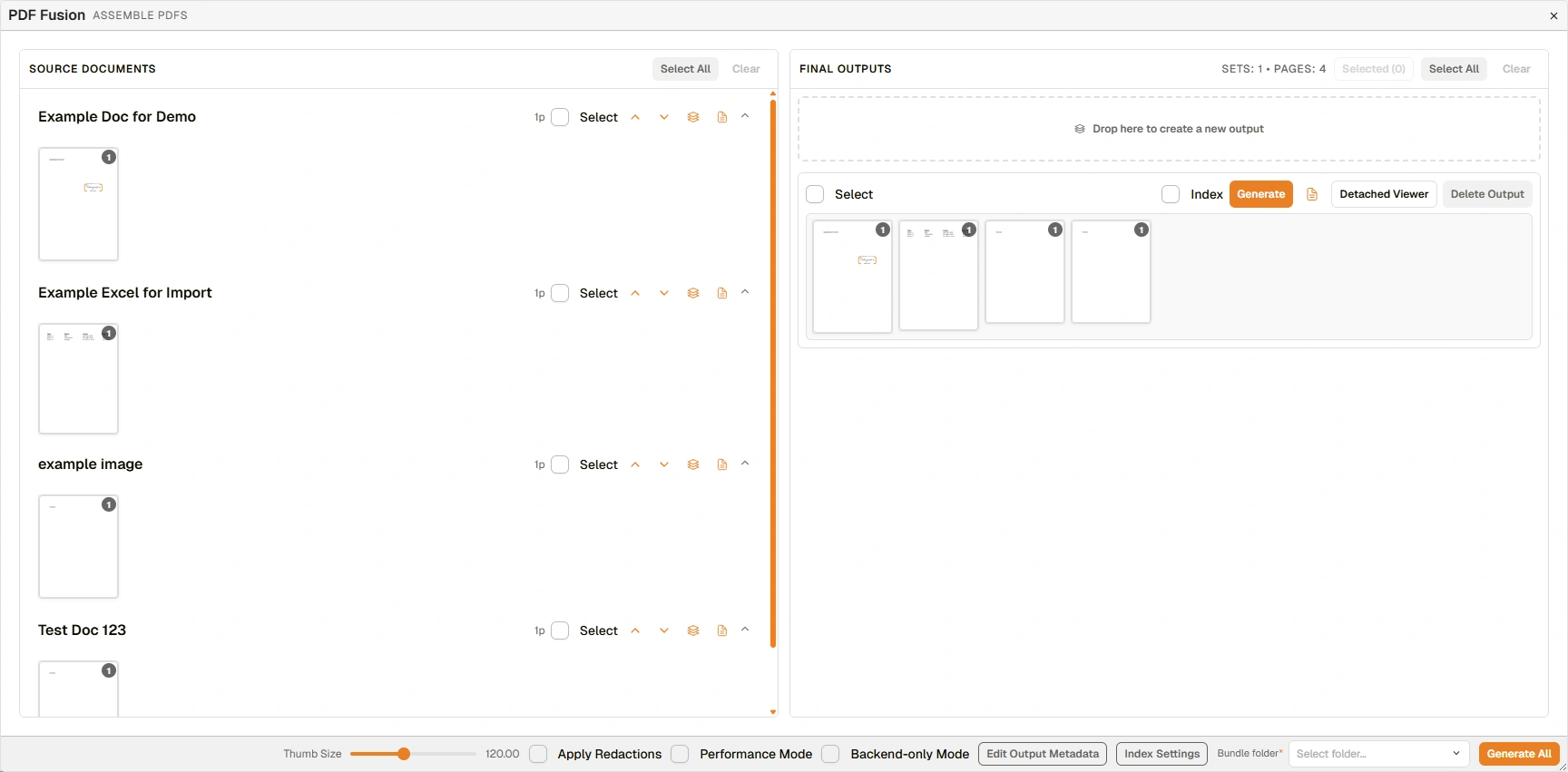
Final Outputs panel with assembled pages
| Field | Description |
|---|---|
| Drop here to create a new output | A drop zone at the top of the panel. Drag documents or pages from the Source Documents panel here to create a new output set. |
| Select | Selects the output set. |
| Index checkbox | When checked, a generated index page will be included with this output when it is produced. |
| Generate | Produces the PDF for this output set. |
| View Generated | Opens the most recently generated PDF for this output set. Only active after an output has been generated. |
| Detached Viewer | Opens the output pages in a separate viewer window for review before generating. |
| Delete Output | Removes this output set from the panel. |
Bottom toolbar options
At the bottom of the PDF Fusion Studio dialog are additional options:
| Field | Description |
|---|---|
| Thumb Size | Adjusts the size of the page thumbnails displayed in both panels. |
| Apply Redactions | When checked, any redactions already applied to source documents will be included in the generated output. |
| Performance Mode | Doubles processing concurrency (12 documents / 20 pages in parallel). Recommended for use on powerful machines. |
| Backend-only Mode | Sends document IDs to the server for processing rather than transferring full page data from the browser. Recommended for large document sets. |
| Edit Output Metadata | Opens a dialog to set the metadata for the generated output file. See Edit Output Metadata dialog below. |
| Index Settings | Opens a dialog to configure the layout and content of the generated index page. See Index Settings dialog below. |
| Bundle folder | Sets the destination folder where generated PDFs will be saved. This field is required before generating. |
| Generate All | Produces PDFs for all output sets at once. |
Edit Output Metadata dialog
The 'Edit Output Metadata' dialog allows users to set metadata fields for each output before it is generated. Fields are populated by double-clicking the relevant cell. Leave fields blank to keep default values.
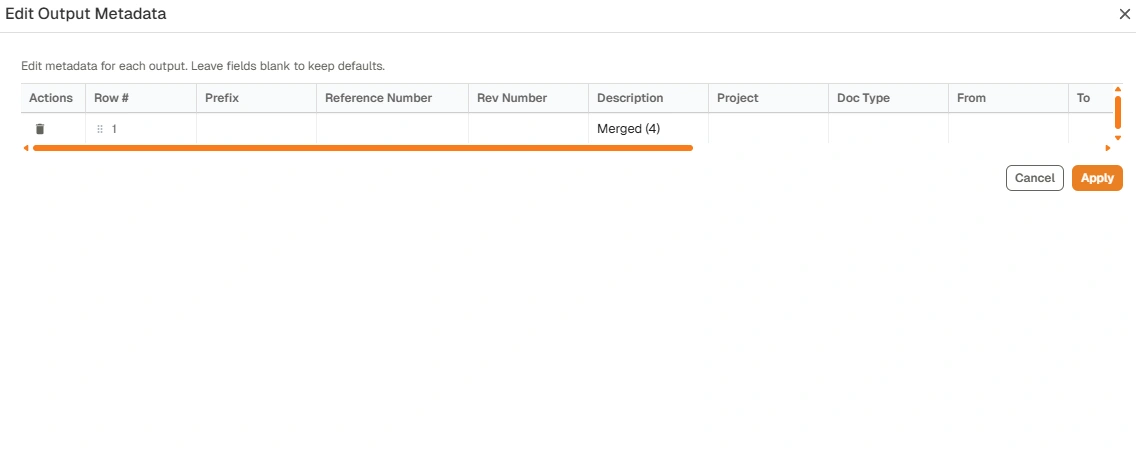
'Edit Output Metadata' dialog
| Field | Description |
|---|---|
| Actions | Removes the output row from the metadata table. |
| Row # | Identifies the output set by number. |
| Prefix | Optional prefix to apply to the generated document number. |
| Reference Number | Sets the reference number for the generated output. |
| Rev Number | Sets the revision number. |
| Description | Sets the description for the generated output. |
| Project | Assigns the output to a project. |
| Doc Type | Sets the document type. |
| From / To | Sets the From and To fields on the generated document. |
| Status / PR Status | Sets workflow status fields where applicable. |
| Other No / Initiator / Phase | Additional metadata fields available for the generated output. |
Index Settings dialog
The 'Index Settings' dialog configures the layout and content of the index page that can be included with generated outputs. Settings cover page formatting, column selection, ordering rules, and blank page field display.
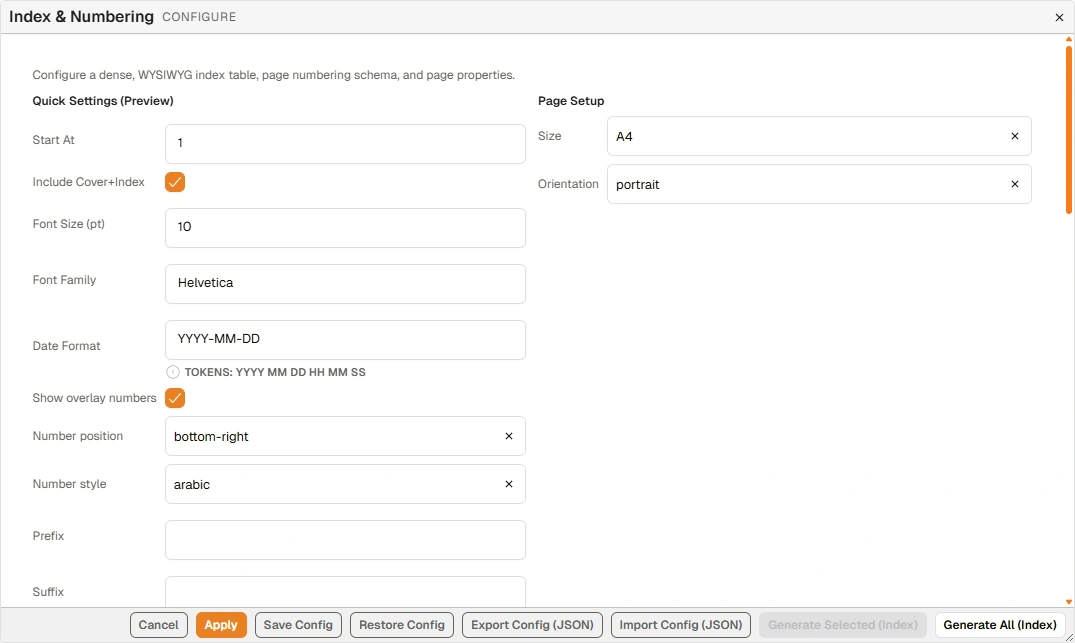
'Index Settings' dialog
| Field | Description |
|---|---|
| Start At | Sets the starting page number for the index. |
| Include Cover+Index | When checked, a cover page and index are included in the output. |
| Font Size / Font Family | Controls the font used in the index table. |
| Date Format | Sets the date format used in the index (e.g. YYYY-MM-DD). Tokens are available to build custom formats. |
| Show overlay numbers | When checked, page numbers are overlaid on document thumbnails. |
| Number position / Number style | Controls where and how page numbers appear (e.g. bottom-right, arabic). |
| Prefix / Suffix / Padding | Optional formatting applied to page number display. |
| Size / Orientation | Sets the page size (e.g. A4) and orientation (portrait or landscape). |
| Columns | Configures which fields appear as columns in the index table. Each column has a field name, display label, alignment, and width. Columns can be added, reordered, and removed. |
| Ordering Rules | Sets the sort order for documents in the index table. Each rule specifies a field, direction (ascending or descending), and page scope. Multiple rules can be added. |
| Manual Order | When enabled, documents can be dragged to set a custom order for the index. Use 'Seed from rules' to initialise the list from the ordering rules. Manual order takes precedence over ordering rules when enabled. |
| Blank Page Fields | Selects which fields are displayed on blank pages for non-previewable documents. Available fields include Description, Doc Number, Date, Type, Sub-Type, Reference, Field 1–6, From, To, and Status. |
| Cancel | Closes the dialog without saving changes. |
| Apply | Applies the current settings. |
| Save Config | Saves the current configuration for future use. |
| Restore Config | Restores the last saved configuration. |
| Export Config (JSON) | Exports the current configuration as a JSON file. |
| Import Config (JSON) | Imports a previously exported configuration from a JSON file. |
| Generate Selected (Index) | Generates the index for the currently selected output sets. |
| Generate All (Index) | Generates the index for all output sets. |
How to assemble a PDF
| Step | Description |
|---|---|
| 1 | Open PDF Fusion Studio from the sidebar popup. Drag and drop relevant documents from the Explorer or a folder view into the Source Documents panel on the left. |
| 2 | Select the documents to include using the checkboxes. |
| 3 | Click 'Merge Selected' to combine them into one output, or 'Merge With Index' to create separate outputs. To add a single document directly, click 'Add as Output'. To split a document into individual page outputs, click 'Quick Split'. The output set will appear in the Final Outputs panel on the right. |
| 4 | (Optional) Use 'Detached Viewer' to inspect the pages in an output set before generating. |
| 5 | Select a destination from the 'Bundle folder' dropdown at the bottom of the dialog. |
| 6 | Click 'Generate' on an individual output set, or 'Generate All' to produce all outputs at once. The generated PDFs will be saved to the selected folder. |