Inbox
The Inbox is where you find the work that workflows send you. Each workflow brings one or more documents and asks someone to do something with them, such as review, approve or sign. That request is called an action request. The Inbox lists the workflows you are part of, whether you started them or they were sent to you. When you open one, it shows its documents, who has been asked to do what, and how far the workflow has got. Use the Inbox to see what is waiting for you, to reply to it, and to follow the workflows you have started.

What you can do in the Inbox
- Open a workflow and see its documents, its status and who started it
- Reply to an action request that is waiting for you
- Search a workflow's documents, open their details, download them or replace their file
- See every action request of a workflow, and send a reminder
- Filter a document's action requests, and see its distribution, messages and related workflows
- See a diagram of the workflow's action requests and replies
- Copy a link to a workflow, or download it as a ZIP file
The Inbox at a glance
The Inbox has two parts. The list on the left shows the workflows you are part of. To sort, search and filter the list, see Left Sidebar. The right-hand side shows the workflow you have selected, in three bands:
- the workflow header at the top, with its subject, status and View Activities
- the workflow's documents, one card each
- the tabs for the selected document at the bottom, starting with its action requests on User Tasks
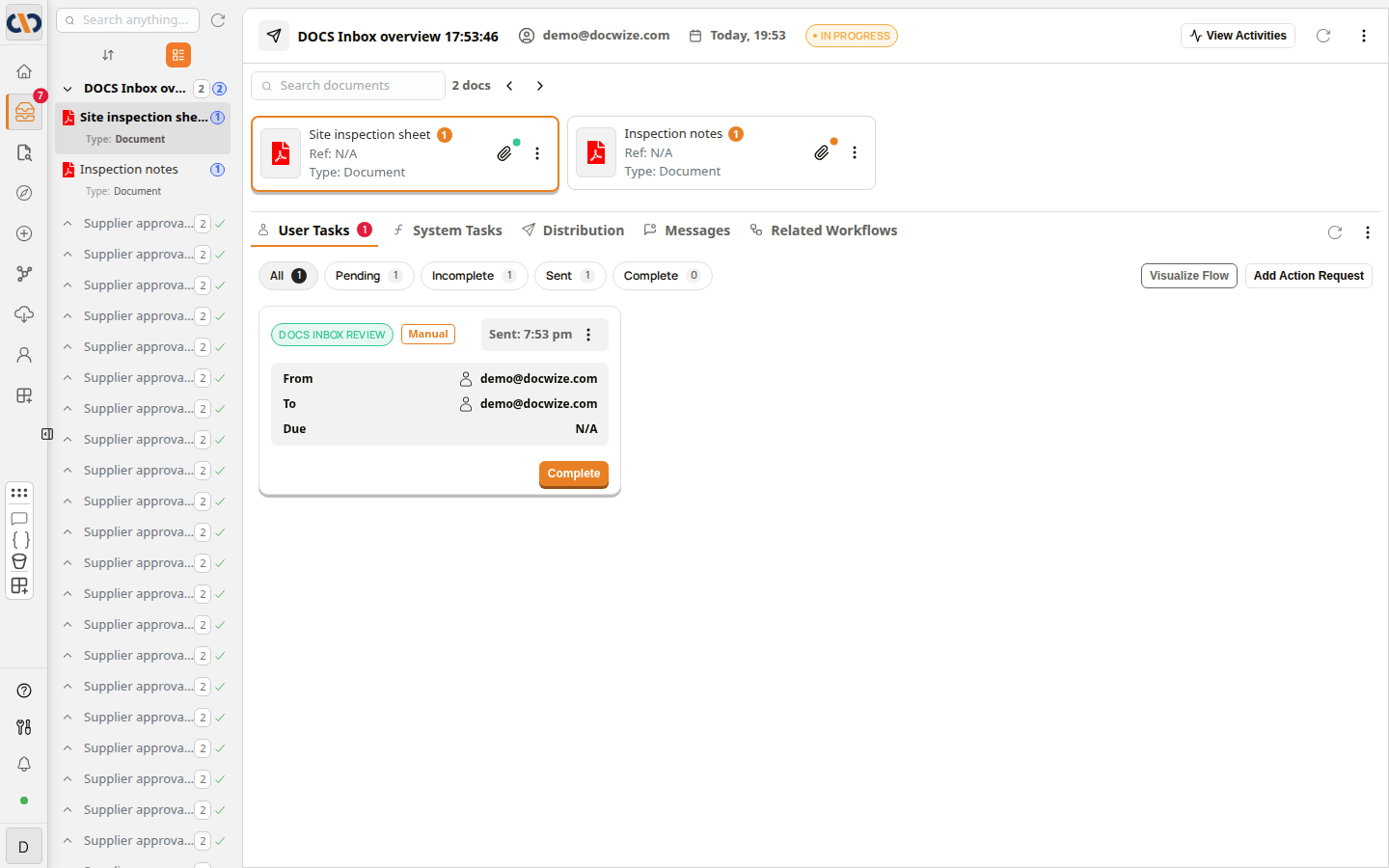 A workflow open in the Inbox
The sections below go through each band from the top.
The workflow header
The header shows the workflow's subject, who started it, when, and its status, such as IN PROGRESS or CANCELLED.
 The workflow header, with its ⋮ menu open
| Item | Description |
|---|---|
| View Activities | Opens the Activity panel, which lists the workflow's action requests. See View Activities. |
| Reload (circular arrow icon) | Reloads the workflow, to show replies and changes made since you opened it. |
| Export Report (⋮ menu) | Downloads the workflow as a ZIP file named after its subject. |
| Share Workflow (⋮ menu) | Copies a link to the workflow. Opening the link opens the workflow in the Inbox. |
View Activities
View Activities opens the Activity panel on the right. It lists every action request of the workflow, with its document, who sent it and who it was sent to. Use it to see at a glance who has been asked to do what, across all the workflow's documents. All, Tasks and Actions at the top filter the list, and each shows how many entries it has.
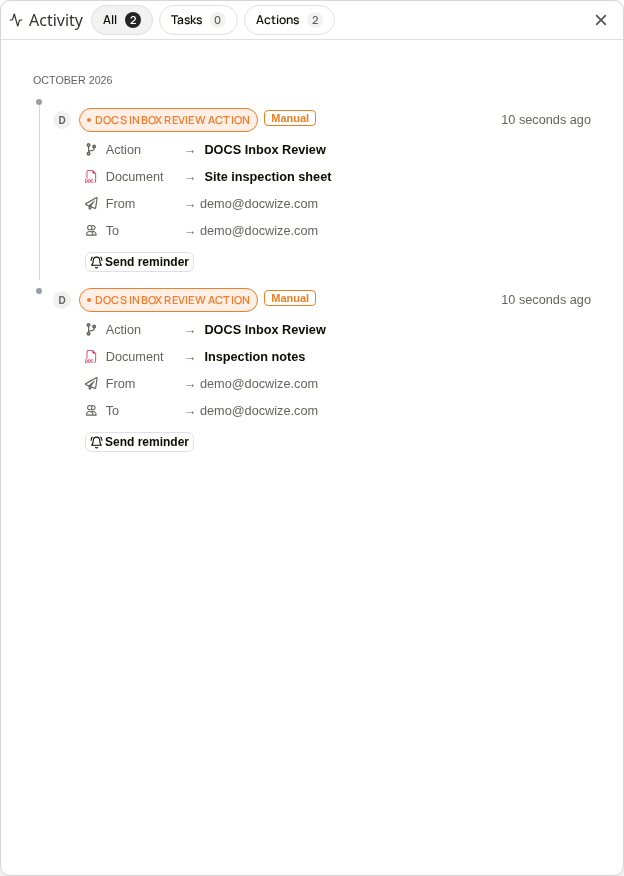 The Activity panel
Send reminder under an action request reminds its recipient that it is waiting. See Sending a reminder.
The workflow's documents
Below the header, each document of the workflow has a card. The selected document has an orange border, and the action requests below are the ones for that document.
 The workflow's documents
| Item | Description |
|---|---|
| Search documents | Narrows the cards to the documents whose description or reference number contains what you type. The count next to it shows how many are listed. |
| Left and right arrows | Select the previous or next document. |
| Document card | Shows the document's description, its reference number (Ref) and its document type (Type). Select a card to see that document's action requests. |
| Paperclip | Opens the document's attachments. A green dot means the document has attachments. An orange dot means the document is itself an attachment of another document. |
| ⋮ menu | View Details opens the document's details. The menu also has Download, Open in new window and Replace File. |
When you select a document that has an action request waiting for you, that action request opens straight away, so you can reply to it. Close it to look at the rest of the workflow first.
The task tabs
The tabs below the documents show what is happening to the selected document. The number on a tab shows how many items it has.
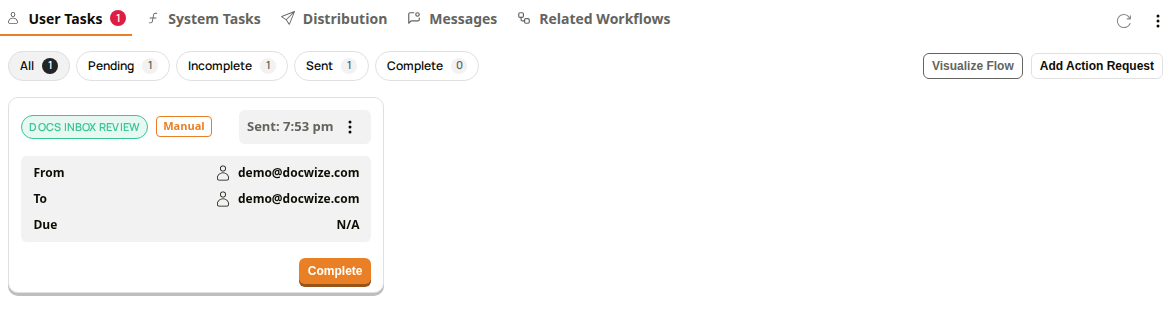 The User Tasks tab
| Tab | Description |
|---|---|
| User Tasks | The action requests for the selected document: what people have been asked to do, and their replies. Select Complete on a card to reply. See Completing Action Requests. |
| System Tasks | The steps the workflow carried out automatically for the selected document. |
| Distribution | Who the selected document has been distributed to through the workflow. |
| Messages | Messages about the selected document. Type in Enter a message to add one. |
| Related Workflows | Other workflows the selected document is part of. |
On the User Tasks tab, the filters narrow the action request cards. Each filter shows how many cards it would list.
| Filter | Lists |
|---|---|
| All | Every action request for the document. |
| Pending | The action requests waiting for your reply. |
| Incomplete | The action requests that nobody has replied to yet. |
| Sent | The action requests in workflows you started. |
| Complete | The action requests that have a reply. |
| Control | Description |
|---|---|
| Visualize Flow | Opens a diagram of the workflow. See Visualize Flow. |
| Add Action Request | Asks someone to do something with the selected document, outside the workflow's own steps. A card added this way is labelled Manual. You need the Adhoc Action Requests permission to see this button. |
| Refresh (circular arrow icon, right of the tabs) | Reloads the selected tab. |
| ⋮ menu (right of the tabs) | Revoke Workflow cancels the workflow. Force Close Workflow closes it as completed. Each asks you to confirm first. You need the Workflows - Revoke Any permission to see these options. |
Visualize Flow
Visualize Flow draws the workflow as a diagram: each action request, who it was sent to and when, and the replies that lead on from it. Use it to see where a workflow has got to and what comes next. Use + and − to zoom, and Fullscreen to fill the screen.
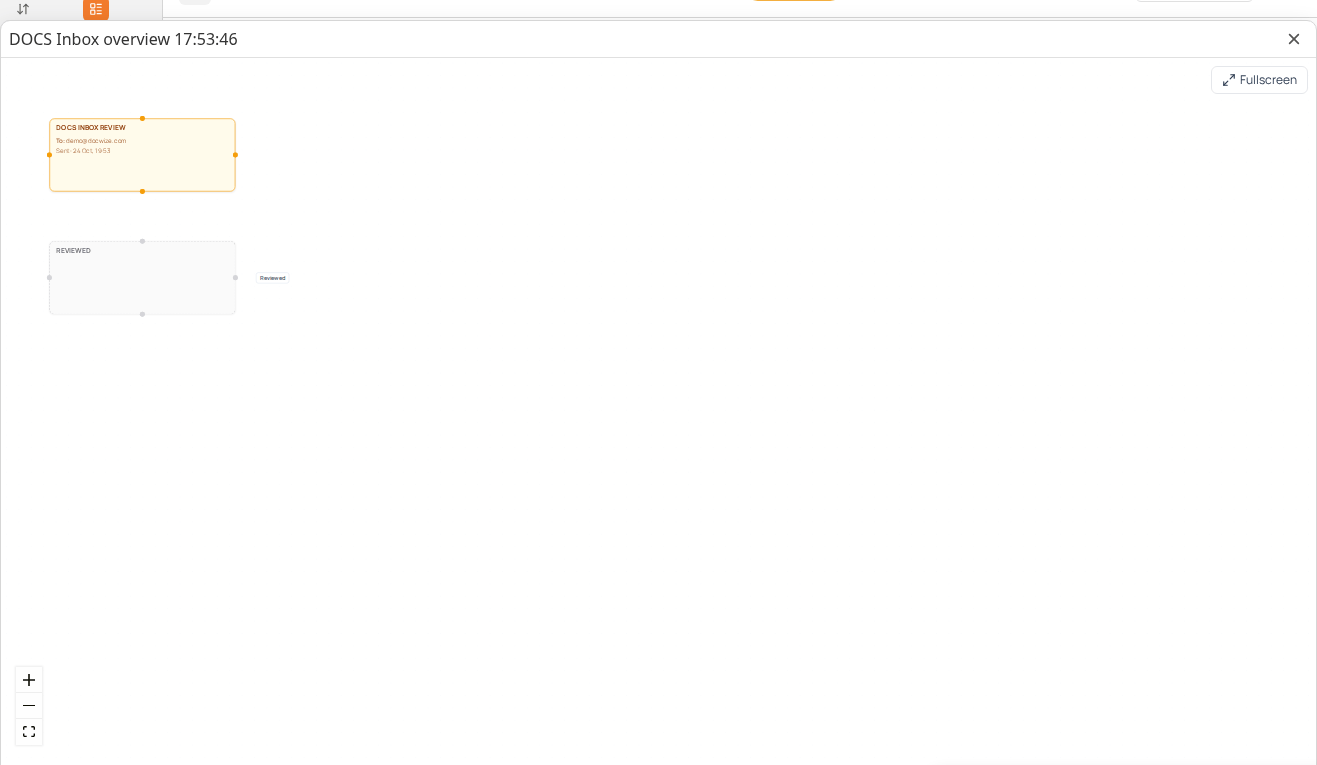 The Visualize Flow diagram
Cancelled workflows
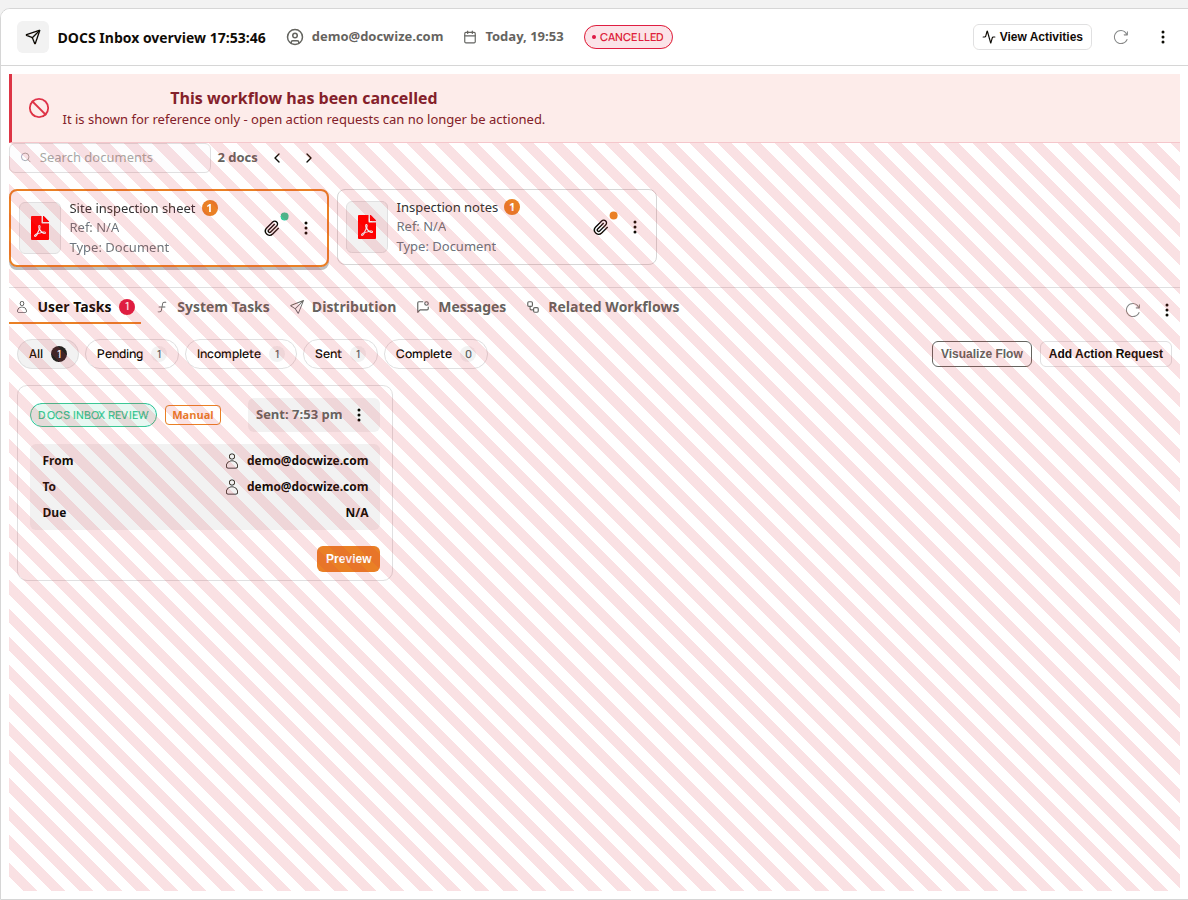
When a workflow has been cancelled, a red banner says This workflow has been cancelled, and the workflow is shown for reference only. You can still open its documents and action requests, but you can no longer reply: an action request card offers Preview instead of Complete.
 A cancelled workflow
How to open a workflow
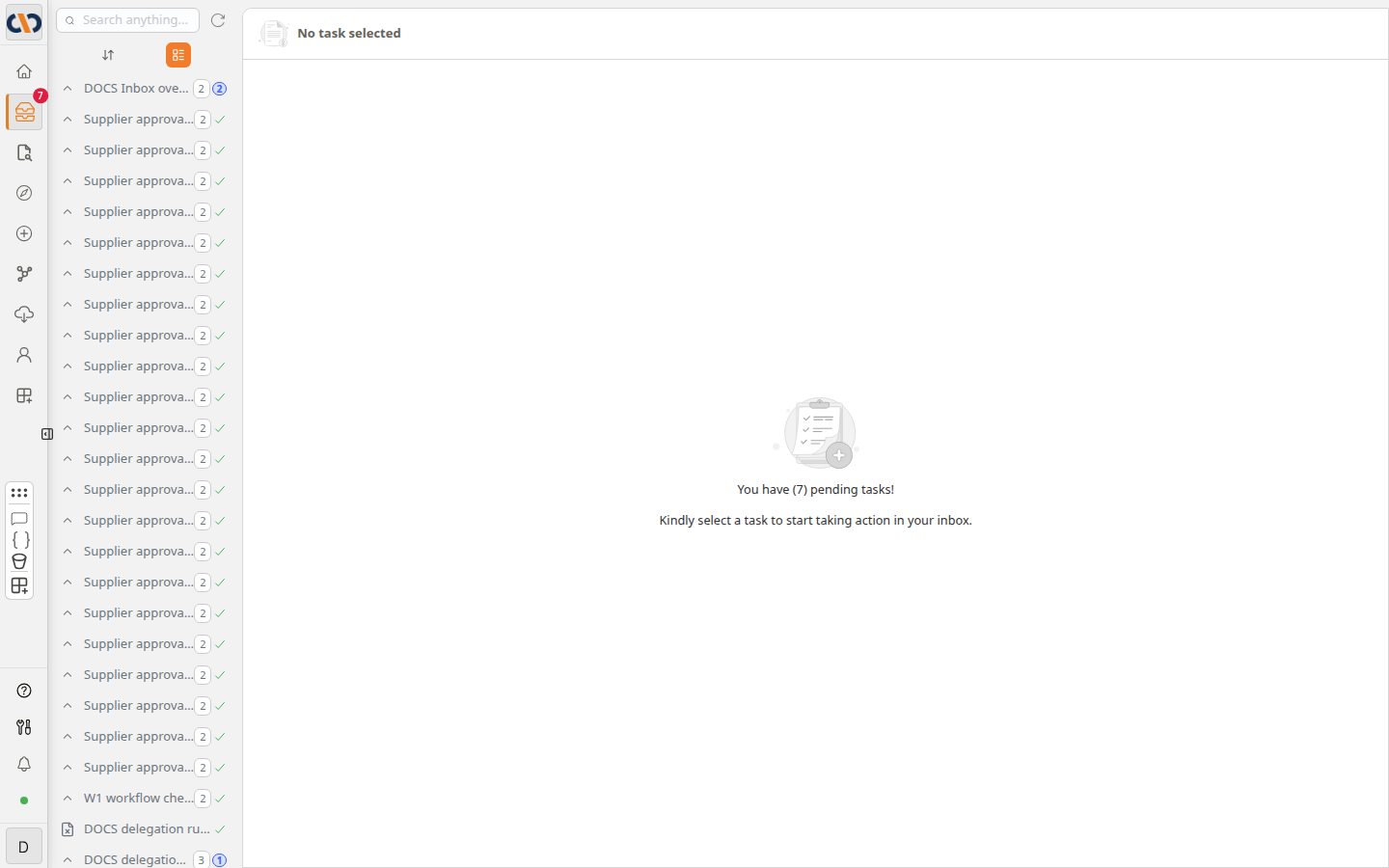
When you open the Inbox, no workflow is selected yet, and the right-hand side asks you to select a task.
 The Inbox before a workflow is selected
| Step | Description |
|---|---|
| 1 | Select Inbox in the sidebar. |
| 2 | In the list on the left, select the workflow. Its documents are listed under it. |
| 3 | Select a document. The workflow opens on the right, with that document selected. |
| 4 | If an action request is waiting for you on that document, it opens straight away. Reply to it, or close it to look at the rest of the workflow first. |
The video below opens a workflow from the list, closes its action request, moves to the next document, then opens View Activities and Visualize Flow.
Example: Opening a workflow in the Inbox
A link to a workflow, such as one copied with Share Workflow, opens the Inbox with that workflow selected in the same way.
How to share a link to a workflow
| Step | Description |
|---|---|
| 1 | Open the workflow. |
| 2 | Select the ⋮ menu at the top right of the workflow header, then Share Workflow. Link copied to clipboard confirms that the link has been copied. |
| 3 | Paste the link where you need it, for example into an email. |
The person who opens the link needs to be part of the workflow, or have permission to see it.
How to download a workflow as a ZIP file
| Step | Description |
|---|---|
| 1 | Open the workflow. |
| 2 | Select the ⋮ menu at the top right of the workflow header, then Export Report. |
| 3 | Wait for Export ready. Downloading…. The ZIP file, named after the workflow's subject, is saved to your browser's downloads. |
Related pages
- Left Sidebar: sorting, searching and filtering the list of workflows
- Completing Action Requests: replying to an action request
- Digital Signing: signing a document in a workflow