Redaction
Redaction hides parts of a document that should not be seen, for example a person's contact details, an account number or a logo, before the document is shared. In Docwize you redact in the document preview: you mark each area with a black box, check the boxes, and then burn them into the file. Burning removes the content under the boxes from the file itself, so it cannot be copied or searched afterwards.
You can mark the areas yourself, or, when it is turned on for you, ask Auto Redact to find them from a description such as "Redact all email addresses and phone numbers".
What you can do in Redaction
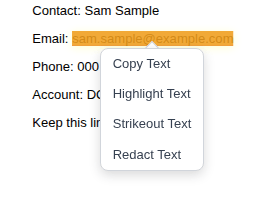
- Redact selected text from the right-click menu
- Draw a redaction box over any area of a page with the Redaction tool
- Turn a rectangle you have already drawn into a redaction
- Check and adjust the redactions before they are made permanent
- Burn the redactions into the document file
- Find the earlier, unredacted file in File Versions
- Ask Auto Redact to add redactions from a description
- Remove every redaction on the document at once with Clear Redactions
Redaction tools
The redaction tools sit in the annotation toolbar on the left of the document preview, with the other annotation tools. You also reach redaction from two right-click menus.
| Tool | Name | What it does |
|---|---|---|
 | Redaction | Draws a redaction box where you drag on the page. The shortcut is X. |
 | Auto Redact | Opens the Auto Redact dialog. It appears only if you have the Enable Auto Redaction permission. |
| Right-click selected text | Redact Text | Puts a redaction box over the selected text. |
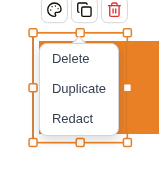
| Right-click a rectangle | Redact | Replaces a rectangle annotation with a redaction box over the same area. |
Before the redactions are burned
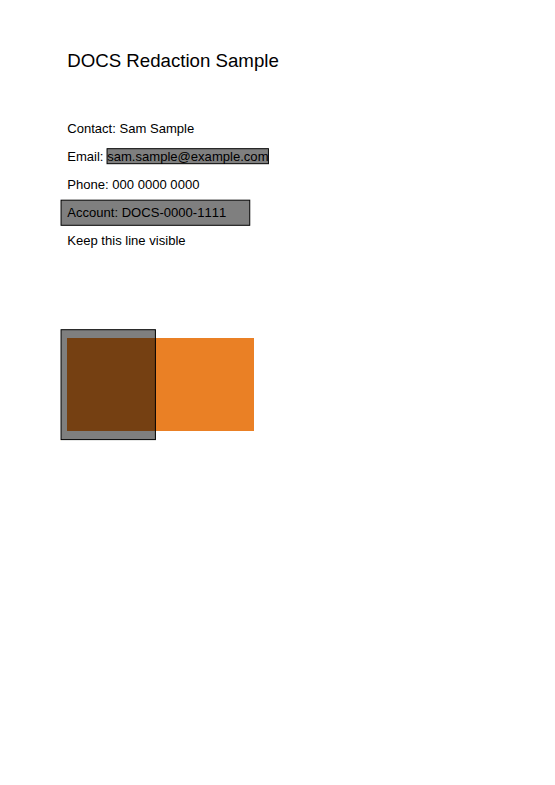
A redaction box is a live annotation until you burn it. It shows as a grey box with the content still visible underneath, so you can check that each box covers exactly what it should. Until then the text under the box is still in the file, so the document is not yet safe to share.
While the redactions are live you can delete them like any other annotation, and they are listed in the review panel. See Annotations for how to change or delete an annotation.
Burning the redactions into the document
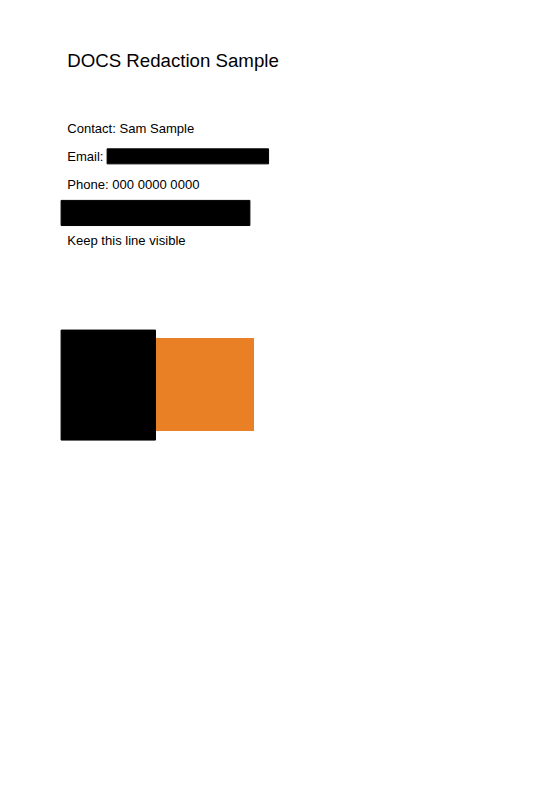
When the boxes are right, click Burn annotations at the top of the preview toolbar. Docwize writes a new version of the file in which:
- the text under each box is removed, so it can no longer be selected, copied or found by a search;
- only the part of a picture under a box is blacked out, and the rest of the picture stays visible;
- any files attached inside the PDF are removed;
- all other text and content stays as it was.
The button burns every live annotation on the document, not only the redactions. See Burning annotations into the document.
The earlier version keeps the original
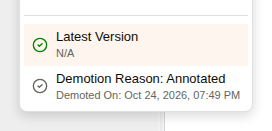
Burning does not change the earlier file. Docwize keeps it in the document's file versions: click View file versions at the top right of the preview toolbar, and it is listed with Demotion Reason: Annotated. That earlier version still shows the original text without the black boxes, and it can be opened from the list.
So when you share a redacted document, share the latest version, and keep in mind that people who can open the document's file versions can open the unredacted one.
Auto Redact
Auto Redact is useful for a long document, or when the same kind of detail appears many times, for example every email address and phone number. You describe what to redact, and Auto Redact puts redaction boxes on the page for you.
The boxes it adds are ordinary redaction boxes and appear on the page straight away. Check them the same way you would check your own, and add or delete boxes before you burn them. Nothing is burned until you click Burn annotations.
| Control | What it does |
|---|---|
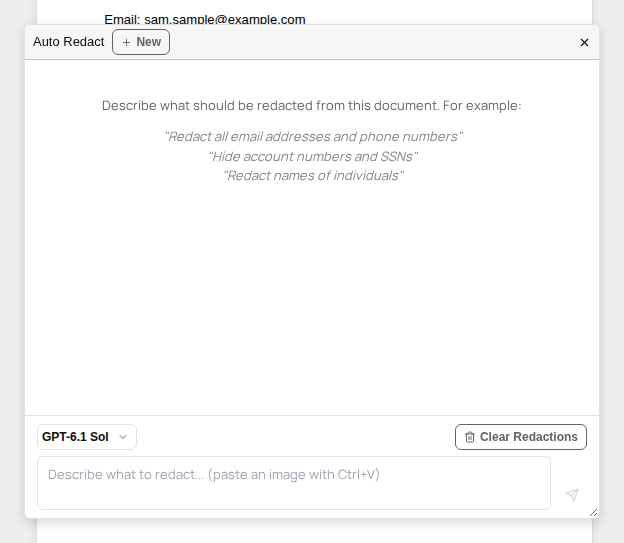
| New | Starts a new conversation with Auto Redact on the same document. |
| Example prompts | Shown while the conversation is empty, as examples of what you can ask. |
| Model selector | Chooses the AI model Auto Redact uses. |
| Clear Redactions | Deletes every redaction box on the document, including boxes you drew yourself. |
| Prompt box | Where you describe what to redact. You can also paste an image into it with Ctrl+V. |
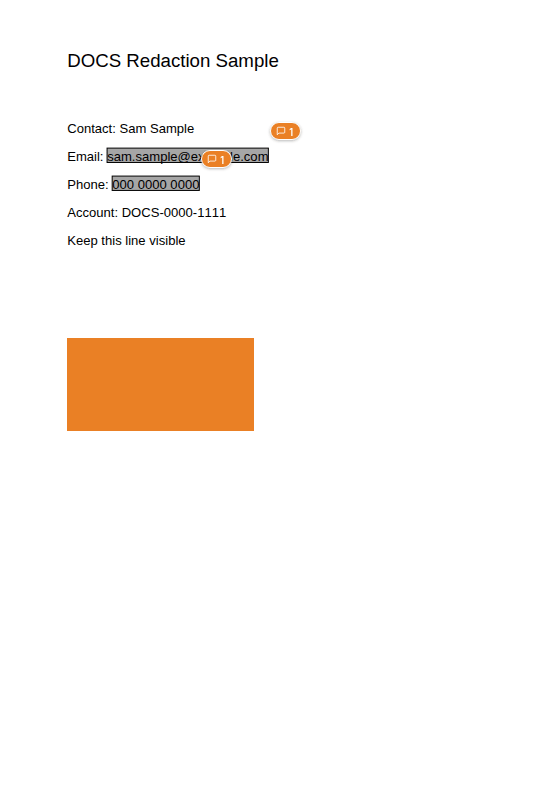
How to redact selected text
| Step | Description |
|---|---|
| 1 | Open the document in the preview. |
| 2 | Select the text to redact. |
| 3 | Right-click the selection and choose Redact Text. A redaction box covers the selected text. |
| 4 | Repeat for any other text, then burn the redactions. |
How to draw a redaction box
Use the Redaction tool for anything that is not selectable text, such as part of a picture, a signature or a logo.
| Step | Description |
|---|---|
| 1 | Click Redaction in the annotation toolbar, or press X. |
| 2 | Drag a box over the area to redact. |
| 3 | The tool switches off after each box. Click it or press X again to draw the next one. |
How to turn a rectangle into a redaction
If you have already drawn a rectangle around an area, you can turn it into a redaction instead of drawing it again.
| Step | Description |
|---|---|
| 1 | Right-click the rectangle. |
| 2 | Choose Redact. The rectangle is replaced by a redaction box over the same area. |
How to redact with Auto Redact
| Step | Description |
|---|---|
| 1 | Click Auto Redact in the annotation toolbar. |
| 2 | Type what should be redacted in the prompt box, for example "Redact all email addresses and phone numbers", and send it. |
| 3 | Wait while Auto Redact works. The redaction boxes appear on the page. |
| 4 | Close the dialog and check every box. Add or delete boxes as needed. To start again, click Clear Redactions. |
| 5 | Burn the redactions. |
How to burn the redactions into the document
| Step | Description |
|---|---|
| 1 | Check that every redaction box covers what it should. |
| 2 | Click Burn annotations at the top of the preview toolbar. |
| 3 | Wait while Docwize burns the annotations. The document reloads with the black boxes as part of the file. |
Example: Redacting text and an area, then burning the redactions into the document