Stamps
Stamps are ready-made images, such as CHECKED or APPROVED, that you place on a document in one click instead of drawing the same mark-up every time. You keep them in stamp collections, so a team can share the stamps it uses, for example for site inspection sheets.
A stamp can be static, always looking the same, or dynamic, asking for details such as initials or a comment each time it is placed and showing them on the stamp. A stamp can also have parts that you click to mark with a cross after it is placed, such as a tick box.
What you can do in Stamps
- Create stamp collections, and collections inside them
- Upload a stamp to a collection as an SVG file
- Add a stamp to a document, and move or resize it
- Fill in a dynamic stamp's details as you place it
- Set parts of a stamp to be marked with a cross, and mark them on a placed stamp
- Delete a stamp
Stamp Collections
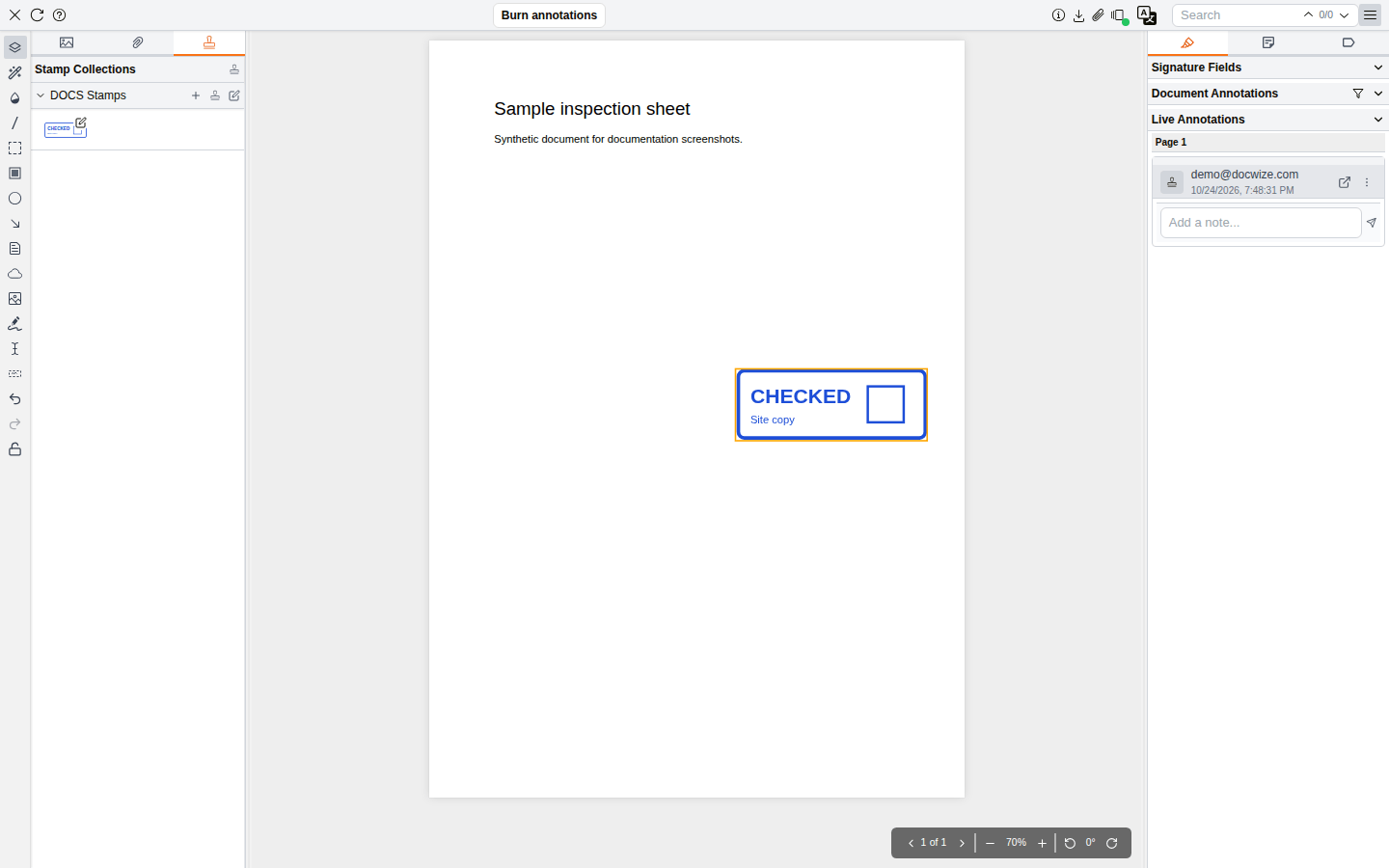
Stamps are kept in the Toolchest tab of the side panel in the document preview. Click Thumbnails at the top of the annotation toolbar to open the side panel, then click the Toolchest tab.
| Icon | Name | Description |
|---|---|---|
 | Thumbnails | Opens and closes the side panel. |
 | Toolchest | Shows the Stamp Collections you can use. |
The tab lists your stamp collections, each with its stamps shown as small pictures. A collection can hold other collections, shown nested inside it.
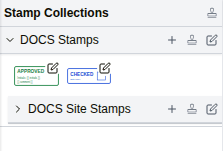
| Control | Description |
|---|---|
| Stamp icon beside Stamp Collections | Opens the New Collection dialog to create a collection. |
| + on a collection | Upload Stamp: opens the Upload Stamp dialog to add a stamp to that collection. |
| Stamp icon on a collection | New Collection: creates a collection inside that collection. |
| Pencil icon on a collection | Edit Collection: opens the collection's details. |
| A stamp's picture | Picks the stamp, ready to place on the page. |
| Pencil icon on a stamp | Edit Stamp: opens the stamp's details to change or delete it. |
New Collection dialog
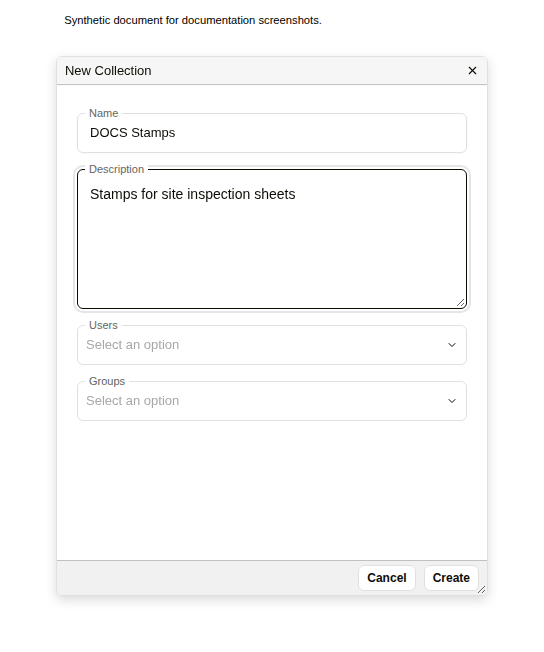
| Field | Description |
|---|---|
| Name | The name of the collection. |
| Description | What the collection is for. |
| Users | The users who can use the collection. |
| Groups | The groups who can use the collection. |
Upload Stamp dialog
A stamp is an SVG file. The dialog shows a preview of the file you choose.
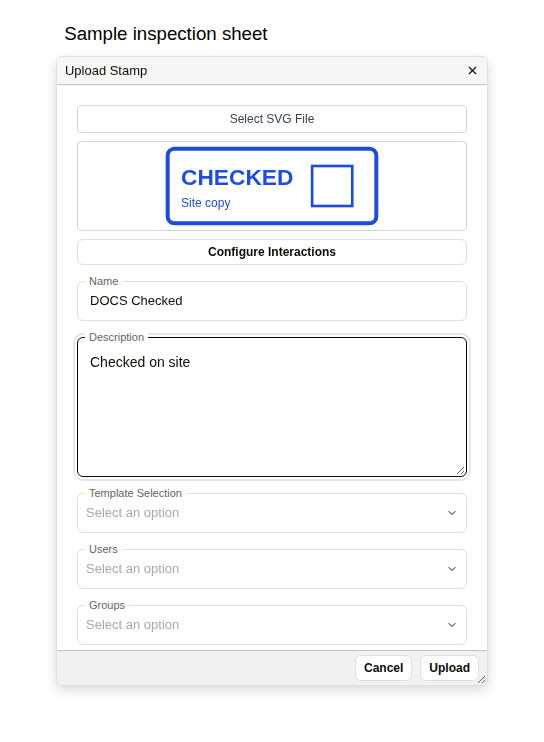
| Field | Description |
|---|---|
| Select SVG File | Chooses the SVG file for the stamp. |
| Configure Interactions | Opens Interaction Rules, to choose the parts of the stamp that can be marked with a cross. See Interaction Rules. |
| Name | The name of the stamp. |
| Description | What the stamp is for. |
| Template Selection | Makes the stamp dynamic: the template's fields are asked for each time the stamp is placed. See Dynamic stamps. |
| Users | The users who can use the stamp. |
| Groups | The groups who can use the stamp. |
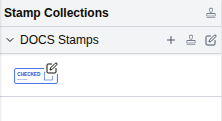
Upload becomes available once you have chosen a file and entered a name. The stamp then appears in its collection. To change or delete a stamp later, click the pencil icon on it to open Edit Stamp, which has Delete, Cancel and Update buttons.
Placing a stamp
A placed stamp is an annotation. It is saved as soon as you place, move or resize it, and it is listed under Live Annotations in the review panel. Dragging a corner resizes the stamp without changing its shape.
Dynamic stamps
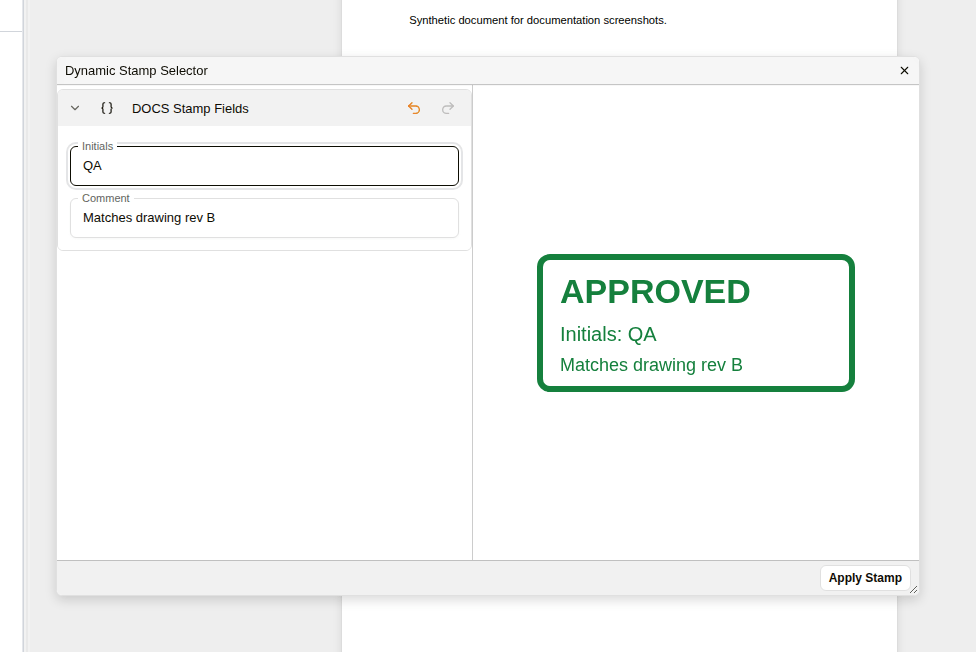
A dynamic stamp has a custom field template chosen in Template Selection. When you place it, the Dynamic Stamp Selector opens with the template's fields and a preview of the stamp. As you fill in the fields, the preview shows your entries on the stamp. Apply Stamp becomes available once every required field is filled in, and the stamp is placed with your entries on it.
Preparing a dynamic stamp, the SVG with its placeholders and the template that supplies them, is covered in Dynamic stamps in the configuration guide.
Interaction Rules
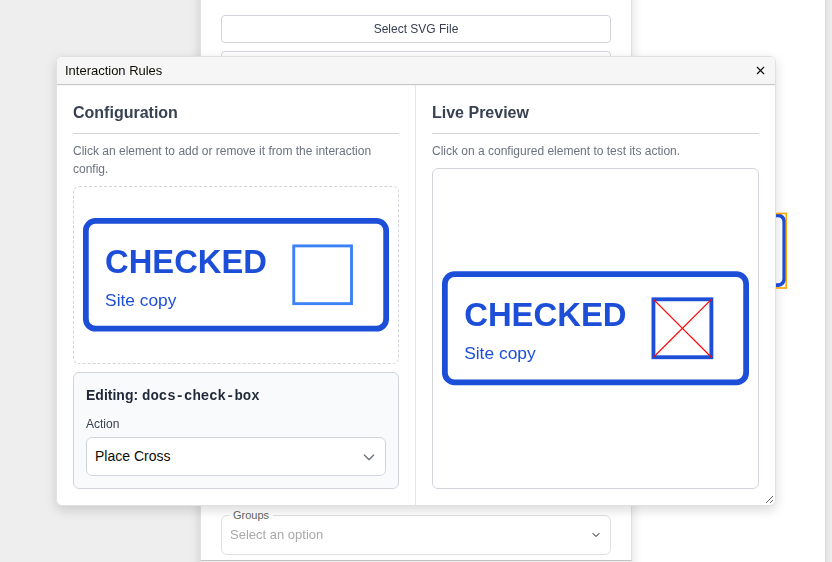
Interaction Rules lets you choose parts of a stamp, such as a tick box, that people can mark with a cross after the stamp is placed. Open it with Configure Interactions in the Upload Stamp or Edit Stamp dialog.
The Configuration side shows the stamp. Click a part of it to add it to the rules: its Action is set to Place Cross. The Live Preview side shows the stamp as it will behave, so you can click the part to test it. Close Interaction Rules, then click Upload or Update to save the stamp with its rules.
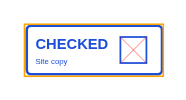
On a placed stamp, click the stamp once to select it, then click the part to mark it with a cross. Click it again to remove the cross. The cross is saved with the stamp.
How to create a stamp collection
| Step | Description |
|---|---|
| 1 | In the document preview, click Thumbnails, then the Toolchest tab. |
| 2 | Click the stamp icon beside Stamp Collections. To create a collection inside another one, click the stamp icon on that collection instead. |
| 3 | Enter a Name and, if needed, a Description, Users and Groups. |
| 4 | Click Create. |
How to upload a stamp
| Step | Description |
|---|---|
| 1 | In the Toolchest tab, click + on the collection. |
| 2 | Click Select SVG File and choose the stamp's SVG file. |
| 3 | Enter a Name and, if needed, a Description. |
| 4 | For a dynamic stamp, choose the template in Template Selection. To let people mark parts of the stamp with a cross, click Configure Interactions (see Interaction Rules). |
| 5 | Click Upload. |
Example: Creating a stamp collection and uploading a stamp
How to add a stamp to a document
| Step | Description |
|---|---|
| 1 | In the Toolchest tab, click the stamp. |
| 2 | For a dynamic stamp, fill in the fields in the Dynamic Stamp Selector and click Apply Stamp. |
| 3 | Click the page where the stamp should go. |
| 4 | Optional: drag the stamp to move it, or drag a corner to resize it. |
Example: Adding a stamp, moving and resizing it, then adding a dynamic stamp
How to delete a stamp
Deleting a stamp removes it from its collection. Copies already placed on documents stay where they are.
| Step | Description |
|---|---|
| 1 | In the Toolchest tab, click the pencil icon on the stamp. |
| 2 | Click Delete. |
| 3 | In Confirm Delete, click Delete. |