Notes
In Docwize, you can add notes to a document while you view it, for example a question for the author, a reminder to check a revision, or a comment that applies to the whole document rather than one spot on a page. Notes can be shared or private. A shared note is visible to everyone who can open the document, while a private note is visible only to you.
A note can belong to a page of the document, so that readers can jump straight to the page it is about, or to the document as a whole.
To comment on a particular mark-up on a page, add a note to an annotation instead. For 3D models, you can also add Model Notes, which are pinned to an exact point on the model.
What you can do in Notes
- Open the Notes tab in the review panel
- Add a shared note or a private note
- Write a formatted note in the Docwize Notepad
- Attach a note to the current page, or to the whole document
- Read, edit and delete a note
- Jump to the page a note belongs to, or move a note to another page
Notes tab
Notes are listed in the Notes tab of the review panel, on the right of the document preview. Click the review panel icon at the top right of the preview toolbar to open the panel, then click the Notes tab.
| Icon | Name | Description |
|---|---|---|
 | Review panel icon | Opens and closes the review panel. |
 | Notes | Lists the notes on the document. |
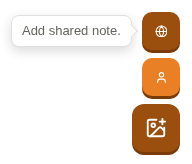
The orange button at the bottom of the tab is the note actions button. Click it to show the two kinds of note you can add:
| Option | Description |
|---|---|
| Add shared note (globe icon) | Adds a note that everyone who can open the document can read. |
| Add private note (person icon) | Adds a note that only you can read. |
Docwize Notepad
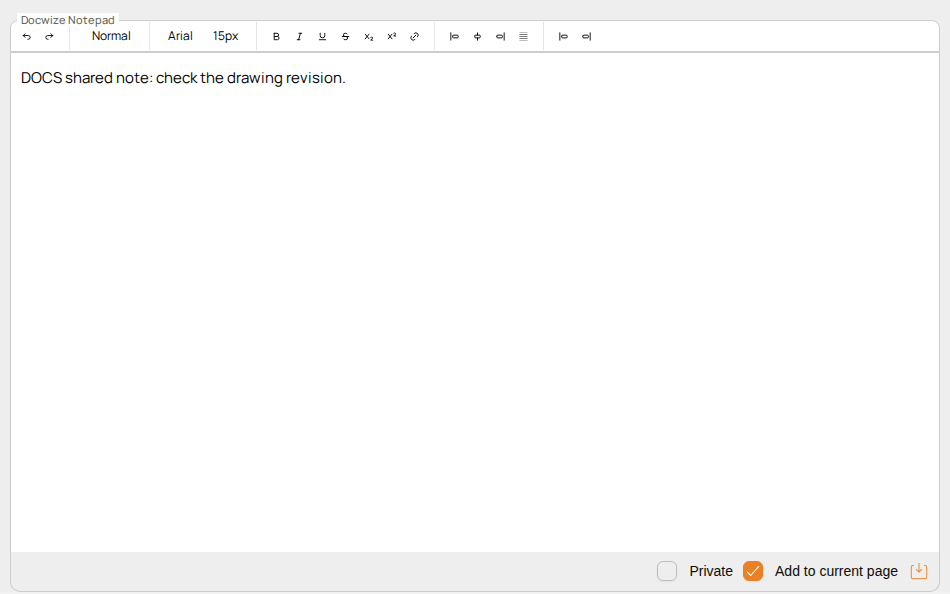
Both options open the Docwize Notepad, a separate window where you write the note. Its toolbar formats the text: undo and redo, text style, font and size, bold, italic, underline, strikethrough, subscript and superscript, links, and alignment.
| Field | Description |
|---|---|
| Note body | The text of the note. |
| Private | Ticked when you chose Add private note, and unticked when you chose Add shared note. |
| Add to current page | Ticked by default, so the note belongs to the page you were viewing. Untick it for a note about the whole document. |
| Save (icon at the bottom right) | Appears once you have typed. Click it to save the note. |
The note appears as a card in the Notes tab as soon as it is saved. The window stays open after you save, so close it when you have finished.
Note cards
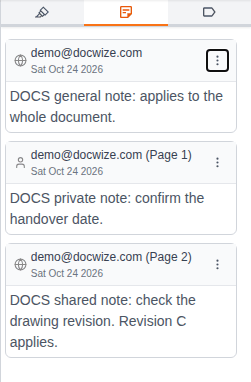
Each note is shown as a card. The card shows:
- a globe icon for a shared note, or a person icon for a private note;
- who added the note, and the page it belongs to, for example (Page 1). A note about the whole document shows no page;
- the date it was added;
- the text of the note.
Notes about the whole document are listed first, followed by the notes for each page in page order. Click the text of a note to open it in the Docwize Notepad to read. It opens without the toolbar, so the note cannot be changed by accident.
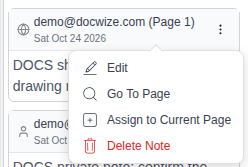
Click ⋮ on a card to open its menu:
| Option | Description |
|---|---|
| Edit | Opens the note in the Docwize Notepad to change it. The note keeps its page and stays shared or private. |
| Go To Page | Shows the page the note belongs to. A note about the whole document does not have this option. |
| Assign to Current Page | Moves the note to the page you are viewing. |
| Delete Note | Deletes the note straight away. There is no confirmation, so check you have the right note first. |
How to add a note
| Step | Description |
|---|---|
| 1 | Open the document in the preview, and go to the page the note is about. |
| 2 | Click the review panel icon at the top right of the preview toolbar, then the Notes tab. |
| 3 | Click the note actions button, then Add shared note or Add private note. |
| 4 | Type the note in the Docwize Notepad. To make it a note about the whole document, untick Add to current page. |
| 5 | Click the save icon at the bottom right. The note appears in the Notes tab. |
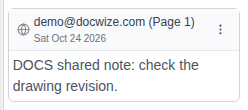
Example: Adding a shared note
How to edit a note
| Step | Description |
|---|---|
| 1 | In the Notes tab, click ⋮ on the note, then Edit. |
| 2 | Change the text in the Docwize Notepad. |
| 3 | Click the save icon. |
How to move a note to another page
| Step | Description |
|---|---|
| 1 | Go to the page the note should belong to. |
| 2 | In the Notes tab, click ⋮ on the note, then Assign to Current Page. The card shows the new page. |
How to delete a note
| Step | Description |
|---|---|
| 1 | In the Notes tab, click ⋮ on the note. |
| 2 | Click Delete Note. The note is deleted straight away. |