Search
The Docwize Search function enables users to search through the content of main documents, emails, attachments, and their respective metadata. Docwize processes search queries in a specific order of precedence, similar to mathematical BODMAS logic. Following that logic helps return strong search results.

What Search looks through
- Main documents
- Emails
- Attachments
- Metadata
What users can do from the Search page
- Enter a content search
- Access saved search requests
- Open Advanced Search options
- Open the Elasticsearch Query Assistant
- Open Search Help notes
- Run or end a search
Search Homepage
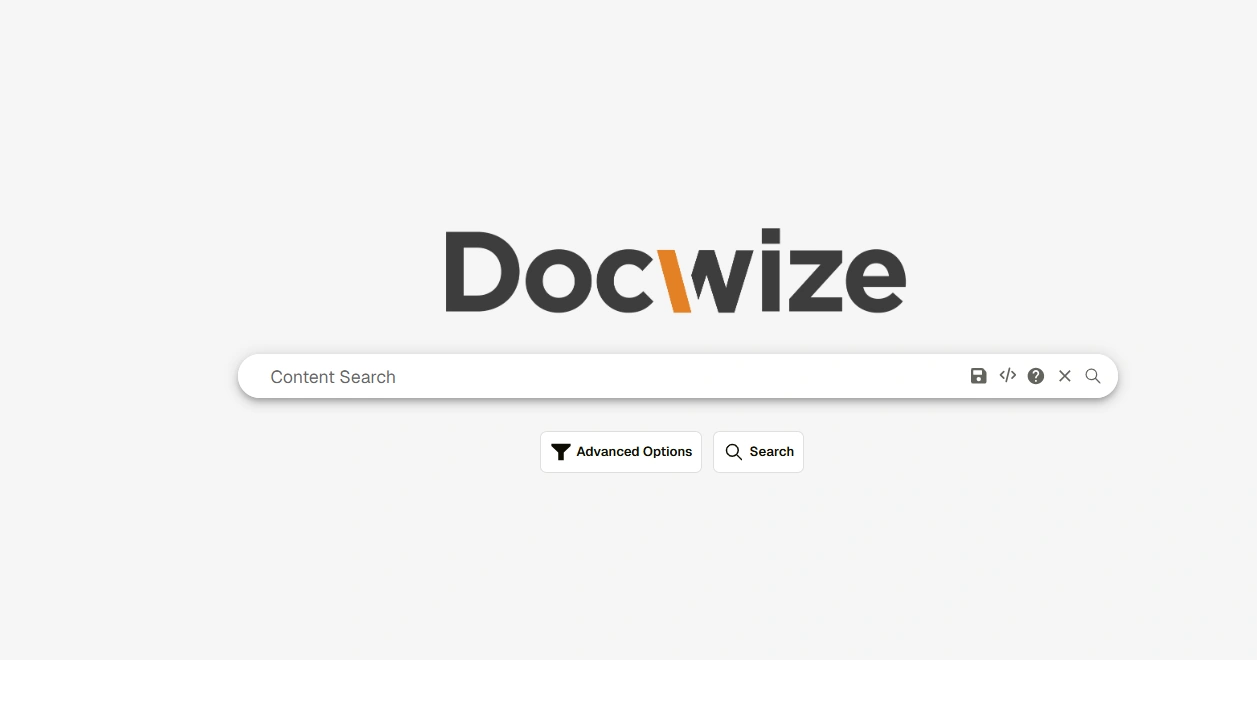
Docwize Search Homepage
| Field | Description |
|---|---|
| Content Search | Users type in the word/phrase for searching in this section. |
 | Opens the Saved Queries panel, where users can load or re-run previously saved searches. |
 | Navigates to the Elasticsearch Query Assistant. |
 | Accesses Search Help notes. This includes a ‘Current Query Explanation’ which interprets users' search and provides a summary of what the query is set to find. |
 | Ends search. |
 | Initiates search. |
| Advanced Search | Accesses Advanced Search options. |
| Search | Initiates search. |
Search Operators
Search operators are special characters or command that users can use in a search to refine or filter search results. NOTE: it is important to keep in mind the order of precedence when using these search operators.
| Operator | Signifies | Example | Search Results Include |
|---|---|---|---|
&& or AND | Logical AND | project AND report | Documents containing both project and report. |
| || or OR | Logical OR | invoice OR receipt | Documents containing either invoice or receipt. |
! or NOT | Logical NOT | report !draft | Documents with report but excluding draft. |
" " | Phrase Match | "project summary" | Matches the exact phrase project summary. |
doc* | Prefix Match | doc* | Matches words starting with doc (document, Docwize). |
*ment | Suffix Match | *ment | Matches words ending with ment (statement, document). |
*tag* | Substring Match | *tag* | Matches words containing tag (tagged, tagging). |
( ) | Grouping | (invoice OR receipt) AND approved | Combines grouped terms logically. |
~1 | Fuzzy Match (edit distance) | plan~1 | Matches close variants like plan, plant, plane. |
" "~4 | Phrase Slop (proximity) | "project report"~4 | Matches project and report within 4 words. |
Example of a Complex Query
((project && update) || (summary && notes)) && !archived
Finds documents containing project update, summary notes, or both, excluding any that mention archived.
Saved Queries
Clicking the save icon opens the Saved Queries panel, which lists searches that have been saved. From this panel, users can reload a previous search or run it again against the current document set.
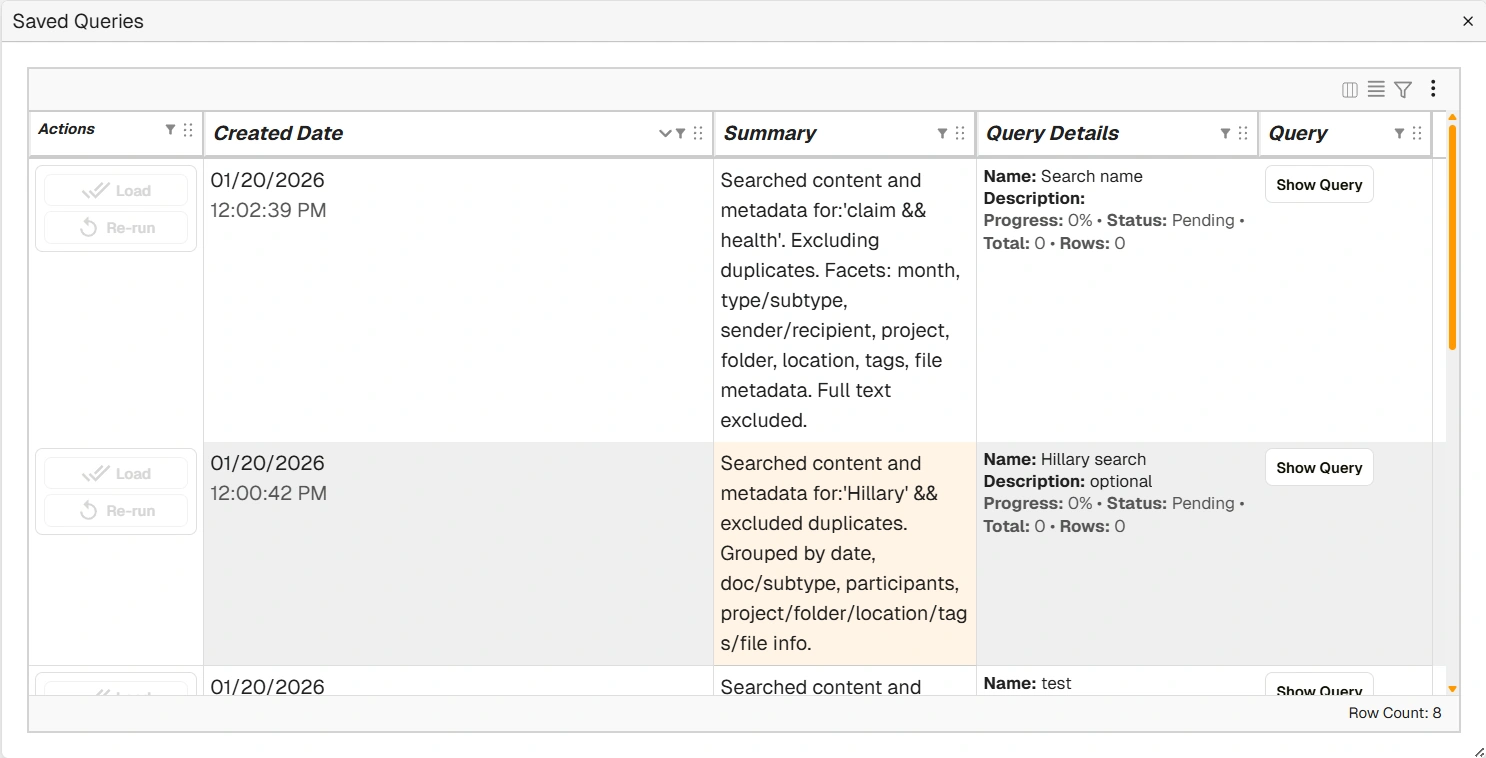
Saved Queries panel
| Column | Description |
|---|---|
| Actions | Load reopens the saved search with its original filters applied. Re-run executes the search again against the current document set. |
| Created Date | The date and time the search was saved. |
| Summary | A plain-language description of what the search looked for, including any filters and facets that were applied. |
| Query Details | Shows the saved search name, description, current progress, status, total results, and row count. |
| Query | Show Query displays the raw query used by the search. |
Real-time Syntax Validation
The Search function includes real-time syntax validation. Top search results will dynamically show as a menu below the search bar. Invalid and incorrect syntax are highlighted in red, alerting a user to errors. Clicking on the Help icon (?) will bring up a menu which provides an explanation of the error, allowing a user to make immediate corrections.
Example: Real-time Syntax Validation