Caching & Search Aggregations
What you can do here
- Save large searches to run in the background
- Return to cached results later
- Use aggregations to refine search results further
Caching Large Searches
Users may want to do searches that returns tens of thousands of documents. This can take a long time to complete. Users have an option to make the search run in the background, allowing them to continue with other actions while the search completes itself.
To use this feature, complete the following steps:
| Step | Description |
|---|---|
| 1 | Enter your search query and run it. There's no need to wait for a large result set to finish loading — proceed straight to the next step. |
| 2 | Click the 'Save' icon directly to the right of the results count. Enter a name and description for the search to identify it later. The full result set now loads in the background, so you're free to continue with other work while it completes. |
| 3 | To access results: click the 'Save' icon on the Search homepage. A Saved Queries dialog appears, listing all your saved searches. |
Here is an example of how to cache a set of documents:
Example: Caching Document Set
The Saved Queries dialog
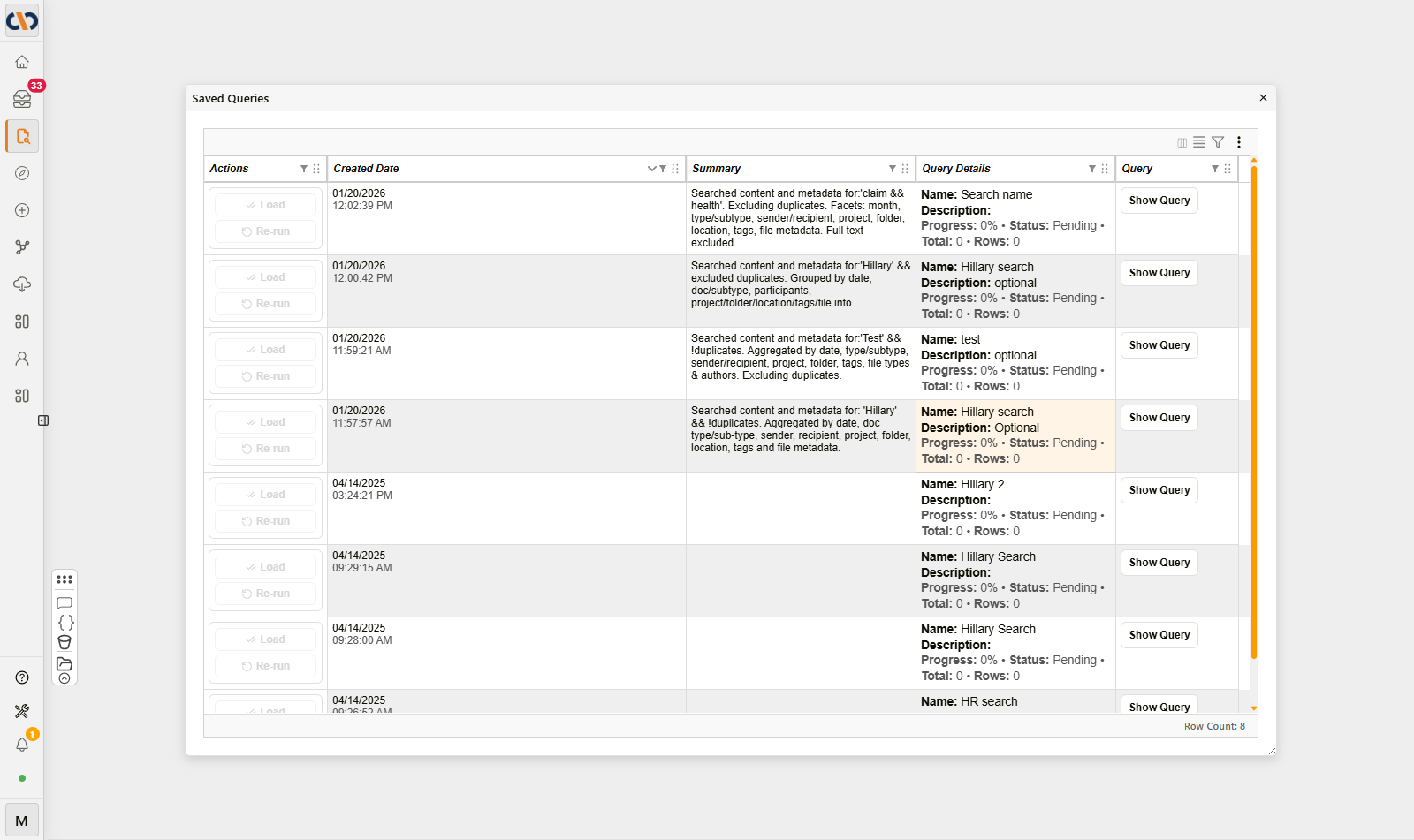
The Saved Queries dialog
| Column | Description |
|---|---|
| Actions | Load and Re-run buttons for that saved search. |
| Created Date | When the search was saved. |
| Summary | A plain-language description of the query — its search terms and how results are grouped. |
| Query Details | The Name and Description entered when saving, plus Progress, Status, Total, and Rows for the background load. |
| Query | Show Query / Hide Query — reveals the raw underlying search query. This is a technical, implementation-level view and isn't needed for everyday use. |
Saved searches don't expire automatically — entries remain in the Saved Queries list indefinitely until removed.
Search Aggregations
Aggregations are distinct values that are found for a given column in the grid along with its count. Once a search has been made, the aggregation icon appears along with a number attached to the icon. The number indicates the amount of available filters that were applied to the search results that appear. A user can further narrow down search results by selecting additional filters from the aggregation feature.

Search Aggregation icon
Here's an example of how to apply search aggregations:
Example: Search Aggregations