Exports & Downloads
Docwize enables users to export grids and documents. Once relevant files have been selected for export, users can select from different download options. Bundles can also be created, where files are joined together into a single PDF file with a table of contents. The layout of the PDF and fields to be used in the table of contents can be configured.
When a user wants to export documents for download, the user can select the relevant documents and click on the ‘Export’ button in the Doc Grid.

What you can do in Exports & Downloads
- Export documents from the Doc Grid
- Configure download and bundle options
- Choose the folders and file names of a ZIP, and group the rows of the Excel sheet
- See what an export contains: the ZIP folders and the Excel sheet
- Save a grid, or an Analytics list, straight to Excel without starting an export
- Access completed exports from the Downloads homepage
- Download bundles and exported files
Export Options
Clicking Export in the Doc Grid toolbar opens the Export Options dialog. The dialog is divided into four sections.
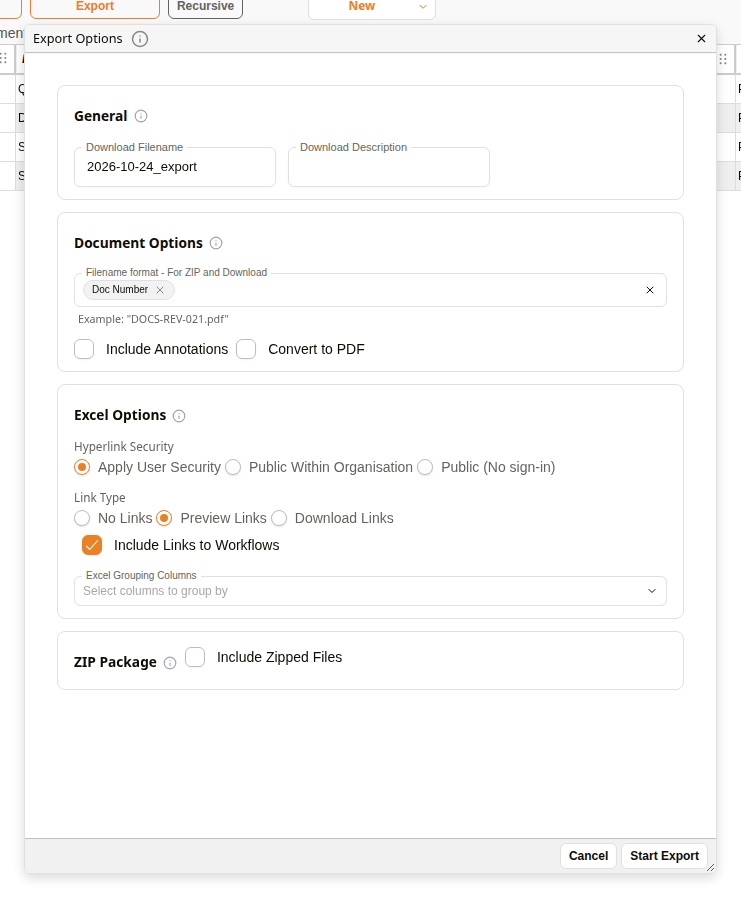
Export Options dialog
The Filename format, Excel Grouping Columns and Zip Folder Structure fields offer the same list of fields: document fields, such as Doc Number, and custom fields, shown as Template - Field. A custom field is listed when its template applies to the document type or the status of a document you can open. Calculated, Linked Column and Custom Field Reference fields store no value for each document, so they are not in the list. An export that names one of them is not started.
General
| Field | Description |
|---|---|
| Download Filename | The filename assigned to the export. A default name is auto-generated based on the current view and date, but users can edit it. |
| Download Description | An optional description for the export. |
Document Options
| Field | Description |
|---|---|
| Filename format - For ZIP and Download | Builds the file name of each document in the export from the fields users choose, and from any text they type. The example below the field shows the result for the first document in the list. The file names apply to files in a ZIP archive, and to Download Links. |
| Include Annotations | When checked, annotations added to documents are included in the export. |
| Convert to PDF | When checked, documents are converted to PDF format on export. |
Excel Options
| Field | Description |
|---|---|
| Hyperlink Security | Controls who can access hyperlinks embedded in the exported Excel file. Options: Apply User Security (links respect existing Docwize permissions), Public Within Organisation (links accessible to anyone in the organisation), Public (No sign-in) (links accessible without signing in). |
| Link Type | Controls the type of hyperlinks embedded in the Excel export. Options: No Links, Preview Links (links open the document preview), Download Links (links trigger a download). When Include Zipped Files is checked, each row's link points to the file inside the ZIP instead. |
| Excel Grouping Columns | Optional. Selects one or more fields by which the rows of the exported Excel file are grouped. |
ZIP Package
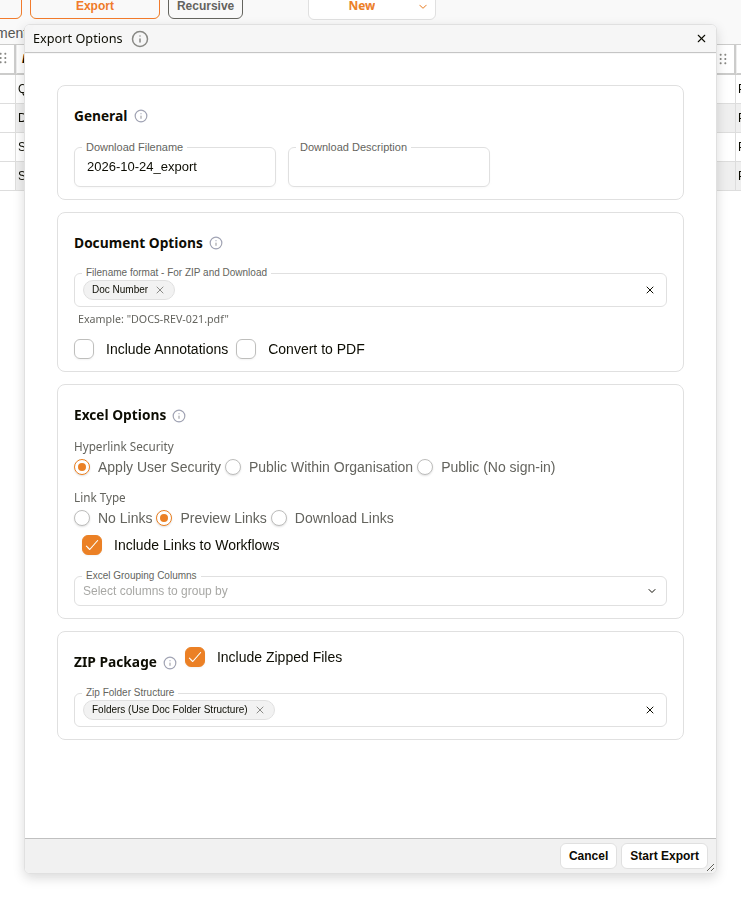
Zip Folder Structure set to Folders (Use Doc Folder Structure)
| Field | Description |
|---|---|
| Include Zipped Files | When checked, the exported documents are packaged into a ZIP archive. |
| Zip Folder Structure | Appears when Include Zipped Files is checked. Choose Folders (Use Doc Folder Structure) to use the folder structure of the documents, or choose fields to group the files into folders by their values. If Include Zipped Files is unchecked, the folder structure is not used, even if it was chosen before. |
Footer actions
| Button | Description |
|---|---|
| Set as Default | Saves the current export settings as the default for this Dataview. The button appears only when the dialog is opened from a Dataview, and the user has the Dataview Settings permission. |
| Start Export | Initiates the export with the configured settings. |
What an export contains
The examples below come from one export of the four documents in a folder, with these options:
| Option | Setting |
|---|---|
| Include Zipped Files | Checked |
| Zip Folder Structure | Folders (Use Doc Folder Structure), then Type |
| Filename format - For ZIP and Download | Doc Number |
| Excel Grouping Columns | Type |
The ZIP file
Each document is placed in its Docwize folder, and then in a folder for its type. Each file is named by its Doc Number. The Excel sheet is at the top level of the ZIP, as index.xlsx.
ZIP file
├── Quality Documents/
│   ├── Policy/
│   │   ├── DOCS-REV-021.pdf
│   │   └── DOCS-REV-024.pdf
│   └── Procedure/
│       ├── DOCS-REV-022.pdf
│       └── DOCS-REV-023.pdf
└── index.xlsx
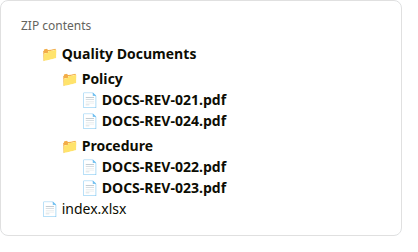
The ZIP contents
The Excel sheet
The sheet has one row for each document. The rows are grouped by Type, and the type is written on every row of its group. The group column is the first column. The Download column follows it: each row's link names the file in the ZIP. The headings are field names, such as Doc Number and Rev Number. The sheet has 13 columns, and the table shows six of them.
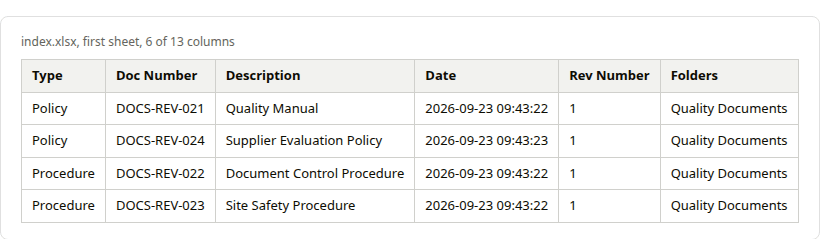
index.xlsx, six of its 13 columns
The same rows as text:
| Type | Doc Number | Description | Date | Rev Number | Folders |
|---|---|---|---|---|---|
| Policy | DOCS-REV-021 | Quality Manual | 2026-09-23 09:43:22 | 1 | Quality Documents |
| Policy | DOCS-REV-024 | Supplier Evaluation Policy | 2026-09-23 09:43:23 | 1 | Quality Documents |
| Procedure | DOCS-REV-022 | Document Control Procedure | 2026-09-23 09:43:22 | 1 | Quality Documents |
| Procedure | DOCS-REV-023 | Site Safety Procedure | 2026-09-23 09:43:22 | 1 | Quality Documents |
An Excel-only export
With Include Zipped Files unchecked and no Excel Grouping Columns chosen, the export is one Excel file. It has one row for each document and no group column. With Preview Links chosen, the first column is View: each row's link opens the document in the Docwize preview. In this example the sheet has 19 columns, from View, ID, Date and Description to Doc Number, Rev Number, Doc Type and Type.
Other ways to export to Excel
Two Excel exports do not use the Export Options dialog. Neither adds a row to the Downloads homepage.
| Where | What it saves |
|---|---|
| Export to Excel in the more options menu (⋮) of a grid toolbar | The grid as you see it: the columns it shows, under the headings it shows. A column hidden with the column chooser is left out. See Export the grid to Excel. |
| Export to Excel in a drill-down list in the Analytics tab | The listed workflow items, one row for each. The first two columns are Preview, which opens the document, and Workflow, which opens the workflow item in the Inbox. The last column is ID. A few lines above the headings give the date range and the scope of the list. |
Downloads homepage
A register of exports that have been initiated by a user can be accessed in the 'Downloads' homepage. Users can initiate the downloads from this page.
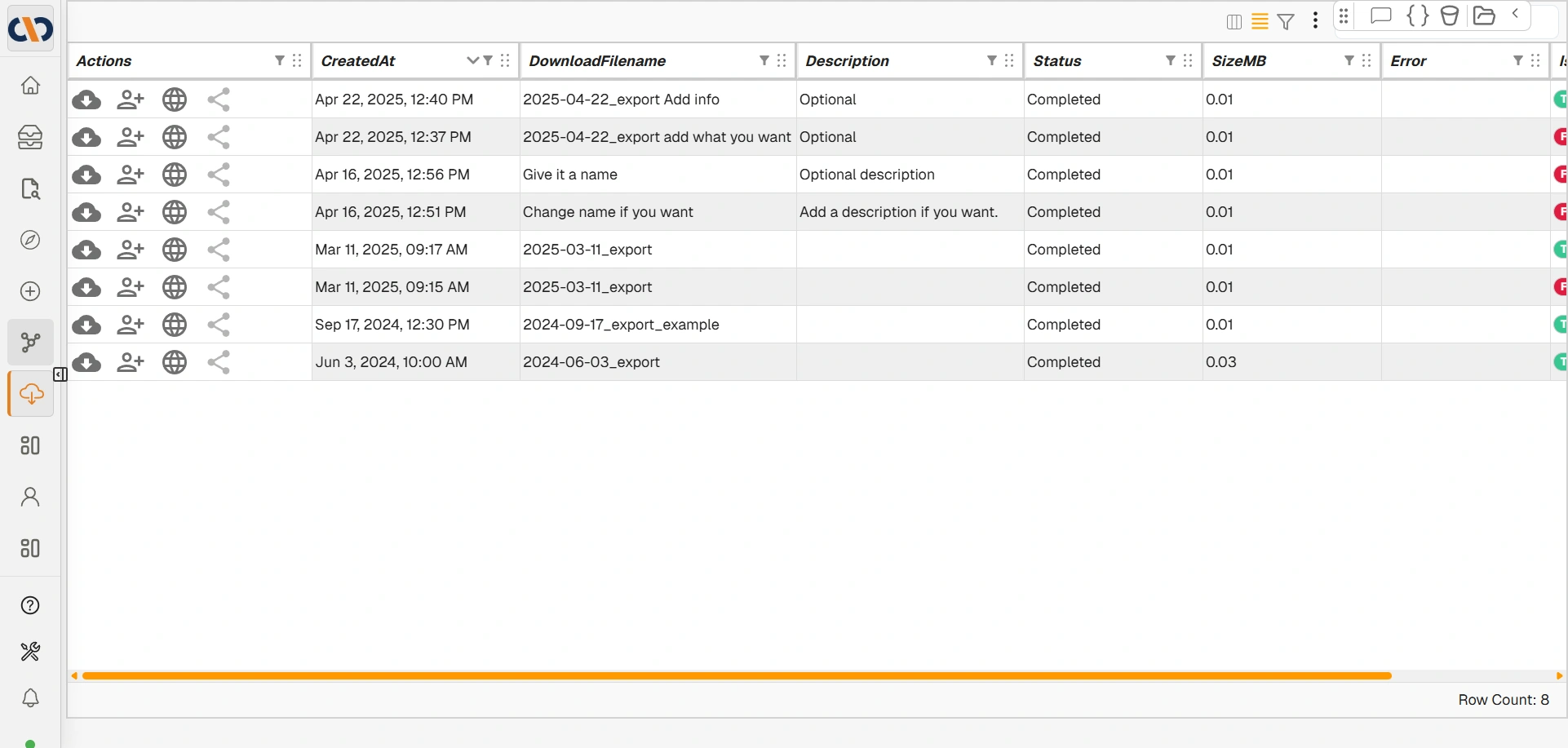
'Downloads' homepage
| Field | Description |
|---|---|
| Actions | A user can select to 1. Complete the download, 2. Share the download with a Docwize user, 3. Make the downloaded bundle public. That is, a user can download the excel but the links within are not automatically public. |
| Date | Indicates the date of the download. |
| Filename | Indicates the file name of the download. |
| Description | (Optional) Indicates the description given to the download. |
| Status | Indicates the download status. |
| Size (MB) | Indicates the size of the download. |
| Public | Indicates whether the download has been made public. |
| Error | Indicates if there was an error with the download. |
How to export documents
| Step | Description |
|---|---|
| 1 | Click on the box icon to select the relevant documents OR directly click on ‘Assign’ and choose ‘Select All’ to select all documents in grid display. Note: The upper most checkbox in the toolbar can be used to select all or deselect all documents. |
| 2 | Click ‘Export’ and select ‘All’ or ‘Selected’ to proceed. |
| 3 | A pop-up dialog with Docwize exporting options will appear. Details of the options are available in the Bundling and Downloads section. |
Here is an example of exporting documents:
Example: Exporting Documents
How to initiate an export and access downloads and bundles
| Step | Description |
|---|---|
| 1 | Select the items you wish to export from any grid in the Docwize Portal. |
| 2 | Configure the Export options. |
| 3 | Select ‘Start Export’. |
| 4 | Navigate to the ‘Downloads’ module. |
| 5 | Click on the 'Download' icon of the relevant download. |
Example: Exporting and Downloading