Document Details
The Document Details dialog is where you view and manage the information connected to a Docwize document. Open it whenever you need to check or correct a document's details, file it in another folder, add the file it is still missing, or follow everything that has happened to it.
A "document" in Docwize refers to a collection of file(s), metadata, and relationships.
The file(s) are the actual file(s). This can include a main file, as well as file versions. The metadata contains the identity markers of the document such as the title, description, author, date created, etc. The relationships are the connections between file(s) and actions that have been performed on the file(s), such as transmittal-drawing relationships, email-attachments, etc.

What you can do in Document Details
- Review and edit a document's metadata, then save your changes
- Set a reference and revision number, and see whether this is the latest revision
- File the document in folders and link it to locations
- Preview or download the main file, or upload a file to a document that has none
- Generate the document's file from a template
- Delete a document you no longer need
- Open related sections such as custom fields, transmittals, revisions, attachments, workflows, distribution, and review
The Document Details dialog
To open it, right-click a document in Explorer and select Document details.
The dialog has three parts. The toolbar along the top holds the actions for the whole document. The left navigation lists the dialog's sections. The rest of the dialog is one long page that holds every section in turn, starting with Details. Clicking a section in the left navigation scrolls straight to it, so you can also simply scroll down through them.
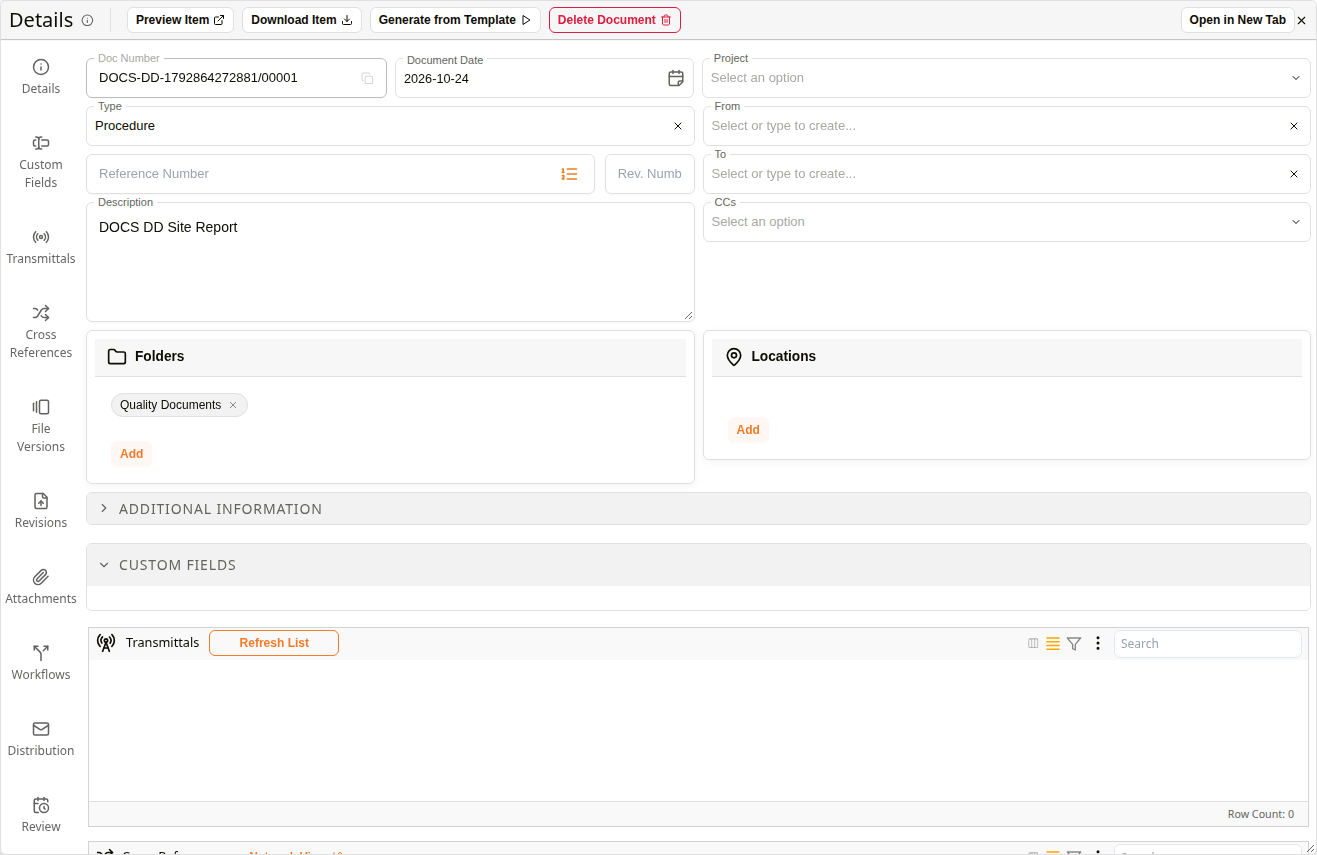
Document Details dialog
| Section | Description |
|---|---|
| Details | The document's metadata: see Metadata. |
| Custom Fields | Extra information captured in custom field templates. See Custom Fields. |
| Transmittals | The documents listed on a transmittal. See Transmittals. |
| Cross References | Links to related documents. See Cross References. |
| File Versions | Every file the document has had. See File Versions. |
| Revisions | The other revisions of the document. See Revisions. |
| Attachments | Supporting files attached to the document. See Attachments. |
| Workflows | The workflows started on the document. See Workflows. |
| Distribution | Who the document is sent to. See Distribution. |
| Review | Where the document stands in its review schedule. See Review. |
Some sections depend on your permissions. For example, Workflows appears only if you have permission to view workflows.
The toolbar
The toolbar holds the actions that apply to the whole document. Which buttons you see depends on the document: a document with a file offers Preview Item and Download Item, while a document without one offers Upload Item instead.

The toolbar of a document with a file
| Button | Description |
|---|---|
| Save Changes | Appears as the first button as soon as you change something, and saves your changes. See How to edit and save a document's details. |
| Preview Item | Opens the main file in the viewer, in a new browser tab. |
| Download Item | Downloads the main file. The file is named after the document's Description. |
| Upload Item | Shown instead of Preview Item and Download Item when the document has no file. Adds the file. See How to upload a file to a document that has none. |
| Generate from Template | Creates the document's file from a template. See Generate from Template. |
| Edit in Office Online | Shown when the main file is a Word or other Office file. Opens the file for editing in Office Online. |
| Delete Document | Deletes the document. You see it only if you have permission to delete documents. See How to delete a document. |
The i icon next to the Details title shows or hides a strip with the document's ID, Doc Number, Entry Person (who added the document) and Entry Date (when it was added).

The information strip
Files
In Docwize, file(s) refer to file(s) that are connected to the metadata of a Docwize document. This can include a main file, as well as file versions.
Note that a Docwize "document" can exist without a specific file being connected to it. This is known as a "placeholder document". Metadata can be placed against a document before a file is uploaded. Sometimes placeholder documents are created and workflowed, and the workflow populates the document's file at a later stage. When the file is ready, you can also add it yourself with Upload Item.
Whether or not a document has a file, the metadata and relationships can still be accessed via the Document Details dialog. Earlier files of the document are kept in File Versions.
Metadata
In Docwize, certain fields are common to all documents. These are listed first in the Document Details dialog, in the Details section, and form the metadata: the identity markers of the document.
The Doc Number is auto-generated. It is recommended that at minimum, the Description field is filled in when creating a new document. Additional fields can be added or edited later. The more metadata is captured, the more powerful the system becomes.
| Field | Description |
|---|---|
| Doc Number | A unique number assigned to the Docwize document. This is automatically generated and cannot be changed. |
| Document Date | The date that defines the main document. It is not necessarily the date that the Docwize document was created within Docwize. |
| Project | The project the document belongs to. This affects security. |
| Type | The type of document. This is a dynamic set of labels that can be added to the document like "Drawing", "Specification", "Email", "Request for Information", etc. to identify it. The type also decides which custom fields the document has. |
| From | Connects the document to the list of organizations and contacts in Docwize. You can pick an existing entry or type a new one. |
| Reference Number | A reference number that can be used to link the document to other documents. If two documents have the same reference number, then they are revisions of each other. |
| Rev. Number | The revision number of the document. This is a number or letter that is incremented each time the document is revised. It is added onto the document's Reference number. See Reference and revision numbers. |
| To | Connects the document to the list of organizations and contacts in Docwize. |
| Description | A description or title of the document. It is recommended that at least this field is completed when creating a new Docwize document. |
| CCs | Connects the document to the list of organizations and contacts in Docwize. |
| Folders | The folders the document is filed in. A document can be allocated to many folders. See Folders and Locations. |
| Locations | The locations the document is linked to. A document can be linked to many locations. |
| Additional Information | There are additional optional fields of information that can be used to store more information pertaining to a document. See Additional Information. |
Reference and revision numbers
The Reference Number and Rev. Number together tell you which revision of a document you are looking at. For example, a drawing with reference DRG-101 might go through revisions A, B and C, each its own document.
The Rev. Number field is coloured once a reference number is set. It is green when the document is the latest revision of that reference, and red when a later revision exists. A red field is a useful warning that you may be looking at an out-of-date copy.

Rev. Number on an earlier revision
If the same Reference Number and Rev. Number combination already belongs to another document, a warning appears under the two fields: "Another document already uses this reference number and revision." This is a warning, not a blocker: the document can still be saved with the duplicate combination, for example when you are recording a second copy on purpose.

Duplicate reference number and revision warning
The list icon inside the Reference Number field, Select from Reference No. Template, fills in a reference number from a template set up by your administrator.
Folders and Locations
The Folders and Locations cards show where the document is filed. Folders are the familiar way to organise documents, and locations link a document to a place, such as a building or a floor. Each folder or location appears as a chip with an x to remove it, and Add adds another. See How to add a folder or location.

The Folders and Locations cards
A document must always stay in at least one folder, so its last folder cannot be removed.
Additional Information
Additional Information holds optional fields for when you need to track more about a document, such as its status or when a response is due. It is collapsed at first: click it to open it. Its fields are grouped on tabs.
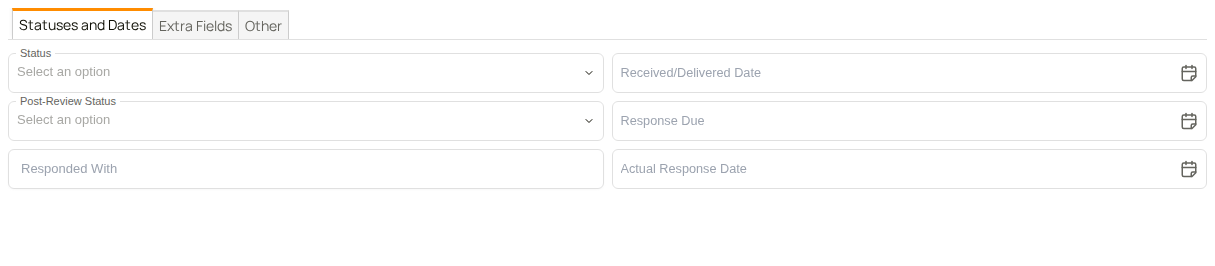
Additional Information: Statuses and Dates
| Field | Description |
|---|---|
| Status | The document's current status, from your organisation's list. |
| Post-Review Status | The status the document has after a review. |
| Responded With | The document that was sent in response to this one. |
| Received/Delivered Date | When the document was received or delivered. |
| Response Due | When a response to the document is due. |
| Actual Response Date | When the response was actually made. |
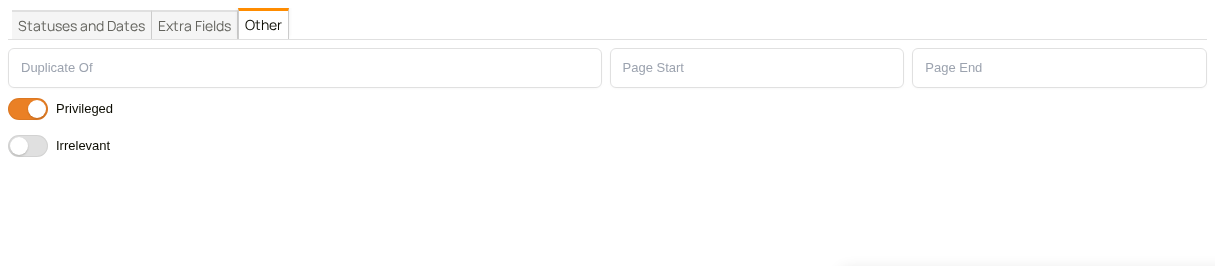
Additional Information: Other
| Field | Description |
|---|---|
| Duplicate Of | The document this one is a duplicate of. |
| Page Start | The first page number of the document. |
| Page End | The last page number of the document. |
| Privileged | Turn this on to mark the document as privileged. |
| Irrelevant | Turn this on to mark the document as irrelevant. |
The Extra Fields tab holds additional fields your administrator has set up for your organisation. What they are called and what they hold depends on your organisation.
Relationships
The left navigation of the Document Details dialog allows you to explore relationships: essentially a record of how the document is used, linked, or distributed. Each section is described on its own page, listed in The Document Details dialog.
How to open Document Details
| Step | Description |
|---|---|
| 1 | In Explorer, open the folder that holds the document. |
| 2 | Right-click the document. |
| 3 | Select Document details. The dialog opens on the Details section. |
How to edit and save a document's details
Edit the details whenever something about the document is missing or wrong, for example to add a description or correct its date.
| Step | Description |
|---|---|
| 1 | Open the document's Document details. |
| 2 | Change the field, for example Description. Save Changes appears as the first button in the toolbar. |
| 3 | Click Save Changes. Your changes are saved and the button disappears again. |
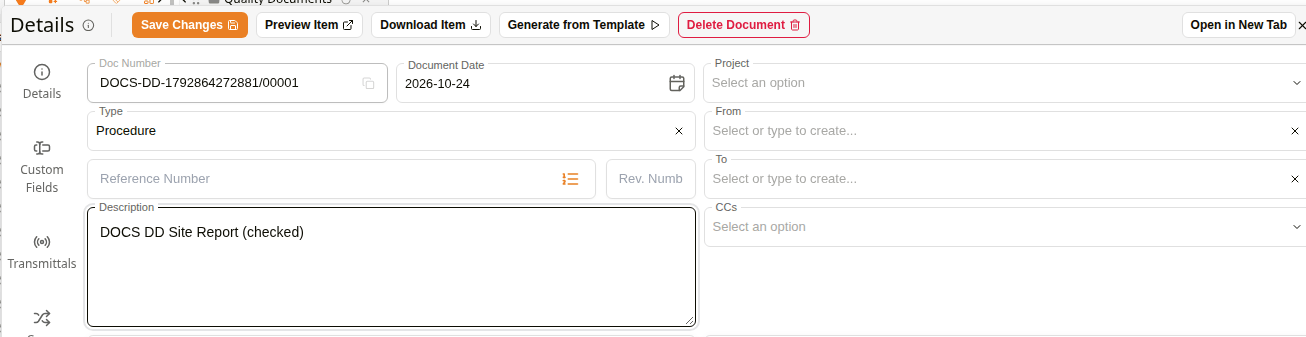
Save Changes after an edit
Example: Editing and Saving Document Details
How to preview or download the file
| Step | Description |
|---|---|
| 1 | Open the document's Document details. |
| 2 | To look at the file, click Preview Item. The file opens in the viewer in a new browser tab. |
| 3 | To save a copy, click Download Item. The file downloads, named after the document's Description. |
How to upload a file to a document that has none
Use this when a placeholder document is ready for its file, for example when a report that was logged in advance has arrived. Upload Item needs edit access to the document.

The toolbar of a document without a file
| Step | Description |
|---|---|
| 1 | Open the document's Document details. |
| 2 | Click Upload Item. |
| 3 | Choose the file. Docwize uploads it and links it to the document. |
| 4 | When the upload finishes, Preview Item and Download Item take the place of Upload Item. The file is saved to the document straight away, so you do not need to click Save Changes. |
How to delete a document
Delete a document when it should no longer be in Docwize, for example one that was added by mistake.
| Step | Description |
|---|---|
| 1 | Open the document's Document details. |
| 2 | Click Delete Document. A window asks you to confirm. |
| 3 | Click Delete. The document is deleted and the dialog closes. Click Cancel to keep it. |
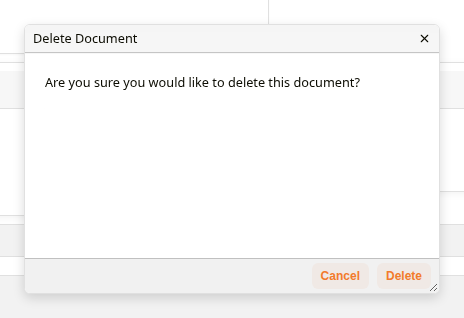
Delete Document confirmation
How to add a folder or location
| Step | Description |
|---|---|
| 1 | Open the document's Document details. |
| 2 | Click Add in the Folders card. The Add Folder window shows Available folders on the left and Assigned folders on the right. |
| 3 | Click the folder to add, searching for it if needed. It moves to Assigned folders, and the document is filed there straight away. |
| 4 | Click Done. The folder appears in the Folders card. |
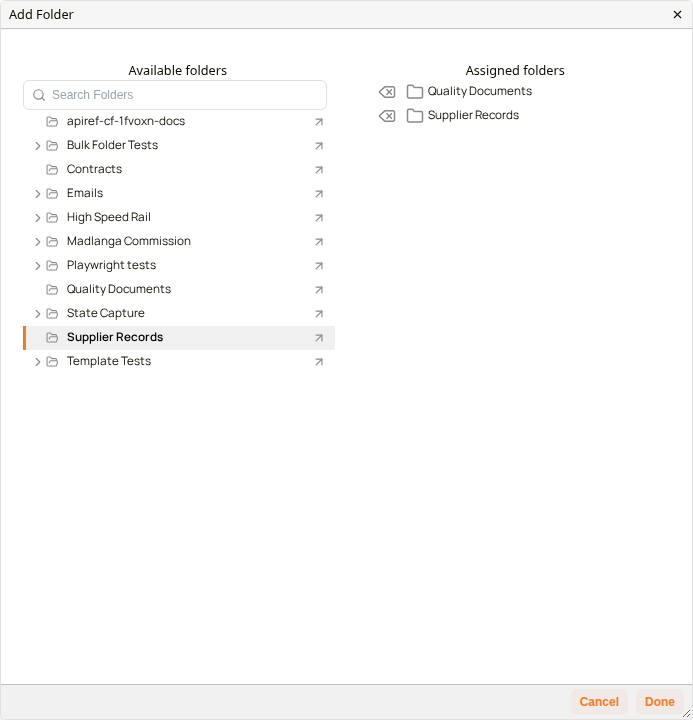
Add Folder
Locations work the same way: click Add in the Locations card, choose the location in the Add Location window, and click Done.
How to remove a folder or location
| Step | Description |
|---|---|
| 1 | Open the document's Document details. |
| 2 | Click the x on the folder or location to remove. A Please confirm window asks you to confirm. |
| 3 | Click Confirm. The folder or location is removed from the document. |