Cross References
Docwize enables users to create and track cross-references between documents. This feature is particularly useful in industries such as litigation and construction. For example, if a letter refers to other documents, links can be created using the cross-reference feature. Users can also indicate the reason for the cross reference, and the direction of the reference can be tracked.
What you can do in Cross References
- Create and track links between related documents
- Review cross-reference reasons and descriptions
- Edit or delete cross references
- Refresh the cross-reference list

Example: Cross References section
Right-click functions
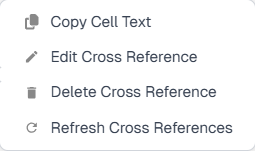
Cross Reference right-click functions
| Function | Description |
|---|---|
| Copy Cell Text | Enables users to copy and paste cell content. |
| Edit Cross Reference | If users need to revise the cross reference reason or description, they can select this function. |
| Delete Cross Reference | Removes the selected cross reference to the main document. |
| Refresh Cross References | Refreshes the list of cross-referenced documents. |
How to create a cross reference
| Step | Description |
|---|---|
| 1 | Navigate to the Document Details dialog of the main document. |
| 2 | Click the ‘Open in New Tab’ button in the horizontal toolbar of the Document Details dialog. This will open the Document Details dialog of the main document in a new tab. |
| 3 | Go back to the original tab that you were on and select the document(s) that you want to add as a cross reference with the tick box. |
| 4 | Right-click on a row of the selected document(s). A dropdown menu will appear that includes the document number of the relevant main document whose Doc Details dialog is currently open in a second tab. |
| 5 | Hover over the document number of the main document and click on ‘Cross Reference’ on the additional dropdown menu that will appear. Once clicked, the selected documents will be added to the main document as cross references. |
| 6 | Select a ‘Cross Reference Reason’ and optionally, add a description. |
| 7 | Repeat this in as many folders/dataviews as needed, until all relevant documents have been added as cross references. |
| 8 | Optional: Navigate to the tab where the main document’s Document Details dialog is open. Scroll down to the ‘Cross Reference’ section of the Document Details to confirm all the relevant documents have been added. |
Here is an example of creating a cross reference:
Example: Creating a Cross Reference