Distribution
The Distribution section in Document Details allows users to manage recipients, send document correspondence, and track delivery progress. This helps users keep a clear record of who received documents, when communication was sent, and how recipients interacted with it.
What you can do in Distribution
- Prepare and manage a distribution list
- Send documents to a distribution queue
- Track recipient delivery and engagement status
- Refresh distribution status information
Distribution entries can include both internal users and external contacts.
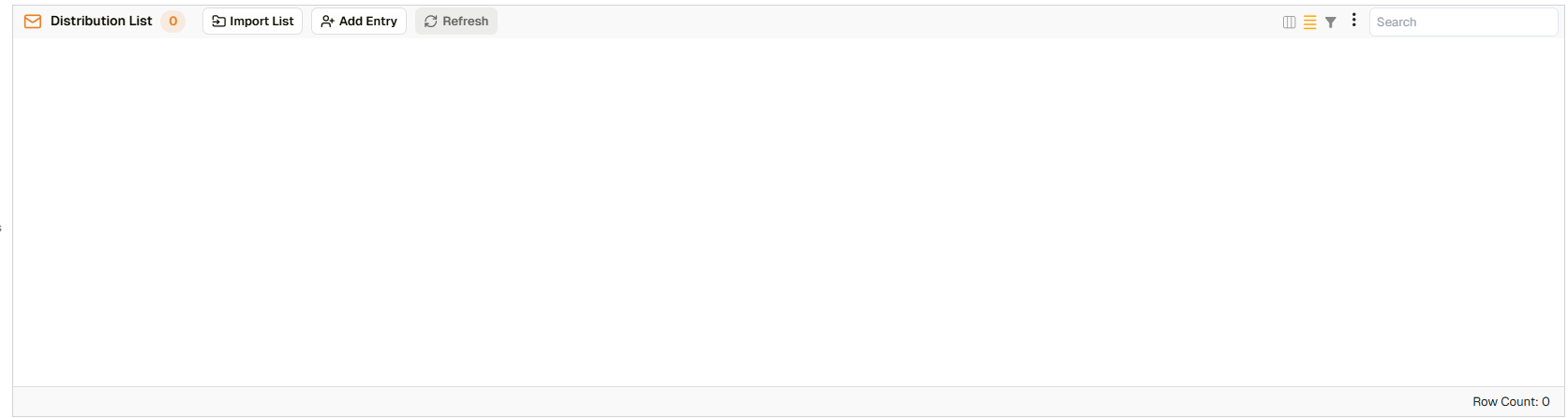
Distribution section in Document Details
Distribution list toolbar functions
| Function | Description |
|---|---|
| Import List | Imports recipients from a prepared distribution list. |
| Add Entry | Adds one or more recipients manually to the distribution list. |
| Refresh | Reloads the latest distribution data and statuses. |
Tracking distribution status
After sending, the Distribution section provides a history of send activity and recipient status updates.
Depending on setup and release level, status indicators may include delivery and engagement outcomes such as:
- Sent / queued
- Read / opened
- Downloaded
- Temporary failure / failed delivery
Use 'Refresh' to pull the latest status updates when monitoring correspondence.t
How to prepare a distribution list
| Step | Description |
|---|---|
| 1 | Open the relevant document’s Document Details dialog and scroll to the Distribution section. |
| 2 | Add recipients using Import List (for preconfigured lists) or Add Entry (for manual selection). |
| 3 | Confirm recipient details such as names and email addresses. |
| 4 | Optional: Click 'Refresh' to ensure the latest list data is shown before sending. |
How to send to the distribution queue
| Step | Description |
|---|---|
| 1 | In the horizontal toolbar at the top of the Document Details dialog, select 'Send to Distribution Queue'. |
| 2 | Select the relevant email distribution template. |
| 3 | Optional: choose whether to include annotations (if relevant for the send). |
| 4 | Review the recipient count and selected settings. |
| 5 | Confirm the send. Docwize will display progress while processing the distribution. |
Here is an example of sending a distribution:
Example: Sending a Distribution