Upload/Create New Docs
Docwize provides users with multiple methods via various modules to create and/or upload documents. In addition, users can upload file versions, revisions and attachments.
What you can do from this area
- Upload documents from multiple modules
- Create placeholder or new documents
- Upload file versions
- Upload attachments
- Extract ZIP and PST archives during upload
In the Folder view of Explorer module, users can:
- ‘Drag-and-drop’ individual or multiple files, or folder(s)
- Create Placeholder documents via the New menu option
- Upload individual or multiple files, or a folder via the New menu option
In the New module, users can:
- Create or upload new document(s)
Via Records, users can:
- Create or upload new document(s)
Via Email Influx, users can:
- Email documents to the relevant database
Extracting archives - ZIPs and PSTs
If users upload zips or PSTs, a button with ‘Extract Archive: OFF’ will appear. If users want to extract the zips or the emails within a PST archive, they can click on the button to activate the extraction. There is a limit of 10000 files per zip and a cap of 100gb on the extracted contents.
A zip upload with extract archive 'on' is several times faster than uploading the files individually.
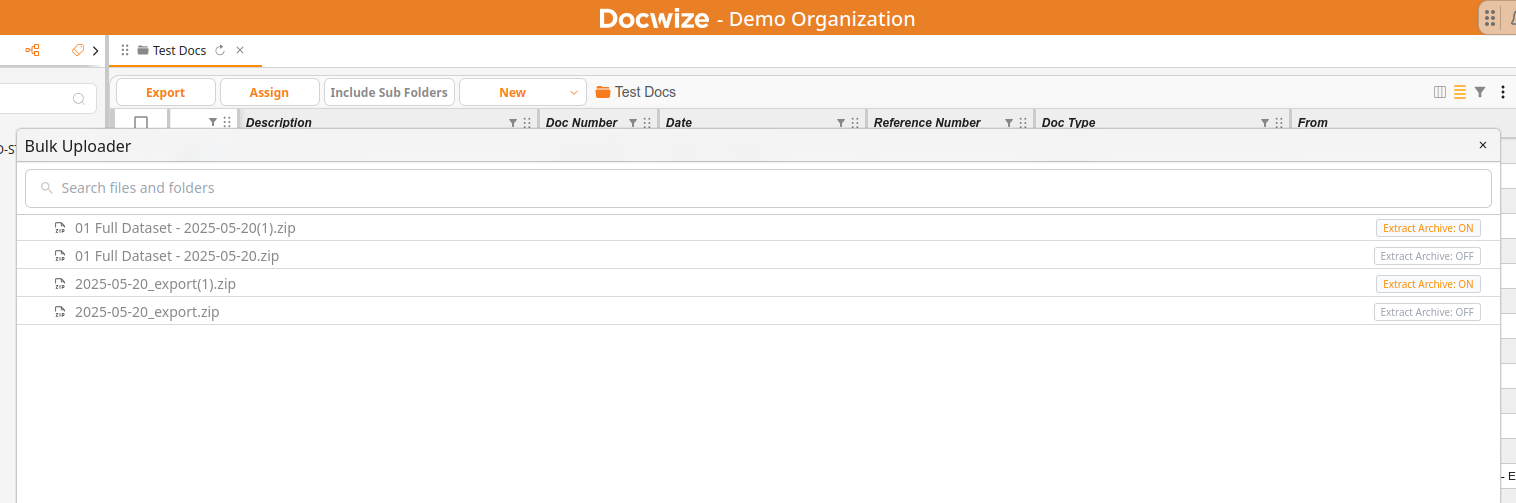
Example: Bulk Uploader dialog with 4 zips, 2 of which will be extracted in the target folder.
How to Upload a File Version
| Step | Description |
|---|---|
| 1 | 'Right-click' on the relevant document and select 'File Versions' from the dropdown menu. |
| 2 | Click on 'Replace File'. |
| 3 | Select the required file and click 'Confirm'. |
Example: Uploading a File Version
How to Upload an Attachment to a File
| Step | Description |
|---|---|
| 1 | 'Right-click' on the relevant document and select 'Attachments' from the dropdown menu. |
| 2 | Click on 'Add Attachment' and select the relevant document. |
| 3 | Complete the relevant meta data (eg. document type, relevant project, doc status). |
| 4 | Click ‘Next’ and allocate the document(s) to the relevant folder(s). |
| 5 | Click ‘Next’ and allocate the document(s) to the relevant location(s). |
| 6 | Exit out of the dialog. The attachment will reflect. |
Example: Uploading an Attachment