Upload via the New Module
When users are in the New module, they can upload new documents via the New Document(s) function. Clicking on the button initiates the Upload Document(s) dialog, where users can follow the prompts to upload documents.
What you can do in the New module upload flow
- Add new documents from the New module
- Drag and drop files into the upload dialog
- Edit document metadata before upload
- Assign folders and locations during the upload flow
- Send uploaded documents to a workflow
New Document(s) button
Upload Document(s) Dialog
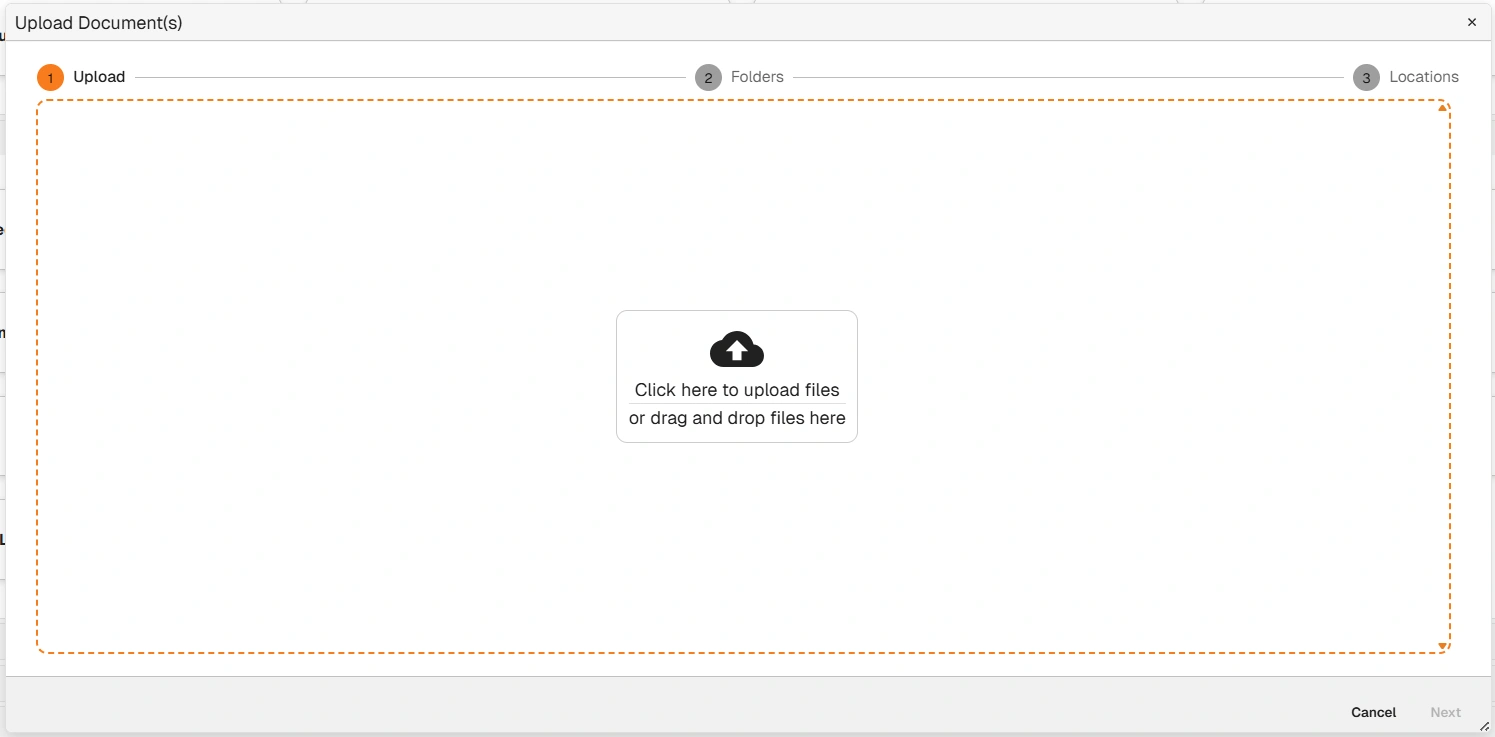
Upload Document(s) Dialog
The Upload Document(s) dialog consists of a number of interfaces.
The first step (illustrated above) provides users with the option to either drag-and-drop document(s) into Docwize or click and select the relevant document(s).
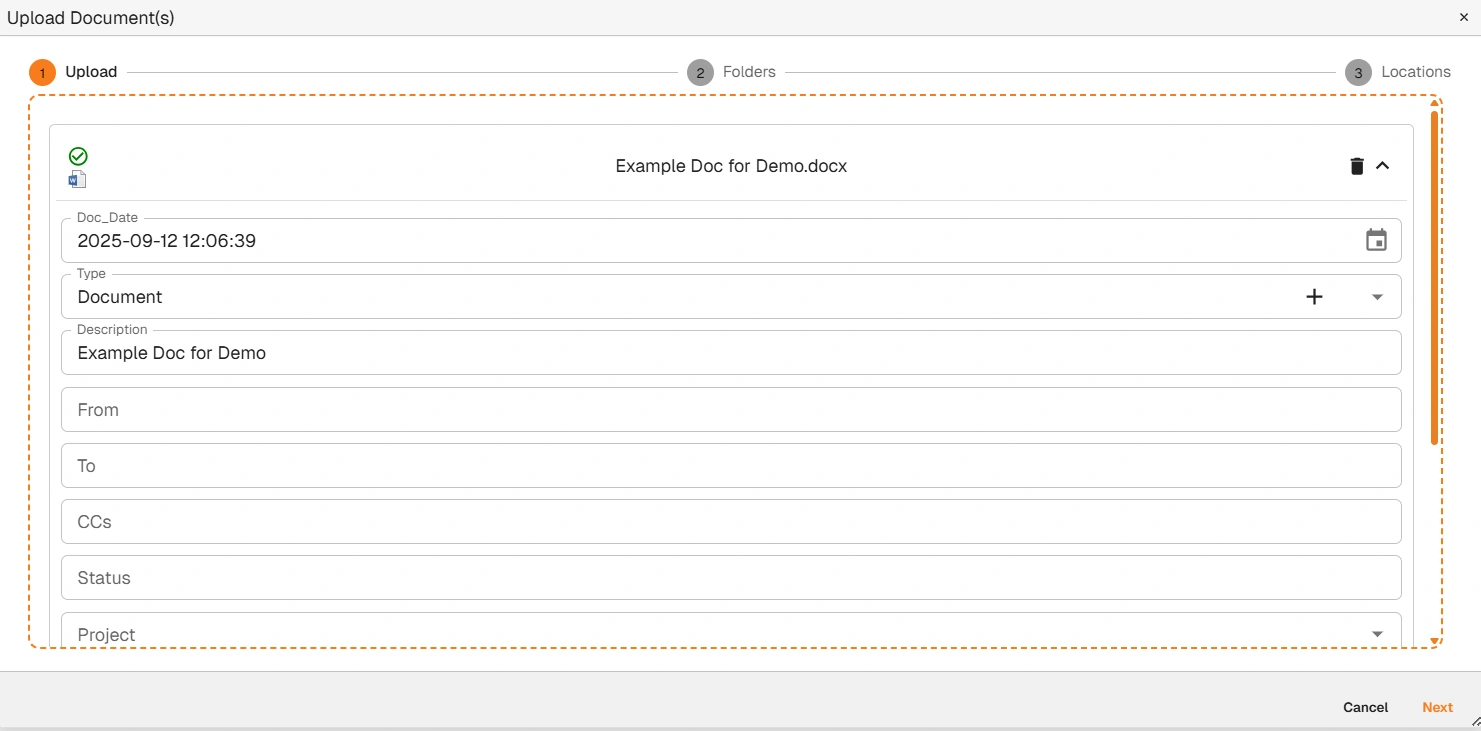
Second Step: Upload Document(s) Dialog - Metadata
The second step provides users with the opportunity to edit and/or add additional metadata regarding the documents being uploaded.
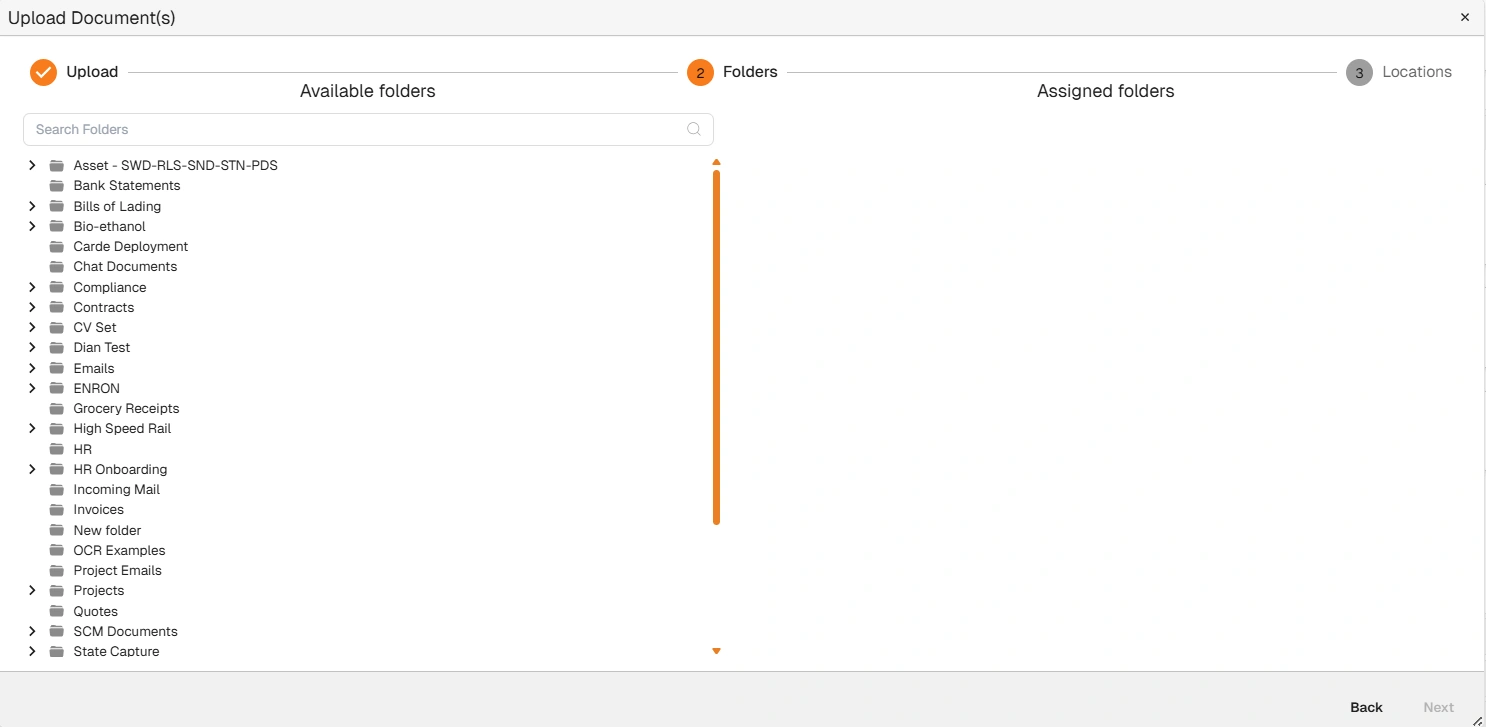
Third Step: Upload Document(s) Dialog - Folders
The third step enables users to select from available folder(s) to assign the document.
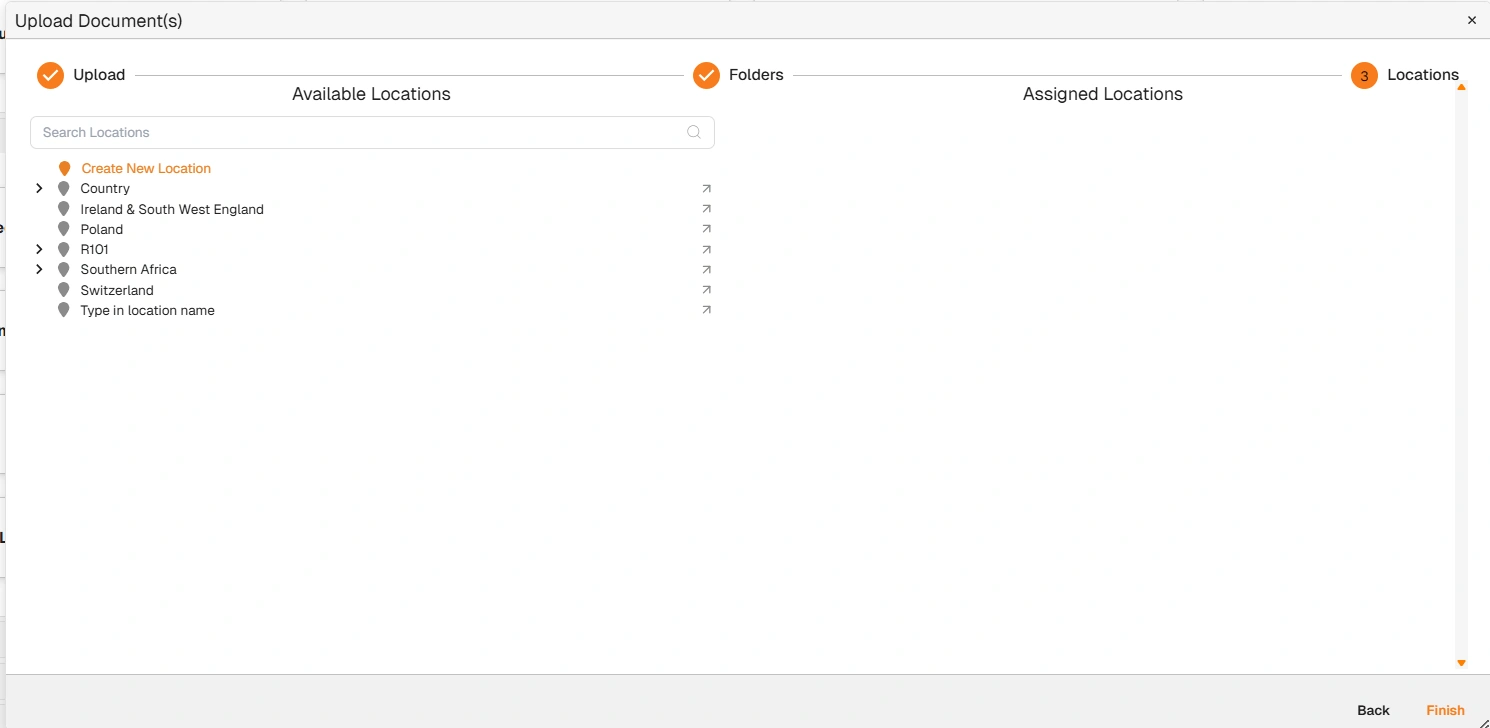
Fourth Step: Upload Document(s) Dialog - Locations
The fourth step enables users to select from available location(s) to assign the document.
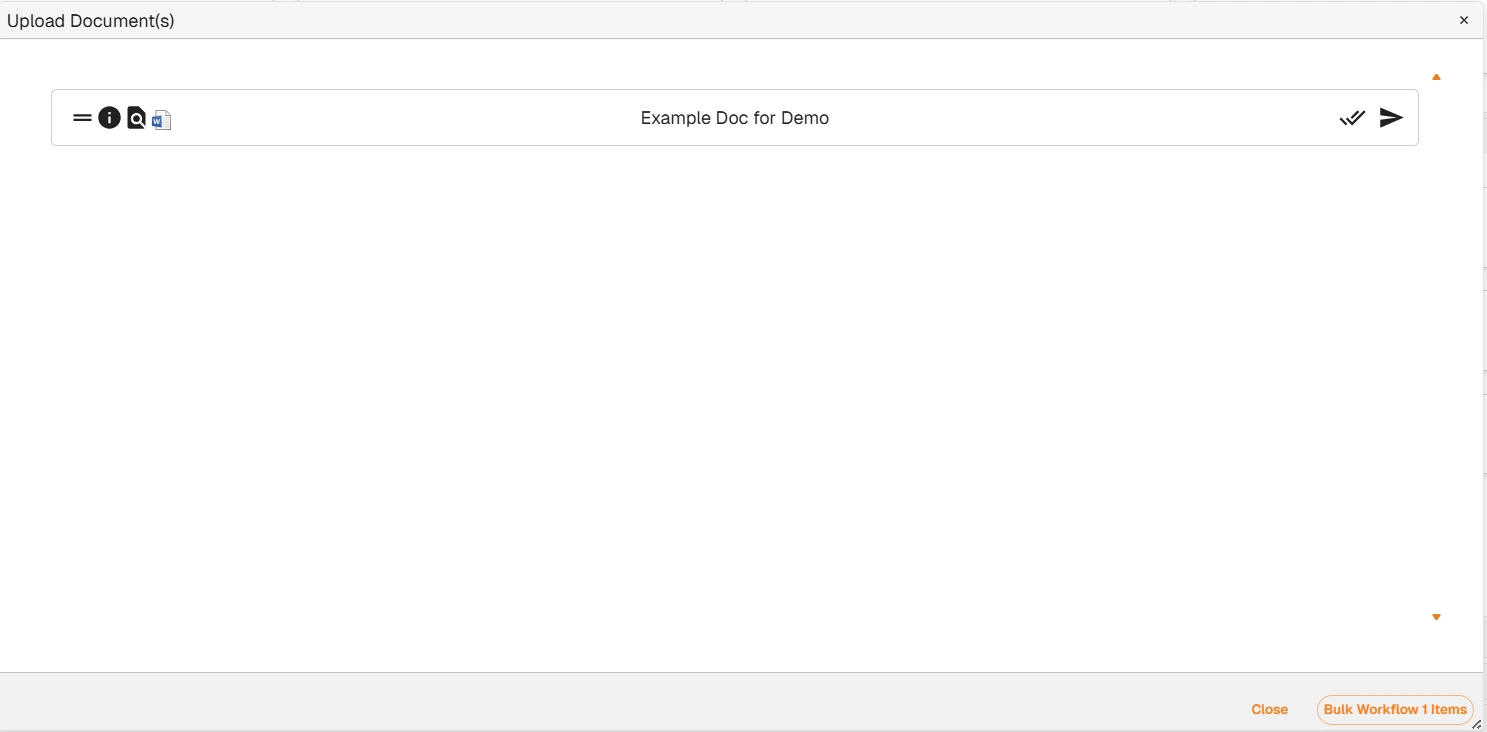
Fifth Step: Upload Document(s) Dialog
| Field | Description |
|---|---|
| = | Allows users to drag and move the document. |
 | Directs users to the Document Details dialog. |
 | Enables users to preview the document. |
| Send | Enables users to send the document to a workflow. |
| Close | Enables users to preview the document. |
| Start Upload | Reflects the document description. |
How to Upload Documents via the Upload Document(s) Dialog in the New Module
| Step | Description |
|---|---|
| 1 | Navigate to the ‘New’ module and click on the ‘New Document(s)’ icon. |
| 2 | Drag and drop the relevant file(s) onto the ‘Upload Document(s)’ pop-up dialog, or select the relevant files. |
| 3 | Complete the relevant metadata (eg. document type, relevant project, doc status). |
| 4 | Click ‘Next’ and allocate the document(s) to the relevant folder(s). |
| 5 | Click ‘Next’ and allocate the document(s) to the relevant location(s). |
| 6 | Either close the dialog or choose to send the document(s) to a workflow. |
Example: Uploading documents via the New module