Document Preview
Document Preview lets you see what is inside a file without downloading it. It opens wherever a document has a preview icon in the Portal, for example on a row of the Explorer grid. PDFs open straight away. Other files, such as Word documents and photos, are converted for the preview, and videos play in a media player.
The preview is also where you review a document: the annotation tools, notes, tags and redaction all work inside it.
When to use Document Preview
Use Document Preview when you want to open a file to inspect its contents, check one document after another from a list, or reach the document's details, attachments and file versions without leaving the file.
What you can do in Document Preview
- Preview a document beside the grid, or in its own window
- Move through the documents in the grid from the keyboard
- Go to a page, zoom and rotate the view
- Search the document's text
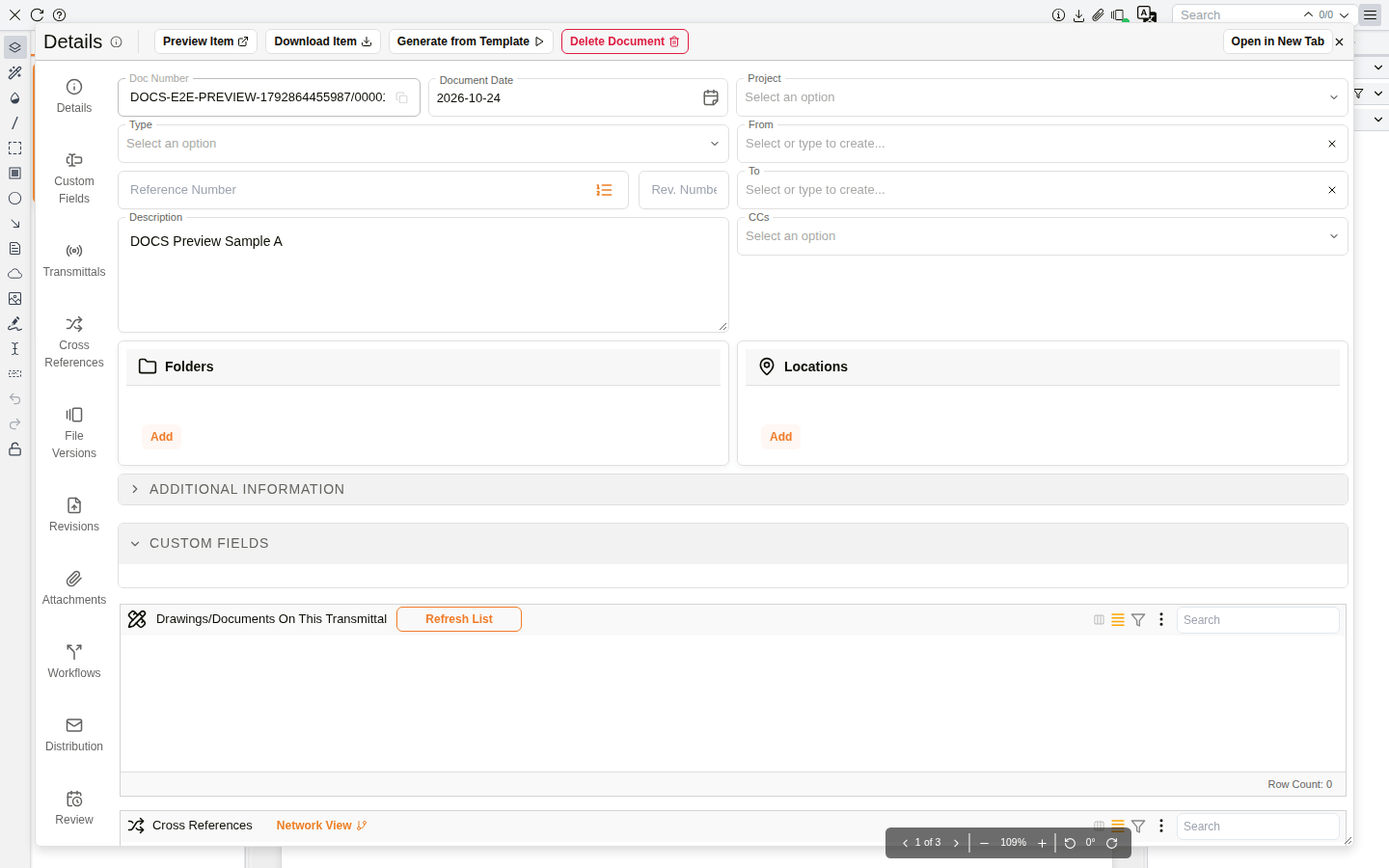
- Open the document's details, attachments and file versions
- Download the file, with or without its annotations
- Open a Word or other Office file in Office Online
- Open the translations menu
- Preview HEIC photos and play videos
- Open a password-protected PDF
Opening a preview
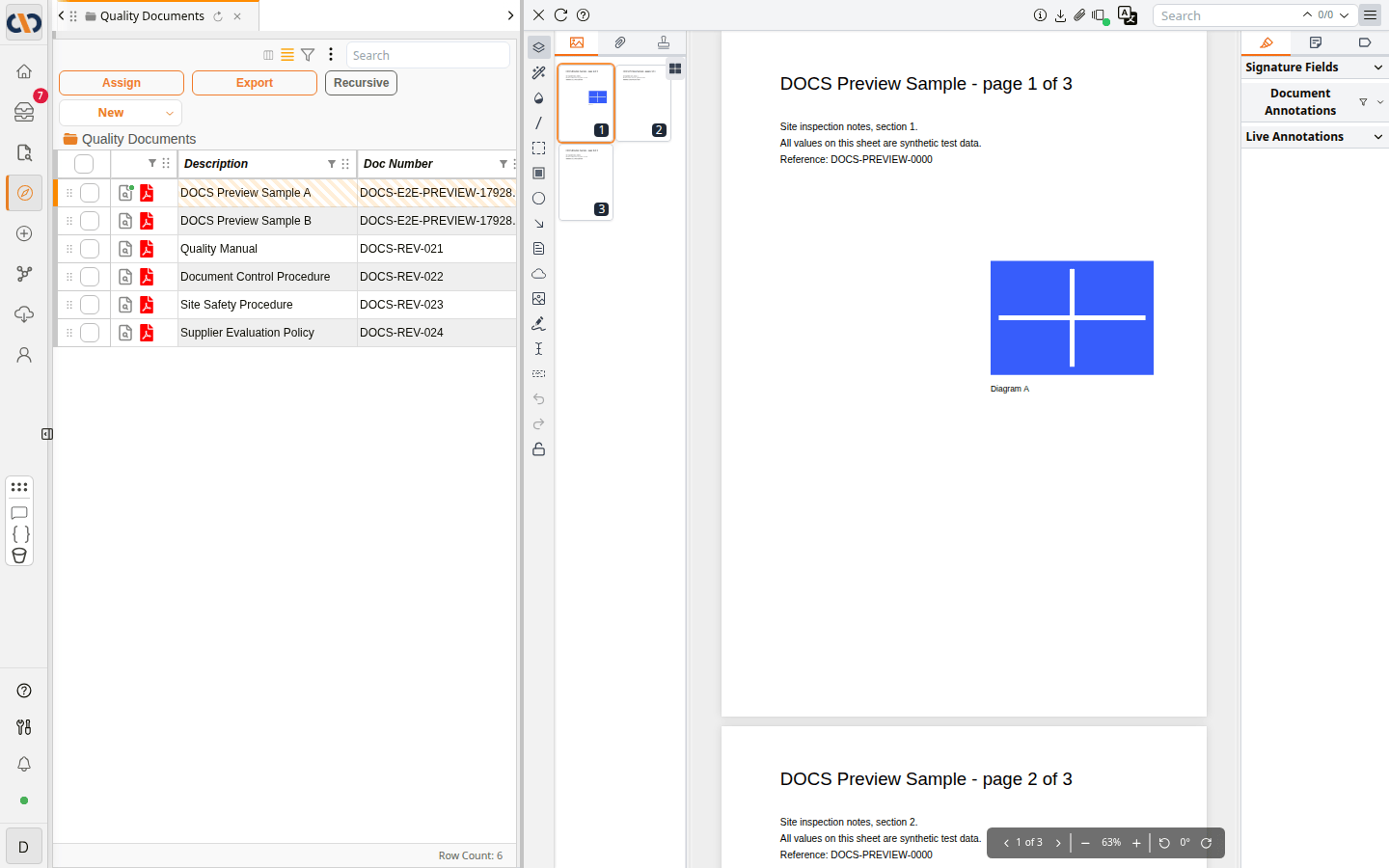
In the Explorer grid, click the preview icon on a document's row. The preview opens in a pane beside the grid, so you can keep the list in view. While the pane is open, press Alt+Down to show the next document in the grid, and Alt+Up to show the previous one. Click the X at the top left of the preview to close the pane.
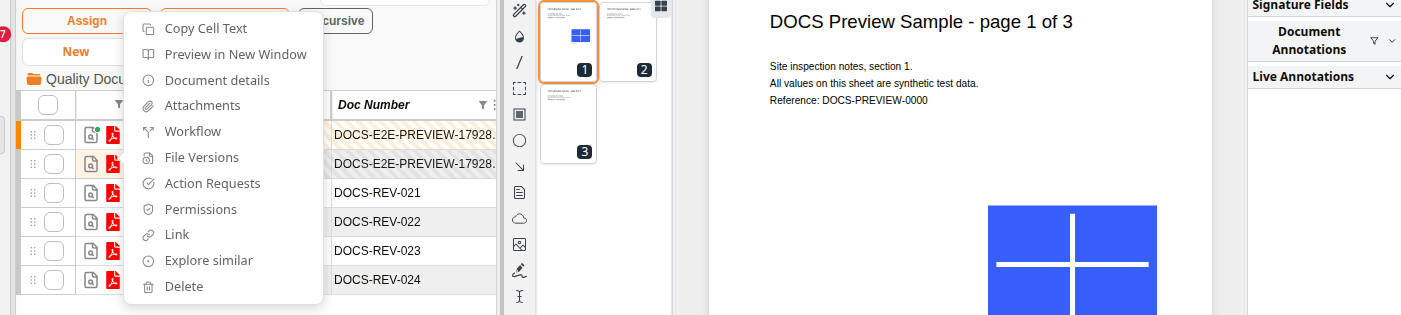
To give a document more room, right-click its row and choose Preview in New Window. The preview opens in a window of its own, titled with the document's description.
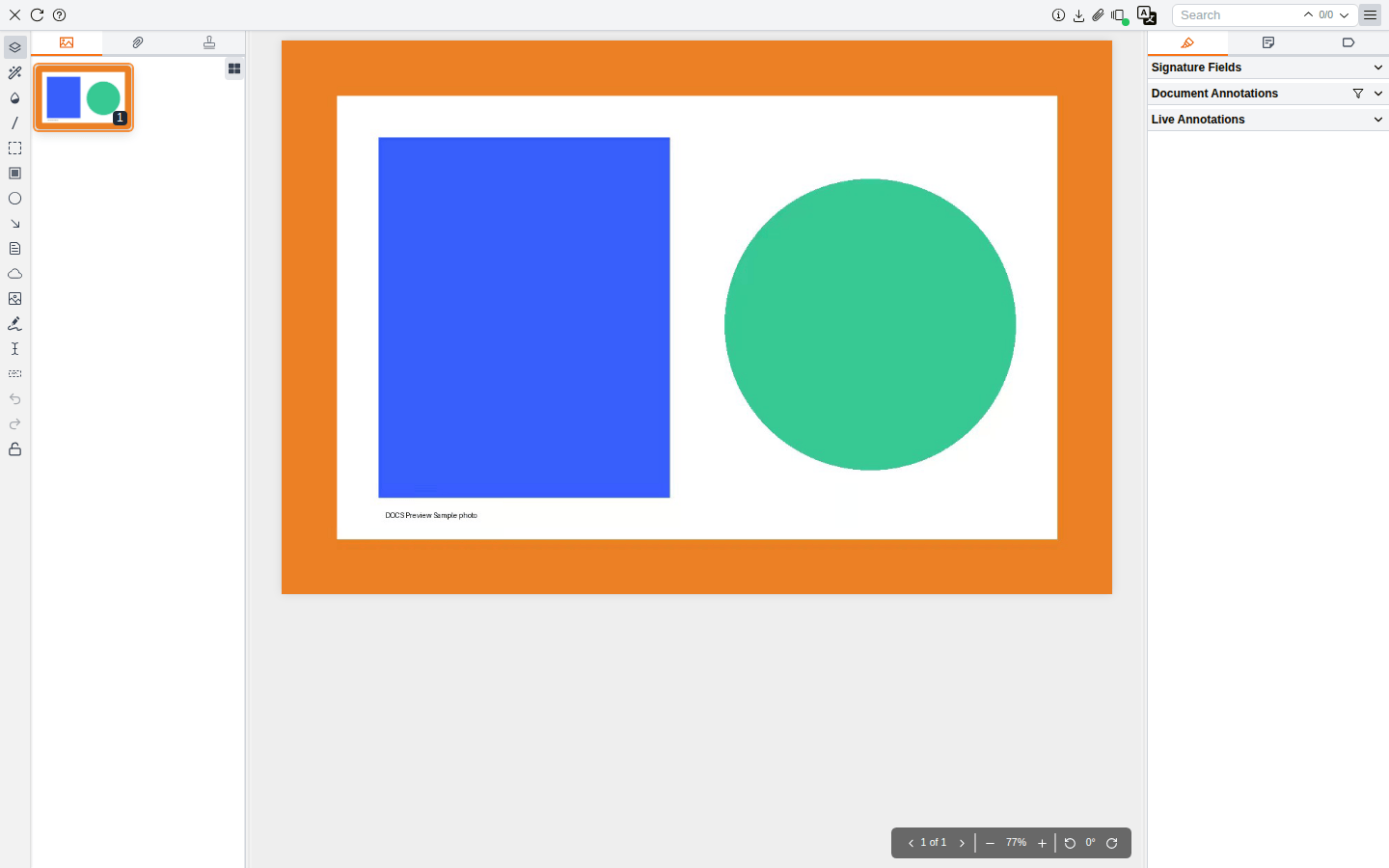
Preview toolbar

| Control | Description |
|---|---|
| X | Closes the preview. |
| Refresh (circular arrow) | Loads the document again. |
| Viewer Help (question mark) | Opens Viewer Help. |
| Document Details (i) | Opens the document's Document Details. |
| Download (arrow) | Downloads the file. See Downloading from the preview. |
| Attachments (paper clip) | Opens the document's attachments. |
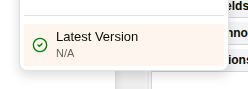
| View file versions | Lists the document's file versions, with the current one marked Latest Version. |
| Open in Office Online | Shown for Word and other Office files. See Office files. |
| Translations | Opens the translations menu. See Translations. |
| Search | Searches the document's text. |
| Review panel icon | Opens the review panel, with the annotations, notes and tags of the document. |
Pages, zoom and rotation
The controls at the bottom right of the preview move between pages and change the view.

| Control | Description |
|---|---|
| Arrows and page number | Go to the previous or next page. Type a page number and press Enter to go to that page. of shows the number of pages. |
| − and + | Zoom out and in. |
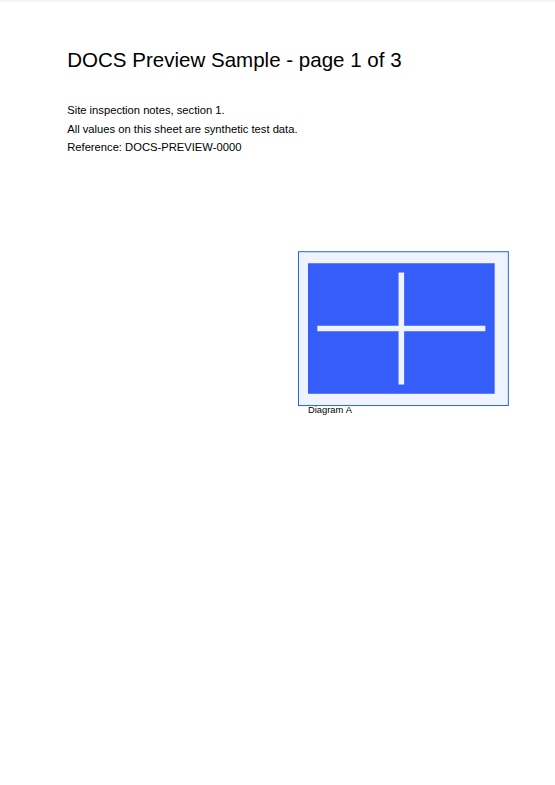
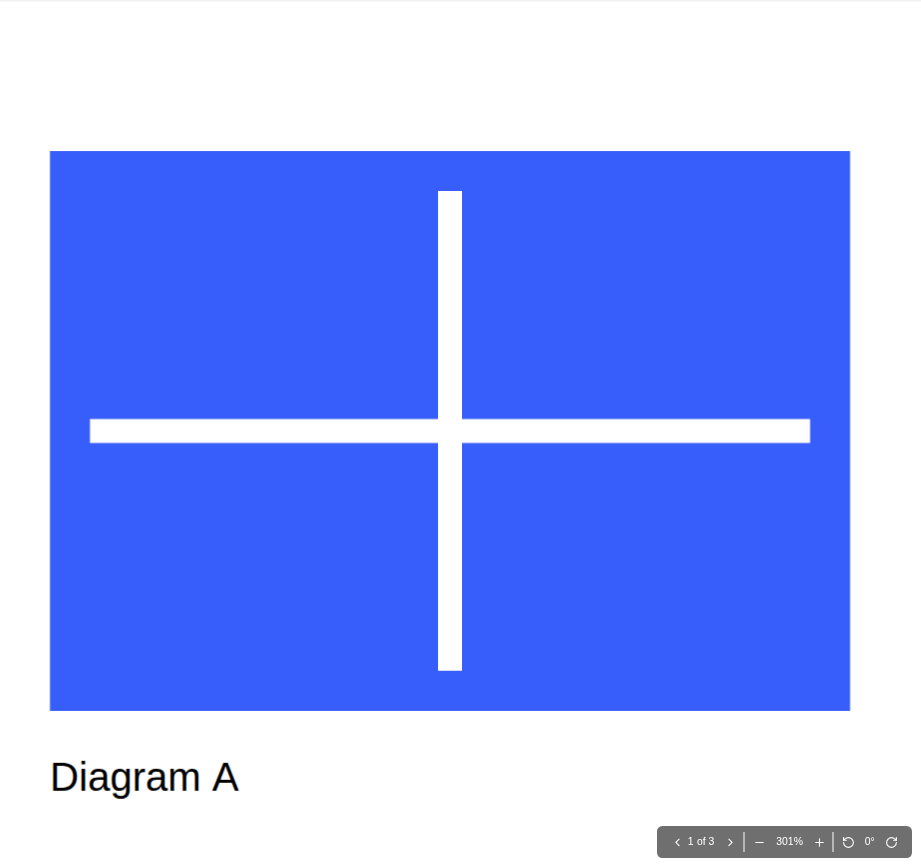
| Zoom percentage | Click it to fit the page to the width of the preview. |
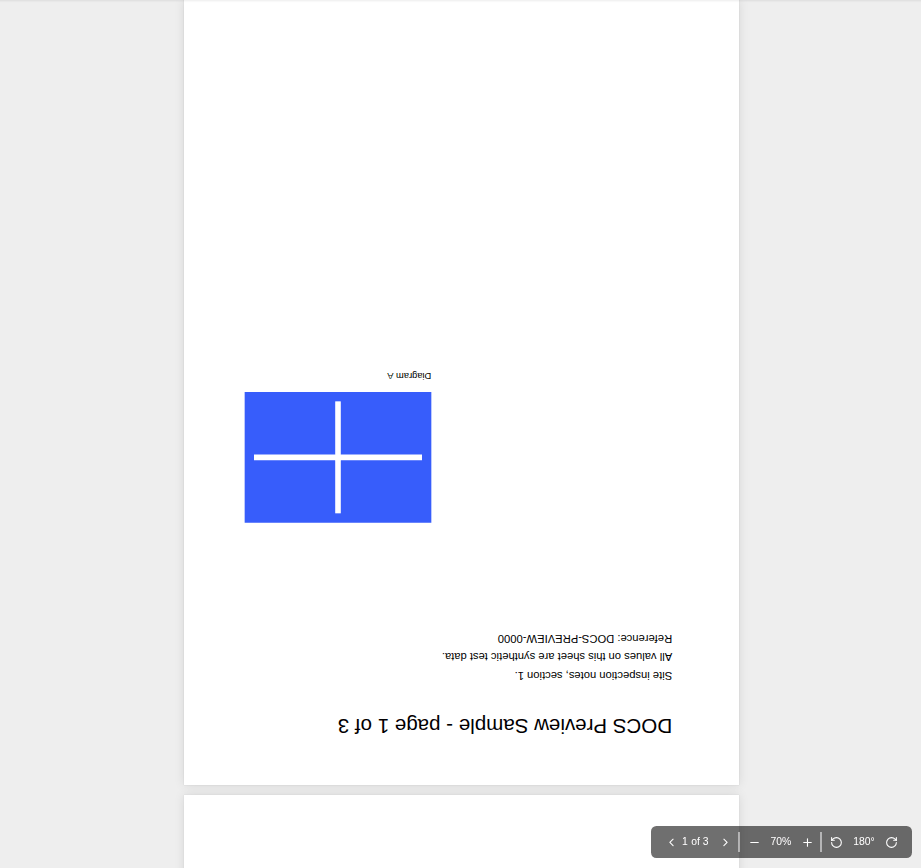
| Rotate buttons and angle | Turn the view by 90 degrees. Rotation only changes your view: the file is not changed, and Refresh or opening the document again shows it unrotated. |
You can also zoom with the mouse:
- Hold Ctrl and scroll to zoom in or out.
- Hold Ctrl and drag a box around an area of the page. A blue box shows the area, and when you let go the preview zooms in to it. Press Esc while dragging to cancel.
Dragging while holding Shift draws a selection box instead, and does not zoom.
Searching the document
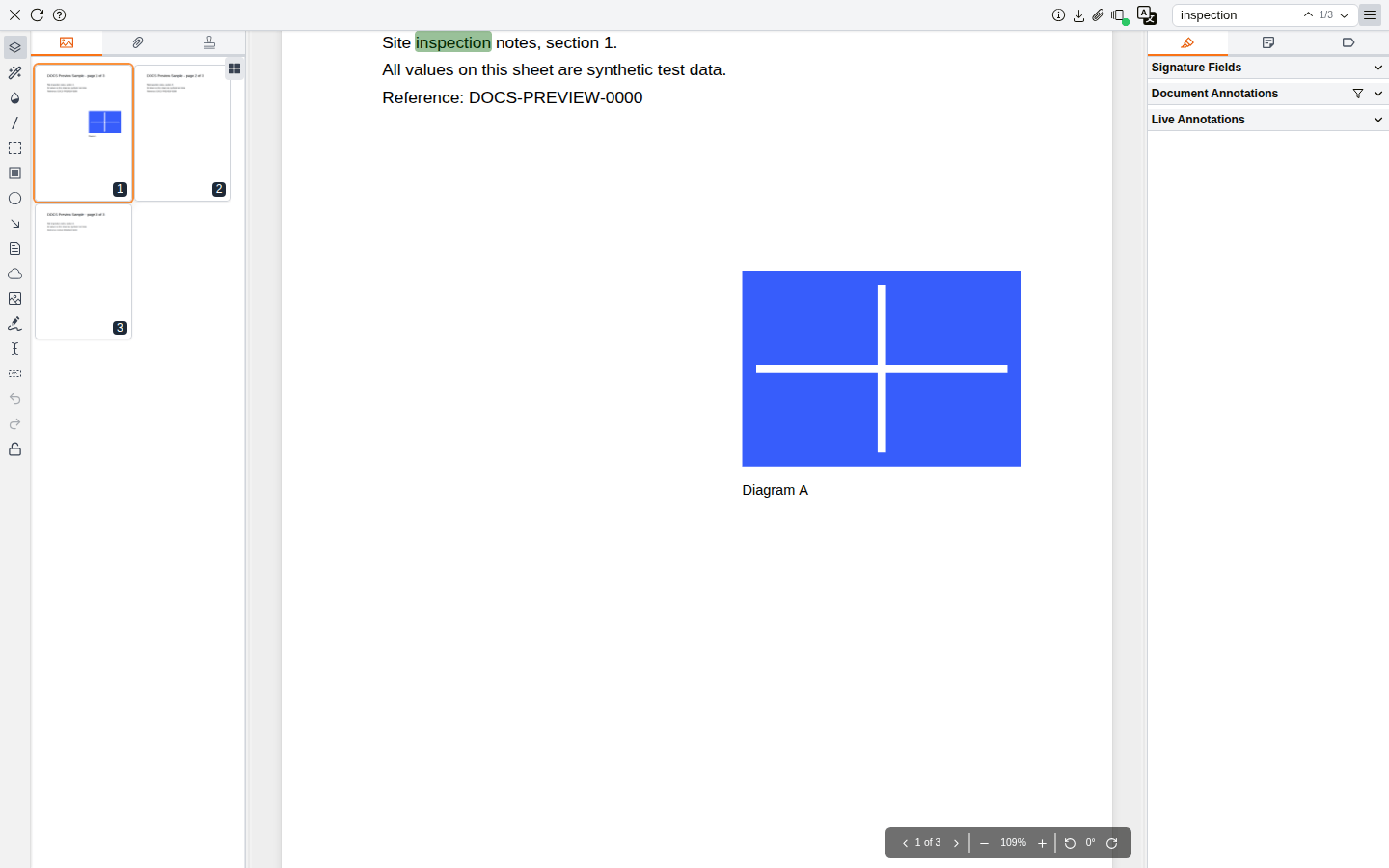
Type a word in Search at the top right. The matches are highlighted and the counter shows which match you are on and how many there are, for example 1/3. Press Enter to go to the next match, and click the up arrow to go back.
Downloading from the preview
If the document has no annotations, Download saves the file straight away, named after the document's description.
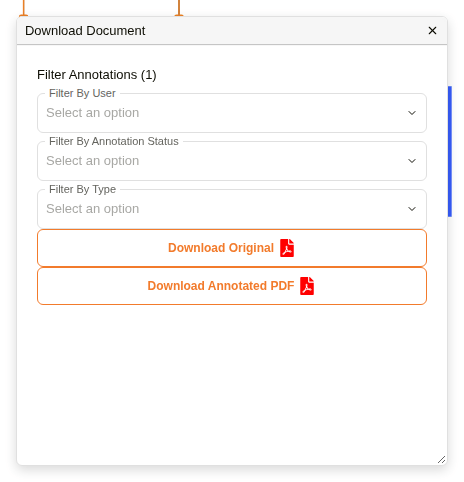
If the document has annotations, Download Document opens. It shows how many annotations the document has, with filters by user, annotation status and type, and two buttons:
- Download Original downloads the file without the annotations.
- Download Annotated PDF downloads a copy of the file with the annotations on it. The document itself is not changed.
Office files
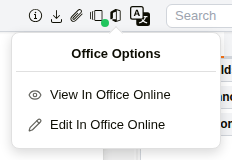
A Word document, and other Office files, is converted to PDF for the preview. While that happens the preview shows Preparing PDF Preview - PDF Conversion In Progress. For these files, the toolbar also has Open in Office Online, with View In Office Online and Edit In Office Online, and Download offers Download PDF.
Translations
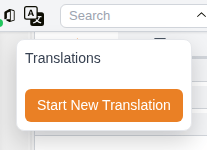
The translations button opens Translations, where Start New Translation starts a translation of the document.
Photos, videos and other files
- HEIC photos, the format many phones use, are shown as a one-page preview.
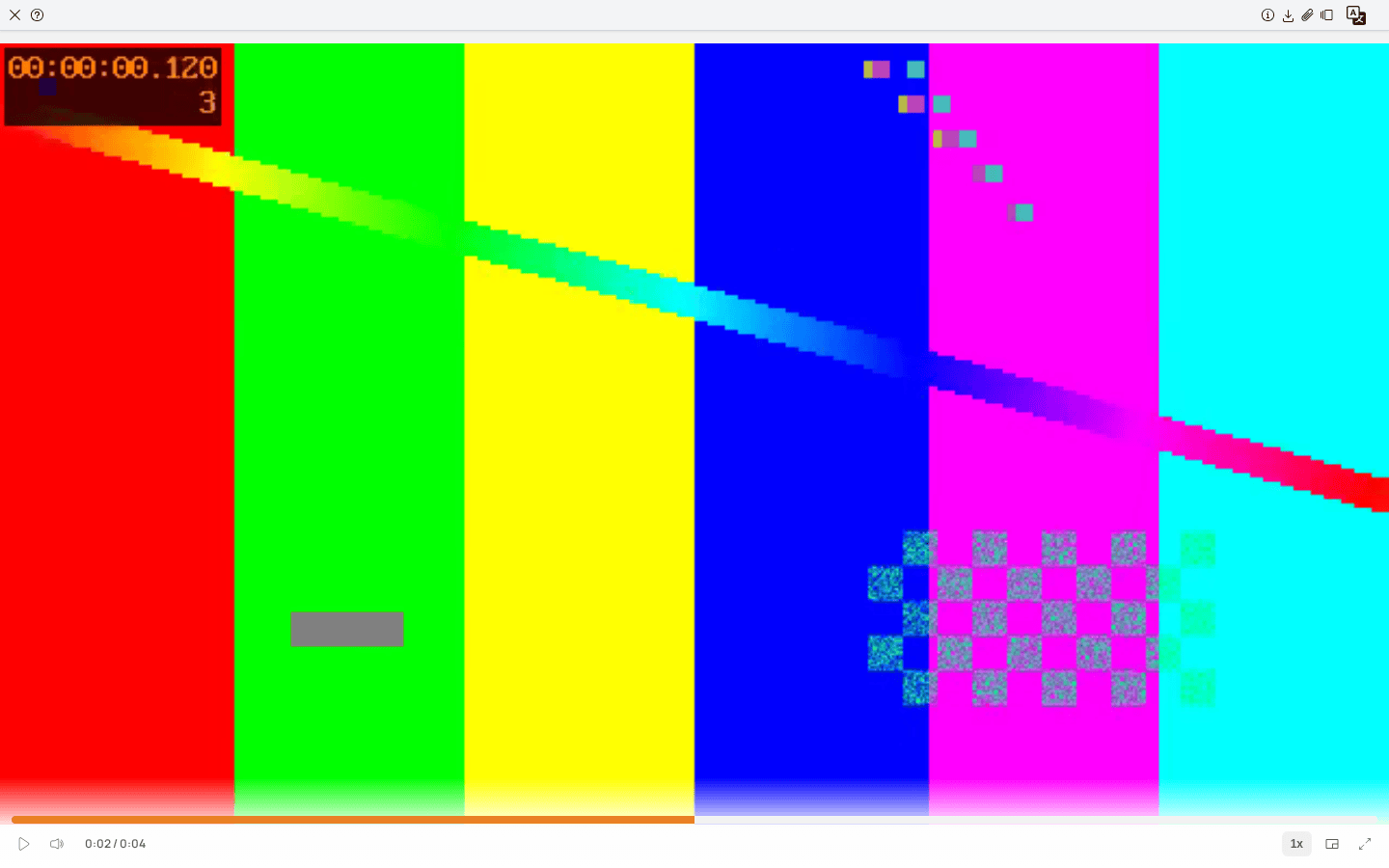
- Videos play in a media player with play, volume and full-screen controls. The annotation tools, search and review panel are not shown for a video.
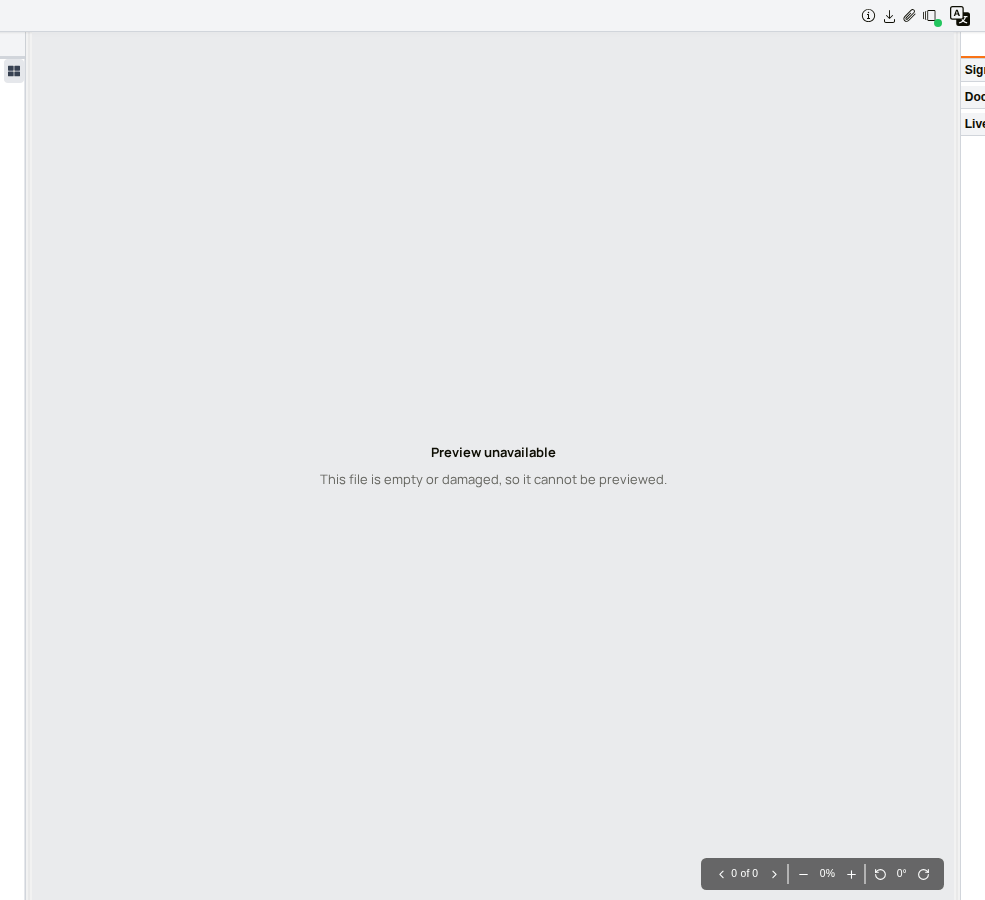
- A file that cannot be previewed, such as an archive, shows Preview unavailable. Download the file to open it.
- An empty or damaged PDF shows Preview unavailable with This file is empty or damaged, so it cannot be previewed.
Password-protected PDFs
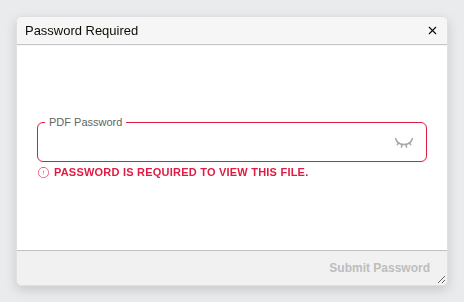
A PDF protected with a password asks for it before it opens. Enter it in PDF Password in the Password Required dialog and click Submit Password. The document then opens as usual.
How to preview a document
| Step | Description |
|---|---|
| 1 | In the Explorer grid, click the preview icon on the document's row. To open it in its own window, right-click the row and choose Preview in New Window instead. |
| 2 | Use the page controls at the bottom right to move through the pages and zoom. |
| 3 | Press Alt+Down or Alt+Up to preview the next or previous document in the grid. |
| 4 | Click the X at the top left to close the preview. |
Example: Previewing a document and zooming in
How to zoom in to part of a page
| Step | Description |
|---|---|
| 1 | Hold Ctrl and drag a box around the area. |
| 2 | Let go. The preview zooms in to the area. |
| 3 | To see the whole width of the page again, click the zoom percentage. |
How to download a document with its annotations
| Step | Description |
|---|---|
| 1 | Click Download in the preview toolbar. |
| 2 | In Download Document, click Download Annotated PDF. |