Generate from Template
The Generate from Template button in the Document Details toolbar creates a document's file from a pre-configured Word template. Docwize populates the template's fields with the document's metadata, such as its description, and the result becomes the document's file, typically a PDF. It is most often used to produce the document of a transmittal: see Transmittals for that journey. Other common uses include cover sheets and standardised reports.
Templates must be configured by an administrator before they appear in the Template list. See Word Templates for setup instructions.
What you can do with Generate from Template
- Create a document's file from a template, filled in with the document's details
- Choose whether the result is a PDF or stays a Word file
- Open the result straight away, or edit a Word result in Office Online
Generate from Template dialog
Click Generate from Template in the Document Details toolbar to open the dialog.
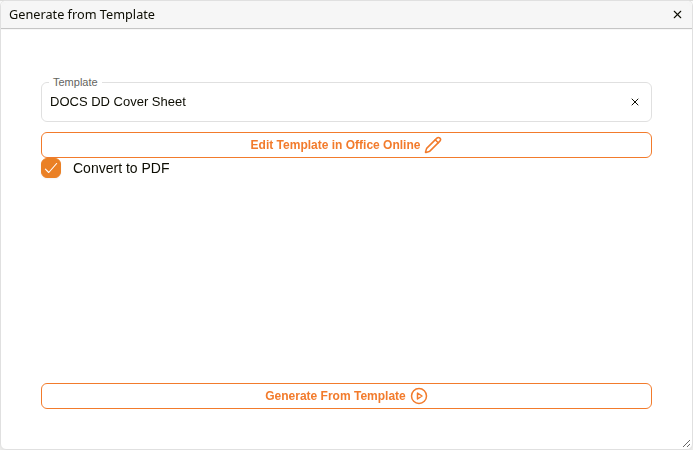
Generate from Template dialog
| Field | Description |
|---|---|
| Template | Select the template to use. The list shows the templates set up in Docwize. Type to filter by name. |
| Edit Template in Office Online | Appears once a template is chosen. Opens the template itself for editing, which changes it for everyone who uses it, so leave this to whoever looks after your templates. |
| Convert to PDF | When ticked, the result is converted to PDF. Ticked by default. Untick it to keep the result as a Word file. |
| Generate From Template | Generates the file. Available once a template is selected. |
What happens to the document's file
The generated file replaces the document's current file. Nothing is lost: the file it replaces stays in the document's File Versions with the reason Generated from template. With Convert to PDF ticked, the PDF becomes the current file, and the Word file it was made from is kept in File Versions with the reason Converted to PDF.
When the file is ready, the dialog shows a green tick and Open Document, which opens the result. A Word result also offers Edit in Office Online, and from then on the Document Details toolbar offers Edit in Office Online for the document as well.
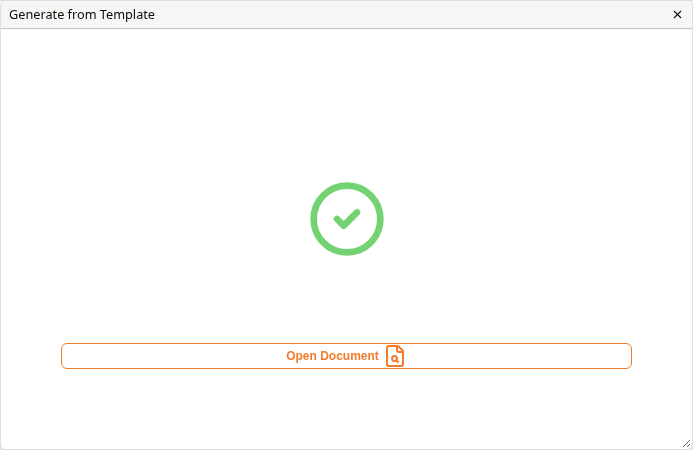
After generating a PDF
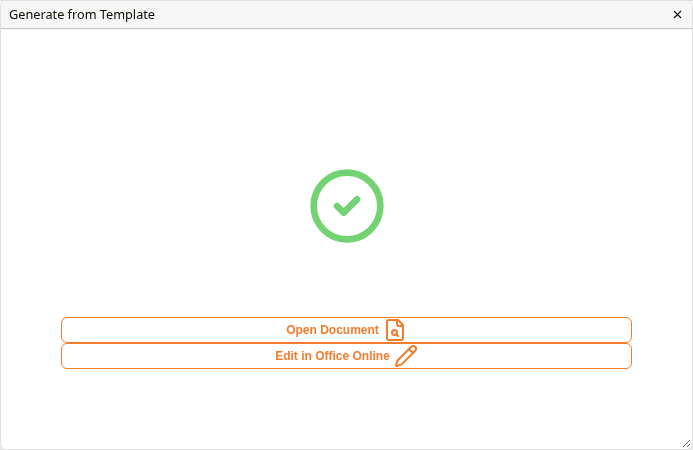
After generating a Word file
How to generate a document from a template
| Step | Description |
|---|---|
| 1 | Open the document's Document details: right-click the document in Explorer and select Document details. |
| 2 | Click Generate from Template in the toolbar. |
| 3 | Select a template from the Template list. |
| 4 | To keep the result as a Word file rather than a PDF, untick Convert to PDF. |
| 5 | Click Generate From Template. Docwize generates the file, which can take a moment. |
| 6 | When the green tick appears, click Open Document to check the result. |
Related pages
- Transmittals: generating a transmittal's document
- File Versions: where the replaced files are kept
- Word Templates: administrator guide for creating and managing templates