Word Templates
Users can create Word-based document templates — such as transmittals and invoices — that contain Jinja code. When a user generates a document from one of these templates, Docwize populates the Jinja fields with document metadata, producing a completed PDF. The Jinja syntax available for building templates is accessible via the floating toolbar.
Who configures this
Users with access to the New module. Word templates are managed from New > Manage Document Templates.
Manage Document Templates
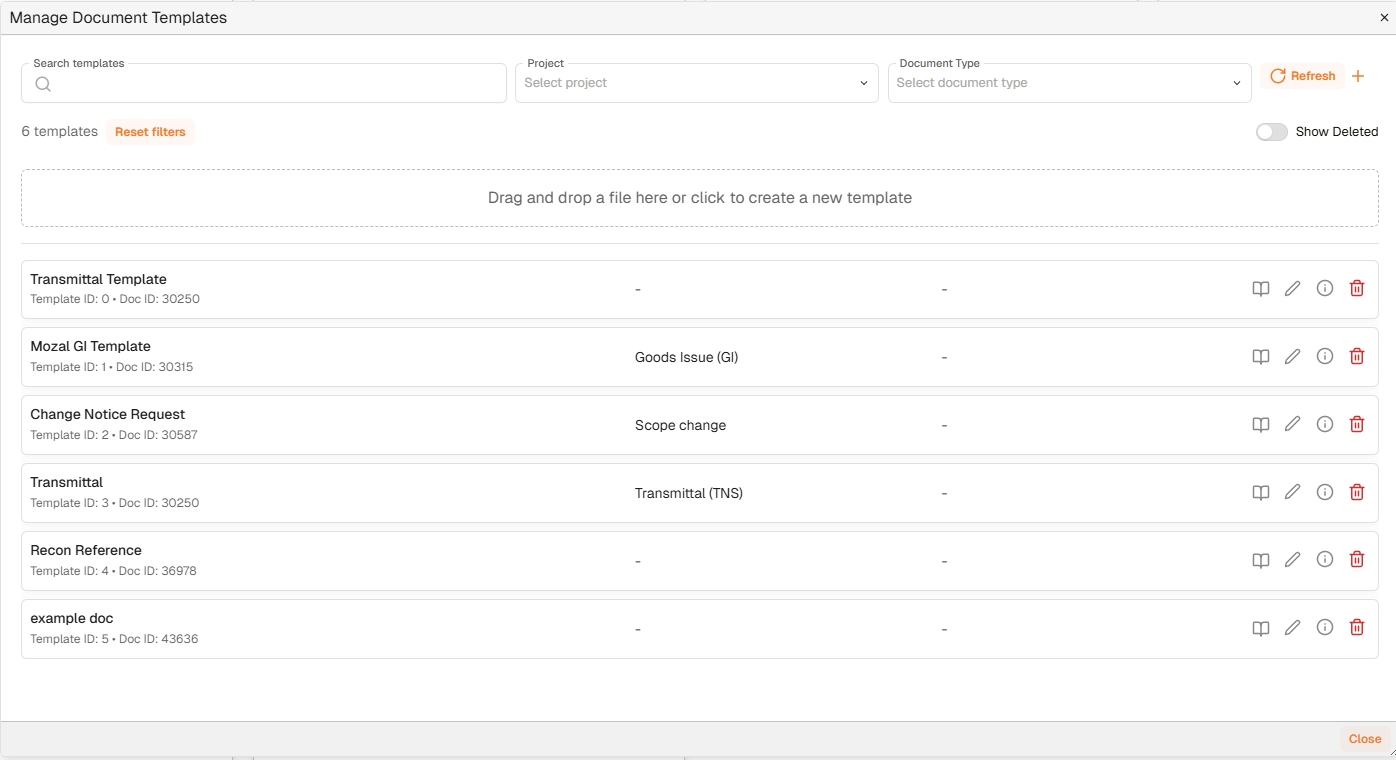
Manage Document Templates dialog
| Control | Description |
|---|---|
| Search templates | Filters the template list by name. |
| Project | Filters the template list by project. |
| Document Type | Filters the template list by document type. |
| Reset filters | Clears all active filters. Appears when at least one filter is applied. |
| Show Deleted | Toggle. Shows deleted templates in the list when enabled. |
| Refresh | Refreshes the template list. |
| + | Opens the Generate New Document Template wizard. |
| Drag and drop zone | Drag a Word file here, or click, to create a new template directly. |
| Template name | The name of the template. The Template ID and Doc ID are shown below the name. |
| Document type | The document type assigned to the template. |
| Project | The project assigned to the template. |
| Preview (book icon) | Opens a preview of the template. |
| Edit (pencil icon) | Opens the template for editing in Office Online. |
| Document details (information icon) | Opens the template's Document Details. |
| Delete (trash icon) | Deletes the template. |
| Close | Closes the dialog. |
Generate New Document Template wizard
Clicking + opens the Generate New Document Template wizard, which has three steps.
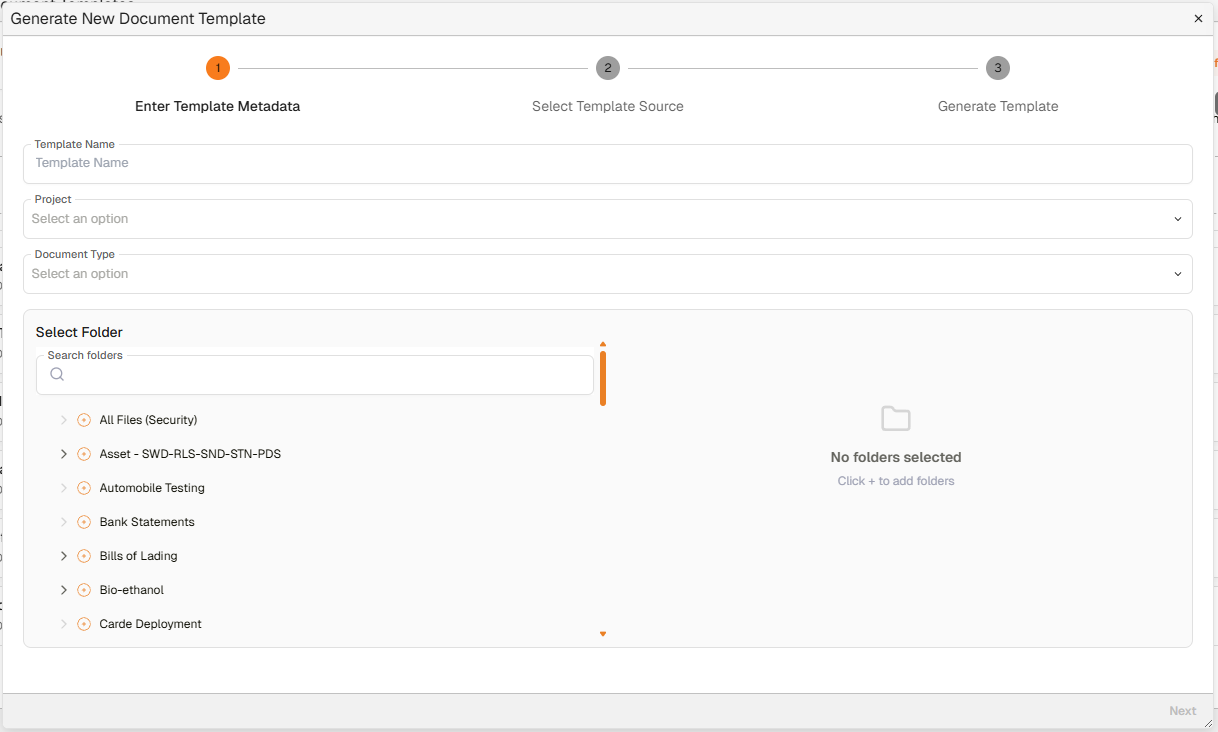
Generate New Document Template wizard — Step 1
Step 1 — Enter Template Metadata
| Field | Description |
|---|---|
| Template Name | The name for the template. |
| Project | Associates the template with a project. |
| Document Type | Associates the template with a document type. |
| Select Folder | Selects which folder(s) in Docwize the template applies to. Use Search folders to filter the folder tree. Click + next to a folder to add it to the selection. |
| Next | Advances to Step 2. Enabled once required fields are complete. |
Steps 2–3 — Select Template Source and Generate Template
Step 2 (Select Template Source) asks for the Word file to use as the template. Step 3 (Generate Template) completes the process.
How to upload a Word template
| Step | Description |
|---|---|
| 1 | Create a Word document containing the relevant content, and insert Jinja code fields from the floating toolbar where dynamic values should appear. |
| 2 | Navigate to New > Manage Document Templates and click +. |
| 3 | In the Generate New Document Template wizard, enter a Template Name and optionally assign a Project, Document Type, and folder. Click Next. |
| 4 | Complete the remaining steps to select the Word file and generate the template. |
How to generate a PDF from a Word template
| Step | Description |
|---|---|
| 1 | Navigate to the Document Details of the document to generate a PDF from. |
| 2 | Click Generate from Template in the toolbar. |
| 3 | Select the relevant Word template. |
| 4 | Click Generate from Template. Docwize produces a PDF populated with the document's metadata. |
Troubleshooting
| Issue | Detail |
|---|---|
| Jinja fields not populating | Check that the field references in the Word template exactly match the available Jinja variables. Use the floating toolbar to insert references rather than typing them manually. |
| Template not appearing in the Generate from Template list | Confirm the template has been successfully uploaded and is not deleted. Check the Show Deleted toggle to verify it has not been removed. |
| Edit not available | The template must be in a supported format (Word). Check that Office Online is accessible from the environment. |
| Template associated with wrong project or document type | Use the Edit (pencil icon) on the template to update its metadata. |
Related configuration
- Floating toolbar — Jinja syntax reference for building template fields
- Custom Fields — custom field data available as Jinja variables in templates