Dynamic Stamps
Docwize supports dynamic stamps — SVG-based stamp templates that include Jinja fields which are completed by users at the point of stamping. Typical use cases include drawing review and approval stamps, where fields such as initials, a signature, and a date are captured at stamp time.
For end-user instructions on applying stamps to documents, see Stamps under Document Review.
Who configures this
Users with access to the New module (to create the supporting custom field template) and the Document Preview Stamps section (to upload the stamp template and configure stamp collection permissions).
How dynamic stamps work
A dynamic stamp combines two components:
- A custom field template — created in the New module with Template Type set to Filter. The fields defined here become the input fields users complete when applying the stamp.
- An SVG file — edited to include Jinja placeholders matching the custom field names. At stamp time, Docwize replaces each placeholder with the user's input.
Example stamp templates
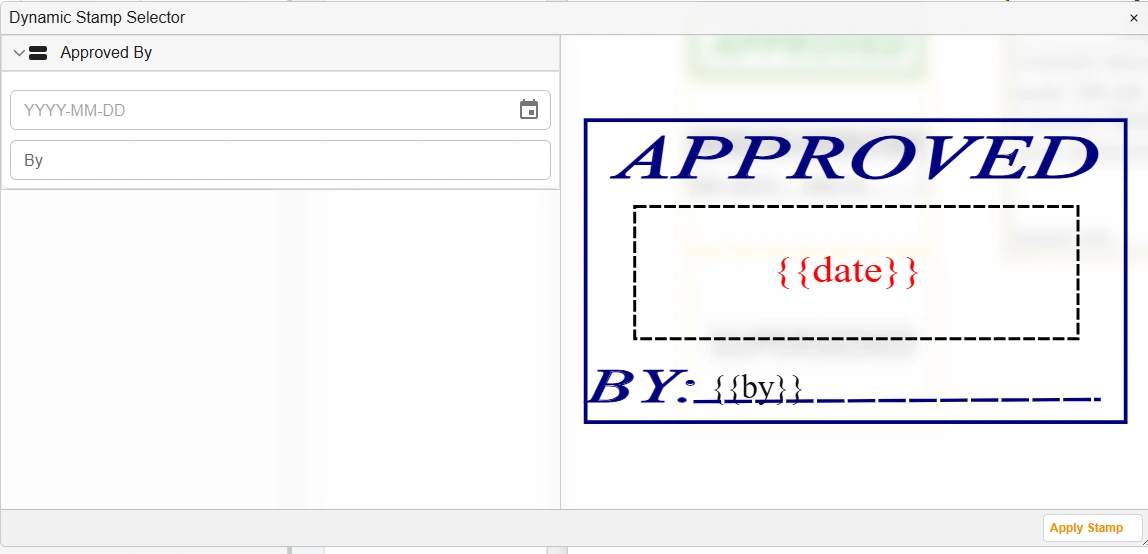
'Approved by' Fields for Input
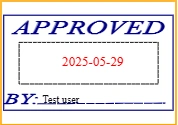
Example: 'Approved by' Generated Stamp
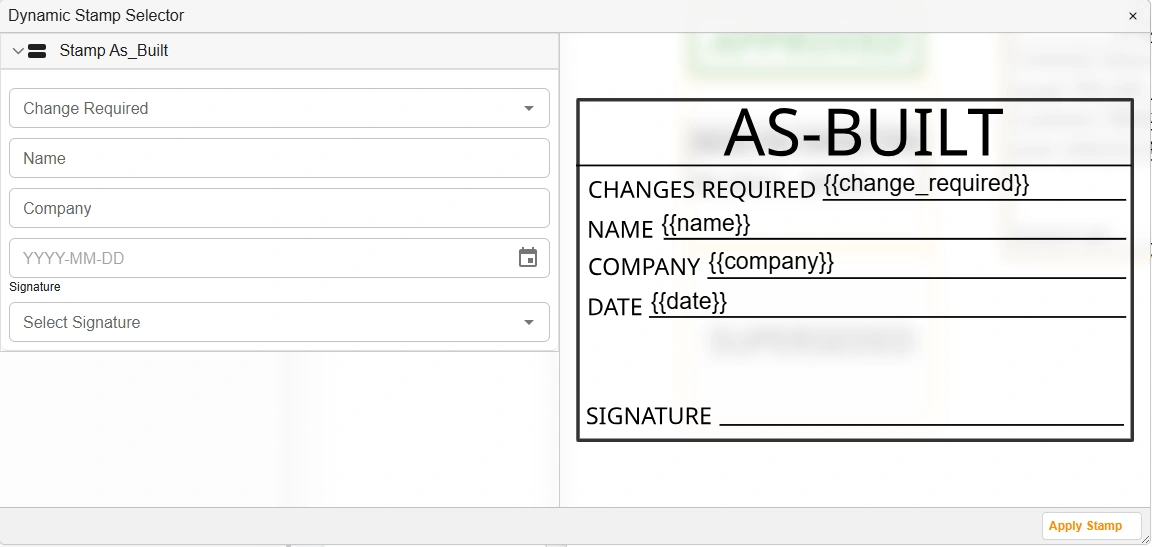
'As-Built' Fields for Input
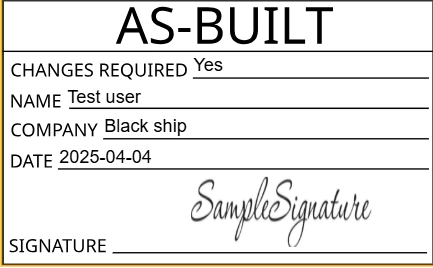
Example: 'As-Built' Generated Stamp
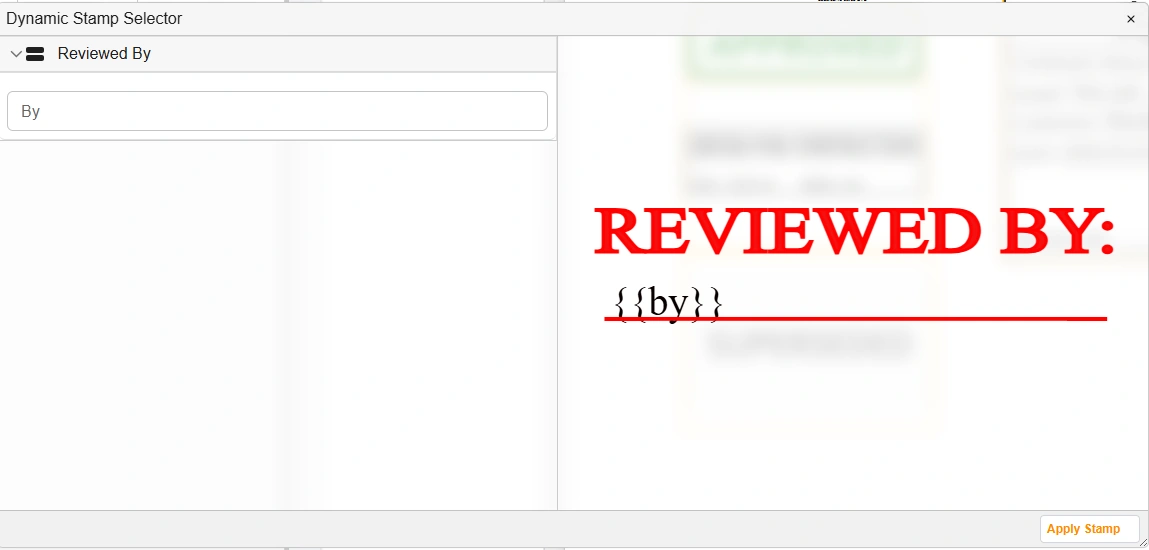
'Reviewed by' Fields for Input
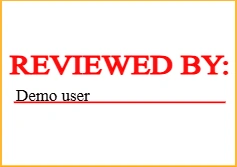
Example: 'Reviewed by' Generated Stamp
How to create and upload a dynamic stamp template
| Step | Description |
|---|---|
| 1 | Create a custom field template containing the fields users will complete when applying the stamp (e.g. initials, date). Under Template Type, select Filter — this is required for the stamp to function correctly. |
| 2 | Open the SVG file to be used as the stamp template. Add Jinja placeholders for each field, using the exact field names from the custom field template enclosed in double curly braces — for example, {{ initials }}. Field names are case-sensitive; use lowercase. |
| 3 | Navigate to the Stamps section of the Document Preview window. |
| 4 | Click the Stamp icon to create a new stamp collection folder. Complete the fields in the dialog, including which users and groups have permission to use this stamp collection. |
| 5 | Click + to add a stamp to the collection. Select the SVG file and complete the fields in the dialog, including user and group permissions for this specific stamp. |
Troubleshooting
| Issue | Detail |
|---|---|
| Stamp fields not populating | Confirm that the Jinja field names in the SVG exactly match the field names in the custom field template. Field names are case-sensitive; use lowercase. |
| Stamp not available to users | Check the user and group permissions set on the stamp collection and the individual stamp. Users must have permission to both the collection and the stamp. |
| Template Type not set to Filter | The custom field template must have its Template Type set to Filter. Any other type will prevent the stamp from working correctly. |
| Stamp displays incorrectly | Verify the SVG file is well-formed. Malformed SVG may prevent the stamp from rendering. |
Related configuration
- Custom Fields — creating the custom field template that provides the stamp's input fields
- Stamps — end-user instructions for applying stamps to documents
- Floating toolbar — Jinja syntax reference