Email Builder
The Email Builder allows users to create Jinja-based HTML email templates for distribution. When an email is sent from Docwize, the template is populated with document metadata and other dynamic values from the floating toolbar. Templates can be set as the default for specific action types — for example, transmittal distributions or action requests.
Who configures this
Users with access to the New module. The Email Builder is accessible from New > Custom Fields & Configuration > Email Template Builder.
Email Templates
When users navigate to the Email Builder, they see the Email Templates screen listing all existing templates.

Email Template Builder button
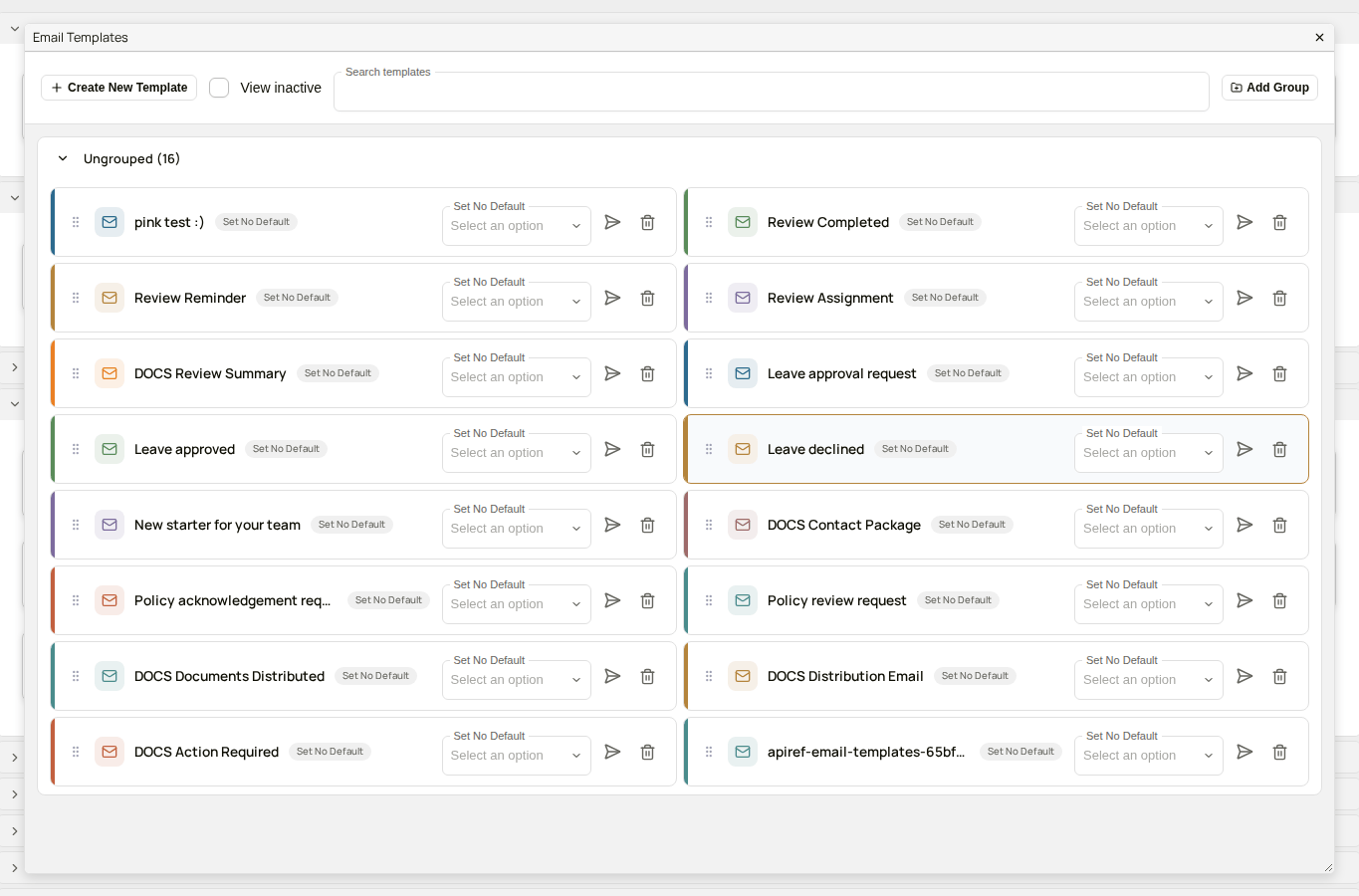
Email Templates screen
| Control | Description |
|---|---|
| Search templates | Filters the template list by name. |
| Add Group | Creates a group at the top level of the list. Templates can then be moved into groups. See Organising Templates into Groups. |
| View inactive | Toggle to show inactive (disabled) templates in the list. |
| Create New Template | Opens the template editor to create a new template. |
| Template name | The name of the email template. |
| Default for | Shows which action type this template is set as the default for. Displays None if not set as a default. |
| Set No Default (dropdown) | Associates the template with an action type, making it the default email sent for that action. Click to select or change the association. |
| Send (paper plane icon) | Opens the template tester to send a test email. |
| Disable (trash icon) | Deactivates the template rather than deleting it. Once disabled, the row shows a Disabled badge and a Restore button in place of the normal controls. Use View inactive (above) to see disabled templates. |
Create New Email Template
Clicking Create New Template opens the template editor. The editor shows an Oliver assistant panel alongside the live template, so users can describe changes in chat and see the template update as they're made, in addition to editing fields directly.
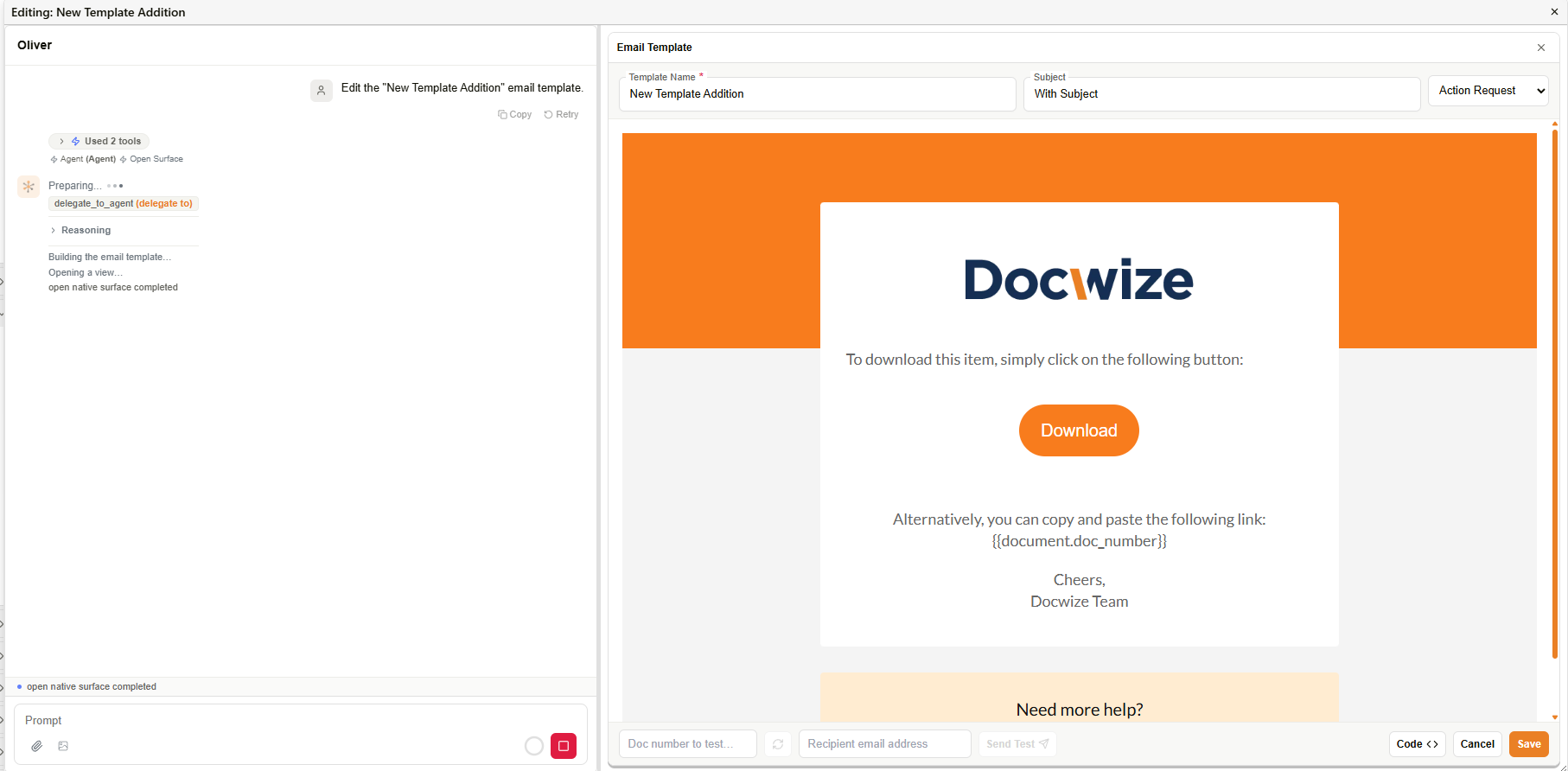
Email template editor with Oliver assistant panel
| Field | Description |
|---|---|
| Oliver panel | An AI assistant that opens the template for editing and can apply changes described in chat. |
| Template Name | The name of the template. Required. |
| Subject | The email subject line. Recipients see this as the email subject. Jinja references can be included. |
| Action type dropdown | Sets this template as the default for a specific action type (e.g. Action Request, Distribution). |
| Save | Saves the template. |
| Cancel | Closes the editor without saving. |
| Doc number to test / Send Test | Sends a test email for the specified document to the current logged-in user, reflecting any unsaved changes in the editor rather than only the last-saved version. Sending a test does not save the template. There is no field to specify a different recipient. |
| Code | Toggles the template view between the rendered preview and the underlying HTML with Jinja references. |
| Download Filename Builder | Configures the filename structure for documents downloaded from this email. |
| Filename format | Selects the columns used to build the download filename. |
Editing an existing template
Clicking a template row in the Email Templates screen — rather than Create New Template — opens a standalone editor for that template. This editor shows the template fields and a live preview directly, without the Oliver assistant panel. Click Edit with Oliver to switch to the assisted editing experience described above.
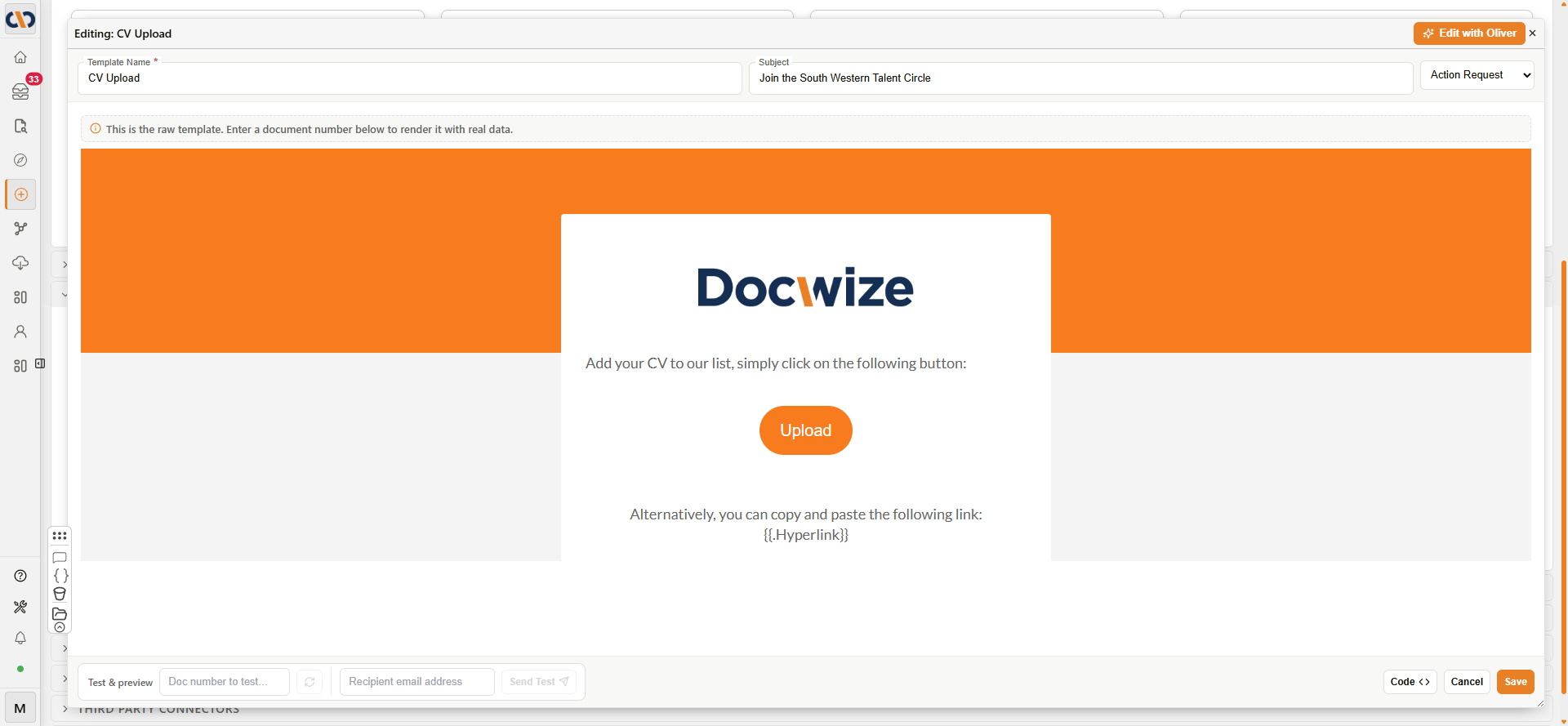
Standalone email template editor
| Field | Description |
|---|---|
| Edit with Oliver | Switches to the Oliver assistant panel for this template. |
| Template Name | The name of the template. Required. |
| Subject | The email subject line. Jinja references can be included. |
| Action type dropdown | Sets this template as the default for a specific action type (e.g. Action Request, Distribution, Late Notification, User Invitation). |
| Live preview | Renders the template. Displays a notice that it is showing the raw template until a document number is entered below to preview with real data. |
| Sample data | Renders the template against auto-generated sample document data, showing how all merge fields will appear without requiring a specific document number. |
| Doc number to test / Send Test | Sends a test email for the specified document to the current logged-in user, reflecting any unsaved changes in the editor rather than only the last-saved version. Sending a test does not save the template. There is no field to specify a different recipient. |
| Code | Toggles the template view between the rendered preview and the underlying HTML with Jinja references. |
| Cancel | Closes the editor without saving. |
| Save | Saves the template. |
Previewing with sample data
Click Sample data to render the template against auto-generated sample document data. This preview shows exactly how all merge fields and conditional logic will appear in the final email, without needing to manually enter a specific document number.
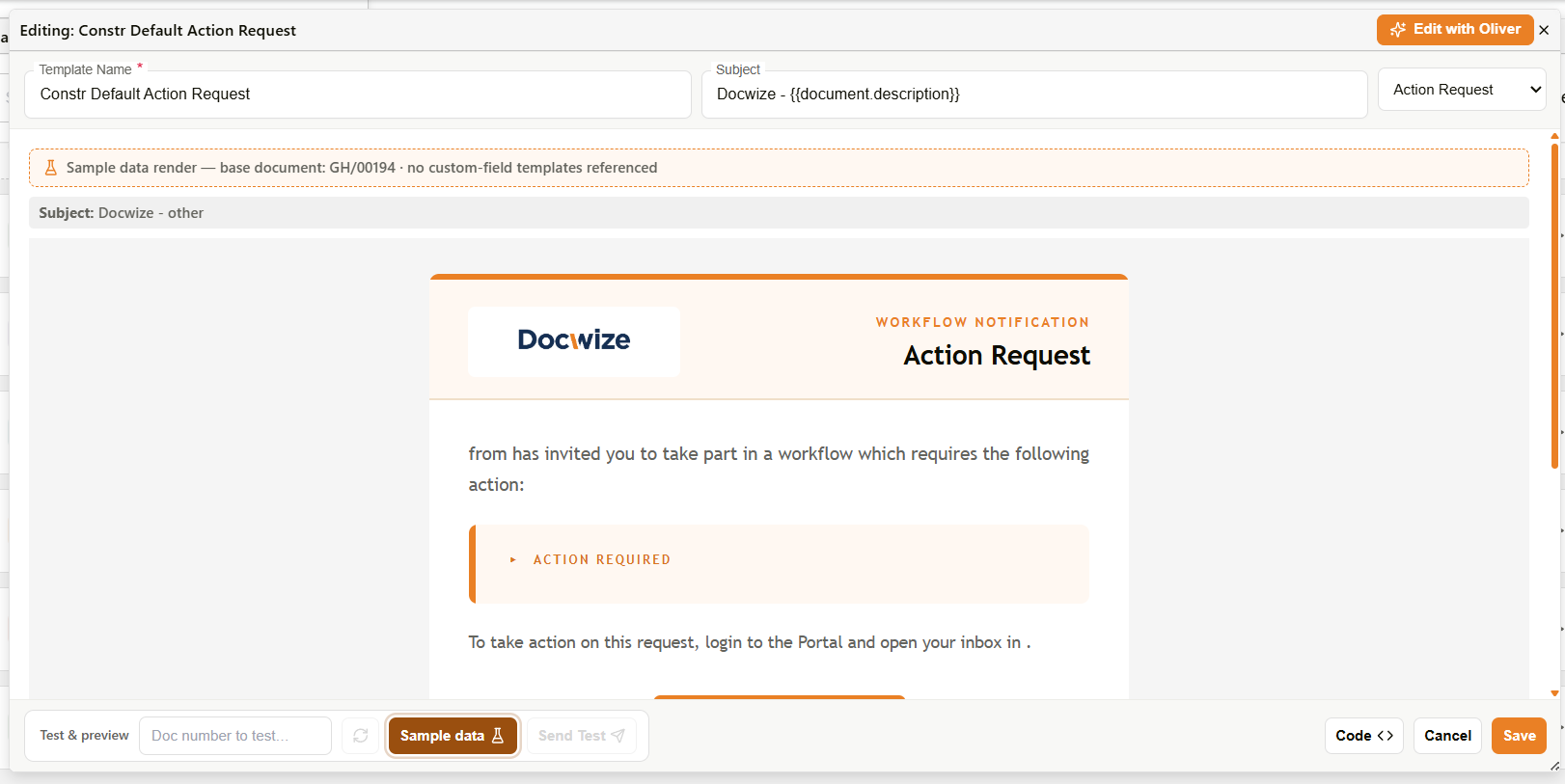
Template rendered with sample data
The preview displays a message at the top indicating the base document used for the sample render (e.g., "Sample data render — base document: GH/00194"). If the template references custom fields that do not exist in the sample document, the preview notes this in the message (e.g., "no custom-field templates referenced"). Standard document fields always render in the preview.
Available variables and attachment handling
The exact variables available depend on which existing template is being edited.
Two distinct variable styles were found across existing templates:
Workflow / action request notifications use flat tokens with no dot notation, for example: {{SenderUser}}, {{CompanyName}}, {{CompanyCode}}, {{ActionRequest}}, {{WorkflowID}}, {{WorkflowItemID}}, {{Sections}}, {{HighlightedSectionID}}.
Distribution / transmittal emails use real Jinja against document objects, and this is also how attached files are handled — confirmed identically in two existing templates:
| Variable | Description |
|---|---|
action_request | The requested action, if any — e.g. {{ action_request if action_request else 'For Information' }}. |
main_file | The primary distributed document, e.g. {{ main_file.Reference_Number }} in a Subject line. |
main_file_link | A direct download link for the primary document (used for a "Download ZIP" style button). |
file_list | Every distributed document, iterated with {% for file in file_list %} ... {% endfor %} to build a documents table. |
file.Doc_Number, file.Date, file.Description, file.Doc_Type, file.Reference_Number, file.Rev_Number, file["Image Size"], file.URL | Per-file fields available inside the file_list loop. file.Rev_Number appeared only behind {% if file.Rev_Number %}, and file["Image Size"] shows the bracket-notation syntax needed for a field name that contains a space. |
How to build an email template
| Step | Description |
|---|---|
| 1 | Navigate to New > Custom Fields & Configuration > Email Template Builder. |
| 2 | Click Create New Template and enter a Template Name and Subject. |
| 3 | In the HTML editor, write or paste the email HTML. Insert Jinja references from the floating toolbar where dynamic values should appear. |
| 4 | Optionally set the action type dropdown to make this the default template for a specific action. |
| 5 | Configure Download Filename Builder if a specific filename structure is required for downloaded attachments. |
| 6 | Click Save. |
| 7 | Optional: click the Send (paper plane icon) on the template listing to send a test email and confirm the output is as expected. |
Troubleshooting
| Issue | Detail |
|---|---|
| Jinja fields not populating | Confirm that the field references in the template match the available variables. Use the floating toolbar to insert references rather than typing them manually. |
| Template not appearing as the default for an action | Check the Set No Default dropdown on the template and confirm it is set to the correct action type. Only one template can be the default per action type. |
| Recipients receiving the wrong template | Check whether another template is set as the default for the same action type. |
| Preview not matching sent email | Some email clients render HTML differently. The preview is indicative only — test by sending a test email using the Send icon. |
Related configuration
- Floating toolbar — Jinja syntax reference for inserting dynamic values into templates
- Jinja Template Language — overview of Jinja syntax used in email templates