テンプレートから生成
文書詳細のツールバーにある テンプレートから生成 ボタンを使うと、事前に設定された Word テンプレートから文書のファイルを作成できます。Docwize はテンプレートのフィールドに説明などの文書のメタデータを差し込み、その結果(通常は PDF)が文書のファイルになります。最もよく使われるのは送付書の文書を作成するときで、その手順は 送付書 を参照してください。ほかにも、表紙や定型の報告書などによく使われます。
テンプレート の一覧にテンプレートを表示するには、管理者があらかじめテンプレートを設定しておく必要があります。設定手順は Word テンプレート を参照してください。
テンプレートから生成でできること
- 文書の詳細を差し込んだテンプレートから、文書のファイルを作成する
- 結果を PDF にするか、Word ファイルのままにするかを選ぶ
- 結果をすぐに開く、または Word ファイルで生成した結果を Office Online で編集する
「テンプレートから生成」ダイアログ
文書詳細 のツールバーで テンプレートから生成 をクリックして、ダイアログを開きます。
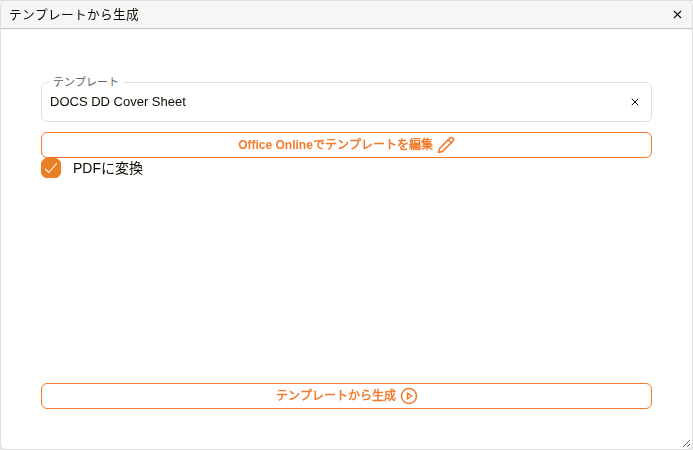
「テンプレートから生成」ダイアログ
| フィールド | 説明 |
|---|---|
| テンプレート | 使用するテンプレートを選択します。一覧には Docwize に設定されたテンプレートが表示されます。入力すると名前で絞り込めます。 |
| Office Onlineでテンプレートを編集 | テンプレートを選ぶと表示されます。テンプレートそのものを編集用に開くため、変更はそのテンプレートを使うすべての人に及びます。テンプレートを管理している担当者に任せてください。 |
| PDFに変換 | チェックを入れると、結果が PDF に変換されます。既定でチェックが入っています。Word ファイルのままにするには、チェックを外します。 |
| テンプレートから生成 | ファイルを生成します。テンプレートを選ぶと使えるようになります。 |
文書のファイルはどうなるか
生成されたファイルは、文書の現在のファイルと差し替えられます。何も失われることはなく、差し替えられたファイルは文書の ファイルバージョン に、理由 Generated from template として残ります。PDFに変換 にチェックが入っている場合は PDF が現在のファイルになり、元になった Word ファイルは理由 Converted to PDF としてファイルバージョンに残ります。
ファイルができあがると、ダイアログに緑のチェックマークと 文書を開く が表示され、結果を開けます。Word ファイルを生成した場合は Office Onlineで編集 も表示され、以降は文書詳細のツールバーにもこの文書の Office Onlineで編集 が表示されます。
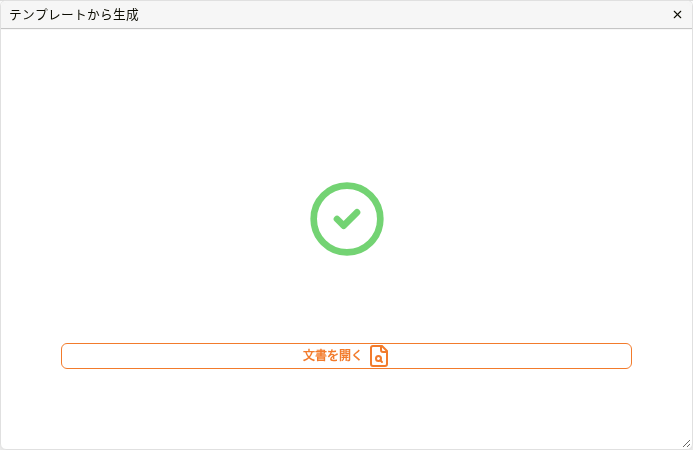
PDF を生成した後
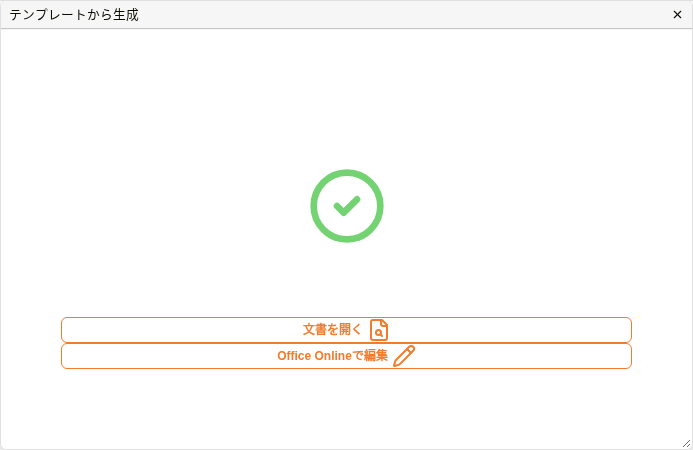
Word ファイルを生成した後
テンプレートから文書を生成する方法
| ステップ | 説明 |
|---|---|
| 1 | 文書の 文書詳細 を開きます。エクスプローラーで文書を右クリックし、文書詳細 を選択します。 |
| 2 | ツールバーの テンプレートから生成 をクリックします。 |
| 3 | テンプレート の一覧からテンプレートを選択します。 |
| 4 | PDF ではなく Word ファイルのままにするには、PDFに変換 のチェックを外します。 |
| 5 | テンプレートから生成 をクリックします。Docwize がファイルを生成します。少し時間がかかることがあります。 |
| 6 | 緑のチェックマークが表示されたら、文書を開く をクリックして結果を確認します。 |
関連ページ
- 送付書: 送付書の文書の生成
- ファイルバージョン: 差し替えられたファイルが残る場所
- Word テンプレート: テンプレートを作成・管理するための管理者向けガイド