メインコンテンツまでスキップ

Review

Some documents need to be checked again on a regular basis to confirm they are still correct, such as a policy, a contract or a safety certificate. Docwize can put a document on a review schedule, so that the right people are asked to review it whenever it falls due.

The Review section of Document Details shows where a document stands: whether it is on a review schedule, when its next review is due, who has responded to an open review, and how past reviews ended. Open it by selecting Review in the vertical toolbar of the Document Details dialog.

Note that reviewers do not respond in the Review section. Each review round sends them an action request, which they complete from their Inbox.

What you can do in Review​

  • See whether a document is on a review schedule, and when its next review is due
  • See whether the schedule was set on this document, or handed down by its folder or document type
  • See when the document was last reviewed, and the outcome
  • Follow an open review round, and see who has responded
  • Look back over past review rounds in the review history

If you have the Documents - Manage Review Schedules permission, you can also set up, change, pause or remove a document's review schedule from this section. See Document review schedules in the configuration docs.

How reviews fit together​

Reviews appear in several places in Docwize, but they all work together as one process. An administrator decides how reviews run and which documents get them. When a review falls due, the reviewers are asked to respond in their Inbox, and the result is recorded against the document in its Review section.

How a review runs is set by a review type, which an administrator creates in New > Workflow Setup > Review Setup. A review type defines who reviews, what they are asked and what counts as approved, for example "the Compliance Team reviews it, and everyone must approve".

Which documents get reviewed, and when, can be set up in four places:

WhereUse it forExample
Automatic rules in Review SetupEvery document of a type, or in a folderEvery contract, every 12 months
Folder review automation, in the folder's propertiesEvery document in one folderEverything in a supplier records folder, every month
The Review tab of the Assign dialogA batch of documents selected in the gridA set of safety certificates, every 24 months
The Review section of one documentA single document with its own timetableOne contract, before it is renewed

A schedule set on a single document takes priority over a rule. This is why the Review section tells you whether a schedule was set on the document itself, or inherited from a rule.

A review can also be started as one step of a workflow, using the Review Cycle node.

Where you see the result depends on who you are. Reviewers respond to the action request in their Inbox, everyone can follow a document's reviews in its Review section, as described below, and administrators can report on all reviews from the Analytics tab of Review Setup.

A scheduled document​

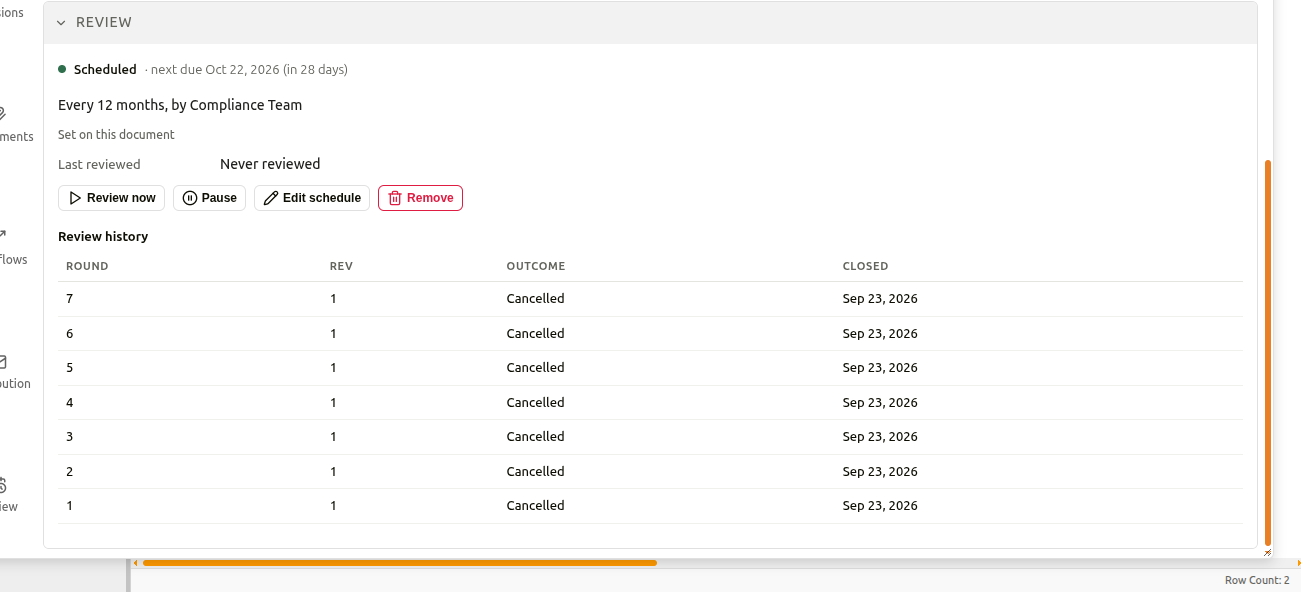
The top of the Review section tells you at a glance whether a document is up to date, and when it will next be checked. A document that is not on a schedule shows This document is not under scheduled review.

Review section showing a scheduled document
Review section of a scheduled document

The status line shows the document's review status and the next due date, for example in 29 days or 3 days overdue. The status can be:

StatusDescription
ScheduledThe schedule is running, and the next review is not yet due.
In reviewA review round is open and waiting for reviewers to respond.
OverdueThe due date has passed.
PausedThe schedule has been paused, and no new rounds open until it is resumed.
Stopped — condition metThe automatic rule that applies to this document has a stop condition, and the document now meets it, so no further reviews are scheduled.

Below the status line, the schedule reads as a short sentence, for example Every 12 months, by Compliance Team: how often the document is reviewed, and by which group. Underneath, Docwize shows where the schedule comes from:

  • Set on this document means the schedule was set up for this document.
  • Inherited from … means an automatic rule for the document's folder or document type applies the schedule.

Last reviewed shows the date of the last completed review and its outcome, or Never reviewed if the document has not been reviewed yet.

If you have the permission to manage review schedules, buttons for managing the schedule also appear in this section, as in the image above. These are described in Document review schedules.

An open review round​

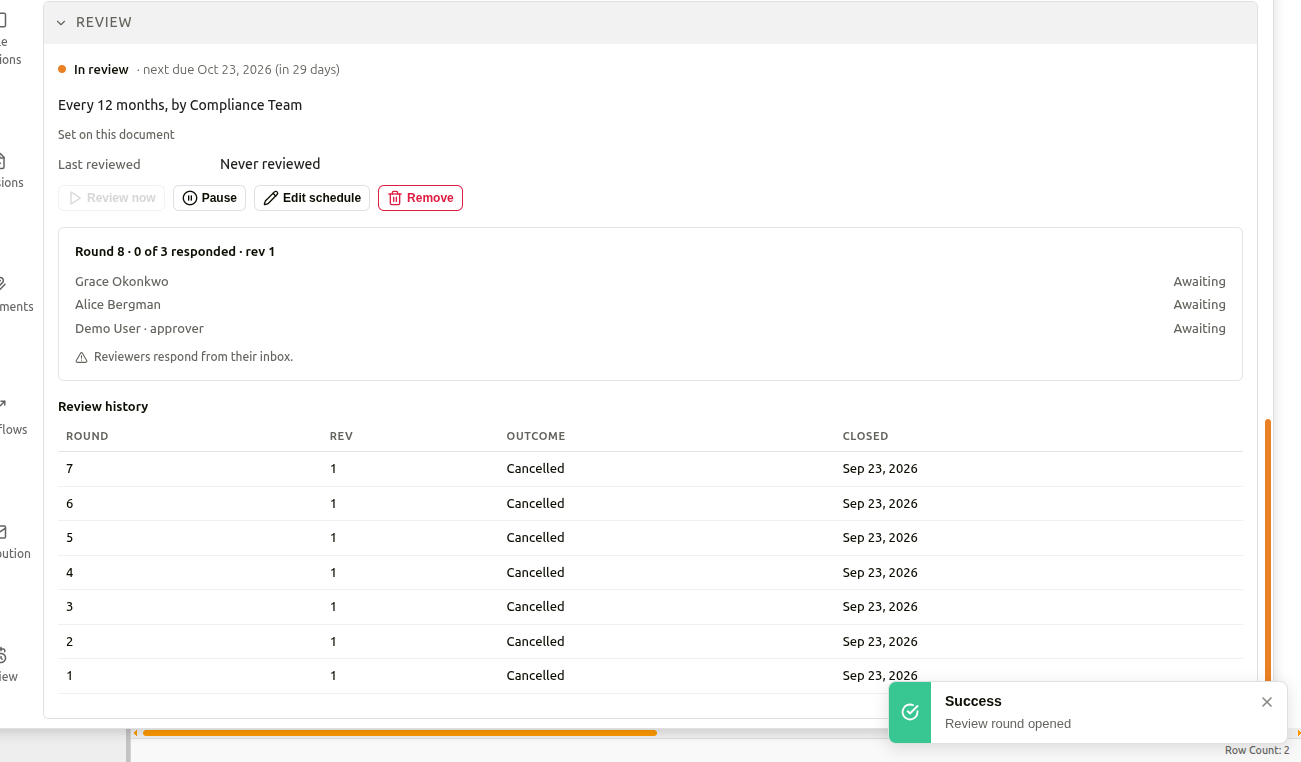
While a review round is open, the status reads In review, and a panel shows how the round is progressing. This lets you see who still needs to respond, without having to ask.

Review section with an open review round listing participants awaiting a response
Open review round

The heading of the panel shows the round number, how many reviewers have responded and, where the document has one, the revision being reviewed. Each reviewer is listed with their response, or Awaiting if they have not responded yet. The document's owner is included in each round as the approver, alongside the members of the reviewing group.

If the document's file is replaced while a round is open, a warning notes that decisions already taken were made against a different version of the file.

Review history​

Once rounds have closed, they appear under Review history. This is the document's review record, which is useful when you need to show that a document was checked, when it was checked, and what the outcome was.

ColumnDescription
RoundThe number of the review round.
RevThe revision of the document that the round reviewed.
OutcomeHow the round ended, for example Approved, no change, Approved with exception, Changes requested or Rejected. A round that was stopped before it finished shows Cancelled.
ClosedThe date the round closed.