File Versions
File Versions shows the history of a document's file. When a document gets an updated file, for example a revised drawing or a signed copy, replacing its file keeps one document record, with the same number, details and folders, while every earlier file stays in the history. This differs from Attachments (supporting files) and Revisions (new revision records), which serve different purposes.
What you can do in File Versions
- See every file the document has had, and why each one was replaced
- Replace the current file with an updated one
- Make an earlier file the current file again
- Download any version
File Versions register
To open the register, right-click a document in Explorer and select File Versions. The same register is in the document's Document details, under File Versions.
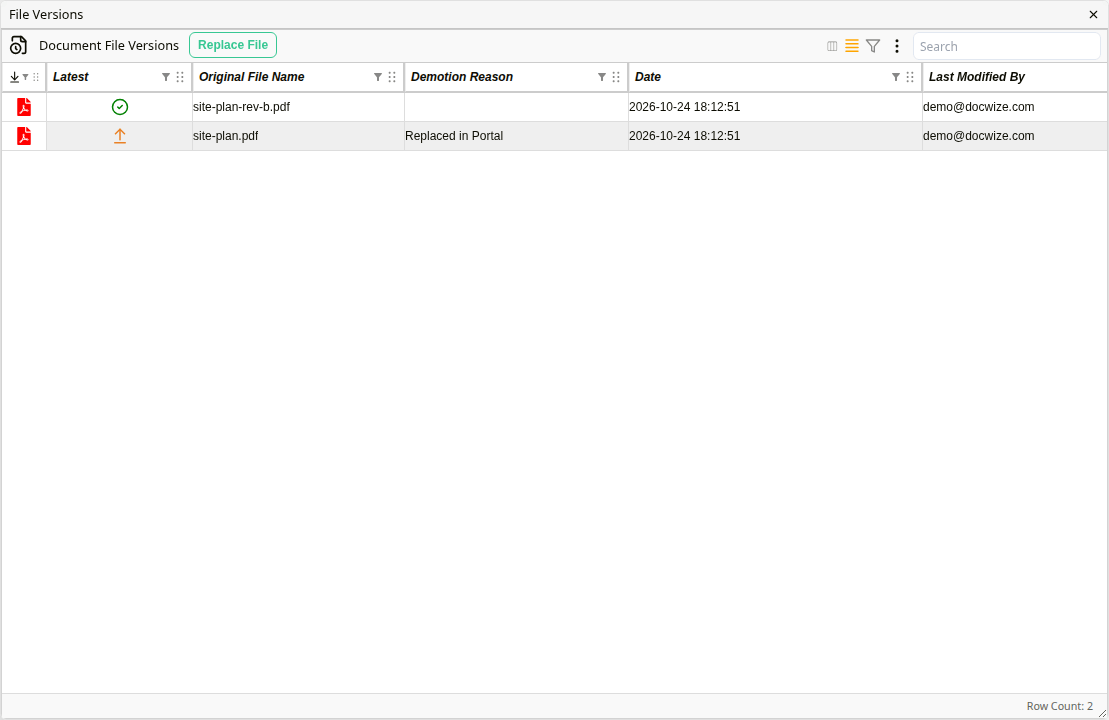
File Versions register
| Column | Description |
|---|---|
| (download) | Downloads that version of the file. |
| Latest | A tick marks the current file. An earlier file shows an arrow instead: click it to make that file current again. |
| Original File Name | The name of the file when it was added. |
| Demotion Reason | Why the file stopped being the current file. Empty for the current file. |
| Date | For the current file, when it was added. For an earlier file, when it was replaced. |
| Last Modified By | Who added or replaced the file. |
The Demotion Reason shows how the file was replaced:
| Reason | Meaning |
|---|---|
| Replaced in Portal | Someone used Replace File. |
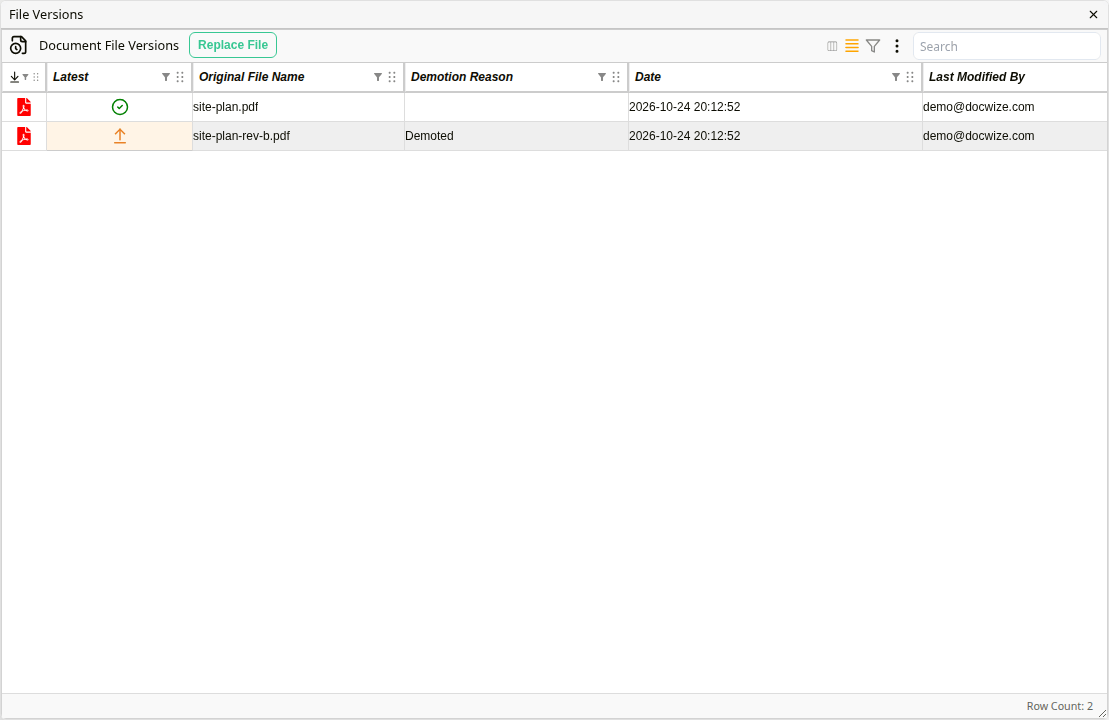
| Demoted | Someone made an earlier file current again, and it replaced this file. |
| Replaced via Oliver | Oliver replaced the file at someone's request. See Replacing a document's file. |
Other reasons come from the Docwize features that produce a new file for a document, for example Converted to PDF or Generated from template.
How to replace a file version
Replace the file when you have an updated copy of the same document. Replace File needs edit access to the document.
| Step | Description |
|---|---|
| 1 | Right-click the document in Explorer and select File Versions. |
| 2 | Click Replace File. |
| 3 | Choose the new file. |
| 4 | The File Replacement window asks you to confirm. Replacing the file removes all annotations on it, so check that the new file is a new version of this document and not an attachment. |
| 5 | Click Confirm. The new file becomes the current file, and the previous one stays in the register with the reason Replaced in Portal. |
Here is an example of replacing a file version:
Example: Replacing a File Version
How to make an earlier file current again
Use this when the current file was replaced by mistake, or an earlier version should be the one people see.
| Step | Description |
|---|---|
| 1 | Open the document's File Versions. |
| 2 | In the row of the earlier file, click the arrow in the Latest column. |
| 3 | The earlier file becomes the current file. The file it replaces stays in the register with the reason Demoted. |
After making an earlier file current again