Workflows
The Workflows section in Document Details lists the workflows that have been connected to this document, and lets you start a new one on it. Use it to check what has already been asked of people about a document, or to send the document to someone for action without leaving Document Details.

What you can do in Workflows
- See the workflows connected to the document
- Start an action request on the document
- Start a workflow from a workflow template
The Workflows section
To open it, open the document's Document details and select Workflows in the left navigation. The section appears only if you have permission to view workflows.
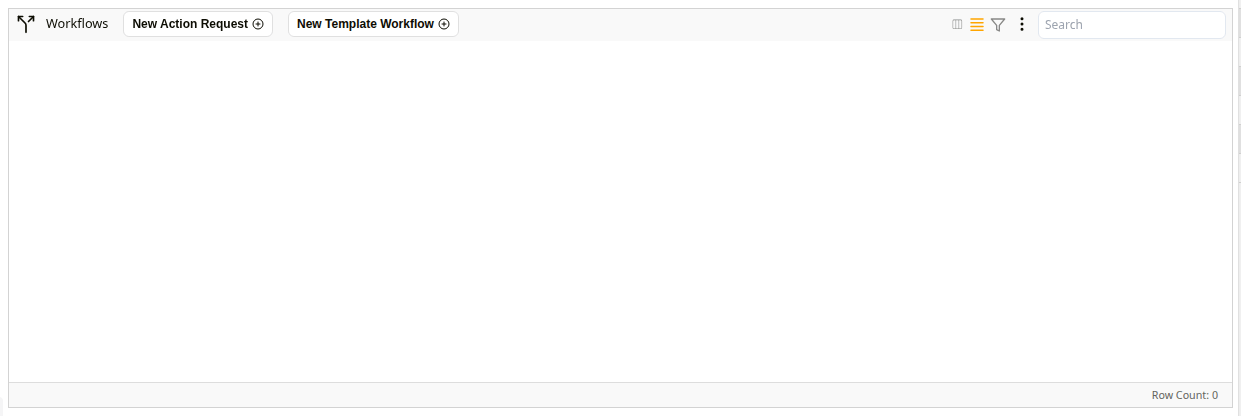
The Workflows section
| Control | Description |
|---|---|
| New Action Request | Starts an ad hoc action request on the document. See Create Action Request. |
| New Template Workflow | Starts a workflow based on a pre-configured workflow template. See Assign Template Workflow. |
| Search | Filters the workflow list by search term. |
| Row Count | Shows how many workflows are connected to the document. |
Create Action Request
An action request asks someone to do something with the document, such as review it or comment on it. New Action Request opens the Create Action Request window. To complete a request you have received, see Completing Action Requests.
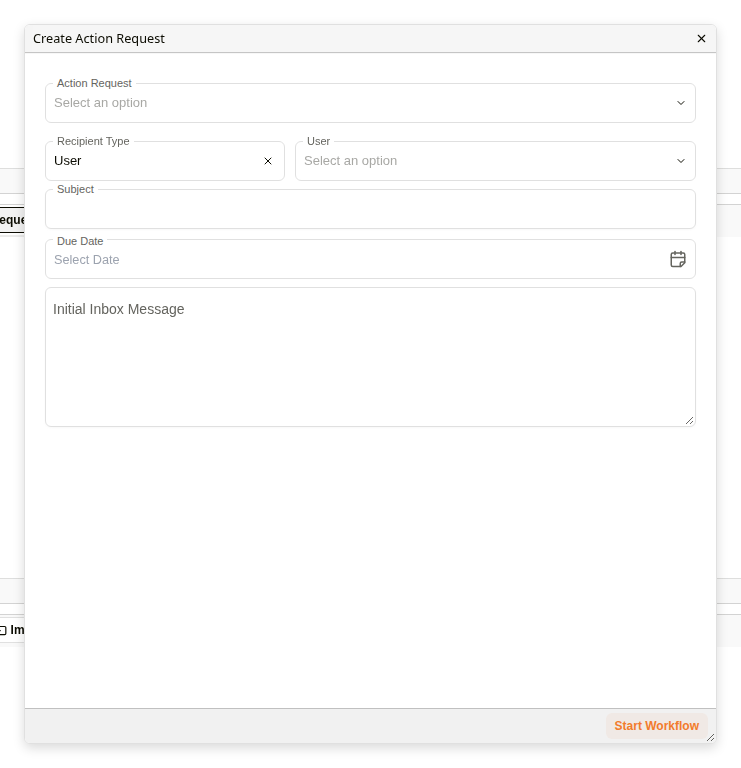
Create Action Request
| Field | Description |
|---|---|
| Action Request | The kind of action you are asking for, from the action requests set up in Docwize. |
| Recipient Type | The kind of recipient. User is selected to start with. |
| User | The people to send the request to. The field is named after the Recipient Type you chose. |
| Subject | The subject the recipients see. |
| Due Date | When the action should be done. |
| Initial Inbox Message | The message the recipients see with the request in their Inbox. |
| Start Workflow | Sends the action request. |
Assign Template Workflow
A workflow template is a workflow your administrator has set up in advance, with its steps and people already chosen. New Template Workflow opens the Assign Template Workflow window, where you start one on this document. For how workflows are set up, see Workflows configuration.
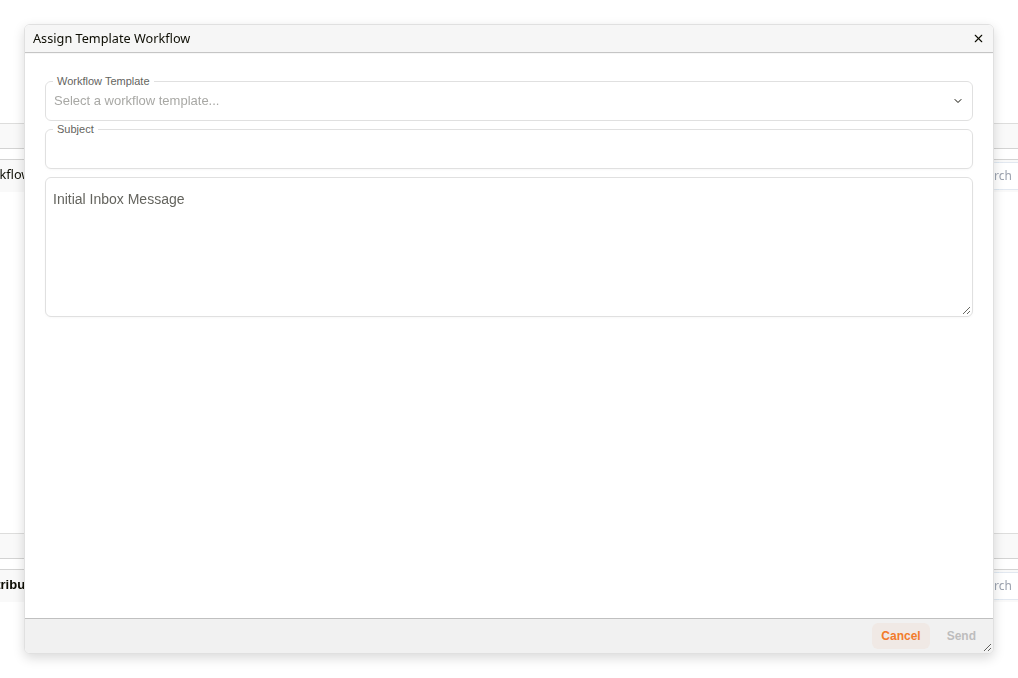
Assign Template Workflow
| Field | Description |
|---|---|
| Workflow Template | The workflow template to start. |
| Subject | The subject the recipients see. |
| Initial Inbox Message | The message the recipients see with the workflow in their Inbox. |
| Cancel | Closes the window without starting anything. |
| Send | Starts the workflow. |
Related
- Completing Action Requests: how to complete workflows and action requests
- Workflow States: understanding workflow progression and status
- Workflows configuration: how to set up workflows (admin)