Distribution
The Distribution section of Document Details is where you send a document to the people who need a copy of it. You build a list of recipients, then send the document to everyone on the list in one go. Each recipient receives an email with a link to download the document, so you keep a record of who the document was sent to and when.
Recipients can be Docwize users or external contacts, such as a client or a subcontractor. Open the section by selecting Distribution in the vertical toolbar of the Document Details dialog.
What you can do in Distribution
- Add Docwize users and external contacts to a document's distribution list
- Import every member of a distribution group in one step
- Ask each recipient to take an action, such as For Information
- Change or remove recipients before the document is sent
- Send the document to everyone on the list, using an email template
The Distribution List
The Distribution List shows everyone the document will be sent to. The number next to the title is the number of recipients on the list.

Distribution List
| Control | Description |
|---|---|
| Import List | Adds every member of one or more distribution groups. |
| Add Entry | Adds one user or contact. |
| Refresh | Reloads the list. |
| Delete Entry (bin icon) | Removes that recipient from the list. |
| Edit Entry (pencil icon) | Changes that recipient, or the action request they are asked to take. |
Each row shows the recipient's Email Address, the date they were added to the list (Date Queued), and the Action Request they are asked to take, or N/A if there is none.
How to import a distribution group
A distribution group is a saved list of people who often receive the same documents, such as a project team. Importing a group adds all of its members at once, so you do not have to add them one by one.
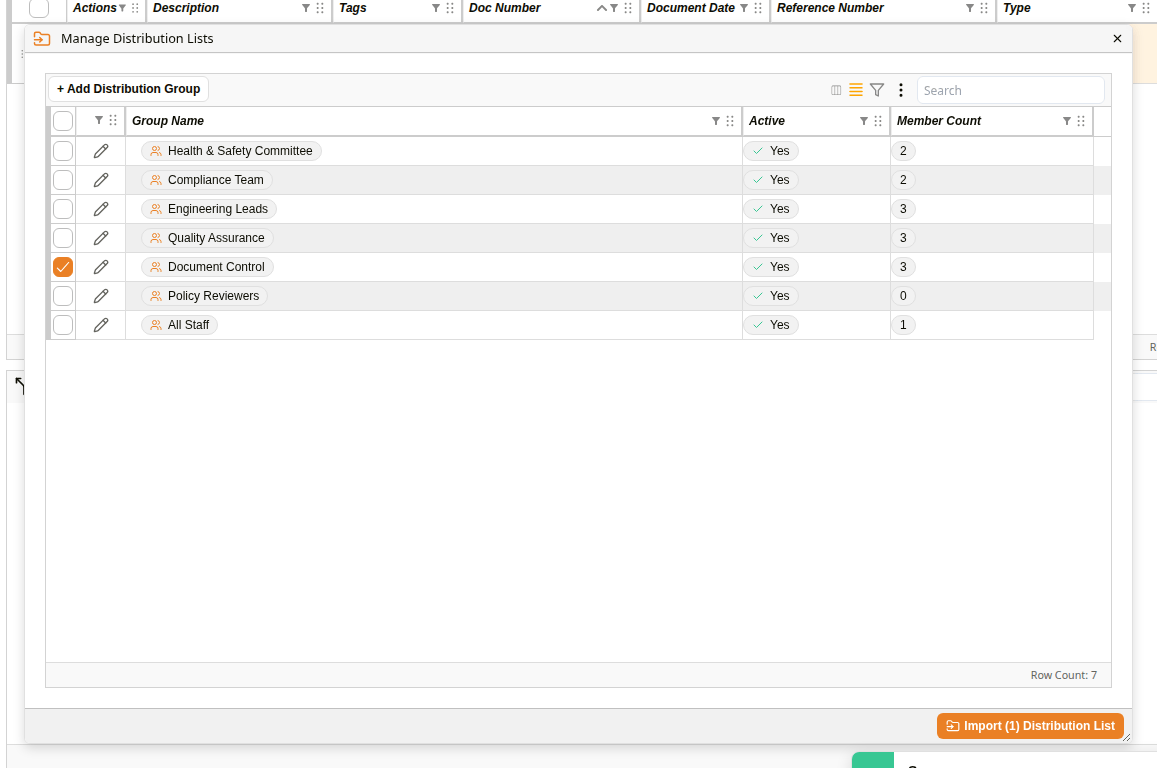
'Manage Distribution Lists' dialog
| Step | Description |
|---|---|
| 1 | In the Distribution section, click Import List. The Manage Distribution Lists dialog opens, listing each group with the number of members it has. |
| 2 | Tick the group or groups you want to send the document to. If the group you need does not exist yet, you can create it with + Add Distribution Group. |
| 3 | Click Import (1) Distribution List. The number in the button is the number of groups you ticked. |
| 4 | Every member of the group is added to the Distribution List. Anyone who is already on the list is not added a second time. |
How to add a recipient
Use Add Entry when you want to send the document to one particular person.
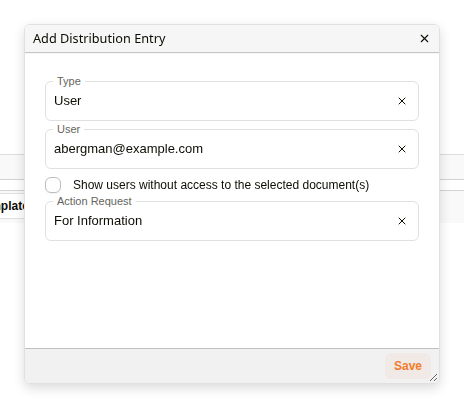
'Add Distribution Entry' dialog
| Step | Description |
|---|---|
| 1 | In the Distribution section, click Add Entry. The Add Distribution Entry dialog opens. |
| 2 | In Type, choose User for a Docwize user, or Contact for an external contact. |
| 3 | Choose the recipient in the User or Contact list. If the person you need is not listed, tick Show users without access to the selected document(s) to see everyone. |
| 4 | Optional: in Action Request, choose what you want the recipient to do with the document, for example For Information. |
| 5 | Click Save. The recipient is added to the Distribution List. |
How to change or remove a recipient
You can change or remove a recipient at any time before the document is sent.
| Step | Description |
|---|---|
| 1 | To change a recipient, click Edit Entry (pencil icon) in their row. In the Edit Distribution Entry dialog, choose a different recipient or action request, then click Save. |
| 2 | To remove one recipient, click Delete Entry (bin icon) in their row. |
| 3 | To remove several recipients, tick their rows, then click Delete (2). The number is the number of rows you ticked. |
| 4 | Docwize asks you to confirm. Click Delete to remove the recipient from the list. |
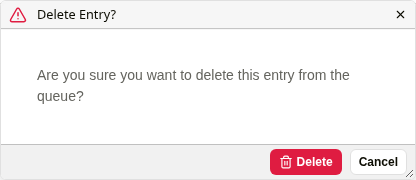
Confirming that a recipient is removed
How to send to the distribution queue
When the list is ready, send the document to everyone on it. Send to Distribution Queue appears in the toolbar at the top of the Document Details dialog when the Distribution List has recipients waiting to be sent to.
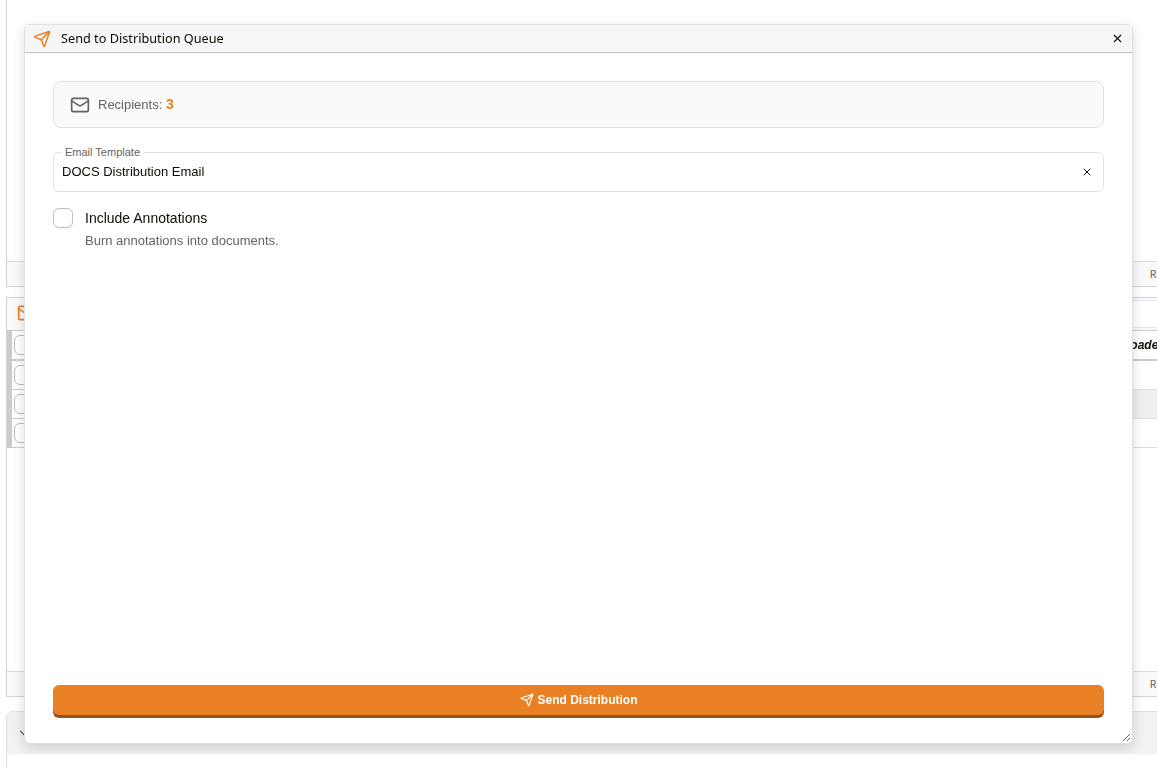
'Send to Distribution Queue' dialog
| Field | Description |
|---|---|
| Recipients | The number of recipients on the Distribution List. |
| Email Template | The email the recipients receive. Email templates are set up by an administrator. |
| Include Annotations | Burns the document's annotations into the copy that is sent, so the recipients see them. |
| Send Distribution | Sends the document. This button is available once an email template is chosen. |
| Step | Description |
|---|---|
| 1 | Open the document's Document Details and select Distribution. Check that the Distribution List holds everyone the document should go to. |
| 2 | Click Send to Distribution Queue in the toolbar at the top of the dialog. |
| 3 | Check the number of Recipients. |
| 4 | Choose an Email Template. |
| 5 | Optional: tick Include Annotations if the recipients should see the document's annotations. |
| 6 | Click Send Distribution. Each recipient receives an email with a link to download the document. |