Revisions
The Revisions section is used to create a new formal revision of a document, rather than just replacing the current file. Revisions are typically used where revision control is required (for example, issuing Rev A, Rev B, Rev C), and allow you to create a new revision entry while carrying forward selected metadata. This differs from File Versions, which update the same document record.
Each revision is a document of its own. The revisions of a document are linked by sharing the same Reference Number, and each one has its own revision, such as A or B.
What you can do in Revisions
- See every revision of a document, newest first, and which one is the latest
- Create a new formal document revision
- Carry selected metadata forward onto the new revision
- Understand how the next revision number is worked out
Revisions register
The register shows the revision history of a document. Use it to check which revisions exist and which one is current, for example before issuing a drawing.
To open it, open the document's Document Details and go to Revisions. The register lists every document with the same Reference Number, with the highest revision at the top. The latest revision is marked with *.
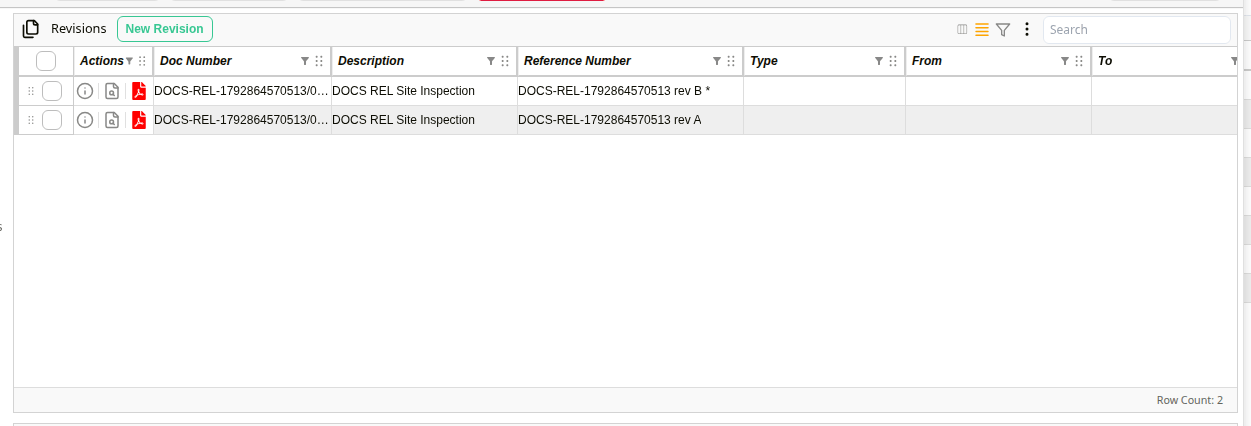
Revisions register
| Field | Description |
|---|---|
| New Revision | Creates the next revision of the document. |
| Doc Number | Each revision has its own document number. |
| Reference Number | The reference number and revision, for example rev B. The latest revision is marked with *. |
Revision numbering
Docwize works out the next revision number for you, so the revisions of a document stay in order. It looks at the highest revision that already exists for the reference number and moves it on by one step. Numbers keep their leading zeros, and only the last part of a sub-revision changes.
| Current highest revision | Next revision |
|---|---|
| A | B |
| B | C |
| Z | AA |
| 01 | 02 |
| P01.01 | P01.02 |
| - or -- | A |
To decide which revision is the highest, revisions are ordered from lowest to highest as follows:
| Order | Revisions |
|---|---|
| 1 (lowest) | No revision |
| 2 | - |
| 3 | -- |
| 4 | Single letters, A to Z. A letter followed by a number sits straight after its letter, for example B, B1, B1.1, then C. |
| 5 | Double letters, AA to ZZ |
| 6 (highest) | Numbers, for example 0, 1, 2 or 10.5 |
New Revision dialog
The New Revision dialog is where you choose the new revision's file and decide which details it keeps from the current one. Copying the details saves you from entering them again for every revision.
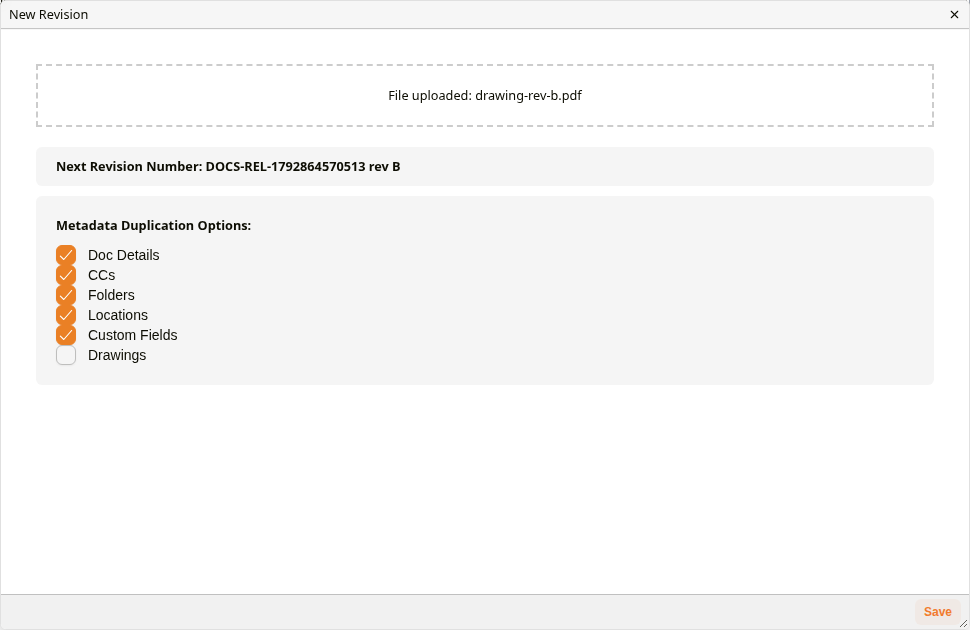
'New Revision' dialog
The top of the dialog is where you choose the file. Once a file is chosen, it shows File uploaded: followed by the file name. Below it, Next Revision Number shows the reference number and the revision the new document will get.
Under Metadata Duplication Options, the ticked parts are copied onto the new revision:
| Field | Description |
|---|---|
| Doc Details | The core details: description, from, to, document type, status and PR status. Dates are not copied: Response Due, Actual Response Date and Received Date. Hover over Doc Details to see this list. Ticked by default. |
| CCs | The document's CCs. Ticked by default. |
| Folders | The folders the document is in. Ticked by default. |
| Locations | The document's locations. Ticked by default. |
| Custom Fields | The document's custom field values. Ticked by default. |
| Drawings | The drawings linked to a transmittal. Not ticked by default. |
How to create a new revision
Create a new revision when a document is reissued, for example when revision A of a drawing is replaced by revision B. The earlier revisions stay in the register, so the history is kept.
| Step | Description |
|---|---|
| 1 | Open the document's Document Details and go to Revisions. |
| 2 | Click New Revision. The New Revision dialog opens. |
| 3 | Click the box at the top and choose the new revision's file from your device. |
| 4 | Check the Next Revision Number. |
| 5 | Check the Metadata Duplication Options. |
| 6 | Click Save. The new revision is created and becomes the latest revision, marked with *, and its Document Details opens. |
Example: Creating a New Revision