Locations
A location is one means by which to allocate and access documents, such as linking them to a physical location or a WBS (work breakdown structure). In Docwize, users can manage their locations by adding, deleting and editing them as needed.
What you can do in Locations
- Create and manage locations
- Open locations in the grid view
- Use right-click options for location actions
- Assign documents to locations
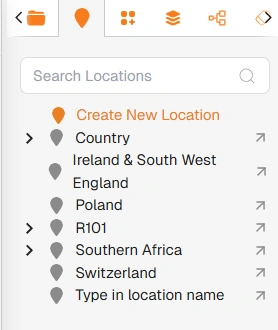
Explorer Module: Locations View
Location interface features
| Field | Description |
|---|---|
| Search | Enables users to search for a specific location. |
| Create New Location | Enables users to create a new location. |
 | Expands the dropdown menu of sublocations. |
 | Opens the selected folder in a new tab in the grid view. |
Right-click options
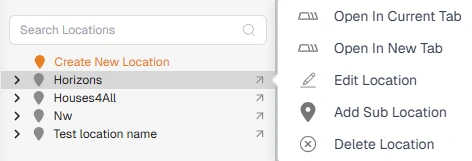
'Right-click' Menu Options
A menu of options will appear when a user 'right-clicks' on a location. Users can open the location in a current tab, open it in a new tab, edit, create a sublocation, or delete a location via the dropdown menu.
How to add a location
| Step | Description |
|---|---|
| 1 | Navigate to the Explorer module and select the 'Locations' tab. |
| 2 | Click on 'Create New Location'. |
| 3 | Type in the relevant name and code for the location. |
| 4 | Click 'Save'. |
Example: Creating a New Location
How to assign documents to a location
| Step | Description |
|---|---|
| 1 | Select the relevant document(s) using the tickbox. |
| 2 | Click on 'Assign' and select 'Assign All' or 'Assign Selected', as is needed. |
| 3 | Navigate to the 'Locations' tab in the pop-up dialog. |
| 4 | Click on the 'plus' sign of the relevant location for documents to be allocated to. The selected one will appear in the right-hand section of the pop-up dialog. |
| 5 | Click 'Save'. |
Here is an example of assigning documents to a location:
Example: Bulk Assigning Documents to a Location