Oliver Search
Oliver Search is a standalone search and data clustering interface, accessible via the Oliver icon in the main navigation. It supports semantic and exact search, advanced search rules, and visualised result clusters.
Search types
| Type | How it works | When to use |
|---|---|---|
| Semantic Search | Finds documents based on the meaning and intent of the query, not just the words used. | Use when you are not sure of the exact wording in the document — for example, "contracts about liability" or "reports on water quality in 2024". |
| Exact Search | Finds documents containing a literal match for the word or phrase entered. | Use when searching for a specific reference number, name, or phrase that you know appears verbatim in the document. |
| Advanced Search | Builds multi-condition filter rules using AND/OR logic, across fields such as date, category, and custom fields. Rules persist across sessions. | Use when you need to narrow results by multiple criteria at once. |
| Oliver Chat (natural language) | Ask Oliver Chat a question in plain language. Supports Boolean operators in the message: AND, OR, "quoted phrases" for exact matches, and a leading − to exclude a term. | Use for open-ended questions, summaries, or multi-step tasks that go beyond document retrieval. |
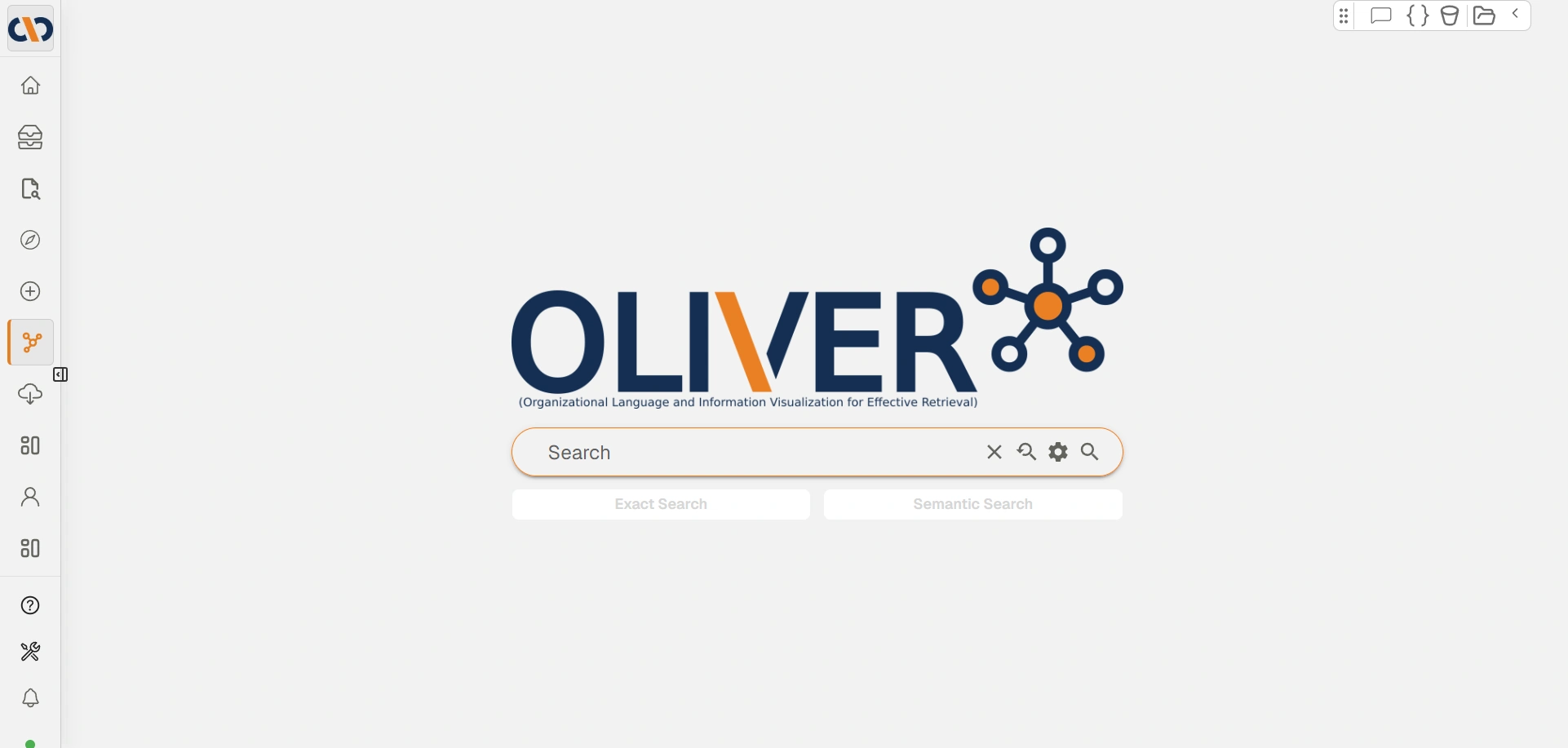
Oliver search homepage
| Field | Description |
|---|---|
| Search bar | Enter a search query. |
 | Clears the search text. |
 | Displays a list of previous searches. |
 | Opens the Advanced Search dialog. |
 | Executes the search. |
| Exact Search | Searches for exact matches of the entered word or phrase. |
| Semantic Search | Searches based on the meaning and intent behind the query, not just keyword matches. |
Advanced Search
The Advanced Search dialog allows users to build rules to filter results by multiple parameters (phrases, date ranges, categories, specific fields). An orange dot on the Advanced Search icon indicates that active rules are applied.
.webp)
Advanced Search dialog
| Field | Description |
|---|---|
| AND / OR | Dropdown to set whether rules must all match (AND) or any can match (OR). |
| + Rule | Adds a new filter rule. |
| + Group | Adds a new group of rules. |
| Operator | Defines the field and condition for the rule (e.g. equals, contains). |
Advanced Search rules persist across page reloads — returning to the Oliver search page restores the last active rule set.
Search Results and Clusters
Search results appear in a results view. From there, users can click View Clusters to explore visualised representations of how results are grouped by concept and relevance.
How to search
| Step | Action |
|---|---|
| 1 | Click the Oliver icon in the main navigation to open Oliver Search. |
| 2 | Select Exact Search or Semantic Search depending on your query (see Search types above). |
| 3 | Enter your query in the search bar and click the search icon or press Enter. |
| 4 | To filter results, click the gear icon to open Advanced Search and add conditions. |
| 5 | From the results view, click View Clusters to explore how results are grouped by concept and relevance. |