Oliver Chat
Oliver Chat allows users to ask questions, check their workflow inbox, send emails using saved templates, and explore data — all through natural language conversation.
What Oliver Chat can help with
- Search documents: Find documents that match a natural language query. Boolean operators are supported directly in the query: AND, OR, quoted phrases for exact matches, and a leading minus (−) to exclude terms. Oliver can also surface documents similar to one currently being discussed. For open-ended requests — for example, counting or listing every document in a folder — Oliver may first ask how to return the results: a vetted summary with citations, or the full result set opened directly in the search view.
- View image content: Describe what's actually shown in an image document — not just its extracted text — when asked about it directly.
- Summarize: Generate a summary of a document or a set of search results.
- Workflows: Check your workflow inbox, review pending items, approve or reject workflow actions, or start a new workflow for a document — all directly from the conversation.
- Email templates: Compose and send emails using saved email templates, with document data automatically filled in.
- Dataviews and interfaces: Open and display configured dataviews and virtual interfaces within the conversation.
- Registers: View, query, and manage gridlink register entries, or create new register structures, through conversation.
- Create folders: Create a folder, including a nested folder path, directly through conversation. No document needs to be attached.
- Save generated content as a document: Ask Oliver to save generated content as a brand-new standalone document in a chosen folder, rather than only attaching it as a child of an existing document.
- Tag documents in bulk: Apply a tag to every document matching a filter, directly through conversation.
- Records: List the record templates available, and create or run one directly from chat.
Accessing Oliver Chat
Oliver Chat is available from any screen in Docwize. Click the chat bubble icon (💬) in the floating toolbar to open it as a panel alongside whatever you are working on. It can also be expanded to full screen.
Chat interface
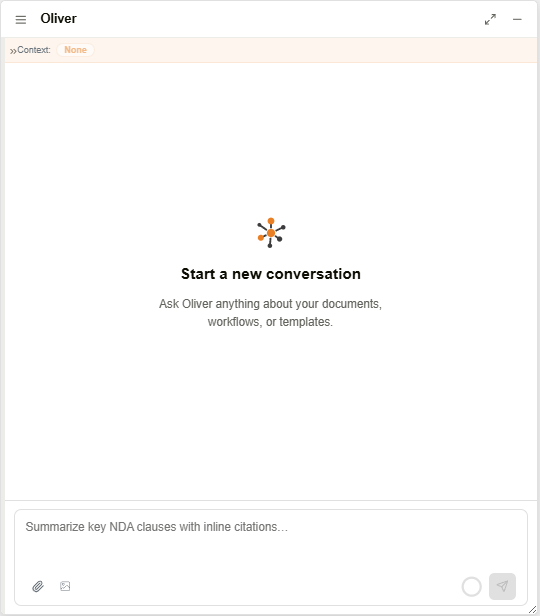
Oliver chat panel
| Field | Description |
|---|---|
| ≡ (Threads) | Opens the Threads panel showing past conversations. |
| Context | Indicates what Oliver is working with — a document, a folder, or no context. Shown as an orange badge below the header. |
| Message input | Enter a question or instruction. |
| Paperclip icon | Attach a document from Docwize to give Oliver context. The attached file appears as a chip showing its filename above the message input, with an × to remove it before sending. |
| Image icon | Attach an image. |
| Agent selector | Labelled dropdown menu showing the current agent name. Click to select a different agent — see Agents below. |
| Export chat | Exports the current conversation as Markdown, JSON, or PDF. Gated by a download permission — without it, the export fails with "Downloads are restricted for this user." and produces no file. |
| Send | Submits the message. |
| Stop | While Oliver is processing a response, a red Stop button appears in the input area. Clicking it cancels the current response immediately. |
| Quick actions | Shortcut chips below the input for common tasks: Search documents, Summarize, Workflows, Email templates, Dataviews. |
Threads
Clicking the ≡ icon opens the Threads panel on the left.
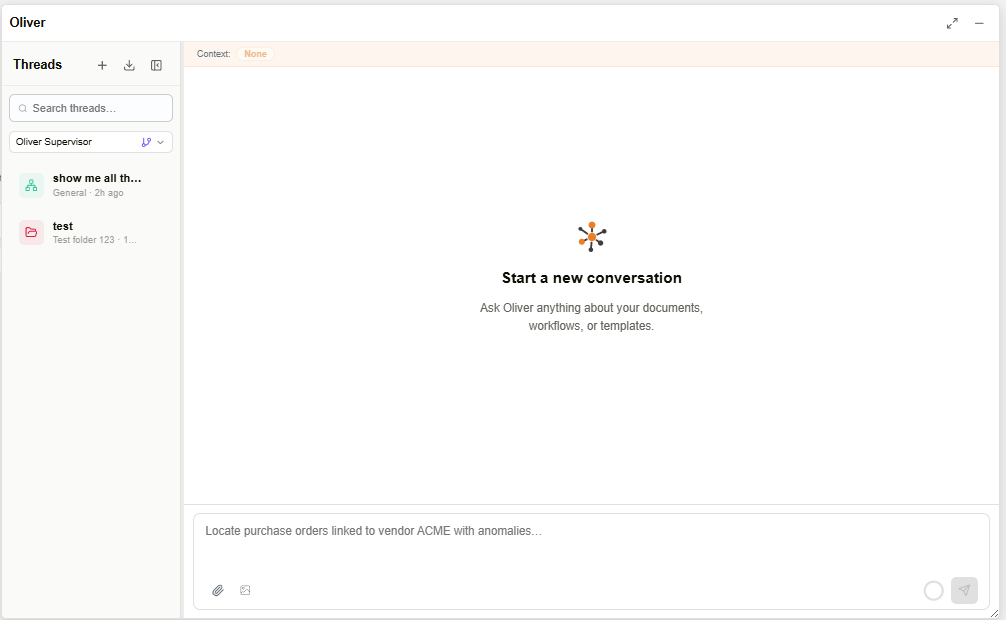
Oliver threads panel
| Field | Description |
|---|---|
| + | Creates a new conversation thread. |
| Export all chats | Exports every thread as Markdown, JSON, or PDF. Gated by a download permission — see Export chat below for the per-thread equivalent and the permission-gate detail. |
| Search threads | Filter past conversations by keyword. |
| Category dropdown | Filters the thread list by category (All chats, General, Email Templates). This is a fixed set of categories, distinct from the per-thread folder label shown next to individual threads (for example, "HR Onboarding") — the folder label reflects whatever folder that thread happened to be scoped to, not a filterable category. |
| Agent dropdown | Select which Oliver agent handles the conversation. |
| Thread list | Past conversations. Click any thread to reopen it. Each thread's title is generated automatically from the content of the conversation, rather than a generic label. The title is generated in the user's selected UI language, regardless of the language the question was asked in — see Language & Region. |
| Thread icon | An orange folder icon means the thread is scoped to a specific folder, shown as a subtitle beneath the thread title (for example, "HR Onboarding"). A colored circular icon means the thread has no folder context (category General). |
Agents
Oliver Chat includes several built-in agents, each optimised for a specific task. Select an agent using the agent dropdown in the Threads panel or chat interface.
Built-in agents
| Agent | Purpose | When to use |
|---|---|---|
| Oliver Supervisor | General-purpose agent. Coordinates other agents automatically for complex queries. | Use for multi-step tasks or when unsure which specialized agent to choose. |
| Document Search Agent | Searches for documents matching a query. | Use when you need to find documents by keyword or semantic meaning. |
| Document Summarisation Agent | Summarises document content. | Use to generate quick summaries of documents or search results. |
| Document Ingestion Agent | Assists with ingesting and processing documents. | Use for guidance on uploading or processing documents into the system. |
| Document Redaction Agent | Handles document redaction tasks. | Use to redact sensitive information from documents. |
| Document Template Agent | Assists with document templates. | Use for questions about document templates or template configuration. |
| Email Template Agent | Assists with email templates. | Use to compose and send emails using saved templates. |
| Workflow Agent | Assists with workflow-related tasks and inbox management. | Use to check workflow inbox, approve/reject actions, or manage pending items. |
| Metadata Search Agent | Searches and manages metadata, including register entries and gridlink tables. | Use to search and filter documents by custom field metadata or manage register data. |
| Chart & Virtual Interface Agent | Assists with chart and virtual interface configuration. | Use to create or configure charts and virtual interfaces. |
| System Configurator | Designs and configures system structures, including new register schemas. | Use for complex system configuration tasks such as designing register schemas. |
Building charts from a description
When asked to build a chart, Oliver first checks whether the request matches an existing custom field (for example, a count grouped by a field like Status or Document Type). If the description uses free-text criteria that no field captures — for example, "documents that mention refrigerated cargo" — Oliver runs a document content search instead, and only counts documents with an actual keyword match, not merely a similar topic. Before creating the chart, Oliver shows a summary of what it plans to build and asks for approval; nothing is created until approved.
Creating and running records with Oliver
Oliver can list, create, and run records — Docwize's template-based structured forms — directly from chat. Ask Oliver which record templates are available, or ask it to run a specific one by name.
Confirmed live against the current set of record templates: running a record from chat happens one of two ways, depending on what the template needs.
| Mode | What happens |
|---|---|
| Direct | Oliver fills in the record's fields itself and runs it without opening any dialog. |
| Interactive surface | Oliver opens the record's actual creation form for the user to complete — for example, when a field needs a manual action Oliver can't perform itself, such as uploading an image. The record is not created until the form is completed and saved. |
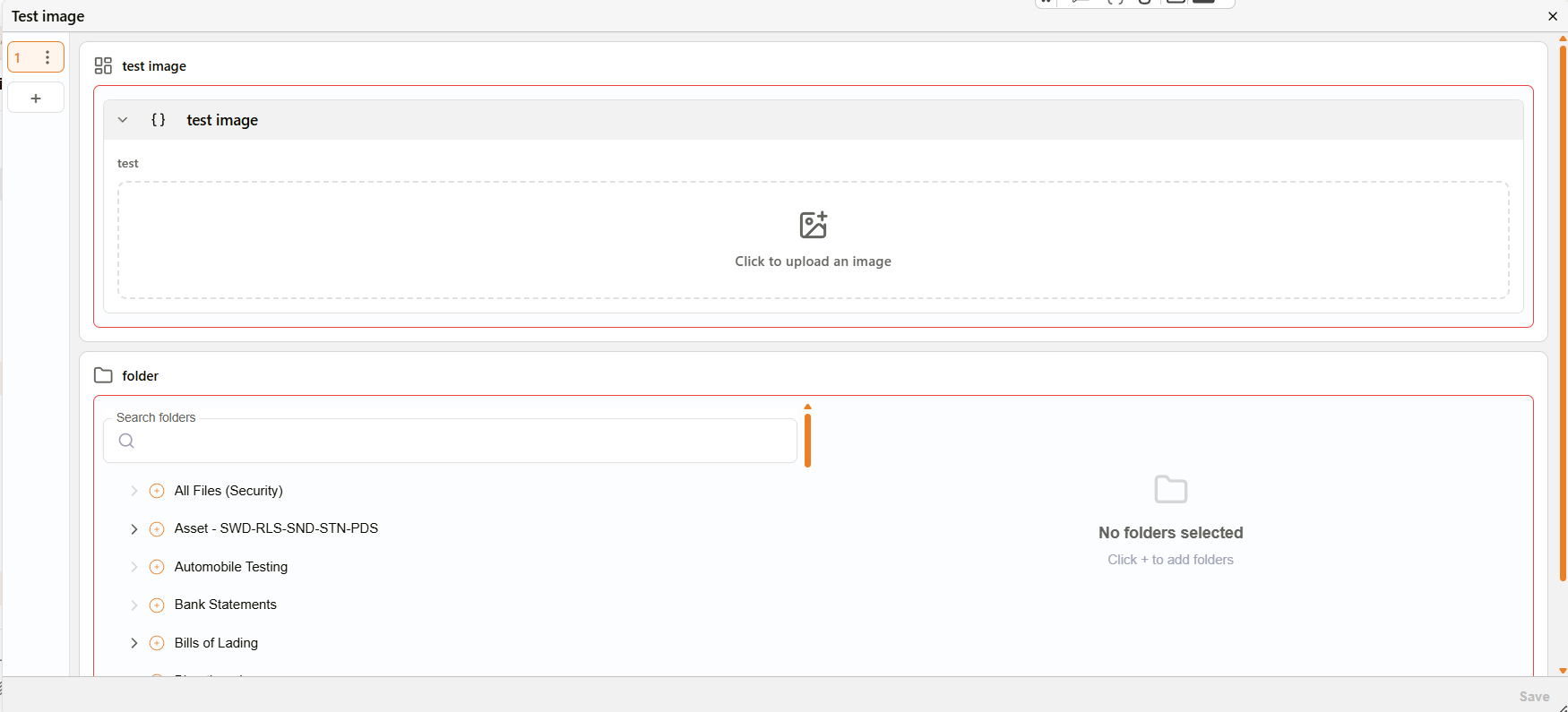
Record creation form opened by Oliver
If a required field's value is missing or ambiguous — for example, a lookup list with no configured options, or a workflow step needing a recipient — Oliver pauses and asks a clarifying question rather than guessing. If the missing information can't be resolved, no record is created, and Oliver explains which field blocked the run.
Starting a workflow with Oliver
Oliver can start a workflow for a document directly from chat and show its progress inline. Ask Oliver to start a workflow for a document — referencing it by description, reference number, or doc number is enough, no internal document ID is needed.

Workflow progress graph in Oliver chat
Oliver replies with a live graph of the workflow template, showing each step and its current status (for example, done, blocked, or failed), along with a header showing the workflow name, its overall status, and an Open in Inbox link to the real Inbox item.
When the workflow starts and is running normally, Oliver follows the graph with a written summary: the workflow and document, its current status, the pending action and who it is assigned to, and any due date or MFA requirement.
Editing document templates with Oliver
An Edit with Oliver button on document templates opens a combined workbench: Oliver Chat on the left, a live preview of the template on the right.
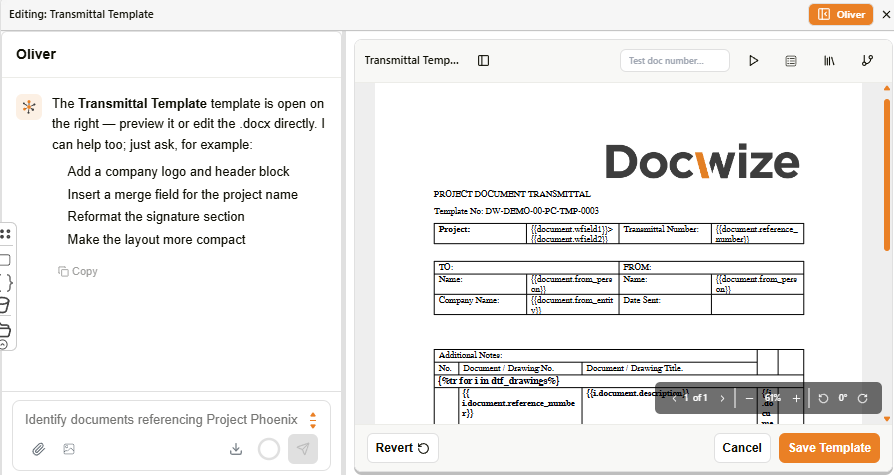
Edit with Oliver — template workbench
Users can edit the template directly, or ask Oliver to make changes (for example, adding a merge field or reformatting a section) and see the result reflected in the preview. A Draft history panel tracks each version of the template as it is edited.
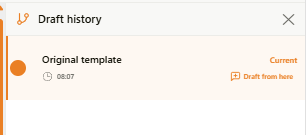
Draft history panel
| Field | Description |
|---|---|
| Draft entry | Each entry shows the draft name and the time it was created. The current draft is labelled Current. |
| Draft from here | Branches a new draft starting from the selected version. |
Changes are kept as drafts until the user clicks Save Template, or Revert to discard them.
Agent memory and threads
Each conversation with an agent is saved as a thread. Agents retain the full conversation history within a thread, so returning to a past thread restores all previous messages and context. This allows users to continue conversations seamlessly across sessions.
Working with responses
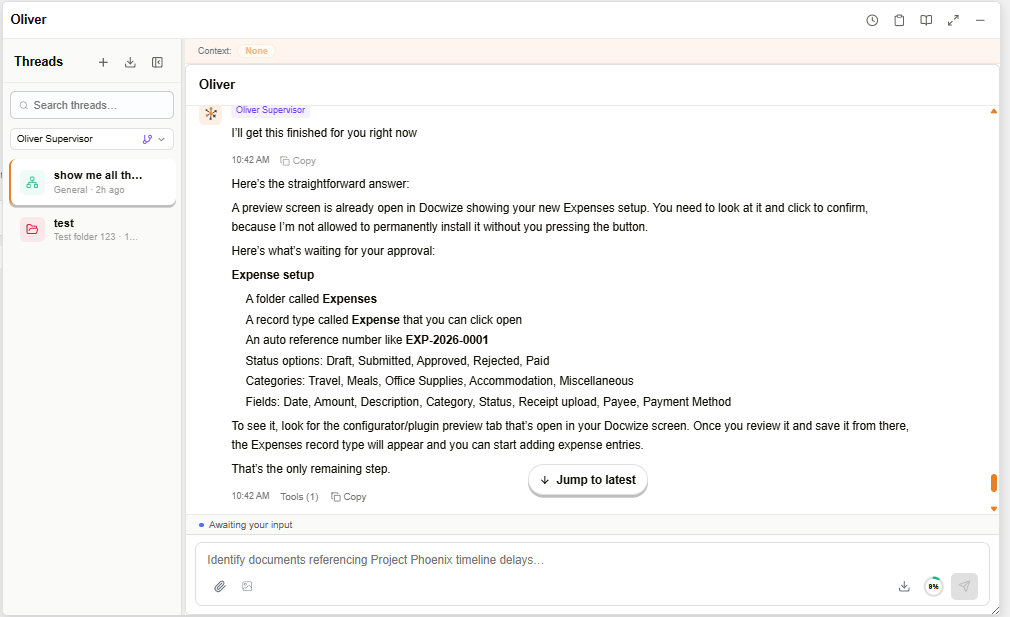
Oliver Chat — conversation in progress
| Feature | Description |
|---|---|
| Copy message | Each Oliver message has a copy button. Users can copy the content as plain text or as markdown. |
| Citation badges | When Oliver draws on a source document, an inline citation badge appears. Clicking it opens a menu of actions, including Preview in chat — which opens the document inline in the conversation without leaving the chat. If the file type can't be previewed inline, a "This file type cannot be previewed in chat" message appears instead, with a Download file link. |
| Document thumbnails | When Oliver retrieves a document, a page thumbnail is shown alongside the response. |
| Reasoning preview | While Oliver is processing, a Reasoning section appears showing the steps being taken in real time. It closes automatically when the response is complete. |
| Final-only responses | By default, only Oliver's final response is shown in the thread. Intermediate tool activity for a multi-step task collapses into an expandable Used N tools summary, rather than appearing as separate messages. |
| Tool call details | Expanding Used N tools (or the tool count shown on a response) opens a view of the tools Oliver used, with both the input arguments and the output for each call. |
| Activity view | For responses involving delegation to other agents, an Activity (N) link appears below the tool call summary. Clicking it opens Full activity for this turn — a breakdown grouped by agent (for example, Oliver Supervisor delegating to a Document Search Agent, which in turn runs its own sub-agents), with Internal reasoning, Tool-only activity, and Hidden sub-agents checkboxes to control how much detail is shown. |
| Run Timeline | Panel in the top right showing the sequence of agent runs and steps taken to produce the response. Displays progress percentages for each step. |
| Artifacts | Panel in the top right listing any generated or extracted outputs (documents, data, structured content) produced during the response. |
| Citations | Panel in the top right listing all source documents referenced in the response. |
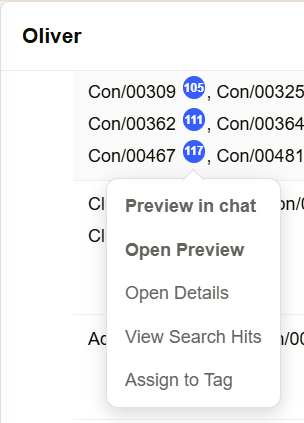
Citation menu — Preview in chat
While Oliver is working, status text (e.g. Preparing…) appears above the response. This text is localised to the user's selected UI language — see Language & Region.
Changing chat scope
A chat's context can be scoped to a specific folder. If a user asks Oliver about documents outside that folder, Oliver shows an Add a folder to this chat? prompt instead of guessing or silently expanding scope.
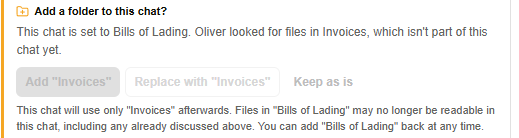
Add a folder to this chat? prompt
| Option | Description |
|---|---|
| Add "<folder>" | Adds the new folder alongside the existing one. Both folders' documents become readable in the chat. |
| Replace with "<folder>" | Switches the chat to only the new folder. Documents from the previous folder may no longer be readable, including anything already discussed — the previous folder can be added back at any time. |
| Keep as is | Leaves the chat scoped to its current folder; the requested folder is not added. |
Rating a chat
Users can rate the quality of a conversation using the star icon in the chat header.
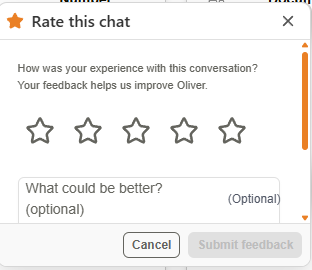
Rate this chat dialog
| Field | Description |
|---|---|
| Stars | Click 1–5 stars to rate the conversation. |
| What could be better? | Optional comment field for additional feedback. |
| Submit feedback | Submits the rating. |
| Cancel | Closes the dialog without submitting a rating. |
Custom agents
Users can ask Oliver Chat to create a custom agent configured for a specific task. Open Oliver and select the Agent Configurator from the agent dropdown, then follow the prompts to set the agent's name, purpose, and available tools. Once created, the agent appears in the agent dropdown for any future conversation.
How to start a conversation
| Step | Action |
|---|---|
| 1 | Click the chat bubble icon (💬) in the floating toolbar. Oliver Chat opens as a panel. |
| 2 | Select an agent from the agent dropdown if needed. Oliver Supervisor handles most tasks automatically and is the default. |
| 3 | Type your question or instruction in the message input. |
| 4 | Optionally, use the paperclip icon to attach a document from Docwize, giving Oliver context for your question. |
| 5 | Click Send. |