User Settings
You can customise aspects of your Docwize interface in the Settings dialog. These settings control the language Docwize is shown in, certain application behaviours, your Oliver preferences, how items are displayed in the Inbox, and the security of your account.
What you can do in Settings
- change the language Docwize is shown in
- control selected application behaviour
- set your preferences for Oliver
- customise how items appear in the Inbox
- add two-factor authentication to your account
Settings are saved per user and synchronised via the organisation workspace, so they follow you to every device you sign in on.
To open the Settings dialog, select your email address at the bottom of the expanded sidebar, then select Settings (see Getting Around Docwize). The sections are listed on the left of the dialog. Each section has its own Save button, so remember to save a section before moving to the next one.
Language & Region
The UI Language setting controls the language of the Docwize interface: menus, buttons, labels and messages. This is useful if you, or colleagues you work with, prefer to work in Japanese or Vietnamese rather than English. Docwize also writes the system emails it sends you in this language.
 UI Language
| Field | Description |
|---|---|
| UI Language | The interface language: English (UK), 日本語 (Japanese) or Tiếng Việt (Vietnamese). |
Select a language and click Save Language & Region to apply it.
Application
The Application section contains settings that control specific application behaviour.
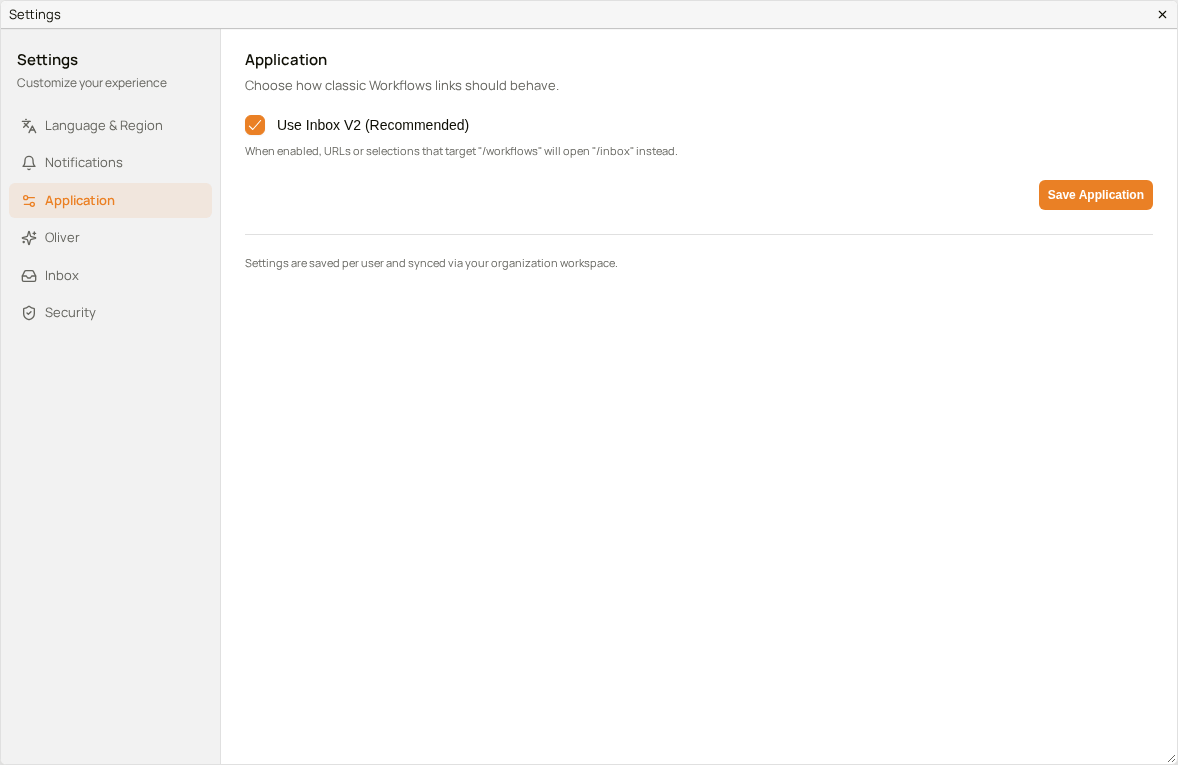 Application section
| Field | Description |
|---|---|
| Use Inbox V2 (Recommended) | When enabled, links or selections targeting workflows will open in the Inbox view instead of the legacy workflow interface. |
Click Save Application to apply the change.
Oliver
The Oliver section contains your preferences for the Oliver AI assistant: how Oliver addresses you, and how much of its work you see while it answers. It appears only if you are allowed to chat with Oliver.
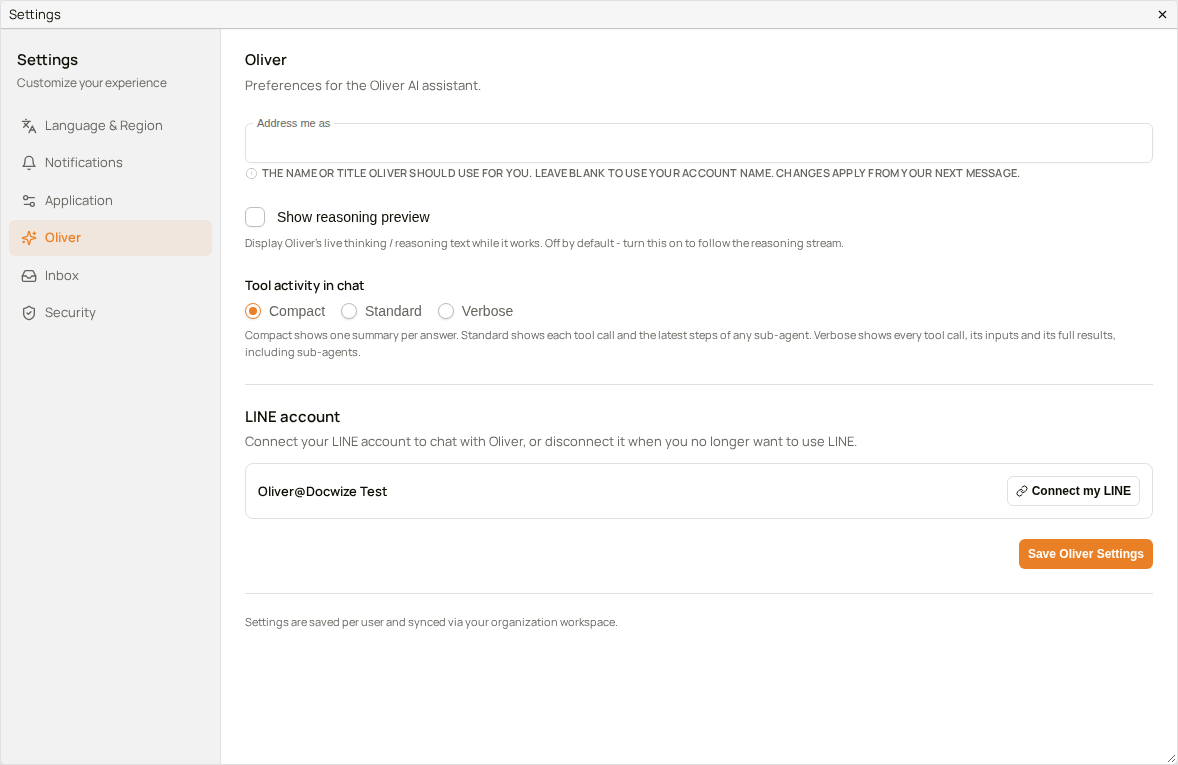 Oliver section
| Field | Description |
|---|---|
| Address me as | The name or title Oliver uses for you. Leave it blank to use your account name. A change applies from your next message. |
| Show reasoning preview | Displays Oliver's live reasoning text while it works. Off by default. |
| Tool activity in chat | How much of Oliver's work is shown in the chat. Compact shows one summary per answer, Standard shows each step, and Verbose shows every step with its full details. |
| LINE account | Connects your LINE account so that you can chat with Oliver in LINE, or disconnects it when you no longer want to use LINE. |
Click Save Oliver Settings to apply your changes.
Inbox
The Inbox Display settings allow you to customise how items appear in the Inbox sidebar. If you work through a lot of items, showing a few extra details under each one, such as the due date, can save you opening each item to check it.
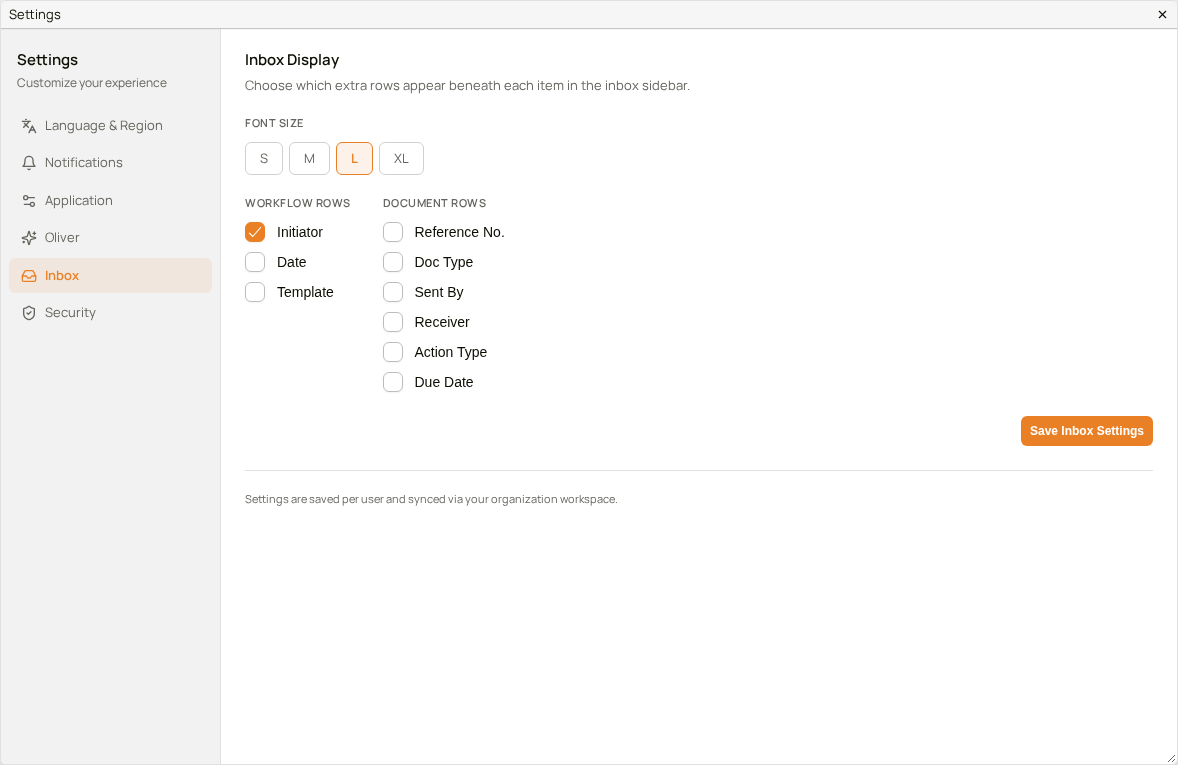 Inbox Display section
Font Size
| Field | Description |
|---|---|
| Font Size | Controls the display size of items shown in the Inbox list. Available options are S, M, L, and XL. |
Workflow Rows
These settings determine which workflow metadata fields appear beneath workflow items in the Inbox.
| Field | Description |
|---|---|
| Initiator | Displays the user who started the workflow. |
| Date | Displays the workflow creation or submission date. |
| Template | Displays the name of the workflow template used to create the workflow. |
Document Rows
These settings determine which document metadata fields appear beneath document items in the Inbox.
| Field | Description |
|---|---|
| Reference No. | Displays the document reference number. |
| Doc Type | Displays the document classification or type. |
| Sent By | Displays the user who sent the document. |
| Receiver | Displays the document recipient. |
| Action Type | Displays the type of action required for the document. |
| Due Date | Displays the deadline associated with the action request. |
Click Save Inbox Settings to apply your changes. The next time you open the Settings dialog, the options you saved are shown selected.
Security
The Security section allows you to add two-factor authentication (2FA) to your account using an authenticator app. With 2FA turned on, signing in needs both your password and a code from your phone, which makes your account much harder to break into.
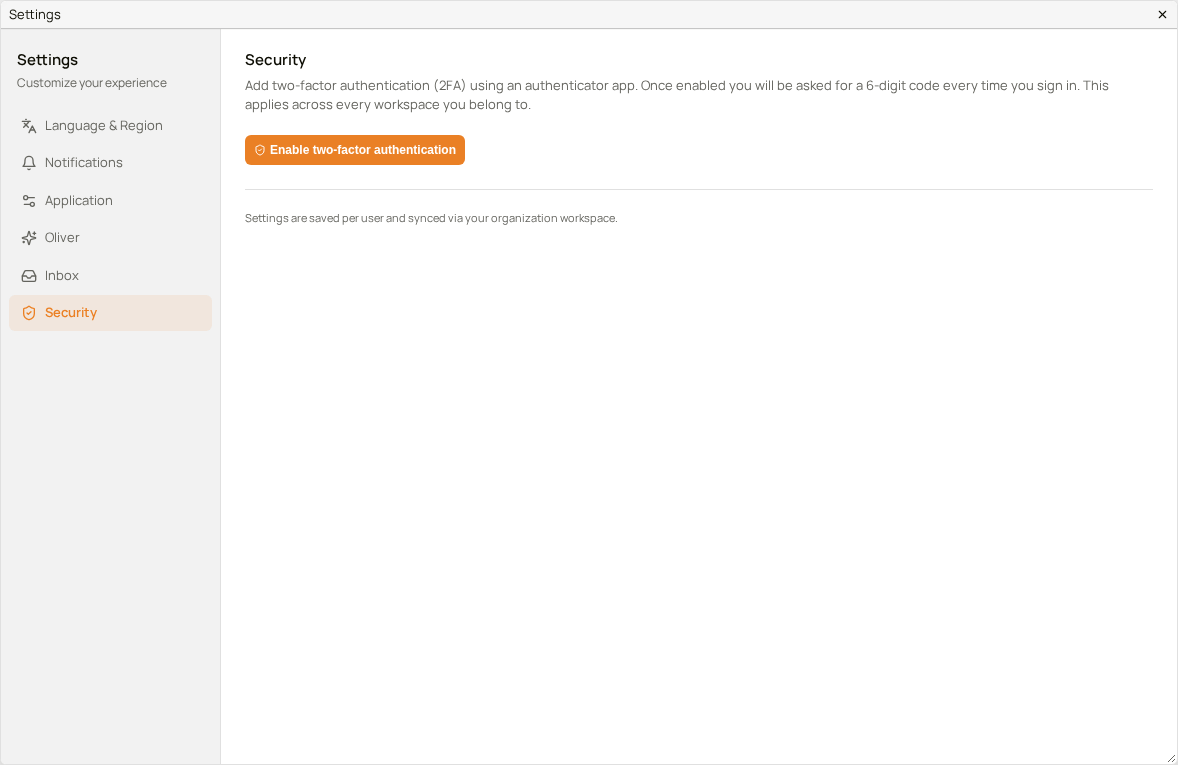 Security section
| Field | Description |
|---|---|
| Enable two-factor authentication | Starts 2FA enrolment via an authenticator app. Once enabled, a 6-digit code is required at sign-in, across every workspace you belong to. |
How to change what the Inbox shows
| Step | Description |
|---|---|
| 1 | Select your email address at the bottom of the expanded sidebar, then select Settings. |
| 2 | Select Inbox. |
| 3 | Choose a font size, and tick the workflow rows and document rows you want to see. |
| 4 | Click Save Inbox Settings. |