Getting Around Docwize
The sidebar on the left of the screen is how you move around Docwize. It stays in place on every page, so whichever module you are working in, you can jump to another one, open help, reach your settings, or come back to the homepage in one click.
What you can do from the sidebar
- Open any module you have access to, or return Home
- Jump straight to a section of Explorer, such as Folders or Tags
- Switch to another organisation you belong to
- Open help: tours, guides and this documentation
- Open tools such as PDF Fusion Studio
- See your notifications and your connection status
- Open your Settings, or log out
The sidebar
By default the sidebar is narrow and shows icons only. Select the toggle on its right-hand edge to expand it, so that each icon is shown with its name. Select the toggle again to collapse it.
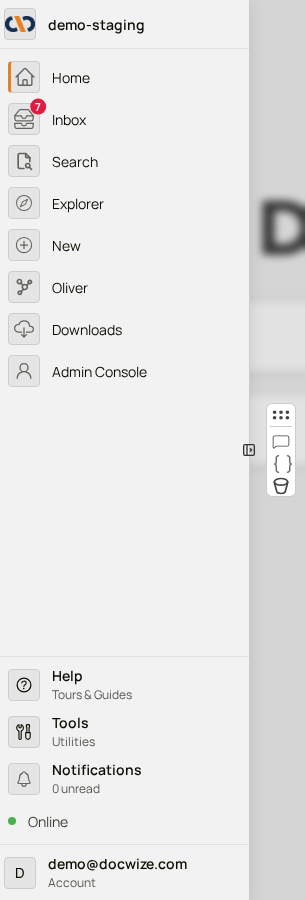 The expanded sidebar
| Item | Description |
|---|---|
| Organisation name | The organisation you are working in. Select it to see the other organisations you belong to (see below). |
| Home | Returns you to the homepage. |
| Modules | One entry for each module you have access to, such as Inbox, Search, Explorer and New. A number on an entry shows how many items are waiting for you there. |
| Help | Opens tours and guides, and this documentation. |
| Tools | Opens utilities such as PDF Fusion Studio. |
| Notifications | Opens your notifications and shows how many are unread. |
| Connection status | Shows whether your browser is connected to Docwize. It reads Online when everything is working, and briefly Connecting while the connection is re-established. |
| Account | Shows the email address you are signed in with. Select it to open your Settings or to log out. |
Note that the sidebar shows Inbox and Workflows as a single entry. Which one it opens depends on the Use Inbox V2 option in your Settings.
Going straight to a section of Explorer
When the sidebar is expanded, hovering over Explorer shows a list of its sections. Select one to open Explorer at that section, rather than opening Explorer and then choosing the section. The sections listed depend on your permissions.
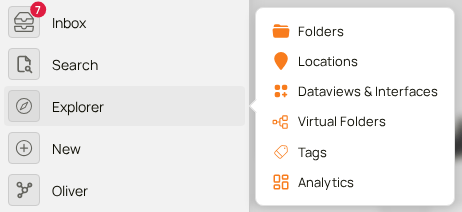 Explorer sections
Switching organisation
If you belong to more than one organisation, you can move between them without signing out. Switch when you need to work with another organisation's documents.
Select the organisation name at the top of the expanded sidebar. The list shows every organisation you belong to, with the one you are working in highlighted. Select another organisation to switch to it, and Docwize reloads in that organisation.
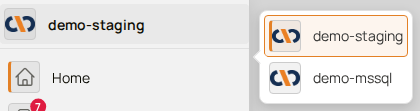 Switching organisation
Help
Help gathers the ways to learn Docwize in one place. Documentation opens this site. Tours and Guides lists the interactive tours that have been shared with you; if there are none, the list says so. If you are allowed to create tours for your colleagues, Create Tour and Manage All Tours also appear here.
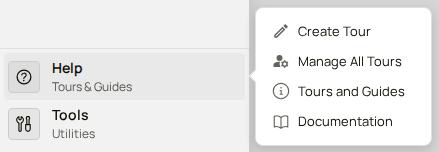 Help menu
Tools
Tools holds utilities that are not part of a module. Select PDF Fusion Studio to combine and assemble PDFs; see PDF Fusion Studio.
 Tools menu
Your account
Select your email address at the bottom of the expanded sidebar to open the account menu. Settings opens your personal Settings, such as the language Docwize is shown in, and Logout signs you out.
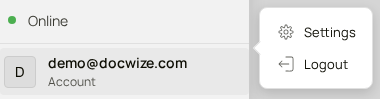 Account menu
How to open a module and return to the homepage
| Step | Description |
|---|---|
| 1 | On the homepage, select the module's tile, or select the module in the sidebar. |
| 2 | Work in the module. The sidebar stays on the left. |
| 3 | To move to another module, select it in the sidebar. |
| 4 | Select Home in the sidebar to return to the homepage. |
Example: Opening Explorer and Search, then returning to the homepage