User Settings
Users can customise aspects of their Docwize interface via the User Settings dialog. These settings control localisation, notification preferences, certain application behaviours, and how items are displayed in the Inbox.
What you can do in User Settings
- change language and region settings
- manage notification preferences
- control selected application behaviour
- customise how items appear in the Inbox
Settings are saved per user and synchronised via the organisation workspace.
The User Settings dialog is accessed by clicking on the user's initial in the bottom-left corner of the left-hand-side toolbar.
User Settings dialog sections
| Field | Description |
|---|---|
| Language & Region | Enables users to configure localisation settings such as interface language, timezone and date format. |
| Notifications | Allows users to control whether notifications are received and how they are delivered. |
| Application | Provides application behaviour settings that affect how certain features open or behave. |
| Inbox | Enables users to customise the display and information shown in the Inbox sidebar. |
Language & Region
The Language & Region section controls localisation settings used throughout the Docwize interface.
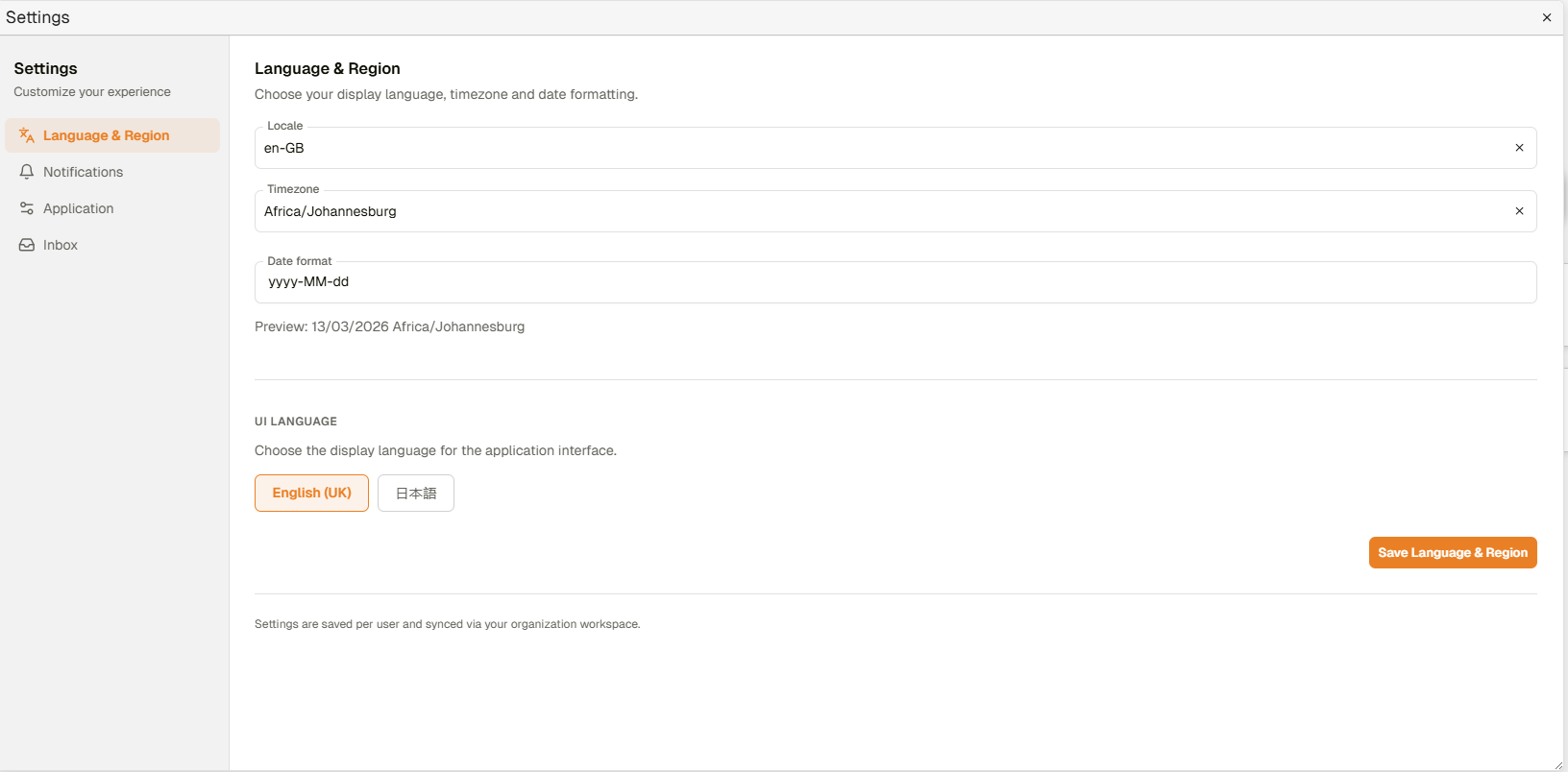 Language & Region section
| Field | Description |
|---|---|
| Locale | Defines the regional language and formatting conventions used by the application (for example en-GB). |
| Timezone | Specifies the timezone used to display timestamps within workflows, documents and notifications. |
| Date Format | Determines how dates appear throughout the user interface. A preview example is shown below the selected format. |
| UI Language | Allows the user to select the interface language used in Docwize (for example English (UK) or Japanese). |
Notifications
The Notifications section controls how users receive alerts related to workflows, documents, and other system activity.
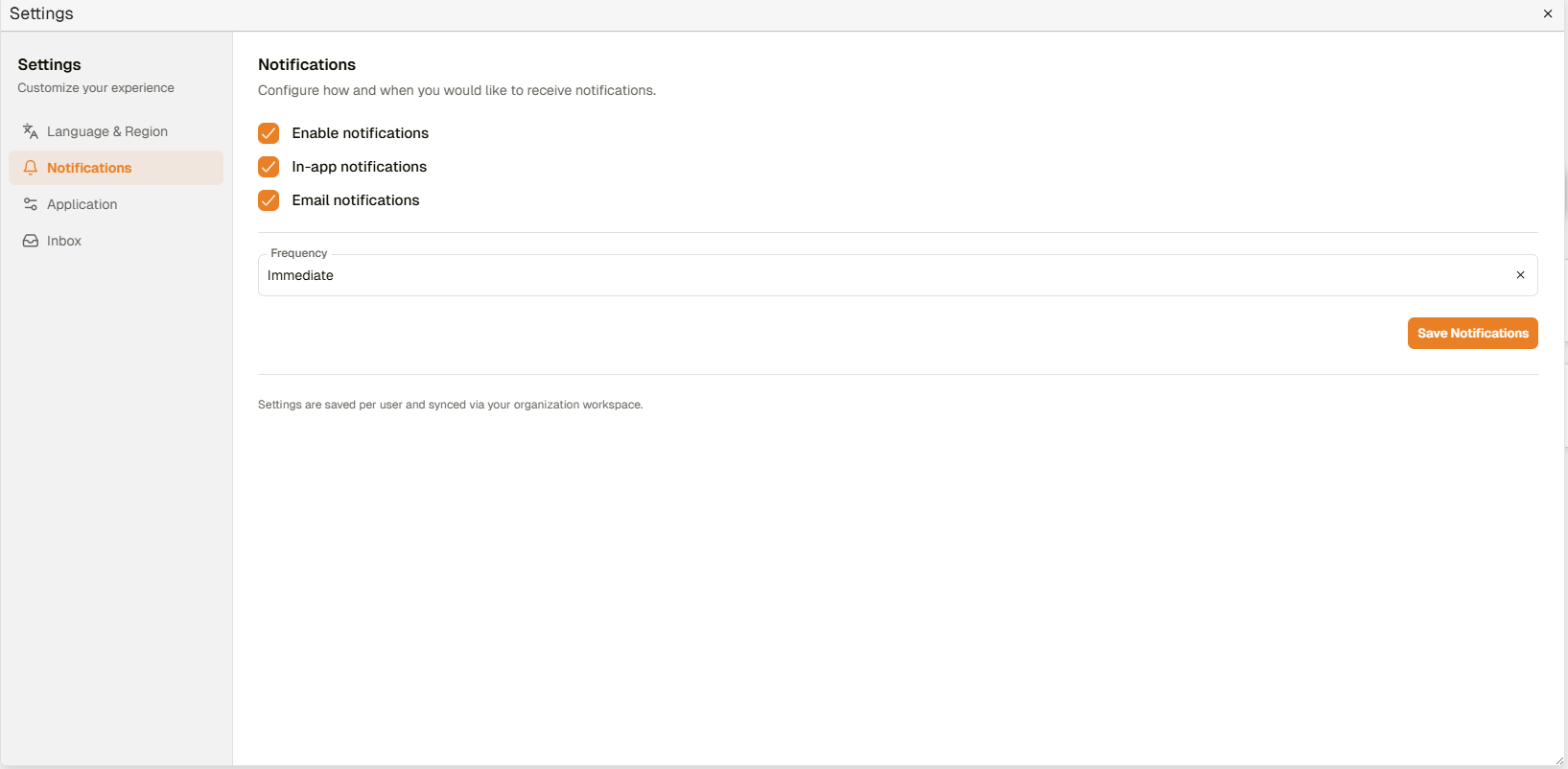 Notifications section
| Field | Description |
|---|---|
| Enable Notifications | Master switch that enables or disables Docwize notifications for the user. |
| In-app Notifications | Displays notifications directly inside the Docwize interface. |
| Email Notifications | Sends notification messages to the user’s registered email address. |
| Frequency | Determines how often notifications are delivered. For example, 'Immediate' delivers notifications as soon as an event occurs. |
Application
The Application section contains settings that control specific application behaviour.
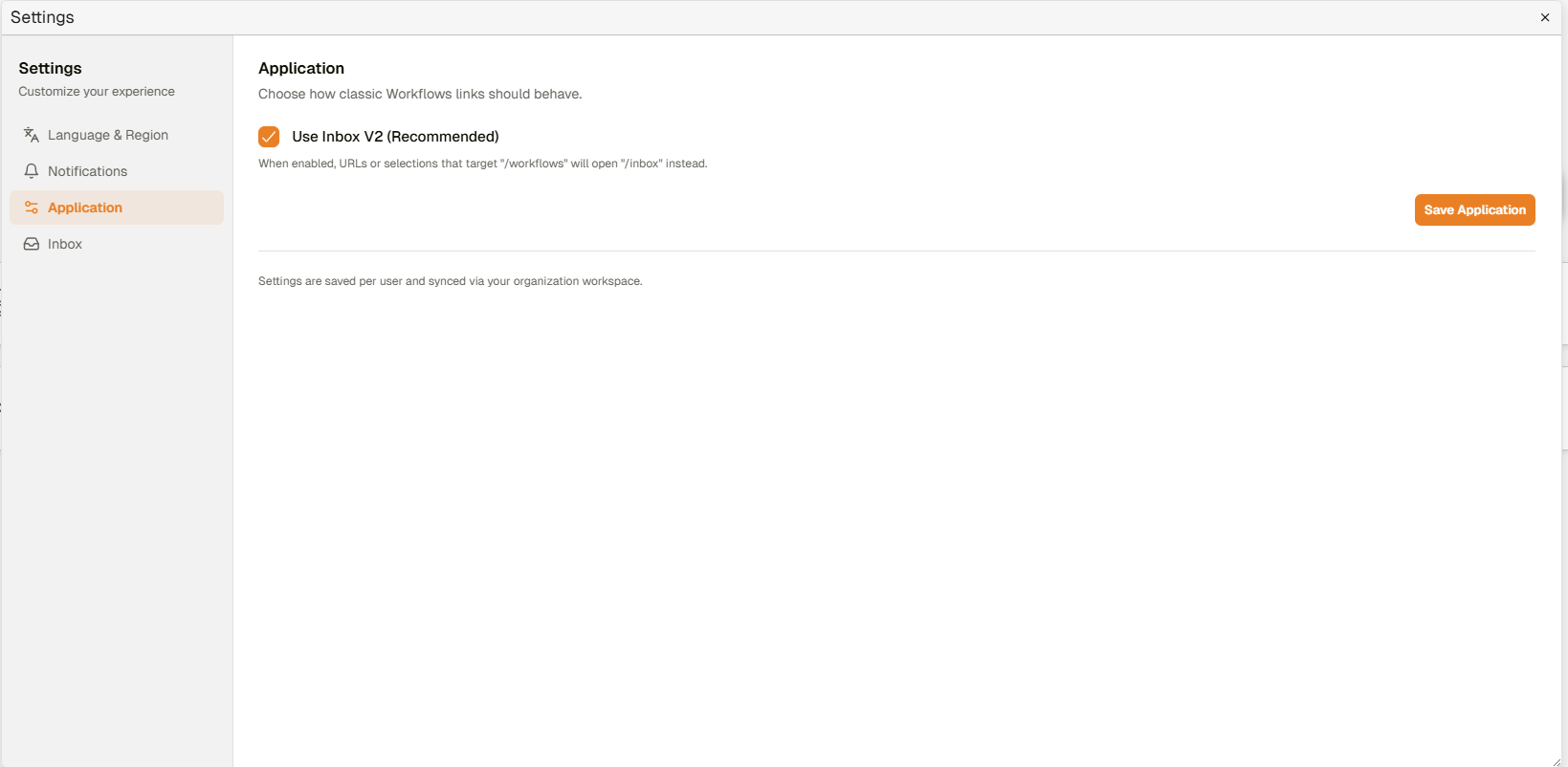 Application section
| Field | Description |
|---|---|
| Use Inbox V2 (Recommended) | When enabled, links or selections targeting workflows will open in the Inbox view instead of the legacy workflow interface. |
Inbox
The Inbox settings allow users to customise how items appear in the Inbox sidebar.
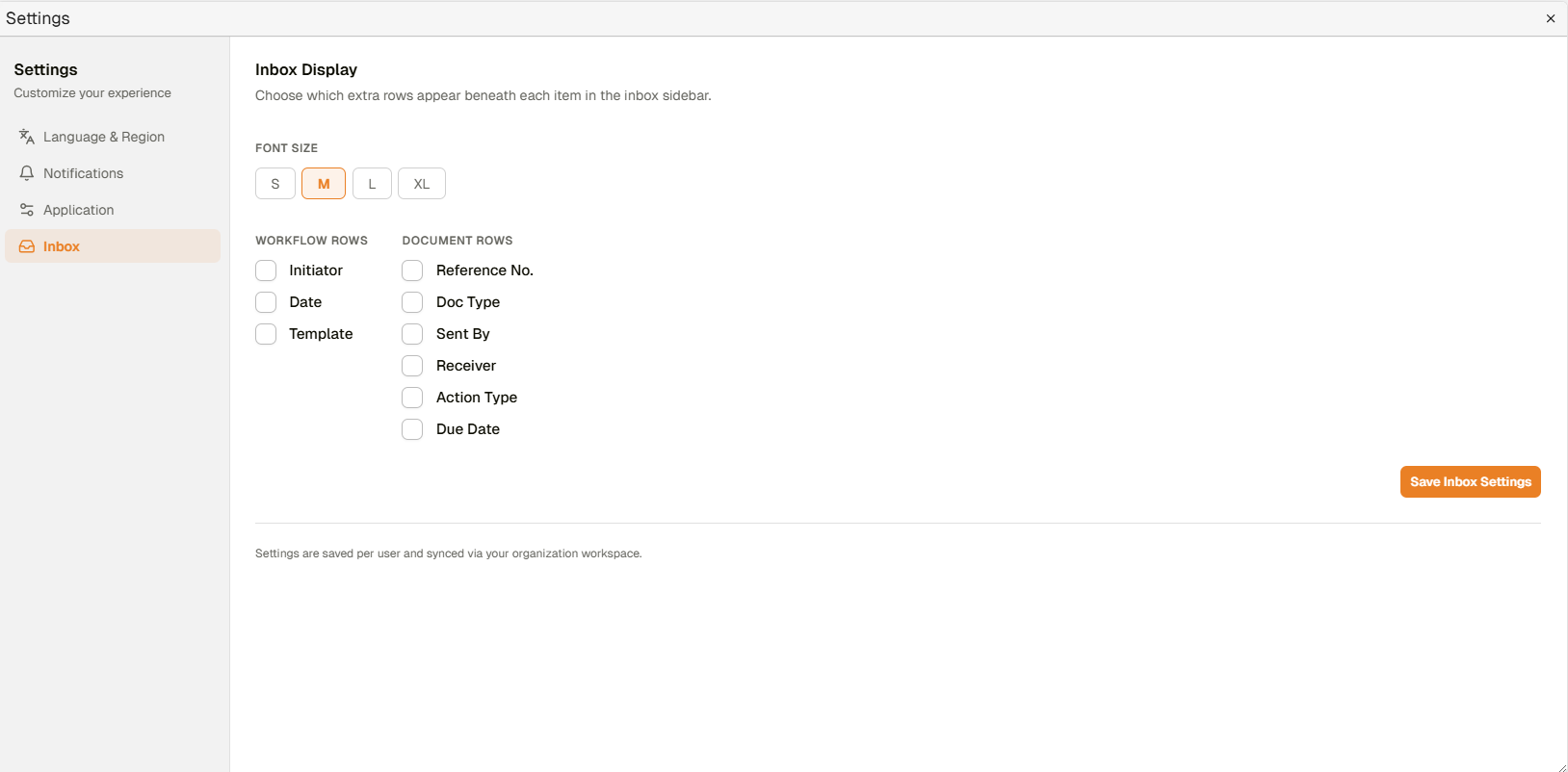 Inbox section
Font Size
| Field | Description |
|---|---|
| Font Size | Controls the display size of items shown in the Inbox list. Available options include S, M, L, and XL. |
Workflow Rows
These settings determine which workflow metadata fields appear beneath workflow items in the Inbox.
| Field | Description |
|---|---|
| Initiator | Displays the user who started the workflow. |
| Date | Displays the workflow creation or submission date. |
| Template | Displays the name of the workflow template used to create the workflow. |
Document Rows
These settings determine which document metadata fields appear beneath document items in the Inbox.
| Field | Description |
|---|---|
| Reference No. | Displays the document reference number. |
| Doc Type | Displays the document classification or type. |
| Sent By | Displays the user who sent the document. |
| Receiver | Displays the document recipient. |
| Action Type | Displays the type of action required for the document. |
| Due Date | Displays the deadline associated with the action request. |