Notifications
The Notifications panel is where users view incoming notifications, accessible from the bell icon in the left-hand sidebar.
The Notifications panel
Click the bell icon near the bottom of the left-hand sidebar to open the Notifications panel.
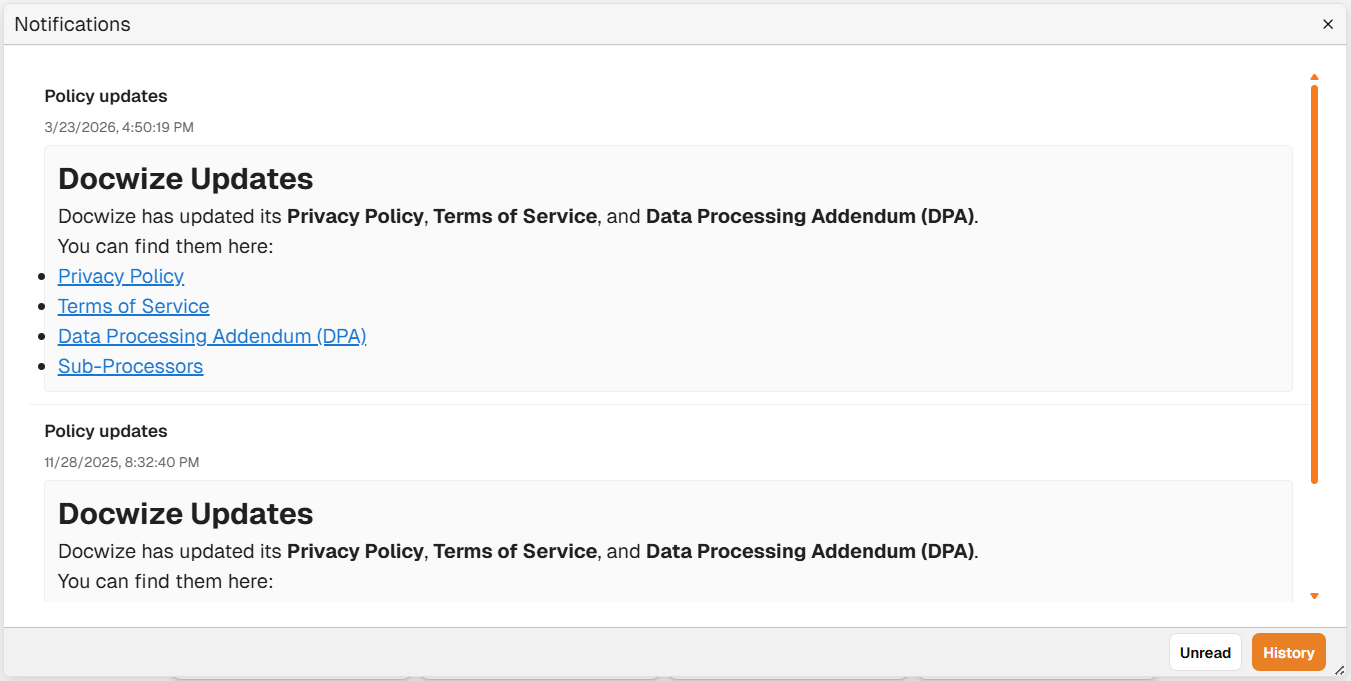
Example: the History tab showing past notifications. Your notifications will vary.
The panel has two tabs:
| Tab | What it shows |
|---|---|
| Unread | Notifications that have not yet been read. Shows "No unread notifications." when the queue is clear. |
| History | All past notifications in reverse chronological order, including those already read. |
Each notification shows:
| Element | Description |
|---|---|
| Category | The type of notification — for example, Policy updates. |
| Timestamp | The date and time the notification was sent. |
| Heading | A bold summary of the notification content. |
| Body | The full notification message, which may include links to relevant documents or resources. |
Download progress also appears in the Notifications panel when a download is running.
To configure how and when notifications are delivered, see the Notifications section of User Settings.